
MONSTER XKT21
MONSTER AIRMARS XKT21 True Wireless Bluetooth Earphone User Manual
Model: XKT21
1. Introduction
Thank you for choosing the MONSTER AIRMARS XKT21 True Wireless Bluetooth Earphones. This manual provides detailed instructions on how to set up, operate, and maintain your earphones to ensure optimal performance and longevity. Please read this manual carefully before using the product and keep it for future reference.

Image 1.1: The MONSTER AIRMARS XKT21 earphones removed from their charging case, showcasing their compact design.
The MONSTER AIRMARS XKT21 earphones are designed for comfort and high-quality audio, featuring a lightweight design, 10mm acoustic drivers for exceptional sound, and Bluetooth V5.3 for stable wireless connectivity up to 10 meters. They also incorporate noise isolation technology and are waterproof, making them suitable for various environments and activities. The included USB Type-C adapter facilitates convenient charging.
2. Safety Information
- Do not disassemble or modify the earphones. This may cause malfunction or damage and will void the warranty.
- Keep the earphones away from extreme temperatures, humidity, and corrosive substances.
- Avoid dropping or subjecting the earphones to strong impacts.
- Do not expose the charging case or earphones to water for extended periods, despite their waterproof rating. Dry them thoroughly if they get wet.
- Use only the provided charging cable or a certified USB Type-C cable for charging.
- Prolonged listening at high volume levels may cause hearing damage. Adjust the volume to a moderate level.
3. Package Contents
Please check the package contents upon opening. If any items are missing or damaged, contact your retailer.
- MONSTER AIRMARS XKT21 True Wireless Bluetooth Earphones (Left and Right)
- Charging Case
- USB Type-C Charging Cable
- User Manual (this document)

Image 3.1: The MONSTER AIRMARS XKT21 charging case with the earphones securely stored inside, featuring the integrated strap.
4. Setup
4.1 Charging the Earphones and Case
- Initial Charge: Before first use, fully charge the earphones and the charging case.
- Connect Cable: Insert the USB Type-C charging cable into the charging port on the case.
- Power Source: Connect the other end of the cable to a USB power adapter (not included) or a computer's USB port.
- Charging Indicator: The indicator light on the charging case will illuminate to show charging status. It will turn off or change color when fully charged.
- Earphone Charging: Place the earphones into the charging case. They will automatically begin charging. Ensure the charging contacts align.
4.2 Pairing with a Bluetooth Device
- Power On: Open the charging case. The earphones will automatically power on and enter pairing mode (indicated by flashing lights on the earphones).
- Activate Bluetooth: On your device (smartphone, tablet, computer), enable Bluetooth.
- Search for Devices: In your device's Bluetooth settings, search for available devices.
- Select "MONSTER XKT21": From the list of found devices, select "MONSTER XKT21" to connect.
- Connection Confirmation: Once successfully paired, the earphone indicator lights will stop flashing, and you may hear an audible confirmation.
- Automatic Reconnection: After initial pairing, the earphones will automatically connect to the last paired device when taken out of the case, provided Bluetooth is enabled on the device.
5. Operating Instructions
5.1 Wearing the Earphones
Gently insert the earphones into your ears, ensuring a comfortable and secure fit. The ear clip design helps to keep them in place during activity.
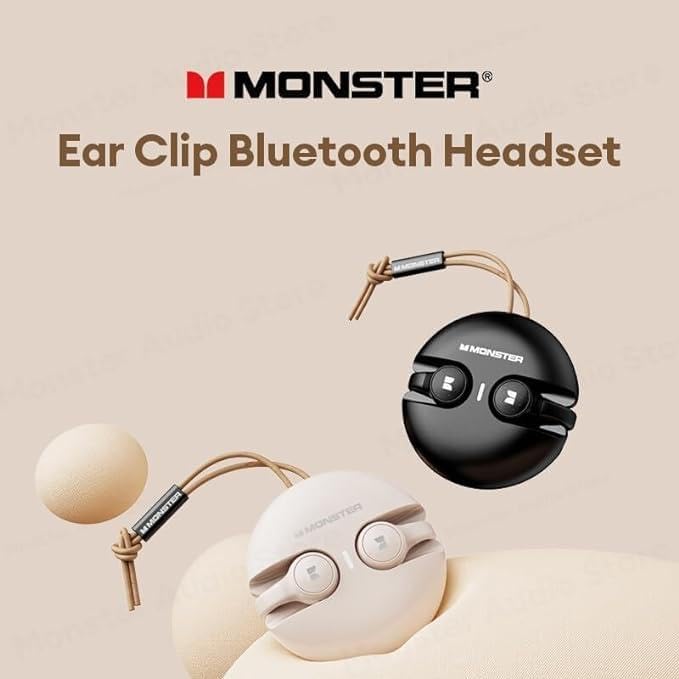
Image 5.1: The MONSTER AIRMARS XKT21 earphones demonstrating their ear clip design, which aids in secure placement.
5.2 Basic Controls
The MONSTER AIRMARS XKT21 earphones feature touch controls. The specific functions may vary slightly depending on your device and application.
| Action | Function |
|---|---|
| Single Tap (Left/Right) | Play/Pause Music, Answer/End Call |
| Double Tap (Right) | Next Track |
| Double Tap (Left) | Previous Track |
| Triple Tap (Left/Right) | Activate Voice Assistant (Siri, Google Assistant, etc.) |
| Long Press (2 seconds) | Reject Call |
| Long Press (5 seconds) | Power On/Off (when not in case) |
5.3 Call Functions
- Answering a Call: Single tap either earphone.
- Ending a Call: Single tap either earphone during a call.
- Rejecting a Call: Long press either earphone for 2 seconds when an incoming call rings.
5.4 Music Playback
- Play/Pause: Single tap either earphone.
- Next Track: Double tap the right earphone.
- Previous Track: Double tap the left earphone.
6. Maintenance
- Cleaning: Use a soft, dry, lint-free cloth to clean the earphones and charging case. Do not use abrasive cleaners or solvents.
- Charging Contacts: Periodically clean the charging contacts on both the earphones and the case with a dry cotton swab to ensure proper charging.
- Storage: When not in use, store the earphones in their charging case to protect them and keep them charged. Store in a cool, dry place.
- Water Exposure: While waterproof, avoid submerging the earphones. If they get wet, wipe them dry thoroughly before placing them back in the charging case or using them.
7. Troubleshooting
| Problem | Possible Cause / Solution |
|---|---|
| Earphones not powering on | Battery is low. Place earphones in the charging case and charge fully. |
| Cannot pair with device |
|
| Only one earphone working |
|
| No sound or low volume |
|
| Intermittent connection / audio drops |
|
8. Specifications
| Feature | Detail |
|---|---|
| Model Number | XKT21 |
| Bluetooth Version | V5.3 |
| Wireless Range | Up to 10 meters (33 feet) |
| Acoustic Driver Size | 10mm |
| Impedance | 320 Ohm |
| Earphone Type | In-Ear, Ear Clip |
| Color | Black |
| Waterproof Level | (Specific IP rating not provided, but described as "Waterproof") |
| Charging Port | USB Type-C |
| Weight (Headphones) | 147g (as per description, though this seems high for just headphones, likely includes case) |
| Manufacturer | Rofee |
| Country of Origin | China |
Note: Specifications are subject to change without prior notice.
9. Warranty and Support
This product is covered by a limited warranty provided by the manufacturer. Please refer to the warranty card included in your package for specific terms and conditions, including the warranty period and coverage details. Keep your purchase receipt as proof of purchase.
For technical support, troubleshooting assistance, or warranty claims, please contact your retailer or the manufacturer's customer service. Contact information can typically be found on the product packaging or the manufacturer's official website.
For extended warranty options, please refer to the information provided by your retailer or online marketplace, such as the 1-Year or 2-Year Extended Warranty by Salama Care available for this product.
Related documentsXKT21


Ask a question about this manual
Ask about setup, troubleshooting, compatibility, parts, safety, or missing instructions. Manuals+ will review the question and use this page’s manual context to help answer it.