
Introduction
Thank you for choosing the LIUWID 80GB Bluetooth 5.0 MP3/MP4 Player. This device is designed to provide a versatile multimedia experience, combining high-fidelity audio playback with clear video capabilities. Featuring a 4-inch HD touchscreen, Bluetooth 5.0 for stable wireless connections, and a robust 1000mAh battery, it is ideal for music, videos, e-books, and more. This manual provides detailed instructions for setup, operation, maintenance, and troubleshooting to ensure optimal performance and longevity of your device.
What's in the Box

Image: The LIUWID MP3/MP4 Player and its included accessories.
- LIUWID MP3/MP4 Player
- 64 GB Memory Card (pre-installed or separate)
- USB Cable (for charging and data transfer)
- Earphones
- User Manual (this document)
Product Overview

Image: Front view of the player with its main screen and accessories.
The LIUWID MP3/MP4 Player features a vibrant 4-inch HD touchscreen for intuitive navigation and media playback. The main screen displays various application icons for music, video, photos, e-books, recorder, Bluetooth, FM radio, stopwatch, calculator, settings, and calendar.

Image: Side view of the player showing controls and ports.
On the side of the device, you will find the Volume Up (+), Power ON/OFF, and Volume Down (-) buttons. The bottom edge includes two 3.5mm Headphone Jacks, a TF Card Slot for memory expansion, and a Type-C USB port for charging and data transfer. The device also features built-in speakers for direct audio output.
Setup
1. Charging the Device

Image: Charging the player and illustrating memory expansion.
Before first use, fully charge the player. Connect the included USB Type-C cable to the player's Type-C port and the other end to a USB power adapter (not included) or a computer's USB port. The charging time is approximately 2-2.5 hours. A full charge provides up to 70 hours of music playback or 5 hours of video playback.
2. Memory Expansion
The player comes with 16GB of built-in ROM and a 64GB TF (microSD) card. The memory can be expanded up to 256GB by inserting a compatible TF card into the TF Card Slot located on the bottom edge of the device. Ensure the card is inserted correctly until it clicks into place.
3. Powering On/Off
To power on the device, press and hold the Power ON/OFF button on the side until the screen lights up. To power off, press and hold the Power ON/OFF button again until the shutdown prompt appears, then confirm.
Operating Instructions
1. Music Playback
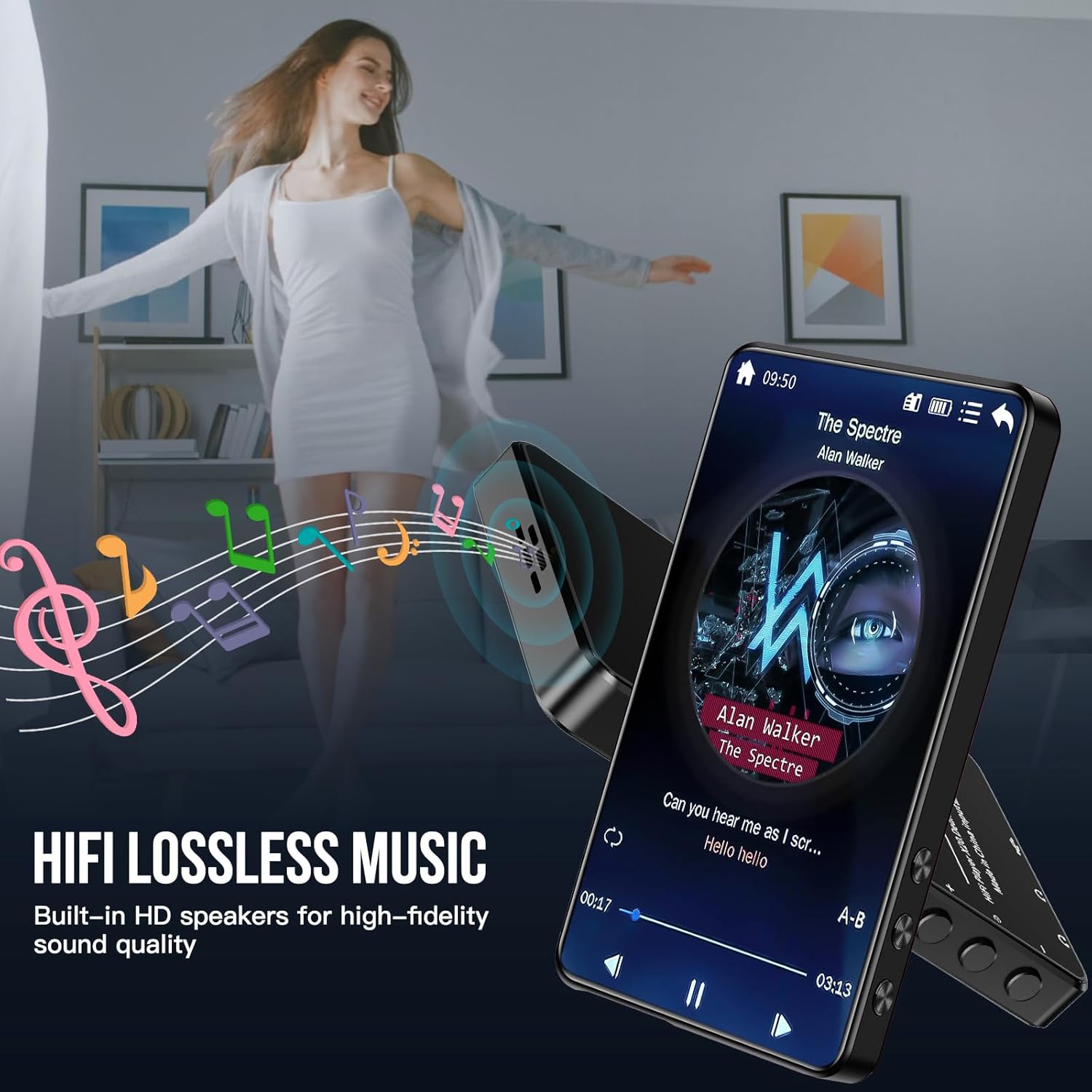
Image: Music playback interface and HIFI Lossless Music feature.
Tap the "Music" icon on the home screen. You can browse your music by artist, album, genre, or folder. The player supports various audio formats including MP3, WMA, WAV, OGG, FLAC, AAC-LC, APE, and ACELP. Adjust volume using the side buttons.
2. Video Playback

Image: Video playback on the 4-inch HD touchscreen.
Tap the "Video" icon. The player supports 720P and 1080P HD video playback and is compatible with formats such as RM, RMVB, FLV, MP4, DAT, MKV, MPG, MOV, MPEG, AVI, VOB, ASF, and 3GP.
3. Bluetooth Connectivity

Image: Bluetooth 5.0 connectivity with headphones and speakers.
Tap the "Bluetooth" icon. Turn on Bluetooth on the player and your desired device (headphones, speaker, etc.). Select your device from the list of available devices to pair. Bluetooth 5.0 ensures a faster and more stable connection with improved transmission efficiency and range compared to older versions.
4. FM Radio

Image: FM Radio interface.
Tap the "FM Radio" icon. You may need to connect wired earphones as they often act as an antenna for better reception. Scan for available stations or manually tune to a frequency.
5. Voice Recorder

Image: Voice recording interface.
Tap the "Recorder" icon to access the voice recording function. You can record audio using the built-in microphone.
6. E-book Reader

Image: E-book reading interface.
Tap the "E-book" icon to read text files. Transfer your e-book files to the device's storage.
7. Other Functions
The player also includes additional useful functions such as a stopwatch, calculator, calendar, and alarm clock. Access these by tapping their respective icons on the home screen.

Alarm Clock

1080P HD Video Support
Maintenance
- Cleaning: Use a soft, dry, lint-free cloth to clean the screen and body of the player. Avoid using abrasive cleaners or solvents.
- Battery Care: To prolong battery life, avoid fully discharging the battery frequently. Charge the device regularly, even if not in use for extended periods. Store in a cool, dry place.
- Storage: When not in use, store the player in a protective case to prevent scratches and damage. Avoid exposing the device to extreme temperatures, direct sunlight, or high humidity.
- Software Updates: Check the manufacturer's website periodically for any available firmware updates to ensure optimal performance and new features.
Troubleshooting
| Problem | Possible Cause / Solution |
|---|---|
| Device does not turn on. | Battery might be depleted. Connect the player to a charger and allow it to charge for at least 15 minutes before attempting to power on again. |
| Bluetooth connection issues. | Ensure both the player and the Bluetooth device are in pairing mode and within range. Try unpairing and re-pairing the devices. Restarting both devices can also resolve connectivity issues. |
| Poor audio quality or no sound. | Check the volume level on the player and connected audio device. Ensure earphones/headphones are properly plugged in or Bluetooth is connected. Test with different audio files or earphones. |
| Touchscreen is unresponsive or slow. | Restart the device. Ensure the screen is clean and free of debris. If the issue persists, a factory reset might be necessary (back up data first). |
| Video playback is choppy or lags. | Ensure the video file format is supported. Large or high-bitrate video files may require more processing power; try a lower resolution version if available. |
| Buttons (Power/Volume) are unresponsive. | Try restarting the device. If physical buttons are stuck or damaged, contact customer support. |
Specifications
| Feature | Detail |
|---|---|
| Brand | LIUWID |
| Model | MP4 |
| Digital Memory Capacity | 80 GB (internal) |
| Expandable Memory | Up to 256 GB (via TF card) |
| Screen Size | 4.0 Inches |
| Bluetooth Version | Bluetooth 5.0 |
| Battery Capacity | 1000 mAh Lithium Battery |
| Music Playback Time | Up to 70 hours |
| Video Playback Time | Up to 5 hours |
| Supported Audio Formats | MP3, WMA, WAV, OGG, FLAC, AAC-LC, APE, ACELP |
| Supported Video Formats | RM, RMVB, FLV, MP4, DAT, MKV, MPG, MOV, MPEG, AVI, VOB, ASF, 3GP |
| Dimensions | 12.9 x 7.6 x 3.7 cm |
| Weight | 220 grams |
| Additional Features | FM Radio, Voice Recorder, E-book Reader, Alarm Clock, Stopwatch, Calculator |
Warranty and Support
For warranty information and technical support, please refer to the contact details provided with your purchase or visit the official LIUWID website. Keep your proof of purchase for any warranty claims.
If you encounter any issues not covered in the troubleshooting section, or require further assistance, please contact LIUWID customer service.