
1. Introduction
This manual provides detailed instructions for the installation, setup, operation, and maintenance of your Podofo Autoradio for Ford Fiesta models from 2012 to 2015. Please read this manual thoroughly before using the product to ensure proper functionality and safety. Keep this manual for future reference.
2. Product Overview
The Podofo Autoradio is an advanced 9-inch car multimedia system designed specifically for Ford Fiesta vehicles manufactured between 2012 and 2015. It features a responsive touchscreen and runs on the Android 13 operating system, offering a wide range of functionalities to enhance your driving experience.
Key Features:
- Operating System: Android 13 with a 4-core processor.
- Memory & Storage: 2GB RAM + 64GB ROM for smooth performance and ample storage.
- Display: 9-inch HD capacitive touchscreen (1024x600 resolution).
- Connectivity: Wireless Carplay and Wireless Android Auto for seamless smartphone integration.
- Navigation: Built-in GPS for online and offline map navigation.
- Wireless: Integrated WiFi for internet access via mobile hotspots.
- Audio: FM/RDS radio, Bluetooth 4.0 for hands-free calling and music streaming, Hi-Fi sound quality, 16-band EQ settings, subwoofer output.
- Additional Features: Support for HD backup camera input, Mirror Link for screen mirroring, and original steering wheel control compatibility.

Image: Overview of the Podofo Autoradio's Android 13 system, highlighting the 4-core processor, 2GB RAM, and 64GB ROM. It also shows compatibility with Ford Fiesta models from 2012 to 2015.
3. Package Contents
Please verify that all items listed below are included in your package. If any items are missing or damaged, contact customer support.
- Podofo Autoradio Main Unit
- GPS Antenna
- USB Cables (multiple)
- RCA Cable
- Rear Camera Input Cable
- Antenna Head
- Emergency Light Line
- Accessories (various mounting hardware)
- Power Cable
- Adapter Cable
- Radio Antenna
- Original USB Cable
- Canbus (if required for your vehicle model)
- Backup Camera
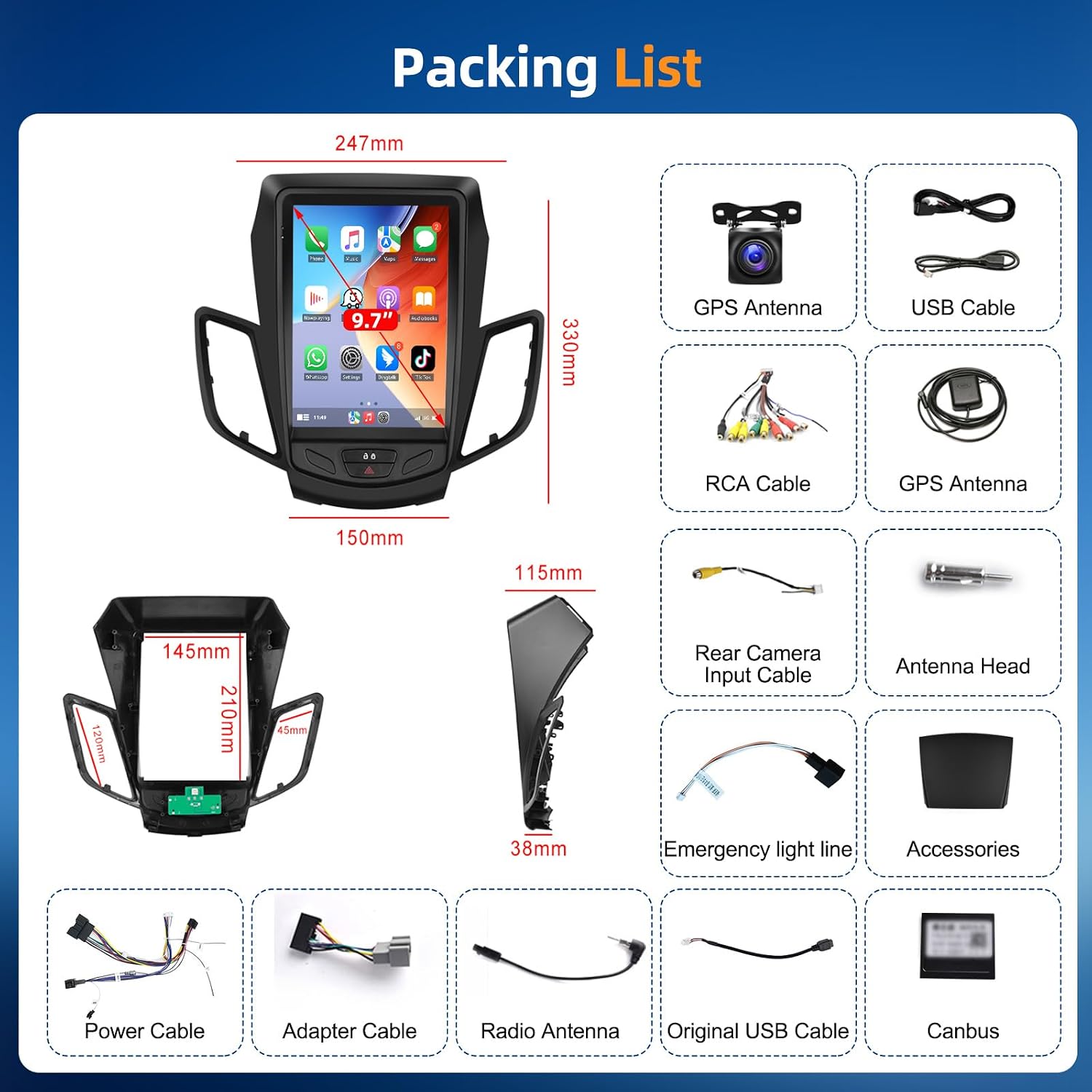
Image: A visual representation of all components included in the Podofo Autoradio package, such as the main unit, various cables, antennas, and the backup camera.
4. Installation
Installation of the Podofo Autoradio requires basic automotive electrical knowledge. If you are unsure about any steps, it is highly recommended to seek professional installation to avoid damage to the unit or your vehicle.
General Wiring Instructions:
- Disconnect Battery: Before starting, disconnect the vehicle's negative battery terminal to prevent electrical shorts.
- Remove Old Radio: Carefully remove your existing car radio and trim panels.
- Power Connections: Connect the main power cable (ACC, B+, GND) from the new unit to your vehicle's wiring harness. Ensure correct polarity.
- Speaker Connections: Connect the speaker wires (FL+, FL-, FR+, FR-, RL+, RL-, RR+, RR-) to the corresponding vehicle speaker wires.
- GPS Antenna: Mount the GPS antenna in a location with a clear view of the sky, typically on the dashboard or under the windshield. Connect it to the GPS input on the unit.
- USB Cables: Route the USB extension cables to a convenient location, such as the glove compartment or center console.
- Rear Camera: Connect the rear camera input cable to the unit. Install the backup camera at the rear of the vehicle and connect its power to the reverse light circuit.
- Steering Wheel Control (SWC): Connect the SWC wires (KEY1, KEY2) to your vehicle's steering wheel control wires. Configuration will be done in the settings menu.
- Canbus (if applicable): If your vehicle requires a Canbus decoder, connect it as per the wiring diagram.
- Test Connections: Before fully reassembling, reconnect the battery and perform a quick test of basic functions (power, sound, display).
- Secure Unit: Mount the Podofo Autoradio securely into the dashboard opening and reattach all trim panels.

Image: Detailed wiring diagram for the Podofo Autoradio, showing connections for power, speakers, GPS antenna, USB, rear camera, and steering wheel controls.
5. Initial Setup
After successful installation, follow these steps for initial setup:
- Power On: Turn on your vehicle's ignition. The unit should power on automatically.
- Language and Time: Navigate to Settings > System > Languages & input to set your preferred language. Adjust the date and time under Settings > System > Date & time.
- WiFi Connection: Go to Settings > Network & internet > Wi-Fi. Turn on Wi-Fi and connect to your mobile hotspot or a local Wi-Fi network.
- GPS Configuration: Ensure the GPS antenna is properly connected. The unit should automatically detect satellites. You can download or update maps via the pre-installed navigation app or Google Play Store.
- Steering Wheel Control Learning: Access Settings > Car settings > Steering wheel learning. Follow the on-screen prompts to assign functions to your vehicle's steering wheel buttons.
- Sound Settings: Adjust equalizer settings, balance, and fader under the sound or EQ application to customize your audio experience.
6. Operating Instructions
6.1. Wireless Carplay & Android Auto
This unit supports both wireless Carplay for iOS devices and wireless Android Auto for Android devices, allowing you to access phone features safely while driving.
- Enable Bluetooth & Wi-Fi: On your smartphone, ensure Bluetooth and Wi-Fi are enabled.
- Pair Device: On the autoradio, open the Carplay or Android Auto application. Follow the instructions to pair your phone via Bluetooth.
- Connect: Once paired, the system will automatically connect via Wi-Fi for Carplay/Android Auto functionality. You can now use voice control, navigation, music, and other compatible apps directly from the car's display.
6.2. GPS Navigation
The built-in GPS module provides accurate navigation. Open the pre-installed navigation app (e.g., Google Maps, Waze) or any other navigation app downloaded from the Play Store.
- Online Navigation: Requires an active internet connection (via Wi-Fi hotspot) to access real-time traffic data and map updates.
- Offline Navigation: Download maps for your desired regions in advance to use navigation without an internet connection.
6.3. FM/RDS Radio
Access the Radio application to listen to FM broadcasts. The RDS (Radio Data System) feature displays station information, song titles, and other data where available.
- Auto Scan: Use the auto-scan function to find and save available radio stations.
- Manual Tuning: Manually tune to specific frequencies.
- Presets: Save your favorite stations to preset buttons for quick access.
6.4. Bluetooth
The Bluetooth 4.0 module enables hands-free calling and audio streaming.
- Pairing: On your phone, search for Bluetooth devices and select the unit's name (e.g., "Podofo Car BT"). Enter the PIN (usually 0000) if prompted.
- Hands-Free Calling: Once paired, you can make and receive calls directly from the unit's interface. The phonebook can be automatically synchronized.
- Music Streaming: Play audio from your phone through the car's speakers via Bluetooth A2DP.
6.5. Backup Camera
When the vehicle is shifted into reverse gear, the unit automatically displays the feed from the connected HD backup camera, assisting with parking and maneuvering.
6.6. Mirror Link & Split Screen
Mirror Link: Connect your smartphone via USB to mirror its screen onto the autoradio display. This allows you to view your phone's content on the larger screen.
Split Screen: The Android 13 system supports split-screen functionality, allowing you to run two applications simultaneously (e.g., navigation on one side and music on the other).

Image: Demonstrates the Wireless Carplay, Android Auto, and Mirror Link functionalities, showing smartphone interfaces displayed on the car radio screen.

Image: Illustrates the built-in GPS navigation system, showing a map interface on the car radio screen with navigation icons.

Image: A collage showing various features: professional EQ settings, FM/RDS radio interface, Bluetooth connectivity for calls, and the view from the HD backup camera.

Image: Displays support for video output to external screens, split-screen multitasking, and integration with original car functions like steering wheel controls.
7. Maintenance
Proper maintenance ensures the longevity and optimal performance of your Podofo Autoradio.
- Cleaning the Screen: Use a soft, lint-free cloth specifically designed for electronic screens. Do not use abrasive cleaners or solvents.
- Software Updates: Periodically check for system updates via the unit's settings or the manufacturer's website to ensure you have the latest features and security patches.
- Avoid Extreme Temperatures: Do not expose the unit to extreme heat or cold, as this can affect its performance and lifespan.
- Protect from Moisture: Keep the unit dry and away from liquids.
8. Troubleshooting
If you encounter issues with your Podofo Autoradio, refer to the following common problems and solutions:
| Problem | Possible Cause | Solution |
|---|---|---|
| Unit does not power on. | Incorrect wiring (ACC, B+, GND), blown fuse, vehicle battery issue. | Check all power connections. Verify the fuse in the unit and vehicle. Ensure battery is charged. |
| No sound from speakers. | Incorrect speaker wiring, volume too low, mute function active, amplifier issue. | Check speaker connections. Increase volume. Disable mute. Verify amplifier (if external). |
| GPS not working or inaccurate. | GPS antenna not connected or poorly positioned, outdated maps, no internet for online maps. | Ensure GPS antenna is securely connected and has a clear view of the sky. Update maps. Connect to Wi-Fi for online services. |
| Bluetooth connection issues. | Phone not discoverable, incorrect pairing, interference. | Ensure Bluetooth is enabled on both devices. Delete previous pairings and re-pair. Move phone closer to the unit. |
| Carplay/Android Auto not connecting. | Bluetooth/Wi-Fi issues, phone compatibility, app not running. | Verify Bluetooth and Wi-Fi are active and connected. Ensure your phone's OS is compatible. Restart phone and unit. |
| Steering wheel controls not working. | Incorrect wiring, not configured in settings. | Check SWC wiring. Perform steering wheel learning in the unit's settings. |
If the problem persists after trying these solutions, please contact Podofo customer support for further assistance.
9. Specifications
Below are the technical specifications for the Podofo Autoradio:
- Operating System: Android 13
- Chipset: 4-core processor (8227L-DEMO)
- RAM: 2GB
- ROM: 64GB
- Screen Size: 9 inches
- Screen Resolution: 1024 x 600 (from description) / 1920 x 1080 (scanner resolution, likely for video playback)
- Display Type: Capacitive Touchscreen, LCD
- Radio Chip: MT6625
- Bluetooth Version: 4.0
- Wi-Fi: Supported (Protocol: Wi-Fi)
- GPS: Built-in (Supported Satellite Navigation System: GPS)
- Connectivity: Wireless Carplay, Wireless Android Auto, Mirror Link
- Audio Output Mode: Stereo
- Compatible Vehicle Type: Ford Fiesta (2012-2015)
- Control Method: Touchscreen, Voice, Steering Wheel Control
- Included Components: Backup Camera
- Product Dimensions: 41.79 x 36.5 x 19.4 cm; 2.54 kilograms (Package Dimensions)
10. Warranty and Support
Podofo products typically come with a standard manufacturer's warranty. Please refer to the warranty card included in your package or visit the official Podofo website for specific warranty terms and conditions.
For technical support, troubleshooting assistance, or warranty claims, please contact Podofo customer service through their official website or the contact information provided with your purchase. Have your product model and purchase details ready when contacting support.


