
Introduction
Welcome to your new Luqeeg 3-Lens Outdoor WiFi Security Camera. This manual provides detailed instructions for installation, operation, and maintenance to ensure optimal performance and security for your property.
This advanced surveillance camera features a unique three-lens system for comprehensive coverage, IP66 weather resistance, intelligent motion detection, and enhanced night vision capabilities. Please read this manual thoroughly before use and retain it for future reference.
Package Contents
Please verify that all items are present in your package:

Image description: The Luqeeg 3-Lens Outdoor WiFi Security Camera, power adapter, mounting screws, and waterproof connector.
- Luqeeg 3-Lens Outdoor WiFi Security Camera
- Power Adapter (US Plug, 110-240V)
- Mounting Screws and Wall Plugs
- Waterproof Connector Kit
- User Manual (this document)
Setup Guide
1. Physical Installation
Choose a suitable outdoor location for mounting the camera, ensuring a clear view of the area you wish to monitor and within range of your WiFi network. Use the provided mounting screws and wall plugs to securely attach the camera to a wall or ceiling.
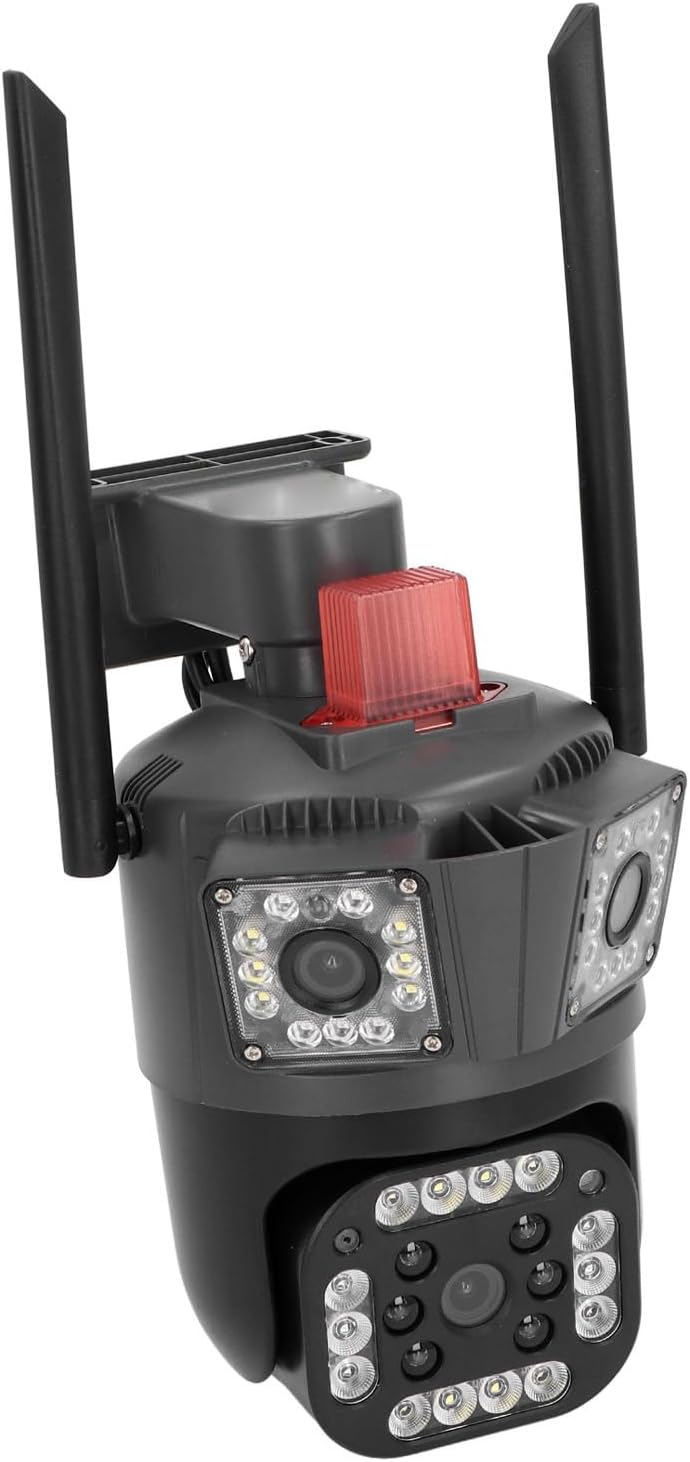
Image description: An example of the Luqeeg 3-Lens Outdoor WiFi Security Camera mounted on an exterior wall, providing a wide view of a property.
2. Power Connection
Connect the provided power adapter to the camera's power input port. Ensure the connection is secure and protected from moisture using the waterproof connector kit if necessary. Plug the power adapter into a standard 110-240V electrical outlet. The camera will power on automatically.
3. Memory Card Installation (Optional)
For local video storage, insert a Micro SD card (up to 128GB, not included) into the designated card slot on the camera. Ensure the camera is powered off before inserting or removing the card. The card slot is typically located under a protective cover. Refer to the diagram below for location.

Image description: A close-up view of the camera's lower lens and surrounding LED lights, indicating the general area where a Micro SD card slot might be located under a protective cover.
4. Network Connection (WiFi/Wired)
Your camera supports both WiFi and wired network connections.
WiFi Connection:
Download the dedicated mobile application (e.g., search for 'iCSee' or similar on your smartphone's app store). Follow the in-app instructions to add your camera. This typically involves scanning a QR code on the camera or connecting to a temporary WiFi hotspot created by the camera.
Wired Connection:
Connect an Ethernet cable from your router to the camera's Ethernet port. The camera will automatically establish a wired network connection.
Operating Instructions
1. Live View and Multi-Lens Display
Open the mobile application to access the live feed from your camera. The unique 3-lens system allows you to view three different angles simultaneously on a single screen, providing comprehensive surveillance.

Image description: A graphical representation showing the three distinct fields of view from the camera's lenses displayed on a single screen, covering a wide area around a house.
2. Pan and Tilt Control
The lower lens of the camera supports remote pan (horizontal) and tilt (vertical) adjustments. Use the controls within the mobile app to rotate the camera 355 degrees horizontally and 90 degrees vertically to adjust your viewing angle. The upper lenses have a fixed viewing angle.
3. Two-Way Audio
The camera features a built-in microphone and speaker for two-way audio communication. Use the intercom function in the app to speak to visitors or deter intruders.
4. Night Vision
The camera automatically switches to night vision mode in low-light conditions. Equipped with high-brightness LED lights, it provides clear full-color night vision for enhanced visibility after dark.
5. Motion Detection and Alerts
The camera's intelligent motion detection system identifies movement within its field of view. When motion is detected, the camera can trigger a light and sound alarm and send instant alerts to your mobile phone. You can customize motion detection zones and sensitivity settings within the app.

Image description: A visual representation of the camera detecting and tracking a person, highlighting the motion detection zone and automatic rotation tracking feature.
6. Multi-User Sharing
Share access to your camera's live feed and recordings with up to 5 authorized users through the mobile application, allowing multiple family members or trusted individuals to monitor the property.
Maintenance
- Cleaning: Regularly wipe the camera lenses and housing with a soft, damp cloth to remove dust and dirt. Do not use harsh chemicals or abrasive materials, as they may damage the camera's finish or lenses.
- Firmware Updates: Check the mobile application periodically for available firmware updates. Installing updates ensures optimal performance, security, and access to new features.
- Storage Management: If using a Micro SD card, regularly review and back up important recordings to another device. Format the card periodically (e.g., monthly) through the app to maintain recording performance and prevent data corruption.
Troubleshooting
| Problem | Possible Cause | Solution |
|---|---|---|
| Camera not powering on | No power supply | Check power adapter connection and electrical outlet. Ensure voltage is 110-240V. |
| Cannot connect to WiFi | Incorrect WiFi password, camera too far from router, or network interference | Verify WiFi password. Move camera closer to router or use a WiFi extender. Ensure 2.4GHz WiFi is used. |
| Poor image quality | Dirty lens, low light, or network bandwidth | Clean the camera lenses. Ensure adequate lighting for optimal image. Check internet connection speed. |
| Motion detection not working | Incorrect settings, detection zone not configured | Review motion detection settings in the app. Adjust sensitivity and detection zones. |
| Two-way audio issues | Microphone/speaker blocked, app volume low | Ensure nothing is obstructing the microphone or speaker. Check volume settings in the app and on your phone. |
For further assistance, please refer to the in-app help section or contact customer support.
Specifications
- Model: Luqeeggz872qrpme-11
- Material: ABS Engineering Plastic
- Voltage: 110-240 V
- Network Connectivity: WiFi / Wired Ethernet
- Pixels: 5 MP
- Resolution: 2960*1655
- Image Sensor: CMOS
- Horizontal Clarity: 3K
- Lens: 3.6 mm (3 lenses)
- Pan/Tilt: Lower lens: 355° Horizontal, 90° Vertical (Upper lenses fixed)
- Night Vision: Dual-light Full Color (High-brightness LED)
- Waterproof Rating: IP66
- Storage: Cloud Storage, Local Micro SD Card (up to 128GB, not included)
- Audio: Two-way Intercom
- Mounting Type: Wall Mount
- Package Dimensions: 25 x 19 x 16 cm; 830 g
Safety Information
- Ensure the camera is installed securely to prevent falling.
- Use only the provided power adapter.
- Do not expose the camera to extreme temperatures outside its operating range.
- Keep out of reach of children.
- Do not attempt to disassemble or repair the camera yourself. Contact qualified personnel for service.
Warranty and Support
For warranty information and technical support, please refer to the contact details provided with your purchase or visit the official Luqeeg website. Please have your model number (Luqeeggz872qrpme-11) ready when contacting support.