
1. Product Overview
The NETGEAR Nighthawk CM2500 is a DOCSIS 3.1 mid/high-split cable modem designed for high-speed internet services. This modem supports advanced DOCSIS 3.1 technology, enabling faster download and upload speeds for various online activities. It is compatible with major U.S. cable internet service providers, including Xfinity, Spectrum, and Cox.
The CM2500 is engineered to support internet plans with download speeds up to 2 Gbps (with link aggregation) and upload speeds up to 1 Gbps. This capability is beneficial for demanding applications such as online gaming, video conferencing, and streaming high-definition content.

Figure 1: Front view of the NETGEAR Nighthawk CM2500 modem, highlighting its DOCSIS 3.1 mid/high-split capabilities and maximum download/upload speeds.
2. What's in the Box
Verify that all items are present in your package:
- Nighthawk Mid/High-Split 2Gbps Internet Speed Cable Modem (CM2500)
- One (1) Ethernet cable
- Quick start guide
- Power adapter
3. Setup Instructions
Follow these steps to set up your NETGEAR Nighthawk CM2500 cable modem:
- Connect the Coaxial Cable: Connect a coaxial cable from the cable wall outlet to the Cable port on the modem. Ensure the connection is secure.
- Connect the Ethernet Cable: Connect one end of the provided Ethernet cable to the Multi-Gig (2.5G/1G) Ethernet port on the modem and the other end to the WAN or Internet port on your WiFi router. If your router supports link aggregation, you can connect the second 1G Ethernet port on the modem to another LAN port on your router for combined speeds.
- Connect the Power Adapter: Plug the power adapter into the modem's power port and then into an electrical outlet. The modem's LED lights will illuminate as it powers on.
- Wait for Online Status: Allow several minutes for the modem to connect to your internet service provider's network. The Internet LED on the modem should turn solid white, indicating a successful connection.
- Activate Your Internet Service: Contact your internet service provider (ISP) to activate your service. You will typically need to provide your modem's MAC address, which is located on a label on the modem.

Figure 2: Visual guide for connecting the CM2500 cable modem to a WiFi router and power source.
4. Operating Instructions
Once your modem is set up and activated, it operates automatically to provide internet connectivity. The LED indicators on the front panel provide status information:
- Power LED: Indicates if the modem is powered on.
- Downstream LED: Indicates downstream channel bonding status.
- Upstream LED: Indicates upstream channel bonding status.
- Internet LED: Indicates internet connectivity status.
- Ethernet LEDs (1G, 2.5G/1G): Indicate connection status and activity for the Ethernet ports.
For optimal performance, ensure the modem is placed in a well-ventilated area, away from obstructions and other electronic devices that may cause interference.
Video 1: An overview of NETGEAR's cable modems, explaining their role in providing internet connectivity and the importance of choosing the right modem for your speed plan.
5. Features and Capabilities
The Nighthawk CM2500 modem offers several features to enhance your internet experience:
- DOCSIS 3.1 Technology: Supports the latest DOCSIS 3.1 standard for high-speed cable internet, including mid/high-split technology for improved upload speeds.
- High-Speed Connectivity: Delivers up to 2 Gbps download speeds and 1 Gbps upload speeds, suitable for demanding internet usage.
- ISP Compatibility: Works with major U.S. internet service providers such as Xfinity, Spectrum, and Cox. Note: Not compatible with Xfinity Voice plans.
- Multi-Gig Ethernet Ports: Features two Gigabit Ethernet ports, allowing for link aggregation to achieve multi-gig speeds when connected to a compatible router.
- Future-Proof Design: Designed to support current and future internet speed requirements, ensuring longevity and performance.
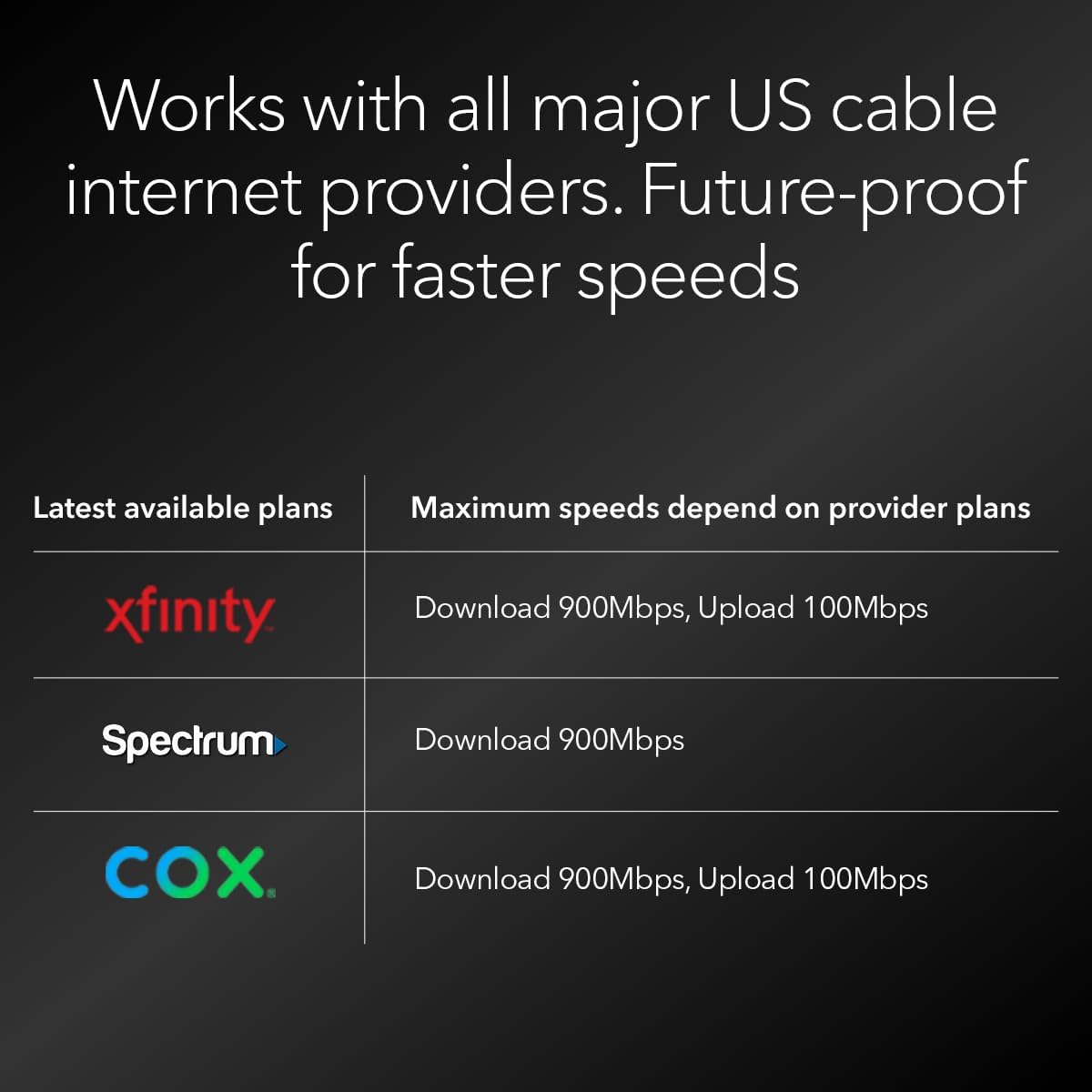
Figure 3: The CM2500 modem is compatible with major US cable internet providers like Xfinity, Spectrum, and Cox.

Figure 4: Rear view of the CM2500, illustrating the Gigabit Ethernet ports for router connection and link aggregation, along with the cable internet input.
6. Maintenance
To ensure consistent performance and longevity of your CM2500 modem:
- Keep it Ventilated: Ensure the modem is placed in an open area with good airflow to prevent overheating.
- Clean Regularly: Periodically clean the modem's exterior with a soft, dry cloth to remove dust. Avoid using liquid cleaners.
- Firmware Updates: Your internet service provider typically manages firmware updates for cable modems. Ensure your modem is connected and powered on to receive these updates.
- Power Cycle: If you experience connectivity issues, try power cycling the modem by unplugging it from the power outlet for 30 seconds and then plugging it back in.
7. Troubleshooting
If you encounter issues with your NETGEAR Nighthawk CM2500 modem, refer to the following common troubleshooting steps:
- No Internet Connection:
- Check all cable connections (coaxial, Ethernet, power) to ensure they are secure.
- Power cycle the modem and your router.
- Verify that your internet service is active with your ISP.
- Check the modem's LED indicators. If the Internet LED is not solid white, contact your ISP.
- Slow Speeds:
- Ensure your internet plan supports the speeds you expect.
- Confirm that your router and connected devices are capable of supporting high speeds.
- Minimize interference by placing the modem away from other electronics.
- If using link aggregation, ensure your router supports this feature and both Ethernet cables are connected correctly.
- Modem Lights Not On:
- Check the power adapter connection to the modem and the electrical outlet.
- Try a different electrical outlet.
8. Specifications
| Feature | Description |
|---|---|
| Model | CM2500 |
| DOCSIS Standard | 3.1 (Mid/high-Split) |
| Max Download Speed | Up to 2 Gbps (with link aggregation) |
| Max Upload Speed | Up to 1 Gbps |
| Ethernet Ports | Two (2) Gigabit Ethernet ports (one 2.5G/1G, one 1G) with Link Aggregation support |
| Dimensions (LxWxH) | 6.8 x 3.7 x 8.2 inches |
| Weight | 1.09 pounds |
| Color | Black |
| ISP Compatibility | Xfinity, Spectrum, Cox, and more (US only) |
9. Warranty and Support
For warranty information and technical support, please refer to the official NETGEAR website or the documentation included with your product. You can also contact NETGEAR customer support directly for assistance with product registration, troubleshooting, and service inquiries.
Online resources, including FAQs and support forums, are available on the NETGEAR Support website.


