
1. Safety Information
Please read all safety instructions before operating the device. Failure to follow these instructions may result in property damage or injury.
- Do not immerse the device in water. The water timer is IP55 waterproof, designed to withstand splashes and rain, but not submersion.
- Ensure all connections are tight to prevent leaks.
- Keep the WiFi Hub indoors and away from moisture.
- Use only the specified power source for the WiFi Hub.
- Keep out of reach of children. The timer features a child lock function.
- Do not attempt to disassemble or repair the device yourself. Contact customer support for assistance.
2. Package Contents
Verify that all items are present in your package:
- 1 x johgee Smart WiFi 2-Zone Water Timer
- 1 x WiFi Hub (2.4 GHz)
- 1 x User Manual
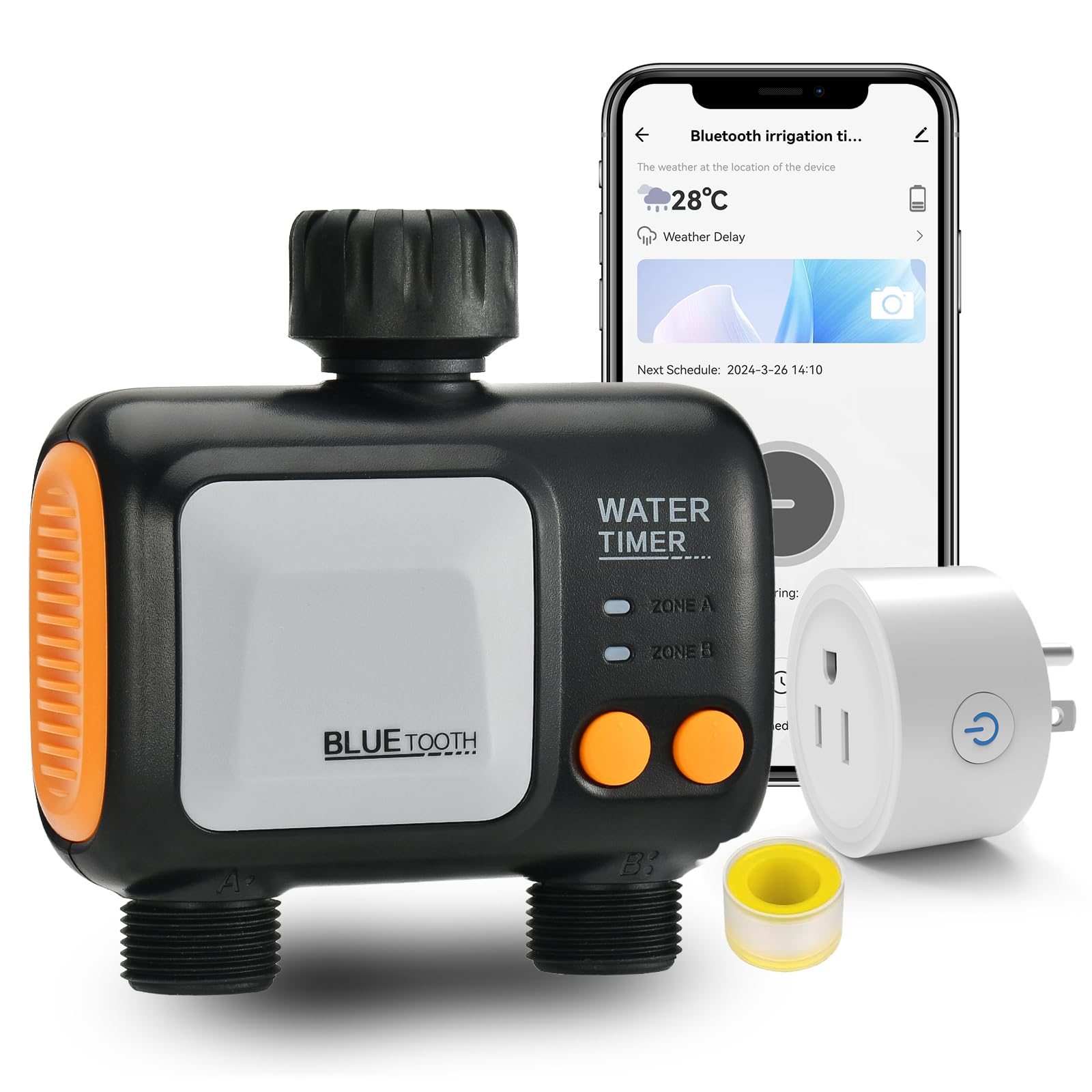
Image: The johgee Smart WiFi 2-Zone Water Timer with WiFi Hub, shown connected to a faucet and two hoses, illustrating the main components.
3. Product Overview
The johgee Smart WiFi 2-Zone Water Timer provides intelligent control over your garden irrigation. It features two independent outlets, allowing for separate watering schedules for different areas. The included WiFi Hub enables remote control via the Smart Life app, rain delay functionality, and voice control compatibility with Alexa and Google Assistant.
3.1 Components

Image: Detailed view of the water timer, highlighting the 3mm O-ring, 360-degree rotating connector, 3/4 inch fitting, and the battery compartment.
3.2 Key Features
- App Remote Control: Manage watering schedules from anywhere via the Smart Life app (Android/iOS).
- Two Independent Zones: Two outlets allow for separate programming of watering times and durations.
- Two Irrigation Modes: Timed irrigation and spray mode for flexible watering.
- Rain Delay: Automatically detects local weather and delays watering for 24, 48, or 72 hours.
- Voice Control: Compatible with Alexa and Google Assistant for hands-free operation.
- Expandable System: Connect up to 4 water timers to one WiFi Hub.
- Durable Design: IP55 waterproof rating for outdoor use.
4. Setup
4.1 Installing the Water Timer
- Ensure your outdoor faucet is turned off.
- Screw the water timer onto your outdoor faucet. Ensure the connection is tight to prevent leaks.
- Connect your garden hoses to the two independent outlets at the bottom of the water timer.
- Insert 2 AA batteries into the water timer's battery compartment.
4.2 Connecting to WiFi Hub
- Plug the WiFi Hub into a standard electrical outlet indoors, within range of your 2.4 GHz WiFi network.
- Ensure the indicator light on the WiFi Hub is flickering, indicating it's in pairing mode. If not, long press the reset button on the hub for 5 seconds until it flickers.
4.3 App Installation and Pairing
Download the 'Smart Life' app from your device's app store (Android or iOS).

Image: An overview of the Smart Life app interface for controlling the water timer and hub.
- Open the Smart Life app and register or log in.
- Tap the 'Add Device' button or the '+' icon in the top right corner.
- Select 'Socket (Wi-Fi)' from the electrical category to add the WiFi Hub.
- Enter your 2.4 GHz WiFi network name and password.
- Follow the on-screen instructions to confirm the hub's indicator light is blinking rapidly and complete the pairing process.
- Once the WiFi Hub is added, long press the timer button on the water timer until its indicator light flickers.
- In the Smart Life app, navigate to the WiFi Hub's control panel and select 'Add new device' or 'Associate Bluetooth device' to add the water timer.
- The app will discover the Bluetooth water timer. Confirm the addition.

Image: Smart Life app screenshot showing the 'Add Device' option.

Image: Smart Life app screenshot showing the selection of 'Socket (Wi-Fi)' for adding the hub.

Image: Smart Life app screenshot for entering WiFi credentials.

Image: Smart Life app screenshot showing instructions for resetting the device to enter pairing mode.
Setup Video: Connecting Timer and Gateway
Video: This video demonstrates the step-by-step process of connecting the johgee Smart WiFi Water Timer to its WiFi gateway using the mobile application, ensuring proper setup for remote control.
Setup Video: Connect Gateway then Timer
Video: A tutorial video guiding users through the correct sequence of connecting the WiFi gateway first, and then pairing the johgee Smart WiFi Water Timer to the gateway via the mobile app.
5. Operating Instructions
5.1 Programming Watering Schedules
The Smart Life app offers two primary irrigation modes: Timed Irrigation and Spray Mode. Both modes support weekly cycle frequencies.

Image: This image demonstrates the versatility of the two independent watering zones, showing one zone used for garden irrigation and another for filling a pool.
- Timed Irrigation Mode: Customize up to 5 watering procedures per outlet. Adjust the duration for each procedure.
- Spray Mode: Flexibly adjust runtime and interval time for misting or spray applications.
To set a schedule:
- In the app, select the desired zone (Outlet 1 or Outlet 2).
- Choose 'Schedule' or 'Spray' mode.
- Set the start time, duration, and frequency (e.g., specific days of the week, odd/even days, or custom days).
- Save your settings.

Image: Smart Life app screenshot displaying options for setting a timed irrigation schedule, including start time, duration, and weekly cycle selection.
5.2 Manual Watering
You can initiate watering manually directly from the app or using the physical buttons on the timer.
- App Control: On the main screen for the water timer in the Smart Life app, you can manually turn on/off watering for each zone and set a temporary duration.
- Device Control: Use the buttons on the water timer to activate or deactivate watering manually. Refer to the timer's display for current status.
5.3 Rain Delay Function
The rain delay feature helps conserve water by pausing scheduled watering based on local weather conditions.
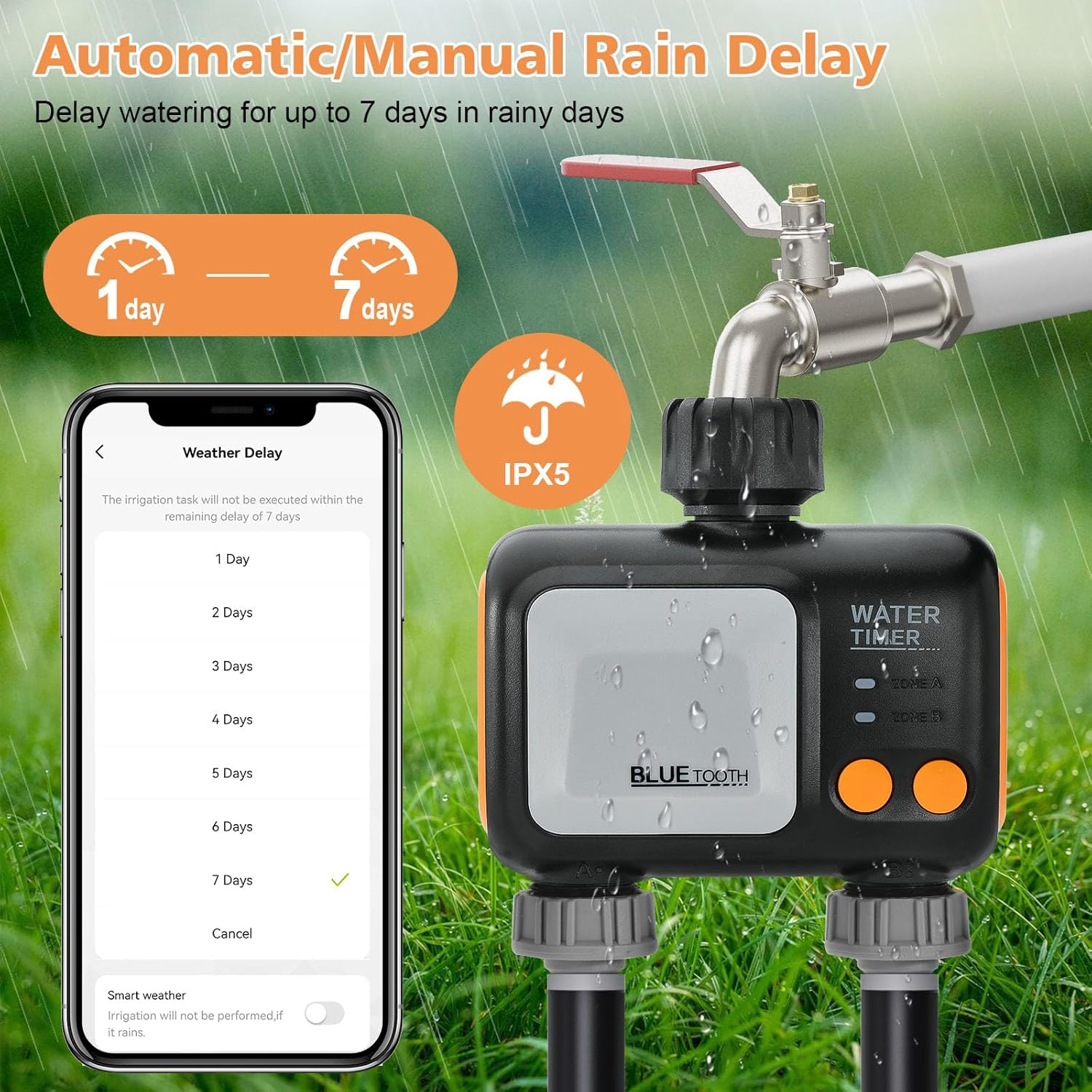
Image: The water timer and a smartphone screen showing the rain delay options, allowing users to select a delay from 1 to 7 days.
- In the Smart Life app, navigate to the water timer's settings.
- Enable the 'Rain Delay' function.
- Set the desired delay period (24, 48, or 72 hours). The app will automatically detect local weather and adjust watering accordingly.
5.4 Voice Control (Alexa & Google Assistant)
Integrate your johgee Smart WiFi Water Timer with Amazon Alexa or Google Assistant for convenient voice commands.

Image: A user interacting with an Alexa device to control the water timer, demonstrating the voice control feature while the timer irrigates a garden.
- Ensure your WiFi Hub and water timer are successfully paired in the Smart Life app.
- Open the Alexa or Google Home app.
- Add the 'Smart Life' skill/service and link your account.
- Discover devices. Your water timer should appear.
- You can now use voice commands such as: "Alexa, turn on the garden sprinkler" or "Hey Google, start watering Zone 1."
5.5 Expanding the System
You can connect multiple johgee Smart WiFi Water Timers to a single WiFi Hub to manage larger irrigation systems. It is recommended to add no more than 4 smart water timers per hub for optimal stability.

Image: A visual representation of an intelligent irrigation ecosystem, showing a central WiFi Hub connected wirelessly to multiple johgee water timers across a large garden.
6. Maintenance
6.1 Cleaning
- Wipe the exterior of the water timer with a damp cloth. Do not use abrasive cleaners.
- Regularly check the filter screen at the inlet for debris and clean if necessary to maintain water flow.
6.2 Winterization
- Before the first frost, disconnect the water timer from the faucet and hoses.
- Remove the batteries from the water timer.
- Store the water timer and WiFi Hub in a dry, frost-free location.
7. Troubleshooting
- No Water Flow: Check if the faucet is fully open, batteries are installed correctly, and the schedule is active. Ensure the filter screen is not clogged.
- App Connection Issues: Verify your WiFi Hub is powered on and connected to a 2.4 GHz WiFi network. Ensure the water timer is within Bluetooth range of the hub. Restart the app and devices if necessary.
- Leaks: Ensure all connections (faucet, hoses) are tight and O-rings are properly seated.
- Incorrect Time/Schedule: Sync the app with the device. Double-check your programmed schedules in the Smart Life app.
- Voice Control Not Working: Confirm the Smart Life skill is enabled in your Alexa/Google Home app and devices are discovered.
8. Specifications
| Brand | johgee |
| Model Number | 626-wifi-hub- |
| Material | Plastic |
| Product Dimensions | 4.8"D x 2.2"W x 5"H |
| Item Weight | 1.17 pounds (0.53 Kilograms) |
| Number of Settings | 5 (per outlet) |
| Smart Home Compatibility | Alexa, Google Assistant |
| Waterproof Rating | IP55 |
| Batteries Required | 2 x AA (for water timer) |
9. Warranty and Support
For warranty information or technical support, please contact johgee customer service through the retailer where the product was purchased or visit the official johgee website. Please have your model number (626-wifi-hub-) and purchase details ready.

