
Bestier H105314ZUS
Bestier H105314ZUS Gaming Desk User Manual
Model: H105314ZUS | Brand: Bestier
1. Introduction
This manual provides detailed instructions for the assembly, operation, maintenance, and troubleshooting of your Bestier H105314ZUS Gaming Desk. Please read this manual thoroughly before assembly and use to ensure safe and correct operation. Keep this manual for future reference.
2. Safety Information
Observe the following safety precautions to prevent injury or damage to the product:
- Ensure all parts are present and undamaged before beginning assembly. Do not use damaged parts.
- Assemble the desk on a soft, clean surface to prevent scratches.
- Tighten all screws and fasteners securely, but do not overtighten.
- Do not exceed the maximum weight capacity of the desk or its shelves.
- Keep children and pets away from the assembly area.
- For electrical components (power outlets, LED lights), ensure proper connection to a grounded power source. Do not overload the power outlets.
- Avoid placing liquids directly on the desk surface, especially near electrical outlets.
- Periodically check all connections and fasteners to ensure they remain tight.
3. Package Contents
Verify that all components listed below are included in your package. If any parts are missing or damaged, please contact Bestier customer support.
Desk Components
- ✓ Desk Top Panels
- ✓ Monitor Stand Panel
- ✓ Side Shelf Panels (Adjustable)
- ✓ Metal Frame Components (Legs, Crossbars)
- ✓ Power Outlet Unit with LED Controller
- ✓ Cup Holder
- ✓ Headphone Hook
- ✓ Adjustable Feet
Hardware & Tools
- ✓ Screws, Bolts, and Washers (various sizes)
- ✓ Allen Wrench / Hex Key
- ✓ Assembly Instructions Manual
- ✓ Accessory Bag

4. Setup and Assembly
Follow these steps carefully for proper assembly. It is recommended to have two people for assembly, although one person can complete it with sufficient time and patience.
- Unpack and Identify Parts: Lay out all components on a clean, soft surface. Refer to the "Package Contents" section and Figure 3.1 to identify each part.
- Assemble the Main Frame:
- Attach the main desk legs to the central crossbars using the specified screws. Do not fully tighten yet.
- Connect the X-shaped crossbar at the back for stability.
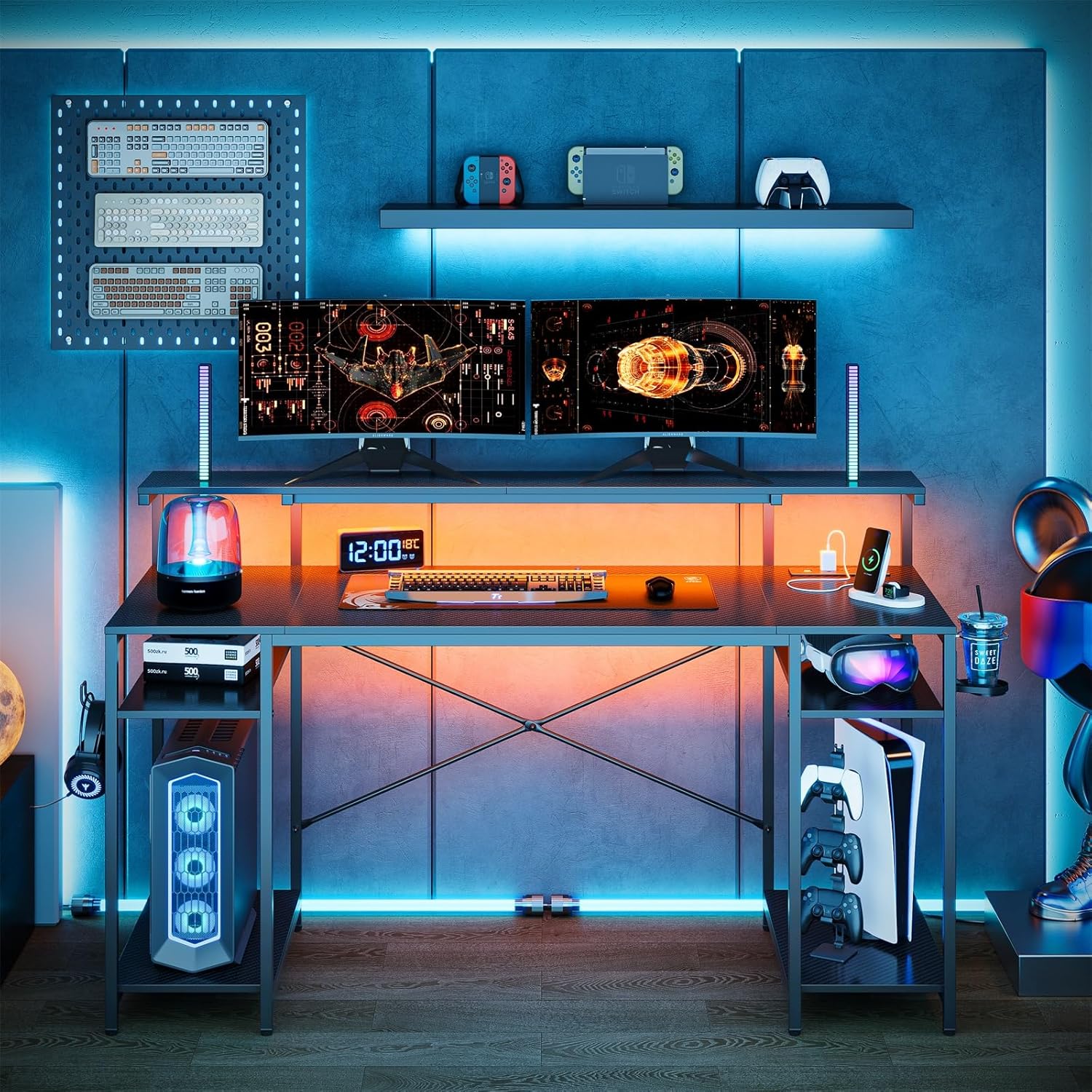
Figure 4.1: Initial frame assembly. - Attach Desk Panels: Secure the main desk top panels to the assembled frame using the provided screws. Ensure alignment before tightening.
- Install Monitor Stand: Place the monitor stand panel on the designated supports on the main frame and secure it.
- Assemble Side Shelves:
- Attach the side frame supports for the shelves.
- Insert the adjustable shelf panels into the desired height slots.
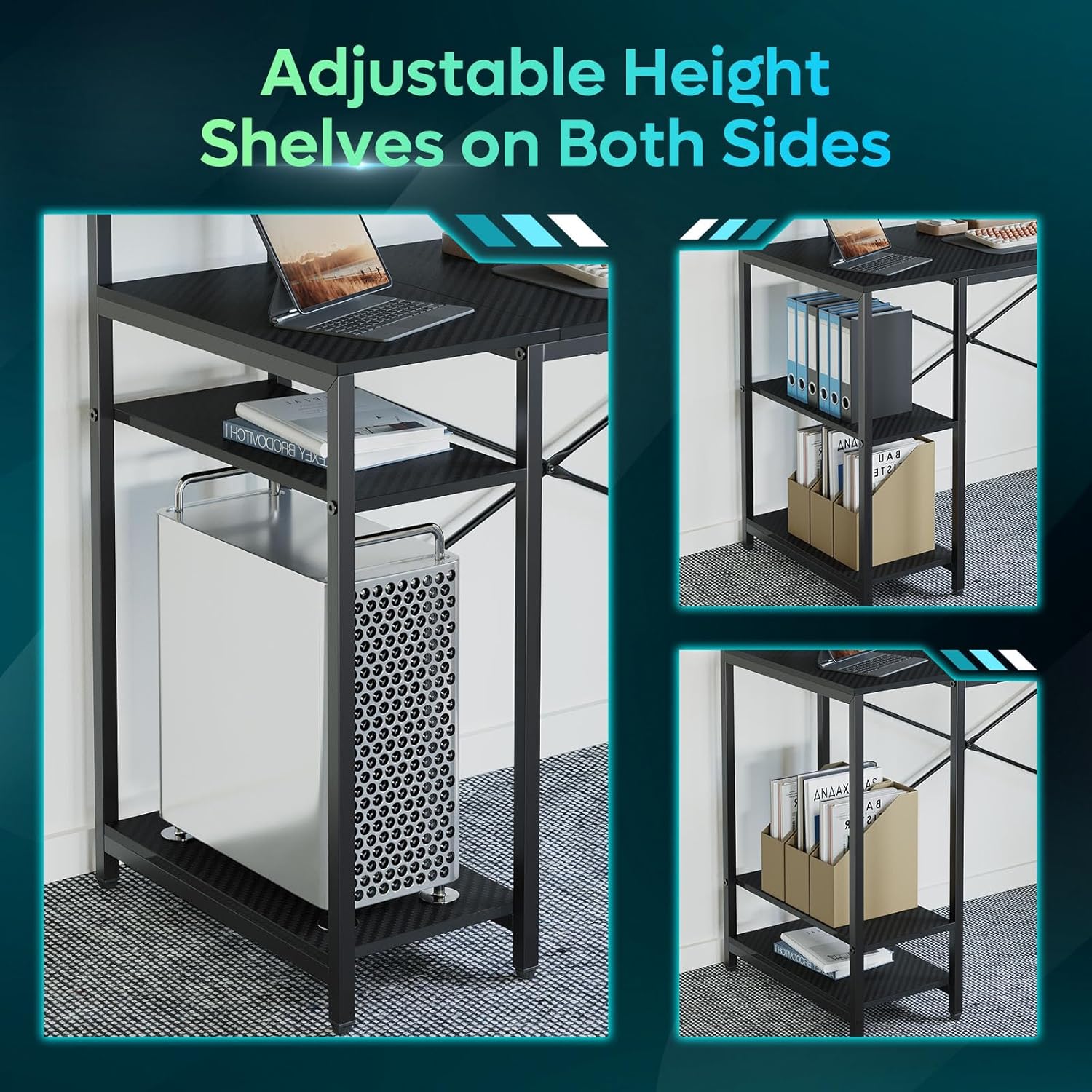
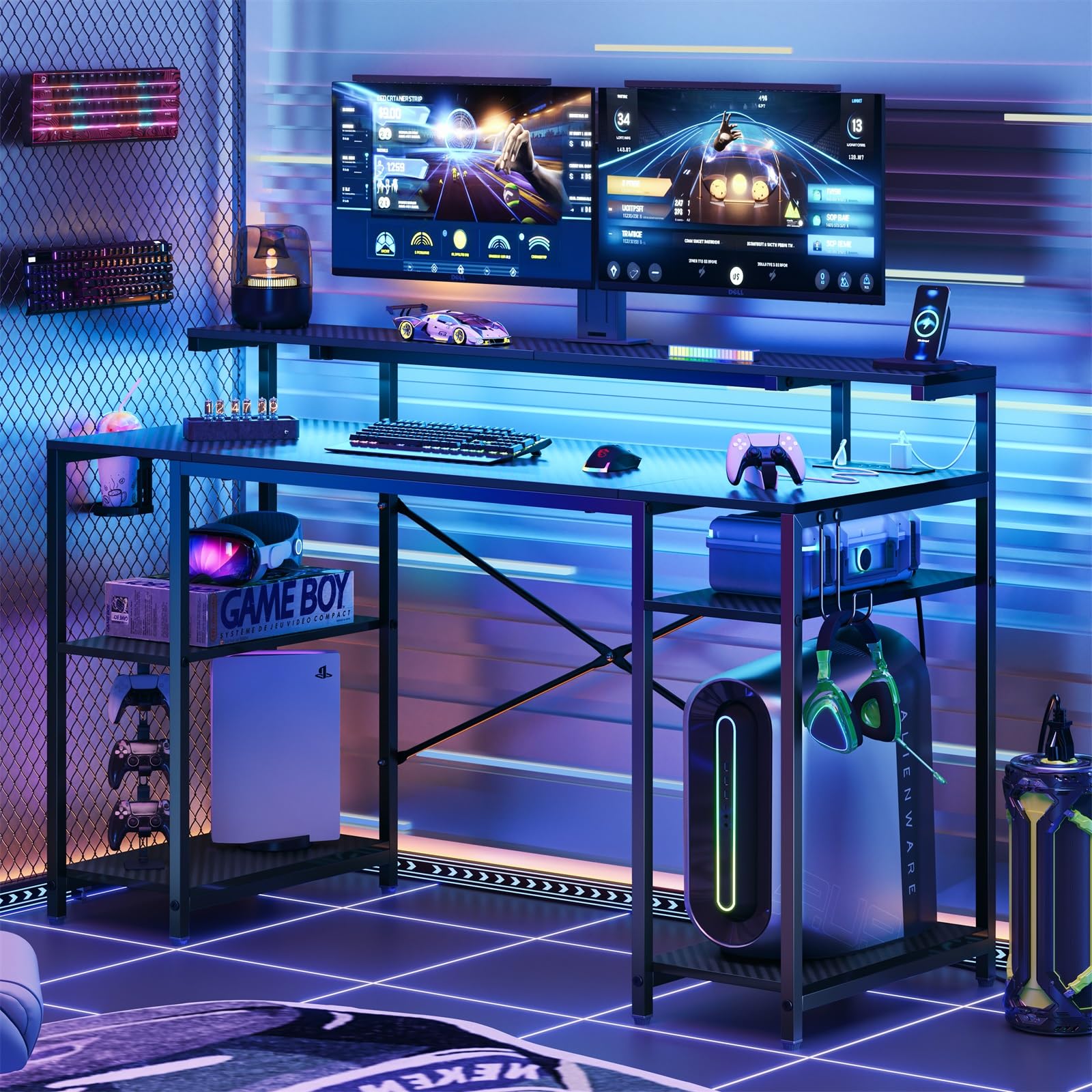
Figure 4.2: Attaching desk panels and side shelves. - Install Power Outlet Unit and LED Lights:
- Mount the power outlet unit to the underside of the desk in the designated area.
- Connect the LED light strip to the controller on the power outlet unit.
- Attach Accessories: Secure the cup holder and headphone hook to the side of the desk as desired.
- Adjust Feet: Level the desk by adjusting the screw-in feet at the bottom of each leg.
- Final Tightening: Once the desk is fully assembled and leveled, carefully tighten all screws and bolts.
5. Operating Instructions
5.1 Power Outlets and USB Ports
The desk is equipped with a built-in power strip featuring 3 AC outlets and 2 USB charging ports (including one Type-C port). This allows for convenient charging of multiple devices directly from your desk.
- Plug the desk's main power cord into a grounded wall outlet.
- Connect your devices to the AC outlets or USB ports as needed.
- Ensure the total power draw of connected devices does not exceed the power strip's maximum rating.

5.2 LED Lighting System
The desk features RGB LED lighting with 7 colors and 22 dynamic effects, controlled via a remote. The LED strip is typically pre-installed or easily attachable to the underside of the monitor stand or main desk.
- Ensure the LED light strip is securely connected to the controller on the power outlet unit.
- Use the provided remote control to power on/off the lights, change colors, adjust brightness, and select dynamic lighting modes.
- Refer to the remote control's specific button functions for detailed operation.
5.3 Adjustable Shelves
The side shelves are height-adjustable, allowing you to customize storage space for various items like computer towers, books, or accessories.
- To adjust a shelf, remove any items from it.
- Carefully lift the shelf panel and reposition it into the desired slots on the side frame.
- Ensure the shelf is securely seated in all four support pins before placing items on it.

5.4 Cup Holder and Headphone Hook
The desk includes a foldable cup holder and a flexible headphone hook for convenience and organization.
- The cup holder can be folded away when not in use.
- The headphone hook can be used to hang headphones or other small accessories, keeping your workspace tidy.

6. Maintenance
Regular maintenance helps prolong the life and appearance of your desk.
- Cleaning: Wipe the desk surfaces with a soft, damp cloth. Avoid harsh chemicals or abrasive cleaners that could damage the finish. For the carbon fiber texture, a gentle wipe is sufficient.
- Dusting: Regularly dust all surfaces, including the monitor stand and shelves, to prevent buildup.
- Fastener Check: Periodically (e.g., every 3-6 months) check all screws and bolts to ensure they are tight. Retighten if necessary to maintain stability.
- Electrical Components: Keep the power outlets and LED lights free from dust and moisture. Do not attempt to repair electrical components yourself.
- Spills: In case of spills, wipe immediately with a dry cloth to prevent liquid from seeping into the material or affecting electrical components.
7. Troubleshooting
If you encounter issues with your Bestier Gaming Desk, refer to the following common problems and solutions:
| Problem | Possible Cause | Solution |
|---|---|---|
| Desk is wobbly or unstable. |
|
|
| LED lights are not working or flickering. |
|
|
| Power outlets/USB ports are not providing power. |
|
|
| Missing or damaged parts upon arrival. |
|
|
8. Specifications
| Brand | Bestier |
| Model Number | H105314ZUS |
| UPC | 840408605472 |
| Color | Black (3D Carbon Fiber Texture) |
| Style | Gaming Desk |
| Shape | I-shaped |
| Material | P2 Particle Board (Desk Top), High-Strength Steel (Frame) |
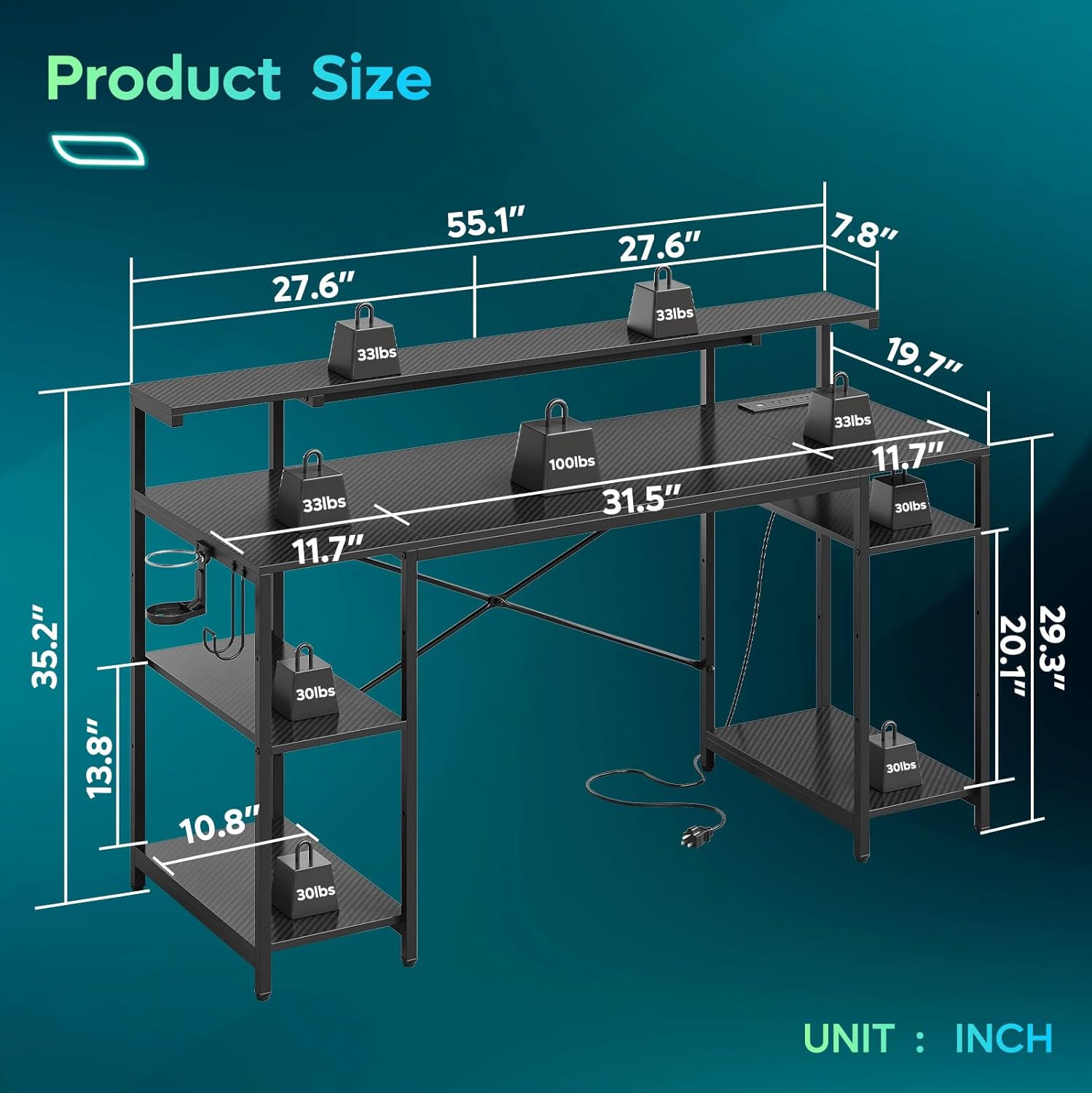
| Overall Dimensions (L x W x H) | Approx. 55.1 x 20.5 x 35.2 inches (140 x 52.1 x 89.5 cm) |
| Item Weight | Approx. 40.23 lbs (18.25 kg) |
| Weight Capacity | Total load capacity up to 355 lbs (161 kg) |
| Power Outlets | 3 AC Outlets, 2 USB Charging Ports (1x USB-A, 1x USB-C) |
| LED Lighting | RGB LED, 7 Colors, 22 Dynamic Modes, Remote Controlled |
| Features | Monitor Stand, Adjustable Side Shelves, Foldable Cup Holder, Headphone Hook, Adjustable Leveling Feet, X-shaped Crossbar for Stability |
| Assembly Required | Yes (Recommended 1-2 persons) |
9. Warranty and Support
Bestier provides customer support for product inquiries, missing parts, or warranty claims. Please retain your proof of purchase.
- For specific warranty details, please refer to the warranty card included in your package or visit the official Bestier website.
- If you require assistance, please contact Bestier customer service with your model number (H105314ZUS) and purchase date.
Related documentsH105314ZUS


Ask a question about this manual
Ask about setup, troubleshooting, compatibility, parts, safety, or missing instructions. Manuals+ will review the question and use this page’s manual context to help answer it.