
1. Introduction
The Soundfreaq Sound Spot II SFQ-18 is a versatile portable Bluetooth speaker designed to deliver high-quality audio with additional features for enhanced user experience. This manual provides detailed instructions for setting up, operating, and maintaining your device, ensuring optimal performance and longevity.
2. Package Contents
- Sound Spot II Speaker (1 pc)
- 6ft USB-C Charging Cable (1 pc)
3. Product Overview
3.1 Key Features
- Superior Sound Quality: Custom-designed monophonic driver for natural and balanced sound, powerful bass from passive radiator and Bass Boost DSP.
- Versatile Playback Options: Wireless Bluetooth streaming, True Wireless Stereo (TWS) pairing for dual speakers, Line-in for standard headphone jack devices, audio playback from USB flash drives up to 64GB.
- Relaxation and Comfort: Built-in Nature Sound feature with 8 soothing sounds (Bird, Forest, Ocean, Rain, Urban, Chime, Bell, Wind), warm Atmospheric Mood Light with breathing effect.
- User-Friendly Design: Simple controls, volume limiter, 30/60/120-minute sleep timer, hands-free speakerphone with Environmental Noise Cancellation (ENC).
- Power & Durability: Rear USB-C port for power input, side USB-C charging output for mobile devices, IPX4 splash-proof rating.
3.2 Controls and Ports

Figure 1: Top panel controls including power, play/pause, track skip, volume, ambient light, nature sounds, sleep timer, and Bluetooth pairing.
The top panel features intuitive touch controls for all primary functions:
- Power Button: Turns the speaker on or off.
- Play/Pause/Skip: Controls music playback and track navigation.
- Volume Control: Adjusts the audio output level.
- Nature Sound Button: Cycles through 8 built-in nature sounds.
- Ambient Light Button: Activates and adjusts the atmospheric mood light.
- Sleep Timer Button: Sets the automatic shut-off timer (30/60/120 minutes).
- Bluetooth Button: Initiates Bluetooth pairing mode.
- Microphone Icon: Indicates speakerphone functionality.

Figure 2: Rear panel with passive radiator and USB-C power input port.

Figure 3: Side panel with USB-C charging output port for mobile devices.
The speaker includes the following ports:
- Rear USB-C Power Input: For charging the speaker's internal battery.
- Side USB-C Charging Output: To charge external mobile devices.
- Line-in (3.5mm AUX): For wired audio connection.
- USB-A Port: For audio playback from USB flash drives.
4. Setup
4.1 Charging the Speaker
Before initial use, fully charge your Sound Spot II speaker. Connect the provided USB-C charging cable to the rear USB-C power input port on the speaker and to a compatible USB power adapter (not included). The charging indicator light will show charging status.
4.2 Bluetooth Pairing (Single Speaker)
- Power on the Sound Spot II speaker by pressing the Power Button.
- The Bluetooth indicator light will begin flashing, indicating it is in pairing mode.
- On your mobile device, enable Bluetooth and search for available devices.
- Select "Sound Spot II" from the list of devices to connect.
- Once connected, the Bluetooth indicator light will become solid.
4.3 Dual Streaming System (TWS Pairing)

Figure 4: Two Sound Spot II speakers configured for Dual Streaming System (TWS).
To achieve True Wireless Stereo (TWS) sound, you will need two Sound Spot II speakers. Follow these steps:
- Ensure both Sound Spot II speakers are powered on and not connected to any other Bluetooth device.
- On one speaker (this will be your primary speaker), press and hold the Bluetooth button until you hear a pairing tone.
- The primary speaker will automatically search for and connect to the second speaker.
- Once connected, both speakers will indicate successful TWS pairing.
- Now, pair your mobile device to the primary speaker via Bluetooth as described in Section 4.2. Audio will play in stereo across both speakers.
- Note: DSS mode supports Bluetooth music playback in stereo mode once connected. Other music sources (Nature Sound, Line In, and USB Flash Drive) are not supported in DSS mode. To play other sources, disconnect DSS mode first.
5. Operating Instructions
5.1 Power On/Off
- Press the Power Button on the top panel to turn the speaker on or off.
5.2 Music Playback
- Bluetooth: After successful pairing (Section 4.2), play audio from your connected device. Use the Play/Pause/Skip buttons on the speaker or your device.
- USB Drive: Insert a USB flash drive (up to 64GB) containing audio files into the USB-A port. The speaker will automatically begin playback. Use the Play/Pause/Skip buttons to control.
- Line-in: Connect an audio device using a 3.5mm AUX cable to the Line-in port. The speaker will automatically switch to Line-in mode. Control playback from your connected device.
5.3 Volume Control
- Press the '+' button to increase volume and the '-' button to decrease volume.
5.4 Nature Sounds
- Press the Nature Sound button to activate and cycle through the 8 built-in soothing sounds (Bird, Forest, Ocean, Rain, Urban, Chime, Bell, Wind).
5.5 Ambient Light

Figure 5: Sound Spot II speaker displaying its ambient light feature.
The ambient light feature enhances ambiance and regulates mood.
- Press the Ambient Light button to activate the light.
- Press repeatedly to cycle through different brightness levels (Low, Mid, High) and a breathing light effect.
5.6 Speakerphone Function
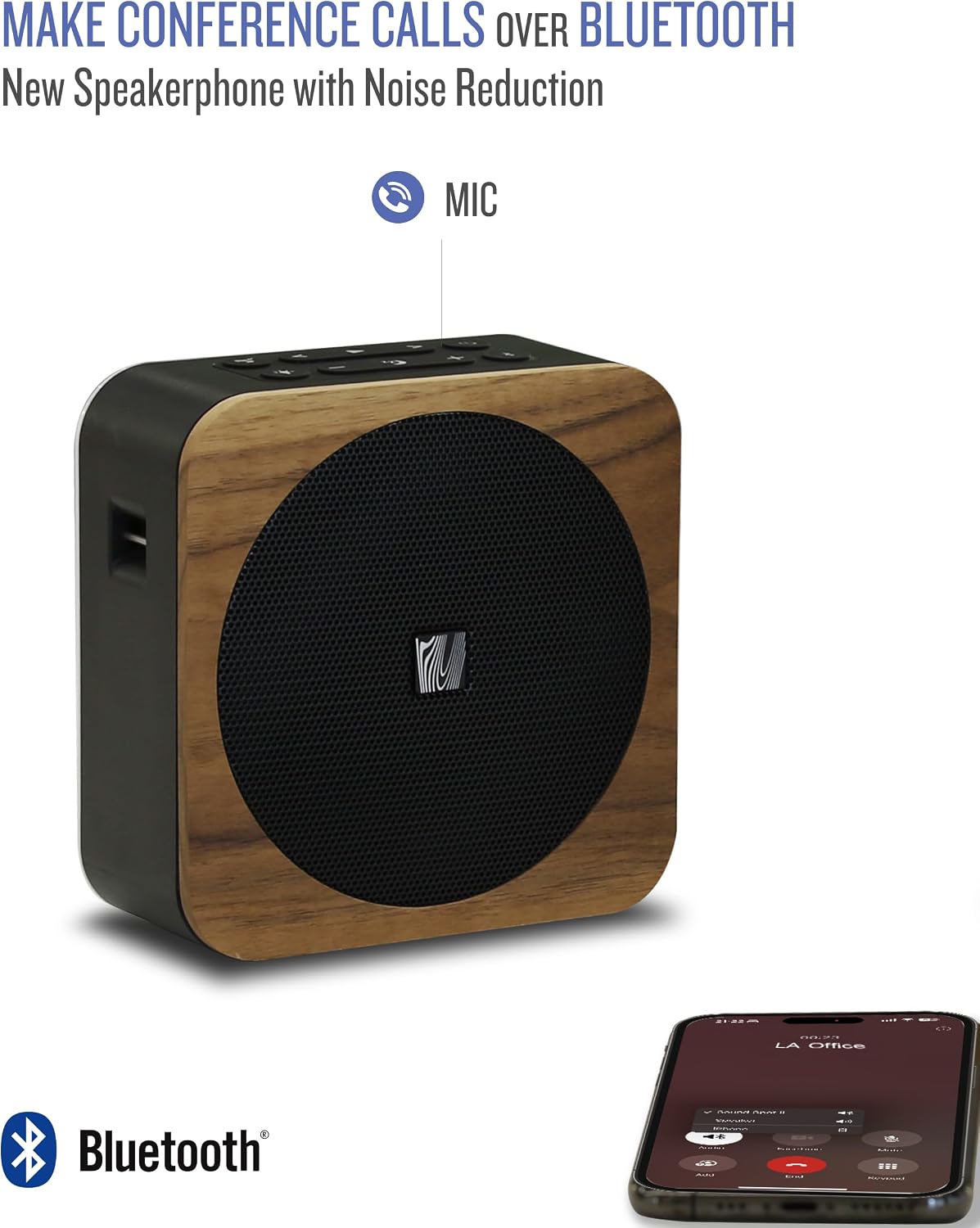
Figure 6: Sound Spot II speaker utilized for hands-free conference calls.
When connected via Bluetooth, the speaker can be used for hands-free calls with Environmental Noise Cancellation (ENC) technology.
- To answer an incoming call, press the Play/Pause button.
- To end a call, press the Play/Pause button again.
- To reject an incoming call, press and hold the Play/Pause button.
5.7 Sleep Timer
- Press the Sleep Timer button to set the speaker to automatically turn off after 30, 60, or 120 minutes.
5.8 Charging External Devices
Figure 7: Sound Spot II speaker providing emergency power to a smartphone.
The Sound Spot II can act as an emergency power bank for your mobile devices.
- Connect your mobile device's charging cable to the side USB-C charging output port on the speaker.
- The speaker's internal battery will provide power to charge your device.
6. Maintenance
6.1 Cleaning
- Wipe the speaker with a soft, dry cloth.
- Avoid using harsh chemicals or abrasive cleaners.
6.2 Water Resistance
The Sound Spot II has an IPX4 splash-proof rating, meaning it is resistant to water splashes from any direction. It is not designed to be submerged in water. Ensure all port covers are securely closed when near water.
7. Troubleshooting
| Issue | Possible Solution |
|---|---|
| Speaker does not power on | Ensure the battery is charged. Connect to a power source using the USB-C charging cable. |
| Cannot pair via Bluetooth | Ensure the speaker is in pairing mode (flashing Bluetooth light). Turn off and on Bluetooth on your device. Move closer to the speaker. |
| No sound during playback | Check volume levels on both the speaker and your connected device. Ensure the correct input source is selected (Bluetooth, USB, Line-in). |
| Poor sound quality | Ensure the speaker is within Bluetooth range. Check for obstructions between the speaker and your device. Try a different audio source. |
| Dual Streaming System (TWS) not connecting | Ensure both speakers are not connected to any other Bluetooth device. Follow TWS pairing instructions carefully. |
8. Specifications
| Feature | Detail |
|---|---|
| Model Name | Sound Spot II |
| Item Model Number | SFQ-18 |
| Material | Metal, Wood (front panel) |
| Speaker Type | Portable Speaker |
| Connectivity Technology | Auxiliary, Bluetooth, USB |
| Speaker Maximum Output Power | 10 Watts |
| Item Weight | 400 Grams (14.1 ounces) |
| Product Dimensions | 5"D x 2.4"W x 5"H |
| Water Resistance Level | IPX4 Splash-Proof |
| Power Source | Battery Powered (1 Lithium Polymer battery included) |
| Battery Life | Up to 12 hours of music playback |
| Audio Driver Type | Custom Driver |
9. Warranty & Support
9.1 Limited Warranty
The Soundfreaq Sound Spot II SFQ-18 comes with a limited warranty. Please refer to the warranty information provided in your product packaging or contact Soundfreaq customer support for details.
9.2 Customer Support
For further assistance, technical support, or warranty claims, please visit the official Soundfreaq website or contact their customer service department. Contact information can typically be found on the product packaging or the brand's website.
