
johgee 2 Outlets with Gateway
johgee Smart WiFi Water Timer User Manual
Model: 2 Outlets with Gateway
Introduction
The johgee Smart WiFi Water Timer is designed to provide intelligent and efficient watering solutions for your garden, lawn, patio, and flower beds. With remote control via the Smart Life APP, two independent watering zones, rain delay functionality, and voice control compatibility, this device simplifies your irrigation management and helps conserve water.
Key Features
- APP Remote Control: Manage watering schedules from anywhere, anytime via the Smart Life APP (Android or iOS) using the 2.4 GHz WiFi Hub.
- Two Independent Watering Modes: Features timed irrigation mode (up to 5 customizable procedures per outlet) and spray mode (flexible runtime and interval). Both support weekly cycle frequencies.
- Expandable Irrigation System: Add multiple smart water timers to your system (up to 4 recommended for stability) and share management with family members.
- Rain Delay & Irrigation Recording: Automatically detects local weather conditions with settable delay times (24, 48, or 72 hours). Detailed watering logs are available.
- 2 Independent Watering Systems: Two outlets work independently, allowing separate schedules for each zone. Ideal for various applications including lawns, gardens, and misting systems.
- Smart Voice Control: Compatible with Alexa and Google Assistant for convenient voice commands.
- Durable & Waterproof: Made of high-quality materials with an IP55 waterproof rating for long service life.
- Manual Mode: Offers flexible manual watering options.
Package Contents
- 1 x johgee Smart WiFi Water Timer (2 Outlets)
- 1 x WiFi Hub/Gateway
- 1 x User Manual
- Sealing Tape (optional, for secure connections)

Image: The main components of the johgee Smart WiFi Water Timer system, including the water timer unit, the WiFi hub, and a roll of sealing tape.
Setup Guide
1. Install the Smart Life APP
Download the "Smart Life" app from your smartphone's app store (available on Android and iOS).
2. Connect the WiFi Hub
- Plug the WiFi Hub into a power outlet within range of your 2.4 GHz WiFi network.
- Open the Smart Life APP and add a new device. Select "Socket (Wi-Fi)" or allow the app to discover the device automatically.
- Follow the in-app instructions to reset the hub (usually by long-pressing its button until the indicator light flickers) and connect it to your home WiFi network.
Video: Demonstrates the process of connecting the WiFi gateway (hub) to the Smart Life application, including resetting the device and entering WiFi information.

Image: Visual representation of the WiFi APP remote control setup, showing the water timer connected to a faucet and communicating wirelessly with the WiFi hub and a smartphone.
3. Connect the Water Timer to the Faucet
- Ensure the faucet is turned off.
- Screw the water timer onto your outdoor garden faucet. Hand-tighten only. If necessary, use the provided sealing tape for a leak-free connection.
- Connect your garden hoses to the two independent outlets at the bottom of the water timer.
4. Pair the Water Timer with the WiFi Hub
- In the Smart Life APP, navigate to the WiFi Hub's interface.
- Select the option to "Associate Bluetooth device" or "Add new device" under the Gateway section.
- On the water timer, long-press the timer button (usually the main button on the device) until its indicator light begins flickering, indicating it's in pairing mode.
- The app will discover the Bluetooth Water Timer. Confirm the addition.
- Once successfully added, the water timer will be associated with the WiFi Hub, allowing remote control.
Video: Illustrates the process of connecting the water timer to the previously set up WiFi gateway, including putting the timer into pairing mode and associating it within the app.
Operating Instructions
1. App Remote Control & Scheduling
Once connected, use the Smart Life APP to program your watering schedules. You can set watering frequency, duration, and start times for each of the two independent outlets.
- Open the app and select your "Bluetooth Water Timer" device.
- Navigate to the scheduling interface.
- For each zone (Outlet 1 and Outlet 2), you can set up to 5 watering procedures in timed irrigation mode.
- Adjust the duration for each watering cycle.
- Choose weekly cycle frequencies, odd days, even days, or custom days for watering.

Image: Screenshot of the Smart Life app showing the interface for setting timed and scheduled irrigation modes, including options for start time, runtime, and loop frequency (weekly, odd day, even day, custom days).
2. Two Irrigation Modes
The timer supports two distinct watering modes:
- Timed Irrigation Mode: Standard watering for a set duration. Ideal for lawns and general garden watering.
- Spray Mode: Allows for flexible adjustment of runtime and interval time, suitable for misting systems or specific plant needs.

Image: Illustrates the two watering modes: a standard irrigation mode for sprinklers and a mist mode for finer water distribution, both controllable via the app.

Image: Depicts the two independent watering zones of the WiFi hose timer, showing one zone used for lawn sprinkling and the other for filling a pool, highlighting their separate functionalities.
3. Rain Delay Function
Activate the rain delay function in the app to prevent overwatering during rainy periods. The app can automatically detect local weather conditions. You can manually set delay times for 24, 48, or 72 hours.
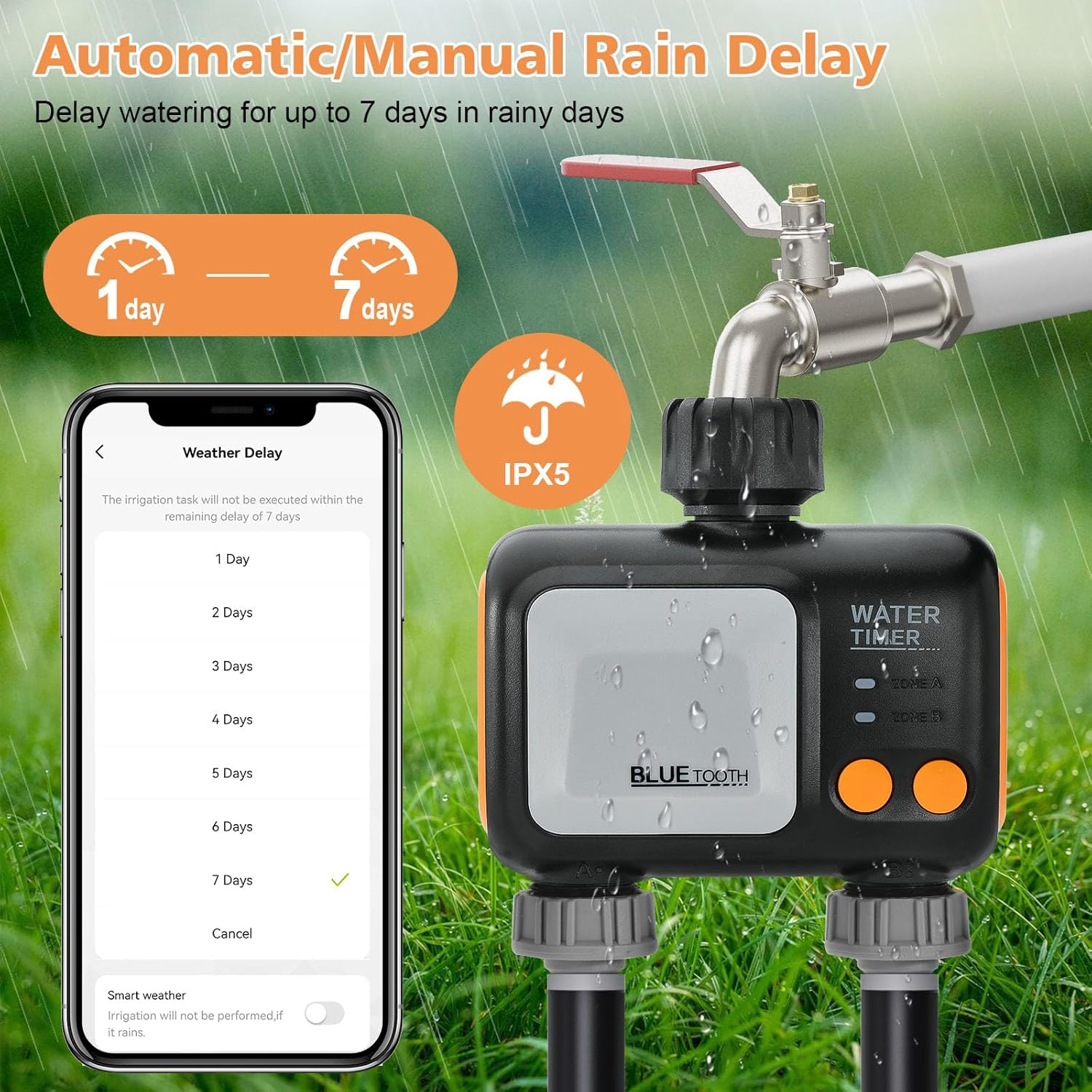
Image: Shows the rain delay feature, allowing users to pause watering for 1 to 7 days based on weather conditions, with an IPX5 waterproof rating indicated on the device.
4. Expandable Irrigation System
For larger areas, you can add up to four johgee Smart Water Timers to a single WiFi Hub to create a comprehensive smart garden watering system. Family members can also be added to the app to share control.

Image: Depicts a smart home environment with multiple johgee water timers connected to a central WiFi hub, illustrating the expandability of the irrigation system for larger areas.
5. Smart Voice Control
Integrate your johgee Smart WiFi Water Timer with Amazon Alexa or Google Assistant for convenient voice-activated control of your watering schedules.
- Ensure your WiFi Hub and water timer are properly connected to the Smart Life app.
- Link your Smart Life account to your Alexa or Google Home app.
- Use commands like "Alexa, open the wifi water timer" to manage your irrigation.

Image: Shows the integration of the water timer with smart voice assistants like Alexa, allowing users to control watering schedules with voice commands.
6. Manual Mode
For immediate watering needs, the device features a manual mode. This allows you to start or stop watering directly from the timer unit without using the app.
Maintenance
- Cleaning: Periodically clean the exterior of the water timer with a damp cloth. Do not use harsh chemicals or abrasive cleaners.
- Winterization: Before freezing temperatures, disconnect the water timer from the faucet and store it indoors in a dry, frost-free location. Remove any batteries if applicable (though this model is powered by the hub, some timers use batteries).
- Leak Prevention: Regularly check connections for leaks. Ensure rubber washers are properly seated and connections are hand-tightened. Replace worn washers as needed.
Troubleshooting
| Problem | Possible Cause | Solution |
|---|---|---|
| Water timer not connecting to app. | WiFi Hub not connected; timer not in pairing mode; incorrect WiFi band (only 2.4 GHz supported). | Ensure WiFi Hub is online and connected to 2.4 GHz WiFi. Put water timer into pairing mode (long press button). Ensure devices are within Bluetooth range of each other for initial pairing. |
| Watering schedule not activating. | Faucet is off; low battery (if applicable); incorrect schedule settings; rain delay active. | Ensure the outdoor faucet is fully open. Check schedule settings in the app for accuracy. Disable rain delay if not needed. |
| Leaks at connections. | Loose connection; worn washer; damaged threads. | Hand-tighten all connections. Ensure rubber washers are properly seated. Use sealing tape if necessary. Replace damaged components. |
| Voice control not working. | Smart Life account not linked to voice assistant; incorrect voice command. | Verify Smart Life skill/service is enabled and linked in your Alexa/Google Home app. Use precise voice commands. |
Specifications
- Brand: johgee
- Model: 2 Outlets with Gateway
- Color: Blue
- Material: Plastic
- Product Dimensions: 4.8"D x 2.2"W x 5"H
- Item Weight: 0.53 Kilograms
- Waterproof Rating: IP55
- Number of Settings: 5 (for timed irrigation mode)
- Connectivity: WiFi (2.4 GHz only) via Hub, Bluetooth (for timer pairing)
- Voice Control: Works with Alexa, Google Assistant
Warranty and Support
For warranty information, technical support, or customer service inquiries, please refer to the contact details provided on the product packaging or visit the official johgee website. Keep your purchase receipt for warranty claims.
For additional resources and product updates, visit the johgee Store on Amazon.
Related documents2 Outlets with Gateway


Ask a question about this manual
Ask about setup, troubleshooting, compatibility, parts, safety, or missing instructions. Manuals+ will review the question and use this page’s manual context to help answer it.