
Soundfreaq SFQ-18
Sound Spot II SFQ-18 Portable Bluetooth Speaker User Manual
Model: SFQ-18 | Brand: Soundfreaq
1. Introduction
Thank you for choosing the Soundfreaq Sound Spot II SFQ-18 Portable Bluetooth Speaker. This manual provides essential information for setting up, operating, and maintaining your speaker to ensure optimal performance and longevity. Please read this manual thoroughly before using the product.
2. Safety Information
To prevent damage or injury, observe the following safety precautions:
- Do not expose the speaker to extreme temperatures, direct sunlight, or high humidity.
- Avoid dropping or subjecting the speaker to strong impacts.
- Do not disassemble, repair, or modify the speaker yourself. Refer all servicing to qualified personnel.
- Keep the speaker away from water and liquids. While it has an IPX4 splash-proof rating, it is not waterproof and should not be submerged.
- Use only the provided USB-C charging cable and a compatible PD power adapter.
- Ensure proper ventilation when operating the speaker.
3. Package Contents
Verify that all items are present in the package:
- Sound Spot II SFQ-18 Portable Bluetooth Speaker (1 pc)
- 6ft USB-C Charging Cable (1 pc)

Image: The Sound Spot II SFQ-18 speaker, showcasing its compact design and white finish with a bamboo front panel.
4. Product Overview
4.1 Components

Image: Rear view of the Sound Spot II, highlighting the passive radiator and the USB-C power input port.
- Front Panel: Features the main speaker grill and Soundfreaq logo.
- Top Panel: Contains all control buttons.
- Rear Panel: Includes the passive radiator for enhanced bass and the USB-C power input.
- Side Panels: One side features a USB-C charging output port and a 3.5mm Line-in port.
- Ambient Light: Integrated light ring around the speaker.
4.2 Controls and Indicators
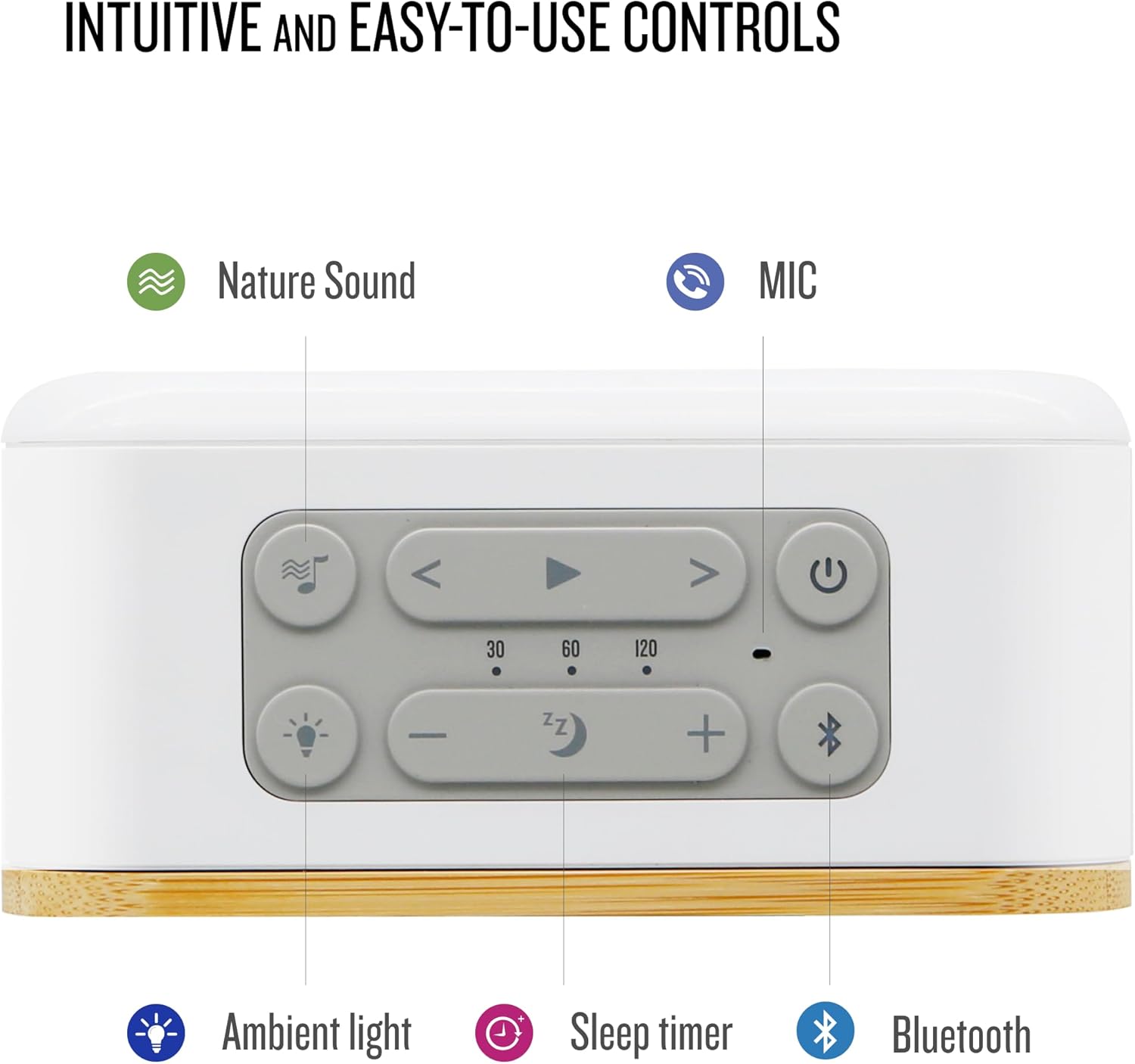
Image: Detailed view of the top control panel, showing buttons for Nature Sound, Ambient Light, Sleep Timer, Volume, Play/Pause, Track Skip, Power, and Bluetooth.
| Button/Indicator | Function |
|---|---|
| Power Button | Press to turn on/off. |
| Bluetooth Button | Press to enter pairing mode; long press to disconnect. |
| Play/Pause Button | Play or pause audio. Answer/end calls. |
| Volume +/- Buttons | Adjust volume level. |
| Track Skip (< / >) | Skip to previous/next track. |
| Nature Sound Button | Cycle through 8 built-in nature sounds. |
| Ambient Light Button | Adjust ambient light brightness (Off, Low, Mid, High, Breathing). |
| Sleep Timer Button | Set sleep timer (30, 60, 120 minutes). |
| Microphone (MIC) | For hands-free speakerphone calls. |
5. Setup
5.1 Initial Charging
Before first use, fully charge your Sound Spot II speaker. Connect the provided USB-C charging cable to the speaker's rear USB-C power input port and the other end to a compatible USB PD power adapter (not included). The charging indicator will show charging status and turn off when fully charged.
5.2 Powering On/Off
- To power on, press the Power Button.
- To power off, press the Power Button again.
6. Operating Instructions
6.1 Bluetooth Pairing
- Turn on the Sound Spot II speaker. It will automatically enter Bluetooth pairing mode, indicated by a blinking Bluetooth indicator.
- On your device (smartphone, tablet, etc.), enable Bluetooth and search for available devices.
- Select "Sound Spot II" from the list of devices.
- Once connected, the Bluetooth indicator will become solid, and you will hear a confirmation tone.

Image: The Sound Spot II speaker playing music wirelessly from a smartphone, demonstrating its Bluetooth connectivity.
6.2 Dual Streaming System (TWS) Pairing
For True Wireless Stereo (TWS) playback, you can connect two Sound Spot II speakers:
- Ensure both Sound Spot II speakers are powered on and not connected to any other Bluetooth device.
- On one speaker (this will be the primary speaker), long press the Bluetooth Button until you hear a TWS pairing prompt.
- The two speakers will automatically search for and connect to each other. Once connected, you will hear a confirmation tone, and the Bluetooth indicator on both speakers will be solid.
- Now, connect your device to the primary Sound Spot II speaker via Bluetooth as described in Section 6.1. Audio will play in stereo across both speakers.
Note: DSS mode supports Bluetooth music playback in stereo mode once connected. Other music sources (Nature Sound, Line In, and Flash Drive) are not supported in DSS mode. To play other music sources, please disconnect DSS mode first.

Image: Two Sound Spot II speakers, one in white and one in dark grey, demonstrating their ability to connect for a True Wireless Stereo experience.
6.3 Nature Sound Feature
The Sound Spot II includes 8 soothing nature sounds to enhance relaxation:
- Press the Nature Sound Button to cycle through the available sounds: Bird, Forest, Ocean, Rain, Urban, Chime, Bell, Wind.
- Press the button again to switch to the next sound.
- To turn off nature sounds, cycle through all options or press the Power button.
6.4 Ambient Light Control
Adjust the integrated ambient light to create a comfortable atmosphere:
- Press the Ambient Light Button to cycle through brightness levels: Off, Low, Mid, High, Breathing effect.
- Select the desired light setting for your environment.
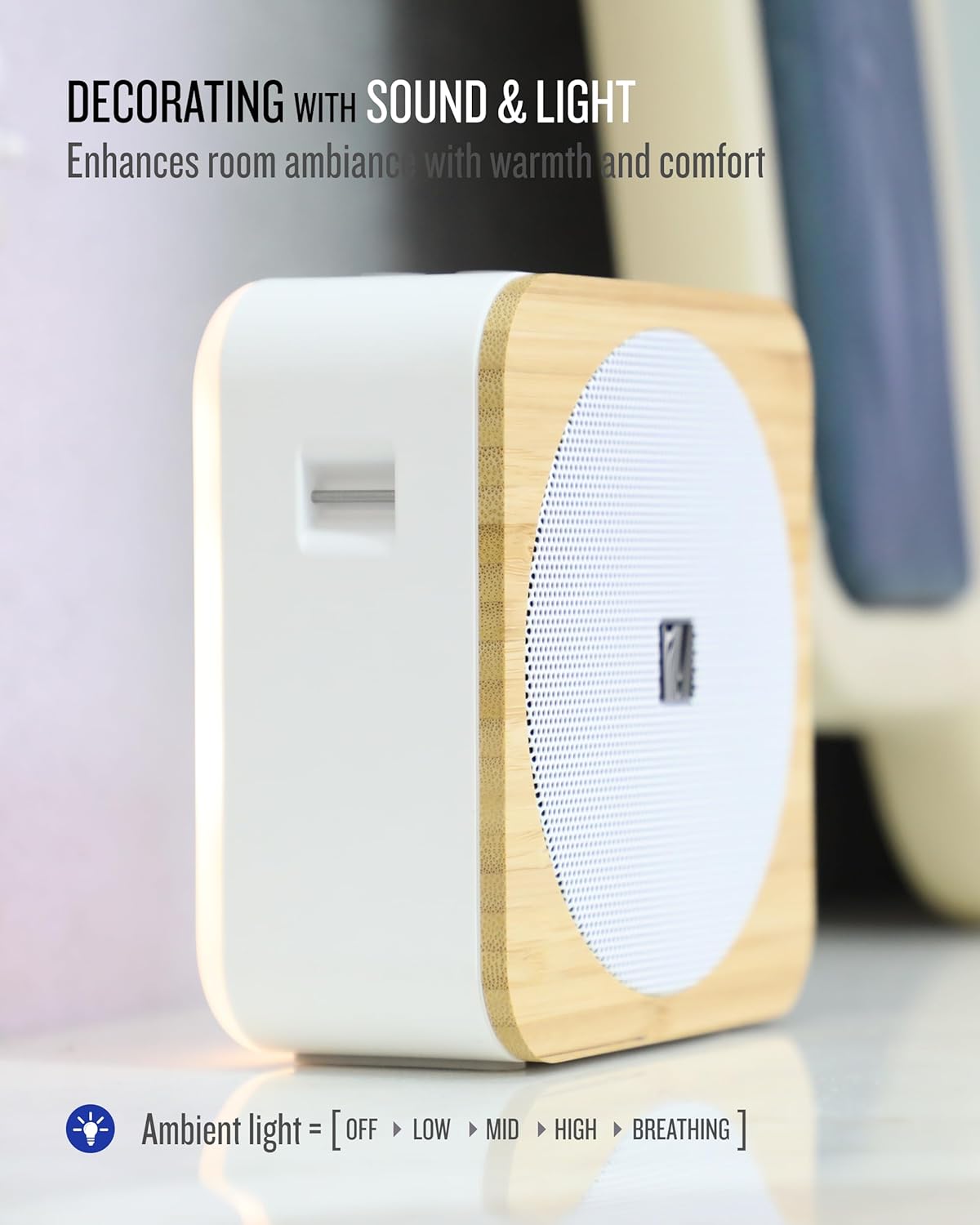
Image: The Sound Spot II speaker with its ambient light feature activated, illuminating the surrounding area.
6.5 USB Flash Drive Audio Playback
The Sound Spot II supports audio playback from USB flash drives up to 64GB (MP3 and WAV formats):
- Insert a USB flash drive into the USB-C charging output port on the side of the speaker.
- The speaker will automatically detect the drive and begin playing supported audio files.
- Use the Play/Pause and Track Skip buttons to control playback.

Image: Side view of the Sound Spot II, illustrating the USB drive input and the 3.5mm Line-in port for external music sources.
6.6 Line-in Playback
Connect devices with a standard headphone jack using a 3.5mm audio cable (not included):
- Connect one end of the 3.5mm audio cable to the Line-in port on the side of the speaker.
- Connect the other end to the audio output of your device.
- The speaker will automatically switch to Line-in mode.
6.7 Speakerphone Function
The built-in microphone with Environmental Noise Cancellation (ENC) allows for clear hands-free calls:
- When a call comes in while connected via Bluetooth, press the Play/Pause Button to answer.
- Press the Play/Pause Button again to end the call.
- Adjust call volume using the Volume +/- buttons.
6.8 Sleep Timer
Set a timer for the speaker to automatically turn off:
- Press the Sleep Timer Button to cycle through options: 30 minutes, 60 minutes, 120 minutes.
- The speaker will power off automatically after the selected duration.
7. Charging Your Speaker and Other Devices
7.1 Charging the Sound Spot II
The Sound Spot II has a rechargeable lithium battery providing up to 12 hours of music playback. To charge the speaker:
- Connect the provided USB-C cable to the rear USB-C power input port.
- Connect the other end to a USB PD power adapter (not included).
- The charging indicator will illuminate during charging and turn off when the battery is full.
7.2 Charging Mobile Devices
The Sound Spot II features a side USB-C charging output port that can act as a power bank for your mobile devices:
- Connect your mobile device's USB-C charging cable (not included) to the USB-C charging output port on the side of the Sound Spot II.
- Your device will begin charging.
8. Maintenance and Care
- Clean the speaker with a soft, dry cloth. For disinfection, a slightly damp cloth with a mild disinfectant can be used on the silicon keypad and metal speaker grill.
- Do not use abrasive cleaners or solvents.
- Store the speaker in a cool, dry place when not in use for extended periods.
- Avoid exposing the bamboo front panel to excessive moisture or direct sunlight to prevent warping or discoloration.
9. Troubleshooting
| Problem | Possible Cause | Solution |
|---|---|---|
| Speaker does not turn on. | Battery is depleted. | Charge the speaker using the provided USB-C cable and a compatible power adapter. |
| Cannot pair via Bluetooth. | Speaker is not in pairing mode; device Bluetooth is off; speaker is already connected to another device. | Ensure speaker is in pairing mode (blinking Bluetooth light). Turn off and on Bluetooth on your device. Disconnect from other devices. |
| No sound or low volume. | Volume too low on speaker or device; incorrect input source selected. | Increase volume on both speaker and connected device. Ensure correct mode (Bluetooth, Line-in, USB) is active. |
| TWS pairing fails. | Speakers are too far apart; one speaker is already connected to a device. | Place speakers closer together. Ensure both speakers are disconnected from other Bluetooth devices before initiating TWS pairing. |
| USB flash drive not playing. | Unsupported file format; drive not properly inserted; drive capacity too large. | Ensure files are MP3 or WAV. Reinsert the USB drive. Verify drive is 64GB or less. |
10. Specifications
| Feature | Detail |
|---|---|
| Model Name | Sound Spot II |
| Model Number | SFQ-18 |
| Speaker Type | Portable Bluetooth Speaker |
| Connectivity | Bluetooth, Auxiliary (3.5mm Line-in), USB Flash Drive |
| Wireless Technology | Bluetooth |
| Audio Output Mode | Stereo (with TWS) |
| Speaker Output Power | 10 Watts |
| Special Features | LED Ambient Light, Built-in Microphone (ENC), Stereo Pairing (TWS), Built-In Powerbank, USB Port for playback/charging, Nature Sounds (8 types), Sleep Timer (30/60/120 min) |
| Control Method | Touch, Button |
| Power Source | Battery Powered (1 x 9V battery included) |
| Battery Life | Up to 12 hours (music playback) |
| Product Dimensions (D x W x H) | 5" x 2.4" x 5" |
| Item Weight | 400 Grams (14.1 ounces) |
| Color | White |
| Water Resistance | IPX4 Splash-proof |
| Manufacturer | Soundfreaq |
| UPC | 849539000668 |
11. Warranty and Support
11.1 Limited Warranty
The Sound Spot II SFQ-18 comes with a limited warranty. Please refer to the warranty card included with your purchase or visit the official Soundfreaq website for detailed warranty terms and conditions.
11.2 Customer Support
For technical assistance, troubleshooting, or product inquiries, please visit the official Soundfreaq website or contact their customer support team. Contact information can typically be found on the brand's official website or on your product packaging.
Related documentsSFQ-18

Ask a question about this manual
Ask about setup, troubleshooting, compatibility, parts, safety, or missing instructions. Manuals+ will review the question and use this page’s manual context to help answer it.