
1. Introduction
This manual provides comprehensive instructions for the setup, operation, and maintenance of your iCON Pro Audio P1-M DAW Control Surface and D4T Display. The P1-M is designed to enhance your digital audio workstation workflow with tactile control, while the D4T display provides essential visual feedback. Please read this manual thoroughly before using the device to ensure proper functionality and to maximize your experience.
2. Safety Information
- Power Supply: Use only the specified power adapter. Ensure the voltage matches the requirements of the device.
- Water and Moisture: Do not expose the unit to water, rain, or moisture. Avoid placing liquid containers near the device.
- Ventilation: Ensure adequate ventilation around the unit. Do not block ventilation openings.
- Heat Sources: Keep the unit away from heat sources such as radiators, heat registers, stoves, or other heat-producing appliances.
- Cleaning: Clean only with a dry cloth. Do not use liquid cleaners or aerosol cleaners.
- Servicing: Do not attempt to service this product yourself. Refer all servicing to qualified service personnel.
3. Package Contents
Verify that all items are present in the package:
- iCON Pro Audio P1-M Control Surface
- iCON Pro Audio D4T Display Unit
- USB Cable
- Power Adapter
- Quick Start Guide (if applicable)
4. Product Overview
The iCON P1-M is a professional USB-MIDI control surface featuring 8 touch-sensitive motorized faders and a customizable touchscreen. It is bundled with the D4T display unit for enhanced visual feedback.

Figure 4.1: Front view of the iCON P1-M Control Surface with the D4T Display attached. This image shows the 8 motorized faders, rotary encoders, transport controls, and the integrated D4T display providing channel information.
4.1 Key Components
- Motorized Faders: Eight touch-sensitive motorized faders with 12-bit resolution for precise level control.
- Rotary Encoders: Eight dual-function rotary encoders for pan, send, and other parameters.
- D4T Display: An integrated display unit providing channel names, levels, and timecode information.
- Customizable Touchscreen: A 4-inch, 16-panel digital touchscreen for assigning and controlling up to 80 functions.
- Jog Wheel: A smooth-action jog wheel for navigation and precise editing.
- Transport Controls: Dedicated buttons for Play, Stop, Record, Fast Forward, and Rewind.
- DAW Select Buttons: Allows switching between up to three connected DAWs.
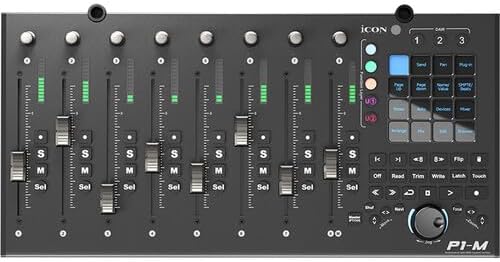
Figure 4.2: Top-down view of the iCON P1-M control surface, highlighting the layout of faders, rotary knobs, and the control panel with various function buttons and the jog wheel.

Figure 4.3: Close-up view of the D4T display unit, showing individual channel level meters and names, along with a timecode display on the right.

Figure 4.4: Rear view of the iCON P1-M, displaying the power input, external control jacks, and USB-C ports for connection and firmware updates.
5. Setup
5.1 Connecting the P1-M and D4T
- Attach D4T: Securely attach the D4T display unit to the P1-M control surface using the provided connectors.
- Power Connection: Connect the power adapter to the P1-M's 12V DC input and then to a power outlet.
- USB Connection: Connect the P1-M to your computer using the supplied USB cable. The P1-M is class-compliant and does not require specific drivers for basic functionality on Mac and Windows.
5.2 DAW Integration
The P1-M supports Universal Mackie Control and HUI protocols for seamless integration with various DAWs, including Pro Tools, Logic Pro, and Ableton Live. Refer to your DAW's documentation for specific setup instructions for external control surfaces.
- iMAPTM Software: Download and install the iMAPTM software from the iCON Pro Audio website. This software is used for customizing the touchscreen functions, configuring settings, and performing firmware updates.
- DAW Selection: Use the dedicated DAW select buttons on the P1-M to switch between up to three configured DAWs.
6. Operating Instructions
6.1 Fader and Encoder Control
- Faders: Move the motorized faders to adjust track levels. The faders are touch-sensitive, allowing for automation recording.
- Rotary Encoders: Turn the rotary encoders to control parameters suchs as pan, send levels, or plug-in parameters, depending on the selected mode. Pressing an encoder often toggles a function (e.g., mute, solo).
6.2 Touchscreen Functions

Figure 6.1: Illustration of various customizable functions available on the P1-M's touchscreen, including notes, track, send, pan, and plug-in controls.
The 4-inch touchscreen allows for dynamic control over various DAW functions. Use the iMAPTM software to customize the layout and assign up to 80 different functions via drag-and-drop. Tap the desired function on the screen to activate it.
6.3 Transport and Navigation

Figure 6.2: Close-up of the illuminated transport controls on the P1-M, including play, stop, record, fast forward, and rewind buttons.
- Jog Wheel: Rotate the jog wheel to scrub through your project timeline or navigate within your DAW.
- Zoom Button: The illuminated "Zoom" button, combined with the jog wheel and directional keys, allows for precise zooming and navigation within your DAW's interface.
- Transport Buttons: Use the dedicated buttons for standard transport functions (Play, Stop, Record, etc.).
7. Maintenance
- Cleaning: Use a soft, dry, lint-free cloth to clean the surface of the unit. Do not use abrasive cleaners, solvents, or waxes.
- Dust Protection: When not in use, cover the unit to protect it from dust accumulation.
- Firmware Updates: Regularly check the iCON Pro Audio website for firmware updates. Updates can be performed via the USB-C connection and iMAPTM software.
8. Troubleshooting
- No Power:
- Ensure the power adapter is securely connected to both the unit and a working power outlet.
- Verify the power adapter is the correct one for the device.
- Not Recognized by Computer/DAW:
- Check the USB cable connection. Try a different USB port or cable.
- Ensure the P1-M is powered on.
- Verify that your DAW's preferences are correctly configured to recognize the P1-M as a Mackie Control or HUI device.
- Restart your computer and DAW.
- Check for the latest firmware and iMAPTM software updates.
- Faders Not Moving/Responding:
- Ensure the unit is powered and connected.
- Check DAW settings for fader automation and control surface assignments.
- Perform a factory reset if issues persist (refer to iMAPTM software documentation).
- D4T Display Not Working:
- Ensure the D4T is correctly attached to the P1-M.
- Verify the P1-M is powered on and communicating with the DAW.
9. Specifications
| Model Number | IPA-P1MD4T-BUN |
| Item Weight | 4.4 pounds |
| Product Dimensions | 20.87 x 10.63 x 4.33 inches |
| Color | Black |
| Connector Type | USB |
| Hardware Interface | USB |
| Supported Software | Ableton Live, Pro Tools, Logic Pro (via Mackie Control/HUI) |
| Material Type | Metal |
| Mixer Channel Quantity | 8 |
| Hardware Platform | PC/Mac |
10. Warranty and Support
iCON Pro Audio products are designed for quality and reliability. For warranty information, please refer to the warranty card included with your product or visit the official iCON Pro Audio website. For technical support, product registration, or to download the latest drivers and iMAPTM software, please visit the iCON Pro Audio support page:


