
1. Introduction
Thank you for choosing the Sony Bravia Professional Display FW-98BZ53L. This manual provides essential information for the safe and efficient use of your new professional display. Please read this manual thoroughly before operating the unit and retain it for future reference. This display is designed for digital signage applications, offering a large 98-inch LED-backlit LCD screen with high brightness.
2. Important Safety Information
Observe the following safety precautions to prevent fire, electric shock, or injury.
- Power Source: Connect the display only to the specified power supply. Ensure the power cord is securely plugged into an outlet.
- Ventilation: Do not block ventilation openings. Allow adequate space around the display for proper airflow to prevent overheating.
- Location: Install the display in a stable location, away from direct sunlight, heat sources, and excessive moisture. Avoid placing it in areas with high vibration.
- Handling: Due to its size and weight, the display requires careful handling and installation by multiple individuals or professional installers.
- Cleaning: Disconnect the power cord before cleaning. Use a soft, dry cloth. Do not use liquid cleaners or aerosol sprays.
- Foreign Objects: Never insert any objects into the display openings. If liquid or an object enters the unit, unplug it immediately and contact qualified service personnel.
3. Package Contents
Verify that all items are present in the package before proceeding with installation.
- Sony Bravia Professional Display FW-98BZ53L
- AC Power Cord
- Remote Control with Batteries
- Operating Instructions (this manual)
- Warranty Information
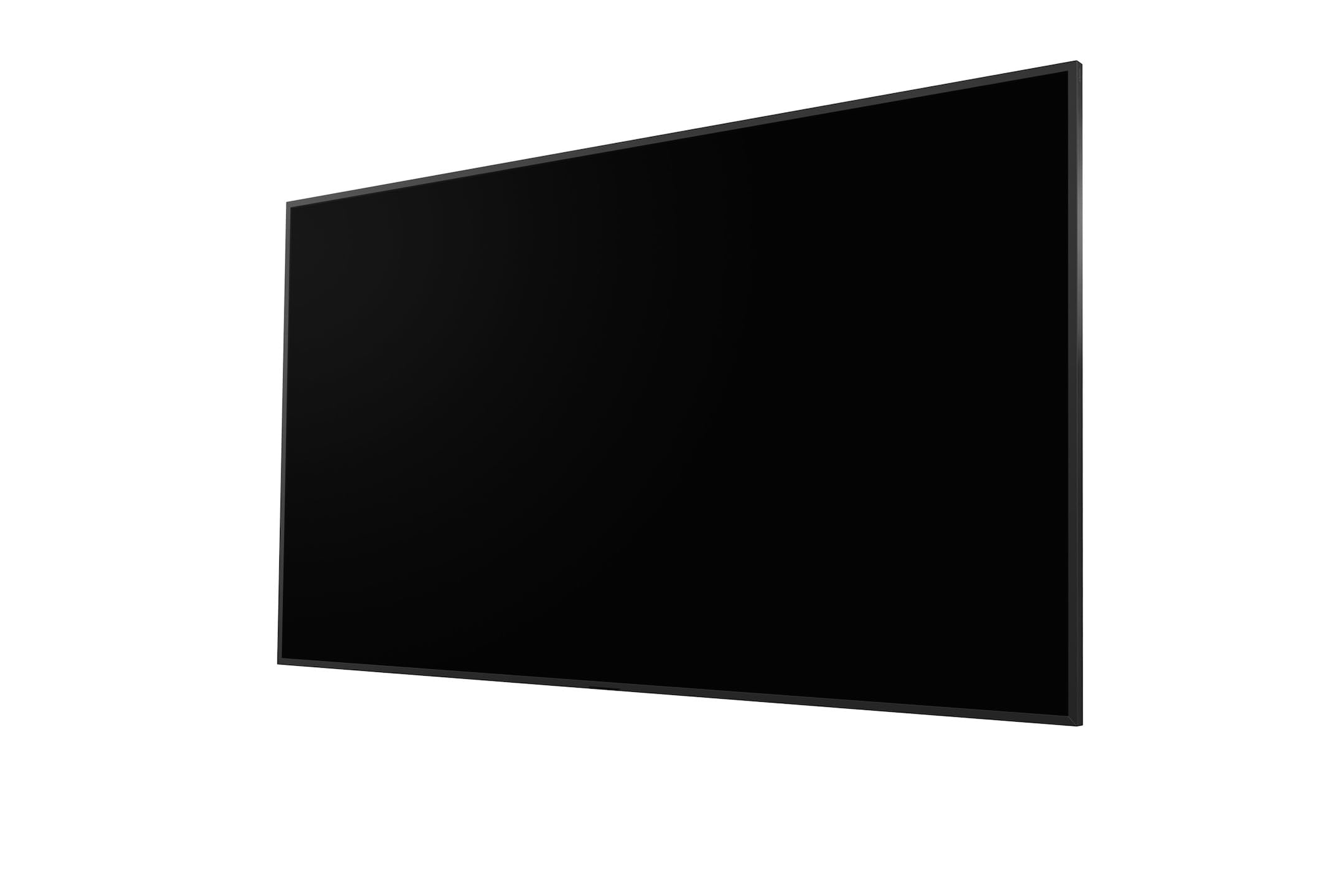
A large, sleek black professional display, viewed from a slight angle, showcasing its slim bezels and expansive screen.
4. Setup
4.1 Physical Installation
Due to the size and weight of the FW-98BZ53L, professional installation is highly recommended. Ensure the mounting solution (wall mount or stand, sold separately) is rated for the display's weight and dimensions. Follow the instructions provided with your mounting hardware.
4.2 Connecting Cables
- Power: Connect the AC power cord to the display's power input and then to a grounded electrical outlet.
- Video Input: Connect your video source (e.g., media player, computer) to an HDMI input port on the display using a high-quality HDMI cable.
- Network (Optional): For network control or content delivery, connect an Ethernet cable from your network router/switch to the display's LAN port.
- Other Connections: Refer to the display's port labels for additional connections such as USB, audio output, or control ports.
4.3 Initial Power-On
After all connections are made, press the power button on the display or the remote control. The display will power on, and you may be guided through an initial setup wizard to configure basic settings like language, time zone, and network connection.
5. Operating Instructions
5.1 Basic Controls
Use the supplied remote control to navigate the display's functions.
- Power Button: Turns the display on or off.
- Input Button: Cycles through available input sources (HDMI 1, HDMI 2, etc.).
- Menu Button: Accesses the main settings menu.
- Navigation Buttons (Arrows/Enter): Used to move through menu options and confirm selections.
- Volume Buttons: Adjusts the audio output level (if external speakers are connected).
5.2 Menu Navigation and Settings
Press the Menu button on the remote to access various settings. Common categories include:
- Picture Settings: Adjust brightness, contrast, color, and other image parameters.
- Sound Settings: Configure audio output options.
- Network Settings: Set up wired or wireless network connections.
- System Settings: Manage language, date/time, power-saving options, and software updates.
- Professional Settings: Access features specific to digital signage, such as scheduling, input priority, and remote management options.
5.3 Digital Signage Functionality
The FW-98BZ53L is optimized for digital signage. This includes features for content scheduling, remote content management, and integration with various signage platforms. Refer to the display's on-screen help or Sony's professional display documentation for detailed instructions on utilizing these advanced features.
6. Maintenance
6.1 Cleaning the Display
To clean the display screen and cabinet:
- Turn off the display and unplug the power cord.
- Gently wipe the screen with a soft, lint-free cloth. For stubborn marks, lightly dampen the cloth with water. Do not spray water or cleaning solutions directly onto the screen.
- Wipe the cabinet with a soft, dry cloth. Avoid using abrasive cleaners, waxes, or solvents.
6.2 Software Updates
Sony may release software updates to improve performance or add new features. You can typically check for updates through the display's system settings menu or by visiting the official Sony support website for your model.
7. Troubleshooting
If you encounter issues with your display, refer to the following common troubleshooting steps:
| Problem | Solution |
|---|---|
| No Power | Ensure the power cord is securely connected to both the display and a working electrical outlet. Try a different outlet. |
| No Picture / No Signal | Verify the video source is powered on and connected correctly. Select the correct input source using the remote control. Check the video cable for damage. |
| Poor Picture Quality | Adjust picture settings (brightness, contrast, sharpness) in the display menu. Ensure the video source is outputting a high-quality signal. |
| Remote Control Not Working | Check and replace the batteries. Ensure there are no obstructions between the remote and the display's IR receiver. |
If the problem persists after trying these steps, please contact Sony customer support or your authorized dealer.
8. Specifications
Key technical specifications for the Sony Bravia Professional Display FW-98BZ53L:
| Feature | Detail |
|---|---|
| Model Number | FW-98BZ53L |
| Display Type | LED-Backlit LCD |
| Screen Size (Diagonal) | 98 inches |
| Brightness | 780 nit (typical) |
| Material | Plastic (cabinet) |
| Color | Black |
| Item Weight | 91 Kilograms (approx. 200.62 Pounds) |
| Manufacturer | SONY |
Note: Specifications are subject to change without notice. For the most current information, please refer to the official Sony product page.
9. Warranty and Support
9.1 Warranty Information
This Sony Bravia Professional Display is covered by a limited warranty. The specific terms and duration of the warranty may vary by region and purchase agreement. Please refer to the warranty card included in your package or visit the official Sony Professional website for detailed warranty information.
9.2 Customer Support
For technical assistance, product inquiries, or service requests, please contact Sony customer support. You can find contact information and additional resources, including FAQs and software downloads, on the official Sony Professional support website:
When contacting support, please have your model number (FW-98BZ53L) and serial number ready.


