
1. Introduction
This manual provides essential information for the proper use and maintenance of your SSK SD311 PRO 512GB Dual-Port USB SSD. Please read it thoroughly before using the device to ensure optimal performance and data integrity.
Package Contents:
- SSK SD311 PRO Dual-Head USB SSD (512GB)
- Extra Leather Case
2. Key Features
- High-Speed Data Transfer: Up to 1000MB/s read/write speeds with USB 3.2 Gen2 interface, utilizing reliable TLC NAND flash.
- Dual Connectivity: Integrated USB-C and USB-A ports for broad compatibility with various devices.
- Wide Device Compatibility: Supports laptops, tablets, Android smartphones, iPhone 15/16/17 Pro models, Mac, and PC.
- Enhanced Reliability: Features S.M.A.R.T. and TRIM optimization for long-term stability and performance under heavy workloads.
- Efficient Heat Dissipation: Durable Zinc Alloy casing designed to dissipate heat 30% faster than plastic, maintaining stable performance.
- Direct TLC Write Technology: Reduces chip stress and extends endurance.
- Compact and Portable: Small form factor (3.18 x 0.78 x 0.33 inches) and lightweight (1.29 ounces) for easy transport.
- 4K ProRes HDR Recording: Capable of direct 4K 60Hz ProRes HDR video recording for compatible iPhone 15 Pro or later models.
- Universal OTG Support: Enables direct connection and data transfer with compatible Android devices.
3. Setup & Installation
3.1 Connecting to Devices
The SSK SD311 PRO features both USB-C and USB-A connectors for versatile connectivity. Simply plug the appropriate connector into your device's port.
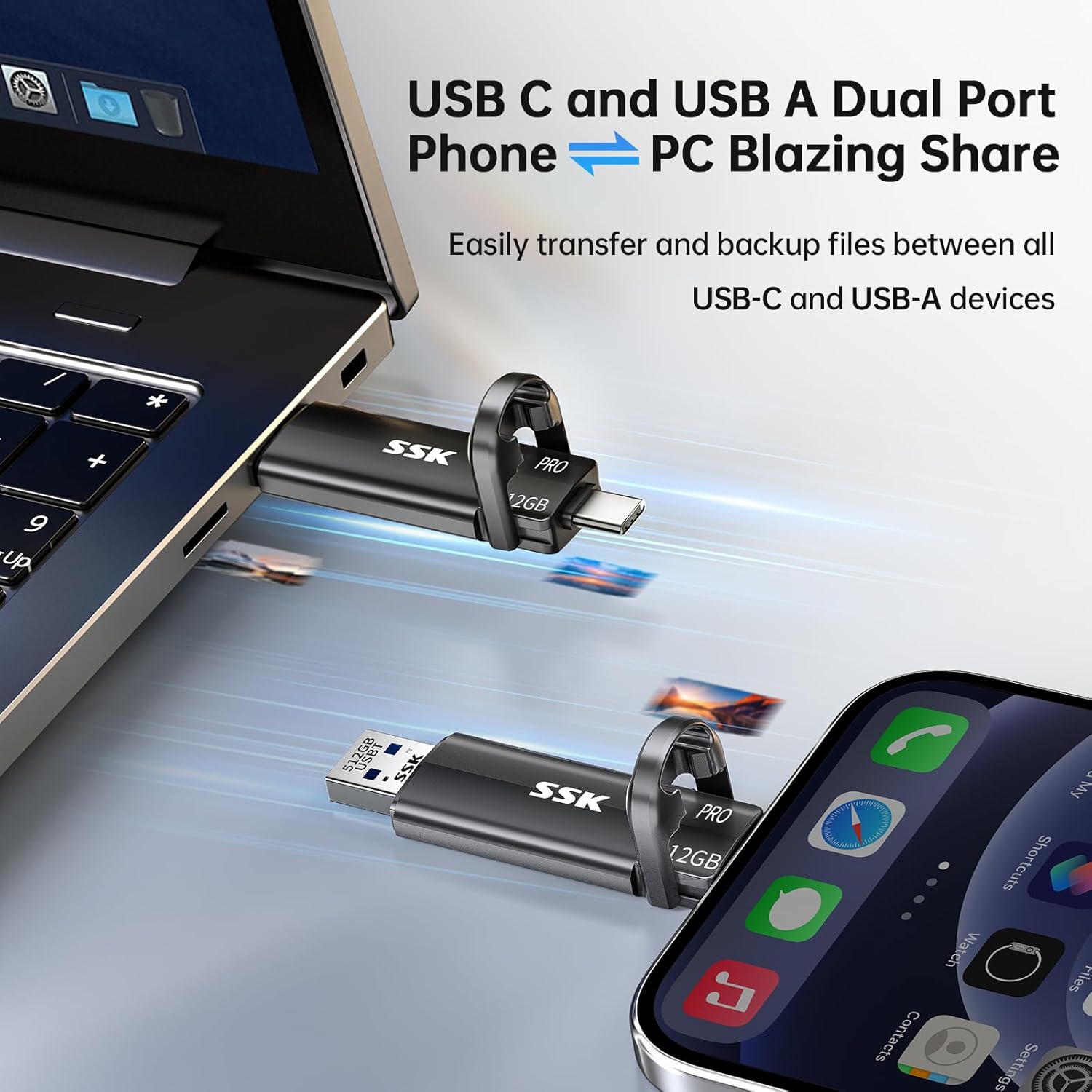
Image: The SSK SD311 PRO connected to a laptop via its USB-A port and to a smartphone via its USB-C port, demonstrating its dual-port capability for file sharing between devices.
3.2 Initial Setup (Formatting)
The drive comes pre-formatted as exFAT for universal compatibility across Windows, macOS, Android, and iOS. If you need to reformat the drive for specific operating system requirements or performance optimization, follow your operating system's disk utility instructions. Reformatting will erase all data on the drive.

Image: A visual representation of the SSK SD311 PRO's plug-and-play compatibility with multiple operating systems and devices, including Mac OS, Chrome OS, Windows, Android, and Linux.
4. Operating Instructions
4.1 General Data Transfer
Once connected, the SSK SD311 PRO will appear as an external storage device on your computer or mobile device. You can drag and drop files, copy and paste, or use your device's file management system to transfer data to and from the SSD.
4.2 iPhone 4K ProRes HDR Recording
For iPhone 15 Pro or later models running iOS 17 or newer, you can record 4K 60Hz ProRes HDR videos directly to the SSK SD311 PRO. This bypasses internal phone storage limits.
- Connect the SSK SD311 PRO to your iPhone's USB-C port.
- Go to iPhone Settings > Camera > Formats.
- Turn on 'Apple ProRes' and select 'ProRAW Max' or 'ProRAW 12 MP' as needed.
- Open the Camera app, select Video mode, and ensure 'ProRes HDR' and 'USB-C' indicators are visible.
- Begin recording. The video will be saved directly to the SSD.

Image: An iPhone 15 Pro connected to the SSK SD311 PRO, actively recording 4K ProRes video, demonstrating direct storage to the external SSD.
Video: This video demonstrates the process of setting up an iPhone for 4K ProRes recording directly to the SSK USB SSD, including connecting the drive and adjusting camera settings.
4.3 Android/Tablet OTG File Backup
For Android devices and tablets that support OTG (On-The-Go) functionality, you can easily back up photos and files.
- Connect the SSK SD311 PRO to your Android device's USB-C port (or USB-A with an adapter if needed).
- Open your device's file manager or gallery app.
- Select the photos/files you wish to back up.
- Choose the 'Copy' or 'Move' option.
- Navigate to the SSK SSD (it may appear as 'USB storage' or a similar name) and paste the files.

Image: A step-by-step guide illustrating how to back up photos and files from an Android phone or tablet to the SSK SD311 PRO using the device's file management system.
5. Performance Notes
5.1 Speed and Capacity Display
The SSK SD311 PRO offers transfer speeds up to 1000MB/s. Actual speeds may vary based on the host device, interface (USB 3.2 Gen2 required for maximum speed), file type, and system workload. Continuous high-speed transfers may cause the device casing to warm up, which is normal and safe due to the zinc alloy's heat dissipation properties.
Note on Capacity: A 512GB SSD may display as approximately 476GB on Windows and 512GB on macOS. This difference is due to the binary (1GB = 1,024MB) vs. decimal (1GB = 1,000MB) calculation methods used by different operating systems. The physical capacity remains 512GB.

Image: A graphic explaining why the 512GB SSD capacity may appear as 476GB on Windows and 512GB on macOS due to different calculation methods. It also notes that heat generation during continuous high-speed transfers is normal.
Video: This video highlights the consistent 1000MB/s transfer speed of the SSK USB SSD, emphasizing that there is no speed drop during data transfers.
6. Maintenance & Care
- Safe Ejection: Always safely eject the SSD from your device before disconnecting it to prevent data corruption.
- Physical Protection: Use the provided leather case to protect the SSD from scratches and impacts.
- Temperature: While the zinc alloy casing helps with heat dissipation, avoid prolonged exposure to extreme temperatures.
- Cleaning: Use a soft, dry cloth to clean the device. Avoid liquid cleaners.
- Firmware Updates: Check the official SSK website periodically for any available firmware updates to ensure optimal performance and compatibility.
7. Troubleshooting
- Device Not Recognized:
- Ensure the SSD is fully inserted into the port.
- Try a different USB port or cable.
- Restart your computer or mobile device.
- Check your device's disk management utility to see if the drive is detected but uninitialized or unformatted.
- Slow Transfer Speeds:
- Verify your device's USB port supports USB 3.2 Gen2 (10Gbps). Older USB 2.0 or 3.0 ports will result in lower speeds.
- Ensure your operating system and drivers are up to date.
- Large numbers of small files transfer slower than a few large files.
- Drive Gets Warm:
- It is normal for the zinc alloy casing to warm up during continuous high-speed data transfers, as it is designed to dissipate heat. This does not indicate a malfunction.
- Data Corruption:
- Always safely eject the drive before disconnecting.
- If data corruption occurs frequently, consider reformatting the drive.
8. Specifications
| Feature | Detail |
|---|---|
| Model Number | SD311 PRO |
| Digital Storage Capacity | 512 GB |
| Hard Drive Interface | PCIE x 4 |
| Connectivity Technology | PCIE(NVMe), UASP, USB 3.2 Gen2 |
| Max Transfer Speed | Up to 1000MB/s |
| Flash Memory Type | TLC NAND SSD |
| Special Features | Portable, Reliable TLC NAND SSD, S.M.A.R.T. Technology, TRIM Support, USB-C + USB-A Head |
| Compatible Devices | Desktop, Laptop, Smartphone, Tablet, iPhone 15/16 Pro |
| Hardware Platform | Mac, PC |
| Item Weight | 1.29 ounces (36.6g) |
| Product Dimensions | 3.2 x 0.8 x 0.3 inches |
| Color | Space Gray |
9. Warranty & Support
SSK products are designed for reliability and performance. For warranty information, technical support, or any product-related inquiries, please refer to the official SSK website or contact SSK customer service directly. Keep your purchase receipt for warranty claims.


