
1. Introduction
This manual provides essential information for the setup, operation, and maintenance of your ZZA 27 Inch FHD Curved Gaming Monitor. Please read this manual thoroughly before using the product to ensure proper functionality and to prevent damage. Keep this manual for future reference.

Figure 1.1: ZZA 27 Inch FHD Curved Gaming Monitor
2. What's in the Box
Verify that all components are present in the package:
- 27 inch FHD 280Hz Monitor (x1)
- Base and Stand (x1)
- User Manual (x1)
- Power Cable (x1)
- DP Cable (x1)
3. Setup
3.1 Assembling the Stand
- Carefully remove the monitor from its packaging, placing it face down on a soft, clean surface to prevent scratches.
- Attach the stand neck to the back of the monitor until it clicks into place or is secured with screws (refer to the diagram for screw locations if applicable).
- Attach the base to the stand neck and secure it with the provided screw.
- Gently lift the assembled monitor and place it on a stable, flat surface.
3.2 VESA Wall Mounting
The monitor is VESA compatible (100x100mm). To mount the monitor on a wall or an alternative stand:
- Remove the original stand if it is already attached.
- Attach your VESA-compatible mount to the monitor using appropriate screws (not included).
- Ensure the mount can support the monitor's weight (approximately 7.26 pounds).
3.3 Connecting Cables
Connect the necessary cables to the monitor's ports:
- Power Cable: Connect one end of the power cable to the monitor's power input and the other end to a power outlet.
- DisplayPort (DP) Cable: For optimal performance (280Hz refresh rate), connect the provided DP cable from your computer's graphics card to one of the monitor's DisplayPort 1.4 inputs.
- HDMI Cable: Alternatively, connect an HDMI cable from your computer or other devices to one of the monitor's HDMI 2.0 inputs.

Figure 3.1: Monitor ports and side profile
4. Operating the Monitor
4.1 Power On/Off
Press the power button, usually located on the back or bottom of the monitor, to turn the monitor on or off. The power indicator light will illuminate when the monitor is on.
4.2 On-Screen Display (OSD) Menu
The OSD menu allows you to adjust various monitor settings. Use the control buttons (typically a joystick or a series of buttons) located on the back or bottom of the monitor to navigate the menu.
- Input Source: Select between HDMI1, HDMI2, DP1, or DP2.
- Picture Settings: Adjust brightness, contrast, sharpness, color temperature, and gamma.
- Display Settings: Adjust aspect ratio, overdrive, and other display-related options.
- Audio Settings: Control volume if external speakers are connected via the audio out port.
- Gaming Features: Enable/disable FreeSync, adjust response time (OD), and activate the Crosshair Function.
4.3 Key Features and Adjustments
- 280Hz Refresh Rate & 1ms Response Time: Experience smooth visuals and minimal input lag, ideal for fast-paced gaming. Ensure your graphics card and connection (DisplayPort recommended) support this refresh rate.
- FreeSync Technology: This technology synchronizes the monitor's refresh rate with your GPU's frame rate, eliminating screen tearing and stuttering for a smoother gaming experience. Enable FreeSync in the OSD menu and on your graphics card settings.
- Eye-Care Features: The monitor incorporates flicker-free technology and a low-blue-light mode to reduce eye strain during extended use. These features can be adjusted or enabled via the OSD menu.
- 1800R Curved Screen: The 1800R curvature provides an immersive viewing experience, especially beneficial for gaming and multimedia content, by bringing the edges of the screen closer to your field of vision.
- Tilt Adjustment: The monitor supports tilt adjustment from -5° to +15° (±2°). Gently tilt the monitor panel to achieve your desired viewing angle.

Figure 4.1: Refresh Rate Comparison (75Hz vs 280Hz vs 100Hz)

Figure 4.2: FreeSync ON vs. Tearing/Stuttering OFF

Figure 4.3: Immersive Visual Experience with 1800R Curvature
5. Maintenance
Proper maintenance ensures the longevity and optimal performance of your monitor.
- Cleaning the Screen: Use a soft, lint-free cloth slightly dampened with water or a specialized screen cleaner. Do not spray liquid directly onto the screen. Avoid using abrasive cleaners or solvents.
- Cleaning the Casing: Wipe the monitor casing with a soft, dry cloth.
- Power Off: Always turn off the monitor and unplug it from the power outlet before cleaning.
- Ventilation: Ensure the monitor's ventilation openings are not blocked to prevent overheating.
6. Troubleshooting
If you encounter issues with your monitor, refer to the following common problems and solutions:
| Problem | Possible Cause | Solution |
|---|---|---|
| No image on screen | Power cable disconnected; Video cable disconnected; Incorrect input source selected. | Check power and video cable connections. Ensure the correct input source (HDMI/DP) is selected via the OSD menu. |
| Image is blurry or distorted | Incorrect resolution; Video cable issue. | Set the display resolution to 1920x1080. Try a different video cable or port. |
| Screen flickering | Refresh rate mismatch; Cable issue; FreeSync setting. | Ensure refresh rate is set correctly in your computer's display settings. Check video cable. Adjust FreeSync settings. |
| No sound | No speakers connected; Volume too low; Incorrect audio output. | This monitor does not have built-in speakers. Connect external speakers to your computer or use headphones. Check computer's audio output settings. |
If the problem persists after trying these solutions, please contact customer support.
7. Specifications
Detailed technical specifications for the ZZA Gaming Monitor (Model Z27H).
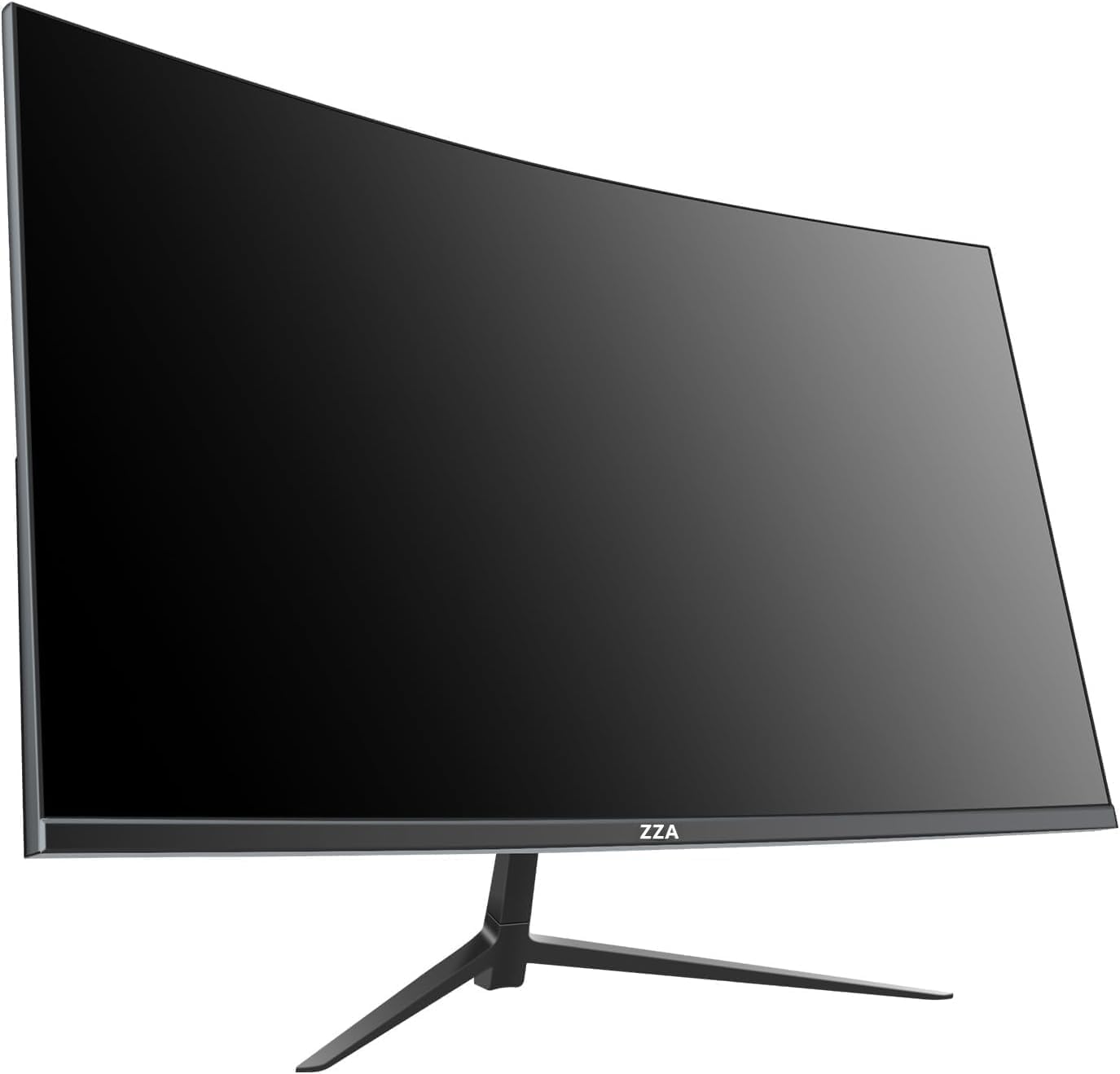
Figure 7.1: Monitor Dimensions
| Feature | Detail |
|---|---|
| Model Number | Z27H |
| Screen Size | 27 Inches |
| Panel Type | VA Curved |
| Curvature | 1800R |
| Resolution | FHD 1080p (1920 x 1080) |
| Refresh Rate | 280Hz |
| Response Time | 1ms (GTG) |
| Aspect Ratio | 16:9 |
| Brightness | 300 nits |
| Contrast Ratio | 4000:1 |
| Color Gamut | 100% sRGB |
| Display Colors | 8-Bit, 16.7 Million |
| Connectivity | 2x HDMI 2.0, 2x DisplayPort 1.4 |
| Adaptive Sync | FreeSync |
| VESA Compatibility | 100x100mm |
| Tilt Adjustment | -5° to +15° (±2°) |
| Product Dimensions | 6.85 x 24 x 14.13 inches |
| Item Weight | 7.26 pounds |
8. Warranty and Support
ZZA is committed to providing superior quality and customer satisfaction.
- Warranty: Your ZZA Gaming Monitor comes with a 1-year warranty from the date of purchase. This warranty covers manufacturing defects and ensures the monitor performs as specified.
- Customer Support: For any inquiries, technical assistance, or warranty claims, please contact our customer support team. We offer 24-hour customer support to address your concerns promptly.
- Damage Claims: If you discover any damage upon receiving your product, please contact us immediately for assistance.

