
1. Introduction
Thank you for choosing the JIGUUN PRO2000W-12 Pure Sine Wave Power Inverter. This manual provides essential information for the safe and efficient operation of your inverter. Please read it thoroughly before use and retain it for future reference.
This inverter converts 12V DC power from your battery into 120V AC power, suitable for powering various household appliances, electronics, and tools. Its pure sine wave output ensures compatibility with sensitive electronics, providing stable and clean power.

Image 1.1: JIGUUN 2000 Watt Pure Sine Wave Power Inverter with included battery cables.
2. Safety Information
WARNING: Failure to follow these safety instructions may result in injury, damage to the inverter, or damage to connected devices.
- Ventilation: Ensure adequate ventilation around the inverter. Do not block cooling vents.
- Environment: Operate the inverter in a dry, well-ventilventilated area, away from direct sunlight, heat sources, flammable materials, and moisture.
- Connections: Always connect the inverter to a 12V DC battery. Ensure all connections are tight and secure to prevent arcing and overheating.
- Grounding: The inverter must be properly grounded. Connect the grounding terminal to a suitable ground point.
- Load Capacity: Do not exceed the inverter's continuous power rating (2000W) or peak surge rating (4000W). Overloading can cause damage and trigger safety protections.
- Protection Features: The inverter includes protection against undervoltage, overvoltage, overheating, overload, and short circuit. If a protection mode is activated, disconnect the load and troubleshoot the issue.
- Children: Keep the inverter out of reach of children.
- Maintenance: Do not attempt to open or modify the inverter. Refer all servicing to qualified personnel.
3. Product Overview and Components
Familiarize yourself with the various parts of your JIGUUN Power Inverter.

Image 3.1: Front and rear panel components of the JIGUUN Power Inverter.
Front Panel:
- LCD Display: Shows battery level, DC input voltage, AC output voltage, output frequency, and load power.
- Power Indicator: Illuminates when the inverter is operational.
- ON/OFF Switch: Controls the main power to the inverter.
- USB Ports (2.1A): For charging USB-powered devices.
- AC Receptacles (x4): Standard 120V AC outlets for connecting appliances.
- AC Ground Terminal: For proper grounding of the inverter.
Rear Panel:
- Negative DC Terminal (Black): Connects to the negative terminal of the 12V battery.
- Positive DC Terminal (Red): Connects to the positive terminal of the 12V battery.
- Cooling Fans (x2): Automatically activate to dissipate heat and maintain optimal operating temperature.
4. What's in the Box
Verify that all items are present in your package:
- 1x JIGUUN 2000W Pure Sine Wave Inverter
- 1x Remote Control
- 1x Set of Battery Cables (1x Red, 1x Black)
- 4x Spare Fuses (30A)
- 1x Alligator Clip Safety Ground
- 1x User Manual

Image 4.1: All items included in the JIGUUN Power Inverter package.
5. Setup
5.1 Battery Connection
- Ensure the inverter's ON/OFF switch is in the 'OFF' position.
- Connect the RED battery cable to the Positive (+) terminal of your 12V battery.
- Connect the other end of the RED cable to the Positive (+) DC input terminal on the inverter.
- Connect the BLACK battery cable to the Negative (-) terminal of your 12V battery.
- Connect the other end of the BLACK cable to the Negative (-) DC input terminal on the inverter.
- Ensure all connections are tight and secure. Loose connections can cause overheating and damage.

Image 5.1: DC input terminals for battery connection.

Image 5.2: Included battery cables for connection.
5.2 Grounding the Inverter
For safety, the inverter must be properly grounded. Connect the alligator clip safety ground cable from the inverter's ground terminal to a suitable ground point, such as the chassis of a vehicle or a dedicated earth ground.
5.3 Remote Control Setup
The remote control allows for convenient power management from a distance. No wire connection is required for the remote control to function.
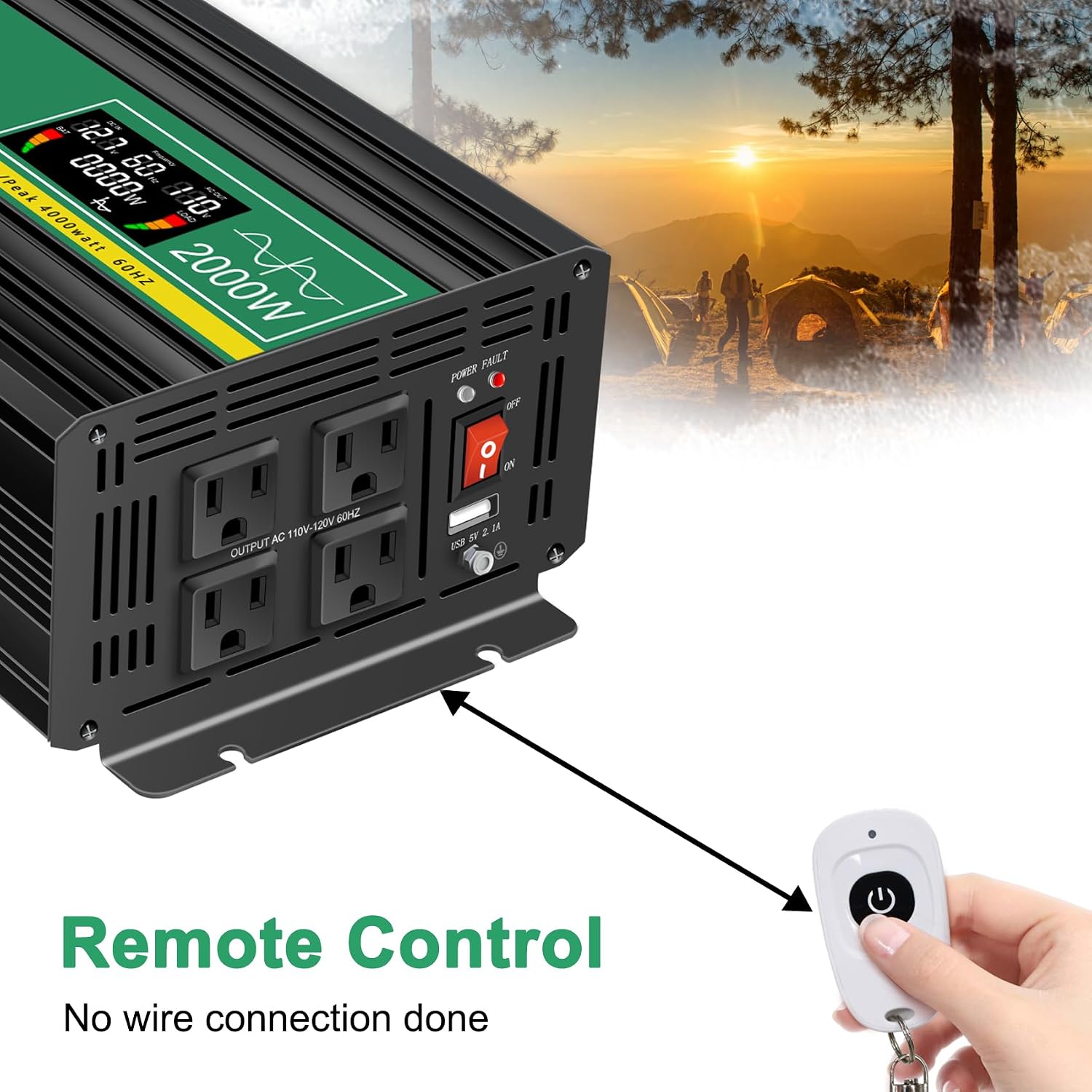
Image 5.3: Remote control for the JIGUUN Power Inverter.
6. Operating Instructions
6.1 Powering On/Off
- After ensuring all connections are secure, flip the ON/OFF switch on the inverter to the 'ON' position. The LCD display will illuminate, and the power indicator will light up.
- To power off, flip the ON/OFF switch to the 'OFF' position.
- Alternatively, use the remote control to power the inverter on or off.
6.2 Using the LCD Display
The intelligent LCD display provides real-time information about the inverter's status:
- Battery Level Bar: Indicates the charge level of the connected battery.
- Loads Level Bar: Shows the current power draw from connected AC devices.
- DC Input Voltage: Displays the voltage from the 12V battery.
- AC Output Voltage: Shows the 120V AC output voltage.
- Output Frequency: Displays the AC output frequency (60Hz).
- Load Power: Indicates the total wattage being drawn by connected devices.
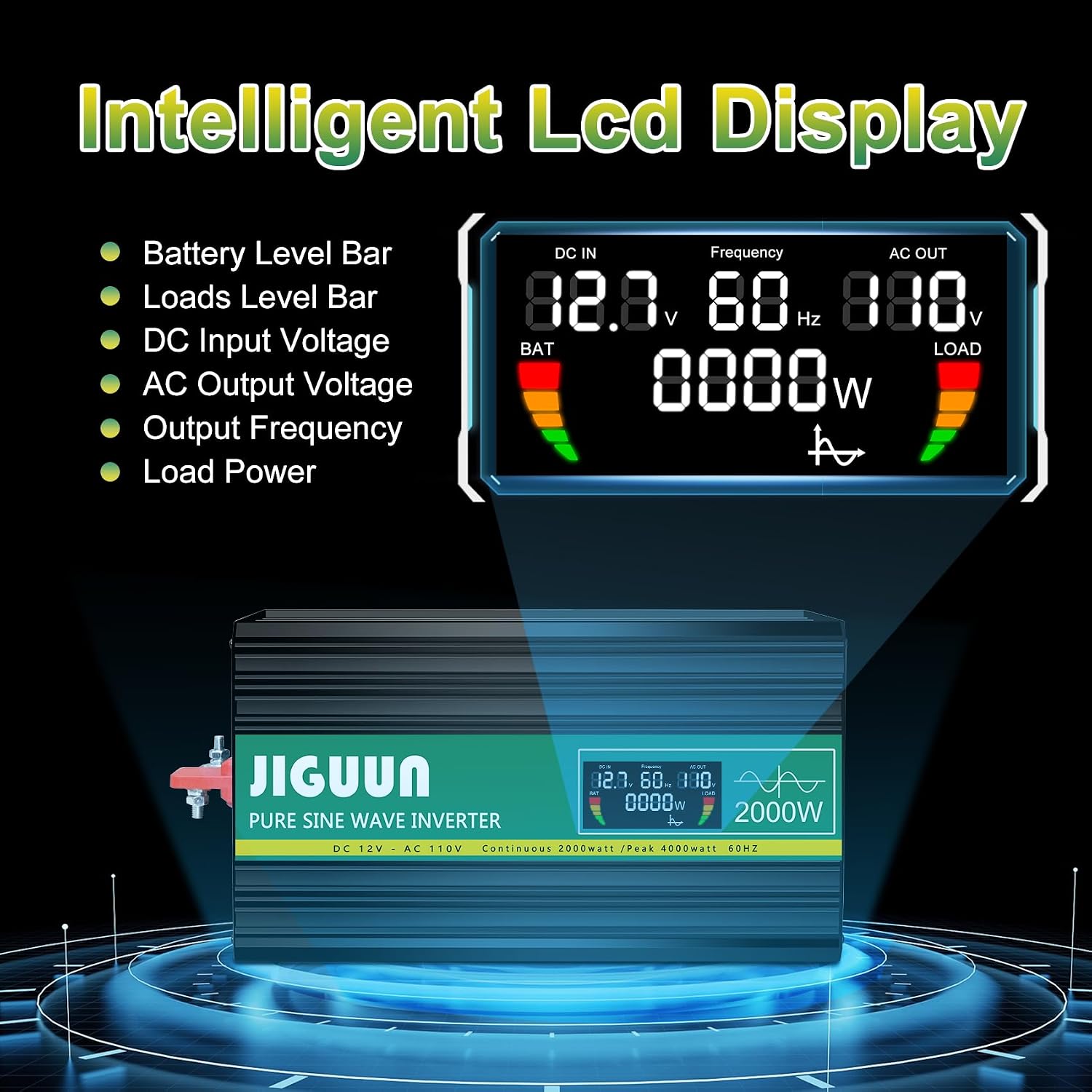
Image 6.1: Detailed view of the LCD display information.
6.3 Connecting AC and USB Devices
- With the inverter powered on, plug your 120V AC appliances into the four AC receptacles.
- Plug your USB-powered devices into the USB ports for charging.
- Ensure the total wattage of all connected AC devices does not exceed 2000W continuously.

Image 6.2: Examples of appliances powered by the inverter.
7. Maintenance
7.1 Cleaning
Regularly clean the exterior of the inverter with a dry, soft cloth. Do not use liquid cleaners or solvents. Ensure cooling vents are free from dust and debris to maintain optimal airflow.
7.2 Cooling System
The inverter features temperature-sensitive control fans that activate automatically when the internal temperature exceeds 45°C. These fans ensure rapid cooling and quiet operation. Ensure the fan vents are not obstructed.

Image 7.1: Inverter cooling fans and intelligent temperature control.
7.3 Fuse Replacement
The inverter has built-in fuses for protection. If a fuse needs replacement, it is recommended to contact customer service or a qualified technician. Spare 30A fuses are included in the package for emergency situations, but professional assistance is advised for replacement.

Image 7.2: Spare 30A fuses.
8. Troubleshooting
If the inverter is not functioning correctly, refer to the following common issues and solutions:
| Problem | Possible Cause | Solution |
|---|---|---|
| No power output / Inverter not turning on | Loose battery connections Low battery voltage Inverter switch OFF Blown fuse | Check and tighten battery cables. Charge or replace battery. Ensure switch is ON. Contact customer service for fuse inspection/replacement. |
| Inverter shuts down / Error warning | Overload Overheating Low/High input voltage Short circuit | Reduce connected load. Ensure proper ventilation, clear fan vents. Check battery voltage. Disconnect all loads, check for faulty wiring/appliances. |
| Connected appliance not working | Appliance power exceeds inverter capacity Appliance fault Inverter in protection mode | Verify appliance wattage. Test appliance with another power source. Check inverter display for error codes. |
8.1 Protection System
The JIGUUN inverter is equipped with a comprehensive safety and security system (BMS) to protect itself and your devices:
- Battery Low Voltage Protection
- Battery Over Voltage Protection
- Reverse Polarity Protection
- Short Circuit Protection
- Inverter Over Voltage Protection
- Inverter Low Voltage Protection
- Temperature Control (Overheating Protection)
- Ground Fault Circuit Interrupter (GFCI) Protection
- Overload Protection

Image 8.1: Comprehensive safety and security system icons.
9. Specifications
| Feature | Specification |
|---|---|
| Model Name | PRO2000W-12 |
| Continuous Power | 2000 Watts |
| Peak Surge Power | 4000 Watts |
| DC Input Voltage | 12V |
| AC Output Voltage | 120V |
| Output Frequency | 60Hz |
| Output Waveform | Pure Sine Wave |
| Conversion Efficiency | >90% |
| AC Outlets | 4 |
| USB Output | 2.1A |
| Item Weight | 11.11 pounds |
| Dimensions (L x W x H) | 19.29 x 9.65 x 6.85 inches |
| Recommended Uses | Home, Office, Vehicle (RV, Camping, Emergency) |
| Power Source | Solar and Battery Powered |
10. Warranty and Support
10.1 Warranty Information
The JIGUUN PRO2000W-12 Power Inverter comes with a 1-year warranty, which includes free replacement for manufacturing defects. Please retain your proof of purchase for warranty claims.
10.2 Customer Support
For technical assistance, troubleshooting, warranty claims, or any other inquiries, please contact JIGUUN customer service. Refer to the contact information provided with your product packaging or visit the official JIGUUN website for support details.
