
1. Introduction
This manual provides detailed instructions for the setup, operation, customization, and maintenance of your Redragon M901K Gaming Mouse. Please read this manual thoroughly to ensure optimal performance and longevity of your device.

Image 1.1: Overview of the Redragon M901K Gaming Mouse highlighting its key features.
2. Product Overview
The Redragon M901K is a high-performance gaming mouse designed for precision and customization. It features 19 programmable buttons, adjustable DPI, RGB lighting, and a weight tuning system.
2.1. Button Layout

Image 2.1: Detailed diagram showing the 19 programmable buttons on the Redragon M901K mouse.
- Left Mouse Button: Primary click function.
- Right Mouse Button: Secondary click function.
- Scroll Wheel & Middle Button: Scroll function and middle click.
- DPI + / DPI - Buttons: Adjust DPI sensitivity up or down.
- Rapid Fire Button: Configurable for quick multiple clicks.
- Backlit Modes Switch: Cycles through RGB lighting effects.
- 12 Side Buttons: Fully programmable for macros, keybinds, or other functions.
- Power Switch (ECO/OFF/ON): Controls mouse power and mode.
- Switch among 2 working modes: Toggles between configured profiles.
3. Setup
3.1. Connecting the Mouse
- Unpack the Redragon M901K Gaming Mouse from its packaging.
- Connect the USB cable of the mouse to an available USB port on your computer.
- The operating system will automatically detect and install the necessary basic drivers.
3.2. Software Installation
For full customization and access to all features, it is recommended to install the Redragon M901K software.
- Visit the official Redragon website: redragonzone.com/en/download.aspx
- Locate and download the software for the M901K model.
- Follow the on-screen instructions to complete the installation.
4. Operating Instructions
4.1. DPI Adjustment
The M901K mouse offers adjustable DPI settings from 100 to 12400 DPI, allowing for precise control. Use the DPI+ and DPI- buttons located on the top of the mouse to cycle through preset DPI levels. Fine-tuning of DPI levels can be done via the software.

Image 4.1: Visual representation of the mouse's high sensitivity and accuracy at 12400 DPI.
4.2. Polling Rate
The polling rate can be adjusted from 125Hz to 1000Hz. A higher polling rate reduces input lag, providing a more responsive experience. This setting is configurable through the Redragon software.
4.3. Programmable Buttons and Macros
The M901K features 19 programmable buttons, including 12 side buttons, which can be customized for various functions, macros, or keybinds. This allows for complex actions to be executed with a single click.

Image 4.2: The 12 remappable side buttons on the M901K, illustrating potential assignments.
4.4. RGB Lighting
The mouse features 16.8 million color combinations and 4 lighting modes. Use the dedicated Backlit Modes Switch button to cycle through different lighting effects. Further customization of colors and effects is available through the software.

Image 4.3: The Redragon M901K showcasing its customizable RGB lighting.
4.5. Weight Tuning System
The M901K includes eight removable 2.4-gram weights, allowing you to customize the mouse's weight and balance to your preference. This feature enhances comfort and control.

Image 4.4: The weight tuning system located on the underside of the mouse.
4.6. Working Modes
The mouse supports two distinct working modes, which can be switched with a dedicated button. Each mode can have different DPI settings, backlit effects, and button functions configured via the software, allowing for quick transitions between gaming and productivity tasks.
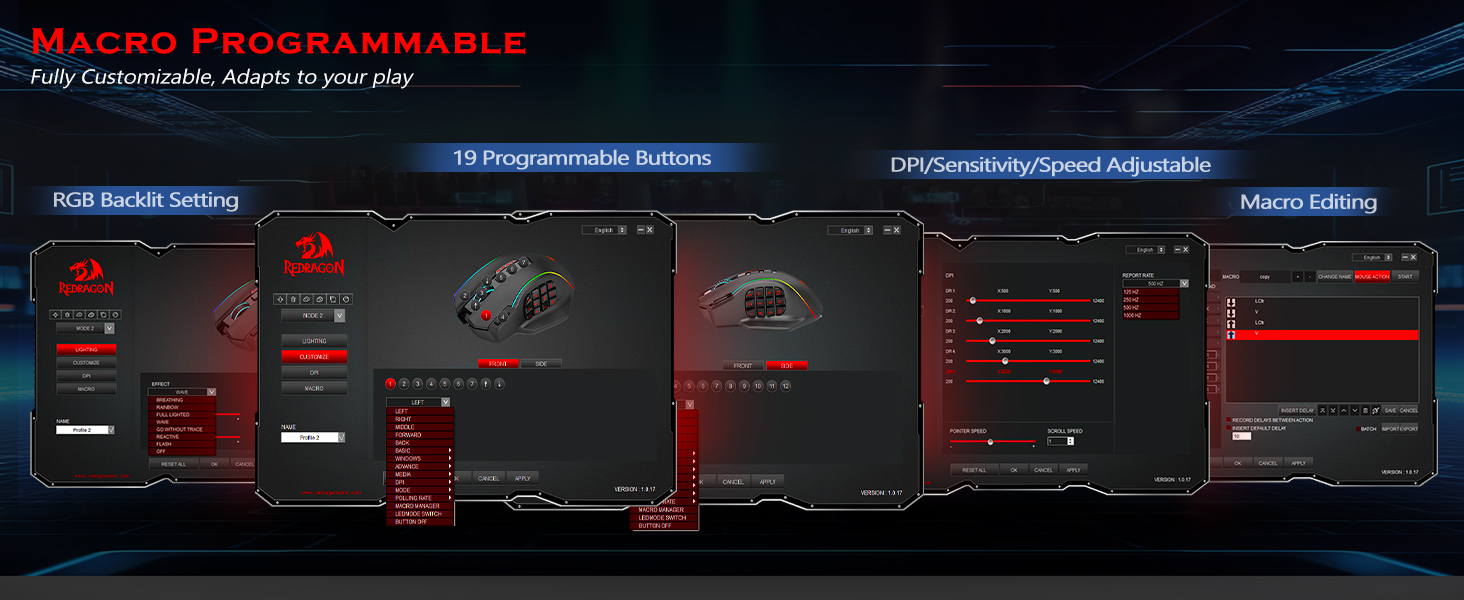
Image 4.5: The two working modes feature, adaptable for gaming or office use.
5. Software Installation and Customization
The Redragon M901K software provides comprehensive control over your mouse settings. After installation (refer to Section 3.2), launch the software to access the following customization options:
- Button Assignment: Remap any of the 19 buttons to perform specific actions, keyboard functions, or macros.
- Macro Editor: Create and edit complex macro sequences for in-game commands or productivity tasks.
- DPI Settings: Fine-tune DPI levels, set custom stages, and adjust polling rate.
- Lighting Effects: Customize RGB colors, brightness, speed, and lighting patterns.
- Profile Management: Save up to 5 memory profiles, allowing you to switch between different configurations for various games or applications.

Image 5.1: The Redragon M901K software interface for advanced customization.
6. Maintenance
Proper maintenance ensures the longevity and performance of your Redragon M901K Gaming Mouse.
6.1. Cleaning
- Disconnect the mouse from your computer before cleaning.
- Use a soft, dry cloth to wipe the surface of the mouse.
- For stubborn dirt, lightly dampen the cloth with water or a mild cleaning solution. Avoid harsh chemicals.
- Use a cotton swab or compressed air to clean around buttons and the scroll wheel.
- Ensure the optical sensor on the underside is free of dust and debris.
6.2. Storage
When not in use for extended periods, store the mouse in a clean, dry environment away from direct sunlight and extreme temperatures.
7. Troubleshooting
If you encounter issues with your Redragon M901K Gaming Mouse, refer to the following common solutions:
- Mouse not responding:
- Ensure the USB cable is securely connected to your computer.
- Try connecting the mouse to a different USB port.
- Restart your computer.
- Check the power switch on the underside of the mouse to ensure it is in the 'ON' position.
- Buttons not working or registering:
- Verify that the Redragon software is installed and running correctly.
- Check button assignments within the software to ensure they are configured as desired.
- Test the mouse on another computer to rule out system-specific issues.
- DPI or RGB lighting issues:
- Ensure the Redragon software is up to date.
- Reset settings to default within the software and reconfigure.
- Use the physical DPI and Backlit Modes Switch buttons to check if basic functionality is present.
If problems persist, please contact Redragon customer support for further assistance.
8. Specifications
| Feature | Detail |
|---|---|
| Model Number | M901K |
| Connectivity Technology | USB |
| Movement Detection Technology | Optical |
| DPI Range | 100-12400 DPI (Adjustable) |
| Polling Rate | 125Hz-1000Hz |
| Programmable Buttons | 19 |
| RGB Backlighting | 16.8 Million Colors, 4 Lighting Modes |
| Weight Tuning | 8 x 2.4g Removable Weights |
| Memory Profiles | 5 |
| Working Modes | 2 (Switchable) |
| Item Weight | 0.085 ounces (without weights) |
| Package Dimensions | 6.5 x 4.5 x 2 inches |
| Manufacturer | Redragon |
9. Warranty and Support
Redragon products are designed for durability and performance. For information regarding warranty coverage, technical support, or frequently asked questions, please visit the official Redragon website or contact their customer service department.
Redragon Official Website: www.redragonzone.com