
CEYOMUR CY80
Contents
CEYOMUR 4G LTE Cellular Trail Camera Instruction Manual
Model: CY80 | Brand: CEYOMUR
1. Introduction
This manual provides detailed instructions for the setup, operation, maintenance, and troubleshooting of your CEYOMUR 4G LTE Cellular Trail Camera. Designed for outdoor wildlife monitoring, this camera offers 2K HD live feed, solar power capabilities, and robust IP66 waterproofing. Please read this manual thoroughly before using the product to ensure optimal performance and longevity.

Figure 1: CEYOMUR 4G LTE Cellular Trail Camera with integrated solar panel.
2. Safety Information
Always handle the camera with care. Do not attempt to disassemble or modify the device. Keep the camera away from extreme temperatures, open flames, and corrosive materials. Ensure all ports are securely sealed when exposed to outdoor elements to maintain its IP66 waterproof rating. Use only approved accessories and power sources.
3. What's in the Box
Upon unboxing your CEYOMUR Trail Camera, verify that all the following components are included:
- 1 x Trail Camera CY80
- 1 x Solar Panel
- 1 x SIM Card (pre-installed)
- 1 x TF Card (32GB, pre-installed)
- 1 x User Manual
- 1 x Antenna
- Mounting Accessories (including tree strap, 360 rotation mount, extension arm, long thumbscrew, short thumbscrew)
Video 1: Unboxing and initial overview of the CEYOMUR Trail Camera components.
4. Setup
4.1 Initial Charging
Before first use, fully charge the built-in 7500mAh rechargeable battery using a 5V USB charger (not included) and the provided USB MICRO cable. This ensures the camera has sufficient power for initial setup and operation.
4.2 SIM Card and SD Card Installation
The camera comes with a pre-installed SIM card and a 32GB TF card. Ensure they are properly seated in their respective slots before closing the camera housing.
4.3 Antenna Installation
Screw the provided antenna firmly into the designated port on the top of the camera.
4.4 Powering On and App Connection
Follow these steps to power on your camera and connect it to the Ucon App:
- Slide the power switch from 'OFF' to 'ON'. The 'STATE' light will turn red.
- Hold the 'RESET' button for several seconds until you hear "system reset".
- Wait for the 'STATE' light to turn solid blue, indicating the camera is ready for connection.
- Download the 'Ucon' app on your smartphone (scan the QR code on the camera or search in your app store).
- Open the app, click "Add a Device", and scan the QR code located on the camera's internal panel.
- Tick the option confirming the blue light is constantly on, then click "Next".
- Click "Finish" once the camera is successfully connected.
Video 2: Step-by-step guide for connecting your CEYOMUR Trail Camera to the Ucon App.
4.5 Installation Options
The camera and solar panel can be installed separately or together using the provided mounting accessories. Ensure the solar panel is positioned to receive sufficient sunlight for continuous charging.
Video 3: Instructions for installing the camera and solar panel separately.
Video 4: Instructions for installing the camera and solar panel together.

Figure 2: Camera and solar panel installed on a tree, demonstrating solar charging.
5. Operating
5.1 Remote Control & Live View
The 4G cellular network connection allows remote access and control via the Ucon App. You can check the live stream in real-time from anywhere with 4G LTE coverage. Note that Wi-Fi connection is not supported.

Figure 3: Remote monitoring via 4G cellular network.
5.2 2K Video & Crisp Night Vision
The camera captures crisp 2K videos, allowing clear observation of wildlife. Equipped with two high-power infrared 850nm LED lights, it provides clear night vision with reduced noise for nighttime recording.
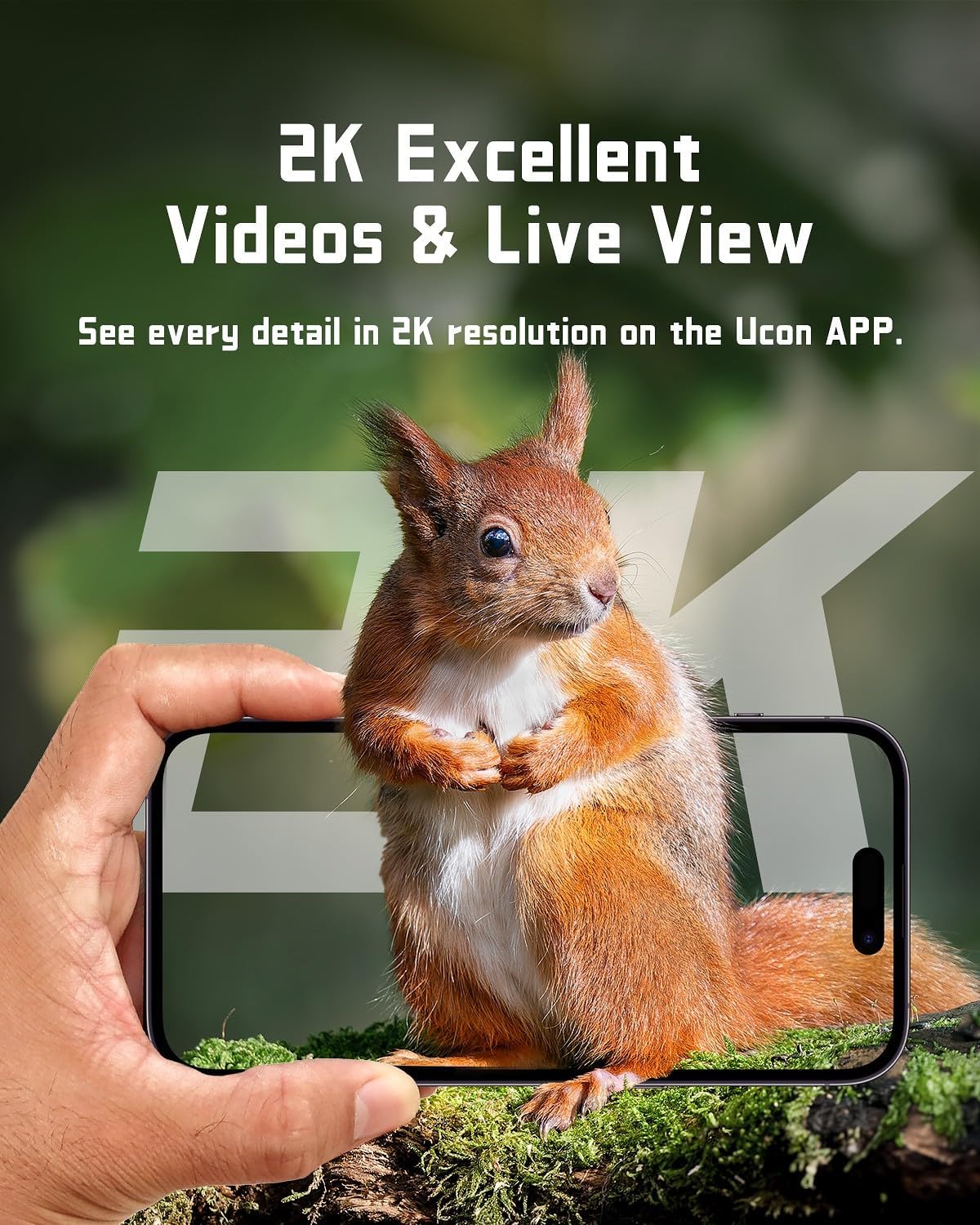
Figure 4: High-resolution video capture and live view.
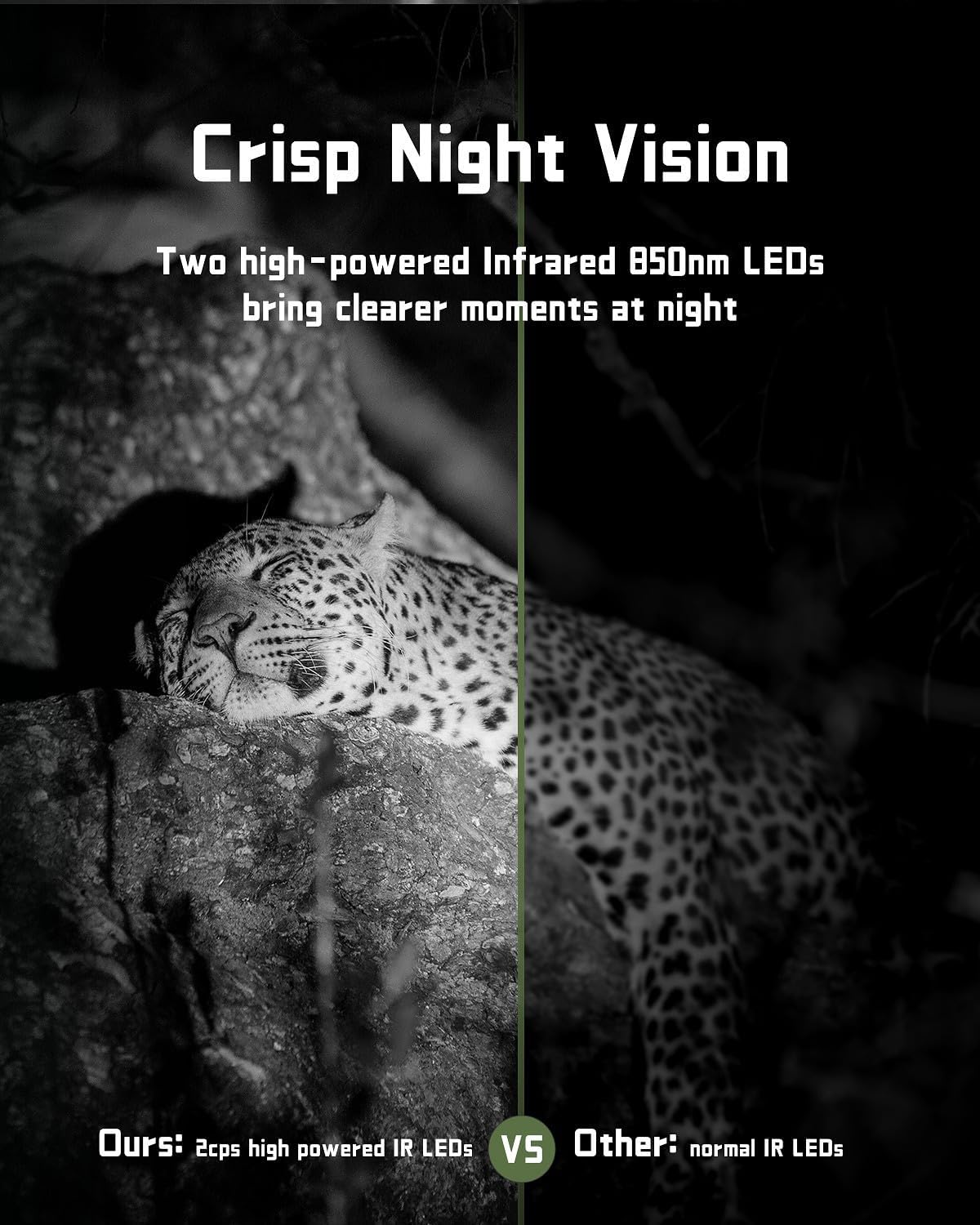
Figure 5: Comparison of day and crisp night vision capabilities.
5.3 Fast Trigger Speed & Real-Time Alerts
With a rapid 0.1s trigger speed, the camera captures motion quickly. Real-time alerts are sent to your phone via the Ucon App when motion is detected, allowing immediate review of footage.

Figure 6: Real-time motion alerts on your smartphone.

Figure 7: Demonstration of the camera's fast 0.1s trigger speed.
5.4 Two-Way Intercom & Multi-User Sharing
The camera supports two-way intercom functionality, enabling communication through the app. You can also share live views and captured moments with friends and family.
5.5 Storage Options
The camera includes a 32GB SD card. New users also receive 30 days of free cloud storage. You can choose your preferred storage method for videos and images.
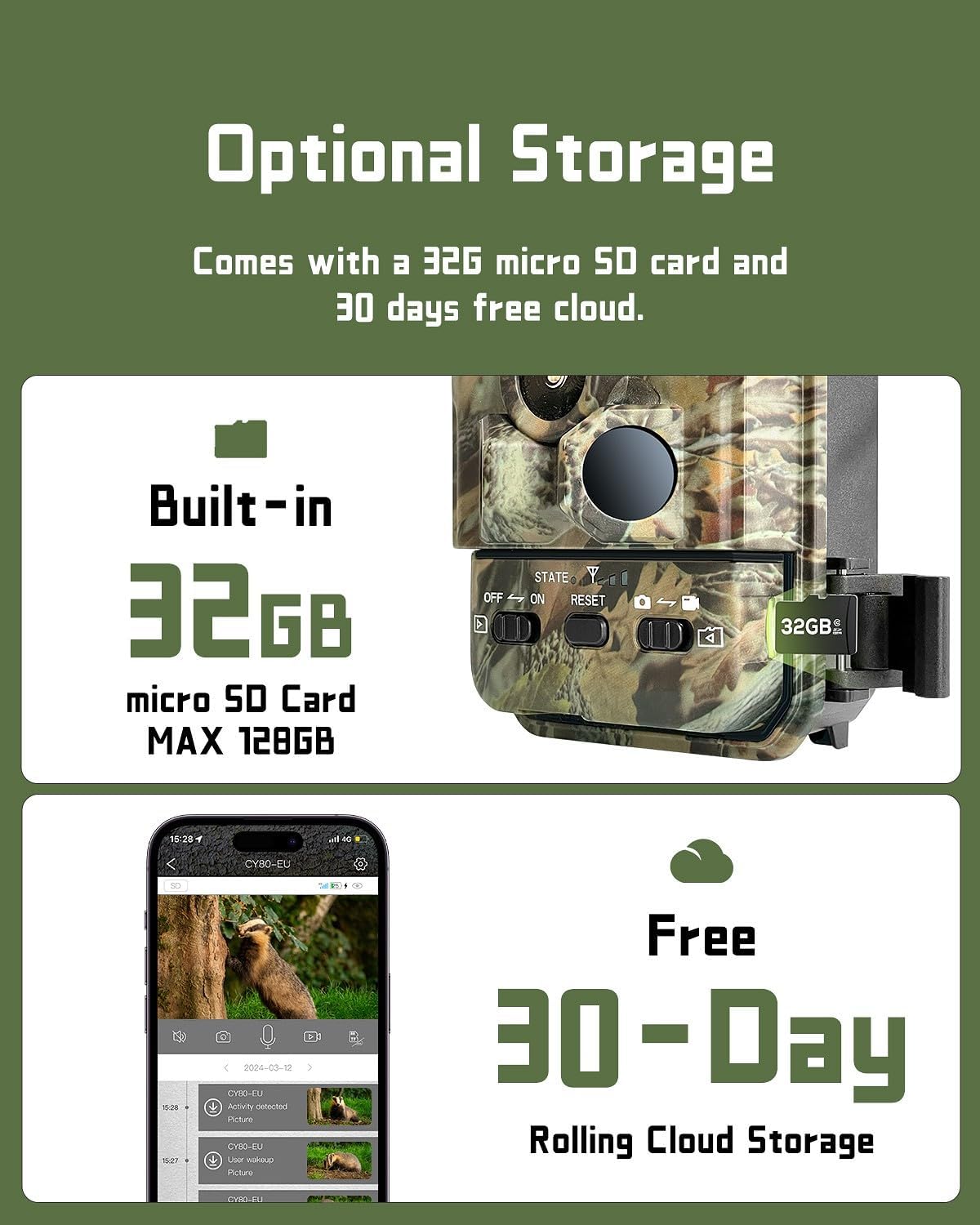
Figure 8: Available storage options for your camera.
5.6 Cellular Data Plans
The enclosed SIM card supports local use in the U.S., Canada, and Mexico. It comes with 300 MB of complimentary data, auto-activated upon camera power-on. Additional data plans can be renewed via the app (e.g., $14.90/3GB for 30 days). You may also use your own compatible SIM card.
6. Maintenance
6.1 Power Management
The integrated 3W solar charging panel minimizes battery consumption and extends operational time. Ensure the solar panel is clean and free from obstructions to maximize charging efficiency. The camera has a built-in 7500mAh rechargeable battery.
6.2 Waterproofing
The camera boasts an IP66 waterproof rating, providing reliable protection against dust and strong jets of water. This makes it suitable for various outdoor environments, including forests, farms, and ranches.

Figure 9: The camera's IP66 waterproof design ensures durability in various weather conditions.
6.3 Cleaning
Regularly clean the camera lens and solar panel with a soft, damp cloth to ensure clear images and efficient charging. Avoid using abrasive cleaners or solvents.
7. Troubleshooting
- Camera not powering on: Ensure the battery is fully charged. Check the power switch is in the 'ON' position.
- No cellular signal: Verify you are in an area with 4G LTE coverage. Ensure the antenna is securely attached. Check your SIM card data plan status in the Ucon App.
- App connection issues: Ensure Bluetooth is enabled on your phone during initial setup. Try resetting the camera and re-pairing with the app.
- Poor image/video quality: Clean the camera lens. Ensure the camera is installed in a stable position. Check night vision settings if issues occur at night.
- No recordings: Check if the SD card is properly inserted and not full. Verify recording settings in the Ucon App.
8. Specifications
| Feature | Specification |
|---|---|
| Model Name | CY80 |
| Video Capture Resolution | 2K (1440p) |
| Effective Still Resolution | 14 MP |
| Trigger Speed | 0.1s |
| Connectivity Technology | 4G LTE Cellular |
| Power Source | Solar Powered (3W solar panel) / Built-in 7500mAh Lithium Ion Battery |
| Water Resistance Level | IP66 Waterproof |
| Night Vision | 850nm Infrared LEDs (black and white) |
| Included Storage | 32GB TF Card (supports up to 128GB) |
| Dimensions (L x W x H) | 5.7 x 4.1 x 2.7 inches |
| Item Weight | 2.04 pounds |
9. Warranty and Support
CEYOMUR is committed to providing excellent customer support. If you encounter any difficulties or have questions during use, please contact our professional service team for timely and effective assistance.
Ask a question about this manual
Ask about setup, troubleshooting, compatibility, parts, safety, or missing instructions. Manuals+ will review the question and use this page’s manual context to help answer it.