
1. Introduction
This manual provides essential instructions for setting up, operating, maintaining, and troubleshooting your Realme Note 50 RMX3834 smartphone. Please read this guide thoroughly to ensure proper usage and to maximize the device's capabilities.
The Realme Note 50 features a 6.74-inch IPS LCD display with a resolution of 720 x 1600 pixels, offering clear visuals for various tasks. It is powered by a Qualcomm processor, includes 4GB RAM, and 64GB internal storage.
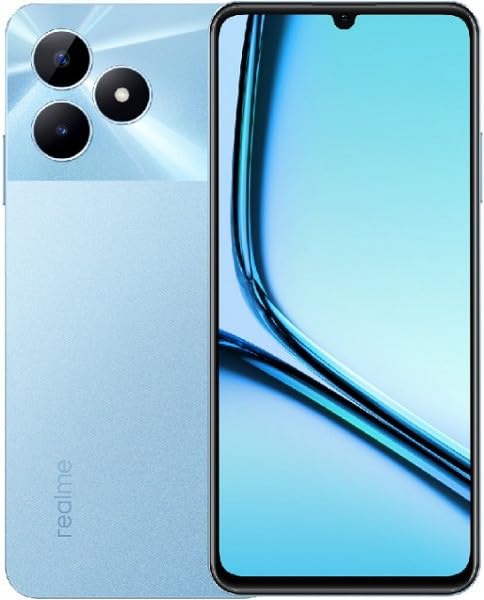
Image 1.1: Front and rear view of the Realme Note 50 RMX3834 smartphone in Sky Blue. The front shows the display with a waterdrop notch, and the rear shows the dual camera module and the 'realme' branding.
2. Setup
2.1 Package Contents
- Realme Note 50 RMX3834 Smartphone
- USB Cable
- Power Adapter
- SIM Ejector Tool
- Quick Start Guide (may vary by region)
2.2 Inserting SIM Card(s) and MicroSD Card
- Locate the SIM card tray on the side of your device.
- Insert the SIM ejector tool into the small hole next to the tray and press gently until the tray pops out.
- Place your Nano-SIM card(s) and/or microSD card into the designated slots on the tray. Ensure the gold contacts face downwards.
- Carefully reinsert the tray into the phone until it clicks into place.
2.3 Charging the Device
Before first use, it is recommended to fully charge your Realme Note 50. Connect the USB cable to the phone's charging port and the other end to the power adapter. Plug the adapter into a wall outlet. The charging indicator will appear on the screen.
2.4 Initial Power On and Setup
- Press and hold the Power button until the Realme logo appears.
- Follow the on-screen instructions to select your language, region, connect to Wi-Fi, and set up your Google account.
- Complete the setup wizard to personalize your device settings.
3. Operating Instructions
3.1 Basic Navigation
- Tap: Select an item or open an application.
- Swipe: Scroll through screens or lists.
- Pinch: Zoom in or out on images and web pages.
- Long Press: Access contextual menus or move icons.
3.2 Making Calls and Sending Messages
- Calls: Open the Phone app, enter the number, and tap the call icon.
- Messages: Open the Messages app, tap the new message icon, enter the recipient, and type your message.
3.3 Connecting to Networks
- Wi-Fi: Go to Settings > Wi-Fi, turn on Wi-Fi, select a network, and enter the password if required.
- Mobile Data: Go to Settings > Mobile network, and ensure Mobile data is enabled.
3.4 Camera Usage
Open the Camera app from your home screen or app drawer. Tap the shutter button to take a photo. Swipe left or right to switch between different camera modes (e.g., Video, Portrait, Night).
3.5 App Management
To install apps, open the Google Play Store. To uninstall an app, long-press its icon on the home screen or app drawer, then select 'Uninstall' or drag it to the uninstall option.
4. Maintenance
4.1 Cleaning Your Device
Use a soft, lint-free cloth to gently wipe the screen and back of your phone. Avoid using harsh chemicals or abrasive materials, which can damage the device's finish.
4.2 Software Updates
Regularly check for software updates to ensure your device has the latest features and security patches. Go to Settings > About device > Software update to check for and install available updates.
4.3 Battery Care
- Avoid exposing the device to extreme temperatures.
- Do not let the battery completely drain frequently.
- Use the original charger and cable for optimal charging.
4.4 Storage Management
To free up storage space, regularly clear cache data, uninstall unused apps, and transfer large files (photos, videos) to cloud storage or an external device.
5. Troubleshooting
5.1 Device Not Turning On
- Ensure the battery is charged. Connect the charger and wait a few minutes before attempting to power on.
- Press and hold the Power button for at least 10-15 seconds to force a restart.
5.2 Network Connectivity Issues
- Wi-Fi: Restart your router. Forget the network in phone settings and reconnect.
- Mobile Data: Ensure mobile data is enabled. Check your SIM card insertion. Contact your service provider if issues persist.
5.3 Apps Crashing or Freezing
- Clear the app's cache and data (Settings > Apps > [App Name] > Storage).
- Update the app to its latest version from the Google Play Store.
- If the issue persists, uninstall and reinstall the app.
6. Specifications
| Feature | Specification |
|---|---|
| Brand | realme |
| Model Name | Note 50 |
| Memory Storage Capacity | 64 GB |
| RAM Memory Installed Size | 4 GB |
| Processor Brand | Qualcomm |
| Processor Speed | 1.8 GHz |
| Standing Screen Display Size | 6.4 Inches |
| Display Type | LCD |
| Resolution | 720x1600 |
| Battery Description | Lithium Ion |
| Cellular Technology | 4G |
| Connectivity Technology | Wi-Fi |
| Human Interface Input | Touchscreen |
| Form Factor | Slate |
| Colour | Sky Blue |
| Wireless Service Provider | Unlocked |
7. Warranty and Support
7.1 Warranty Information
Your Realme Note 50 RMX3834 is covered by a limited warranty. The specific terms and duration of the warranty may vary by region and point of purchase. Please refer to the warranty card included in your product package or visit the official realme website for detailed information.
7.2 Customer Support
For technical assistance, service, or further inquiries, please contact realme customer support through their official website or the contact information provided in your warranty documentation. Have your device's model number (RMX3834) and serial number ready when contacting support.