1. Introduction
This manual provides essential instructions for the safe and efficient use of your Realme Note 50 RMX3834 smartphone. Please read this manual thoroughly before operating the device to ensure proper functionality and to prevent damage.
2. Device Overview
Familiarize yourself with the physical components of your Realme Note 50 RMX3834.
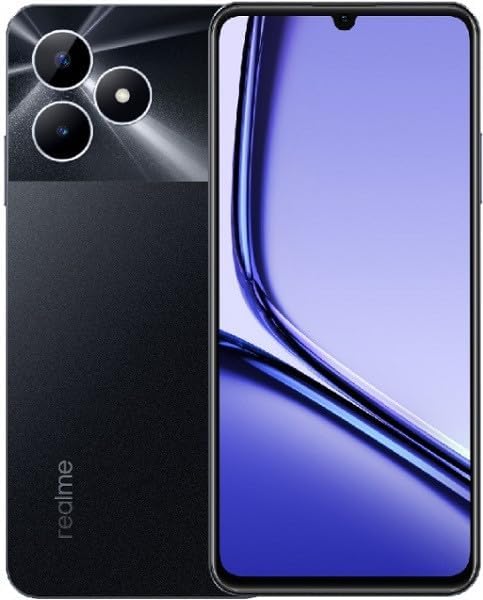
Image 2.1: Front and rear view of the Realme Note 50 RMX3834 smartphone. The front displays the screen with a teardrop notch for the front camera. The rear shows a dual-camera setup with a flash module and the 'realme' branding at the bottom left.
- Front Camera: Located in the teardrop notch at the top of the display.
- Display: The main screen for interaction and content viewing.
- Volume Buttons: Typically on the side, used to adjust audio levels.
- Power Button: Usually on the side, used to turn the device on/off or lock/unlock the screen.
- USB Port: For charging and data transfer.
- Speaker: For audio output.
- Microphone: For voice input during calls or recordings.
- SIM/SD Card Tray: Slot for inserting SIM cards and a microSD card.
- Rear Cameras: Located on the back, used for photography and video recording.
- Flash: Provides illumination for photos in low-light conditions.
3. Setup
3.1 Inserting SIM and SD Cards
- Locate the SIM/SD card tray on the side of your device.
- Insert the SIM ejector tool (if provided) into the small hole next to the tray to open it.
- Place your Nano-SIM card(s) and/or microSD card into the tray with the gold contacts facing down, ensuring they fit securely.
- Carefully push the tray back into the device until it is flush with the side.
3.2 Initial Power On and Setup
- Press and hold the Power button until the Realme logo appears.
- Follow the on-screen prompts to select your language, region, and connect to a Wi-Fi network.
- Sign in with your Google account or create a new one to access Google services and the Play Store.
- Complete the remaining setup steps, including setting up a screen lock and reviewing privacy settings.
4. Operating Instructions
4.1 Power On/Off and Restart
- To Power On: Press and hold the Power button until the device vibrates and the Realme logo appears.
- To Power Off: Press and hold the Power button for a few seconds, then tap 'Power off' on the screen.
- To Restart: Press and hold the Power button for a few seconds, then tap 'Restart' on the screen.
4.2 Basic Navigation
- Tap: Touch an icon or option to select it.
- Swipe: Drag your finger across the screen to scroll or navigate between screens.
- Pinch: Use two fingers to zoom in or out on images or web pages.
- Long Press: Press and hold an item for additional options.
4.3 Making Calls and Sending Messages
- Calls: Open the 'Phone' app, enter the number, and tap the call icon.
- Messages: Open the 'Messages' app, tap 'Start chat', enter the recipient's number or contact, and type your message.
4.4 Connecting to Networks
- Wi-Fi: Go to Settings > Wi-Fi, turn on Wi-Fi, select a network, and enter the password if required.
- Bluetooth: Go to Settings > Bluetooth, turn on Bluetooth, and select a device to pair.
- Mobile Data: Go to Settings > Mobile network, and ensure 'Mobile data' is enabled.
4.5 Camera Usage
- Open the 'Camera' app.
- Select your desired mode (Photo, Video, Portrait, etc.).
- Tap the shutter button to capture a photo or start/stop video recording.
- Tap the icon to switch between front and rear cameras.
5. Maintenance
5.1 Cleaning the Device
- Use a soft, lint-free cloth to gently wipe the screen and body of the phone.
- Avoid using harsh chemicals, abrasive materials, or excessive moisture.
- Do not spray cleaners directly onto the device.
5.2 Battery Care
- Use only the original or certified compatible charger and cable.
- Avoid exposing the device to extreme temperatures.
- Do not leave the device charging for extended periods after it reaches 100%.
5.3 Software Updates
Regularly check for and install software updates to ensure optimal performance and security. Go to Settings > About phone > Software update.
5.4 Data Backup
It is recommended to regularly back up your important data to a cloud service or a computer to prevent data loss.
6. Troubleshooting
6.1 Device Not Turning On
- Ensure the battery is charged. Connect the charger and wait a few minutes before attempting to power on.
- Press and hold the Power button for at least 10-15 seconds to force a restart.
6.2 Network Issues (No Signal/Wi-Fi)
- Check if Airplane Mode is off.
- Restart the device.
- For mobile network issues, ensure the SIM card is correctly inserted and your plan is active.
- For Wi-Fi issues, restart your router and ensure you have the correct password.
6.3 Apps Crashing or Freezing
- Close the app and reopen it.
- Clear the app's cache and data (Settings > Apps > [App Name] > Storage > Clear cache/Clear data).
- Update the app from the Google Play Store.
6.4 Factory Reset
If issues persist, a factory reset may resolve them. This will erase all data on your device. Back up your data before proceeding. Go to Settings > System > Reset options > Erase all data (factory reset).
7. Specifications
Key technical specifications for the Realme Note 50 RMX3834:
| Feature | Specification |
|---|---|
| Model Name | Note 50 |
| Model Number | RMX3834 |
| Brand | realme |
| Memory Storage Capacity | 64 GB |
| RAM Memory Installed Size | 4 GB |
| Processor Brand | Qualcomm |
| Processor Type | Snapdragon |
| Standing Screen Display Size | 6.4 inches |
| Display Type | AMOLED |
| Cellular Technology | 4G |
| Connectivity Technology | Bluetooth, Wi-Fi |
| Wireless Service Provider | Unlocked |
| Color | Midnight Black |
8. Warranty and Support
Your Realme Note 50 RMX3834 comes with a standard manufacturer's warranty. For detailed warranty terms and conditions, please refer to the warranty card included in the product packaging or visit the official Realme support website.
For technical assistance, troubleshooting, or service requests, please contact Realme customer support through their official channels. Keep your proof of purchase handy when seeking support.


