
1. Introduction
The Akko Capybara Tri-Mode Wireless Mouse offers versatile connectivity and an ergonomic design for comfortable use across various devices. This manual provides essential information for setting up, operating, and maintaining your mouse.
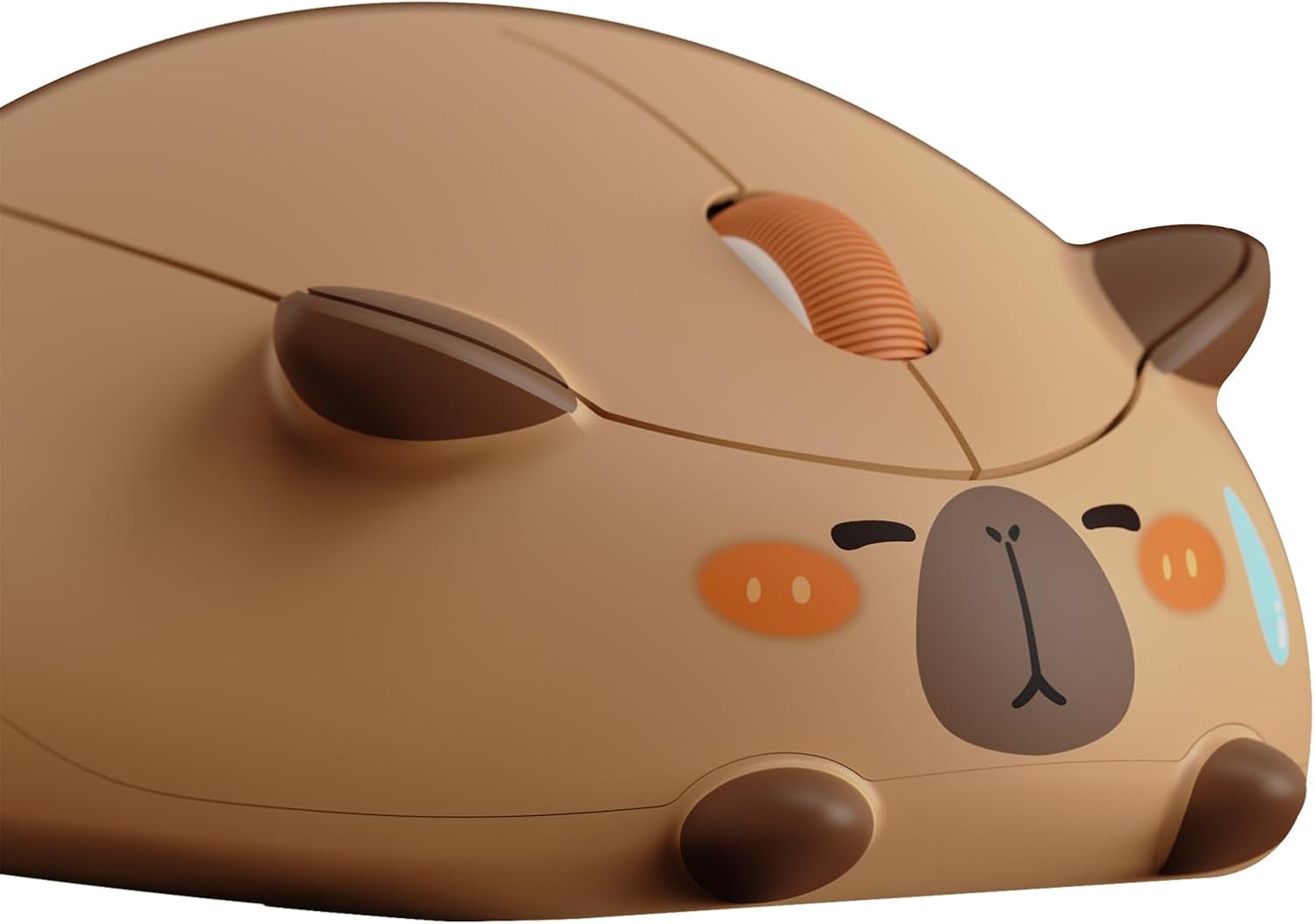
Image 1.1: Akko Capybara Wireless Mouse, showcasing its unique design.
2. Package Contents
Please verify that all items are present in your package:
- Akko Capybara Wireless Mouse
- USB 2.4G Receiver (stored inside the mouse)
- 1 x AA Battery (pre-installed or included separately)
3. Setup Instructions
3.1. Battery Installation
- Locate the battery compartment on the underside of the mouse.
- Open the battery compartment cover.
- Insert the provided AA battery, ensuring correct polarity (+/-).
- Close the battery compartment cover securely.

Image 3.1: Underside of the mouse, illustrating the battery compartment and power switch.
3.2. Connecting the Mouse
The Akko Capybara mouse supports three connection modes: 2.4GHz Wireless, Bluetooth 3.0, and Bluetooth 5.0.

Image 3.2: Visual representation of the tri-mode connectivity options.
3.2.1. 2.4GHz Wireless Connection
- Locate the USB 2.4G receiver, typically stored in a slot within the battery compartment.
- Remove the receiver and insert it into an available USB port on your computer.
- Turn on the mouse using the power switch on the underside.
- The mouse should connect automatically.
3.2.2. Bluetooth Connection (BT3.0/BT5.0)
- Turn on the mouse using the power switch.
- Press and hold the Bluetooth pairing button (refer to the mouse's underside or manual diagram for exact location) until the indicator light flashes, indicating pairing mode.
- On your computer or device, navigate to Bluetooth settings.
- Search for new devices and select "Akko Capybara Mouse" (or similar name) from the list.
- Follow any on-screen prompts to complete the pairing process.
4. Operating Instructions
4.1. DPI Adjustment
The mouse features adjustable DPI (Dots Per Inch) settings to control cursor sensitivity. The default setting is 1600 DPI. You can cycle through available DPI levels (800, 1600, 3200) by pressing the DPI button, usually located near the scroll wheel or on the underside of the mouse.

Image 4.1: DPI adjustment levels for cursor sensitivity.
4.2. Ergonomics and Grip
The mouse is designed to provide a comfortable fit for various hand sizes and grip styles, including palm grip, fingertip grip, and claw grip.

Image 4.2: Ergonomic design supporting different mouse grip types.
5. Maintenance
To ensure optimal performance and longevity of your Akko Capybara Wireless Mouse:
- Cleaning: Use a soft, dry cloth to clean the mouse surface. For stubborn dirt, a slightly damp cloth can be used, but ensure no moisture enters the internal components.
- Battery Replacement: Replace the AA battery when the mouse performance degrades or the low battery indicator (if present) activates.
- Storage: When not in use for extended periods, turn off the mouse to conserve battery life. Store in a cool, dry place.
6. Troubleshooting
If you encounter issues with your mouse, refer to the following common solutions:
| Problem | Possible Solution |
|---|---|
| Mouse is unresponsive |
|
| Cursor movement is erratic or slow |
|
| Cannot connect via Bluetooth |
|
7. Specifications
| Feature | Detail |
|---|---|
| Brand | Akko |
| Model | Capybara |
| Connectivity Technology | 2.4G Wireless, Bluetooth 3.0, Bluetooth 5.0 |
| Movement Detection | Optical |
| DPI Settings | 800 / 1600 (Default) / 3200 |
| Power Source | 1 x AA Battery (included) |
| Item Weight | 8.8 ounces |
| Package Dimensions | 6.46 x 4.13 x 2.2 inches |
| Compatibility | Mac, Windows (PC, Laptop, Desktop, iPad) |

Image 7.1: Mouse dimensions for portability and ergonomic reference.
8. Warranty and Support
For warranty information and technical support, please refer to the official Akko website or contact their customer service directly. Keep your purchase receipt for warranty claims.


