
1. Product Overview
The MOES Smart WiFi Thermostat PJ02-GC is designed for controlling gas boiler and underfloor heating systems. It offers intelligent temperature regulation, remote control via a smartphone app, and voice control compatibility with popular assistants like Amazon Alexa and Google Home. This thermostat helps optimize energy consumption through programmable scheduling and user-friendly features.
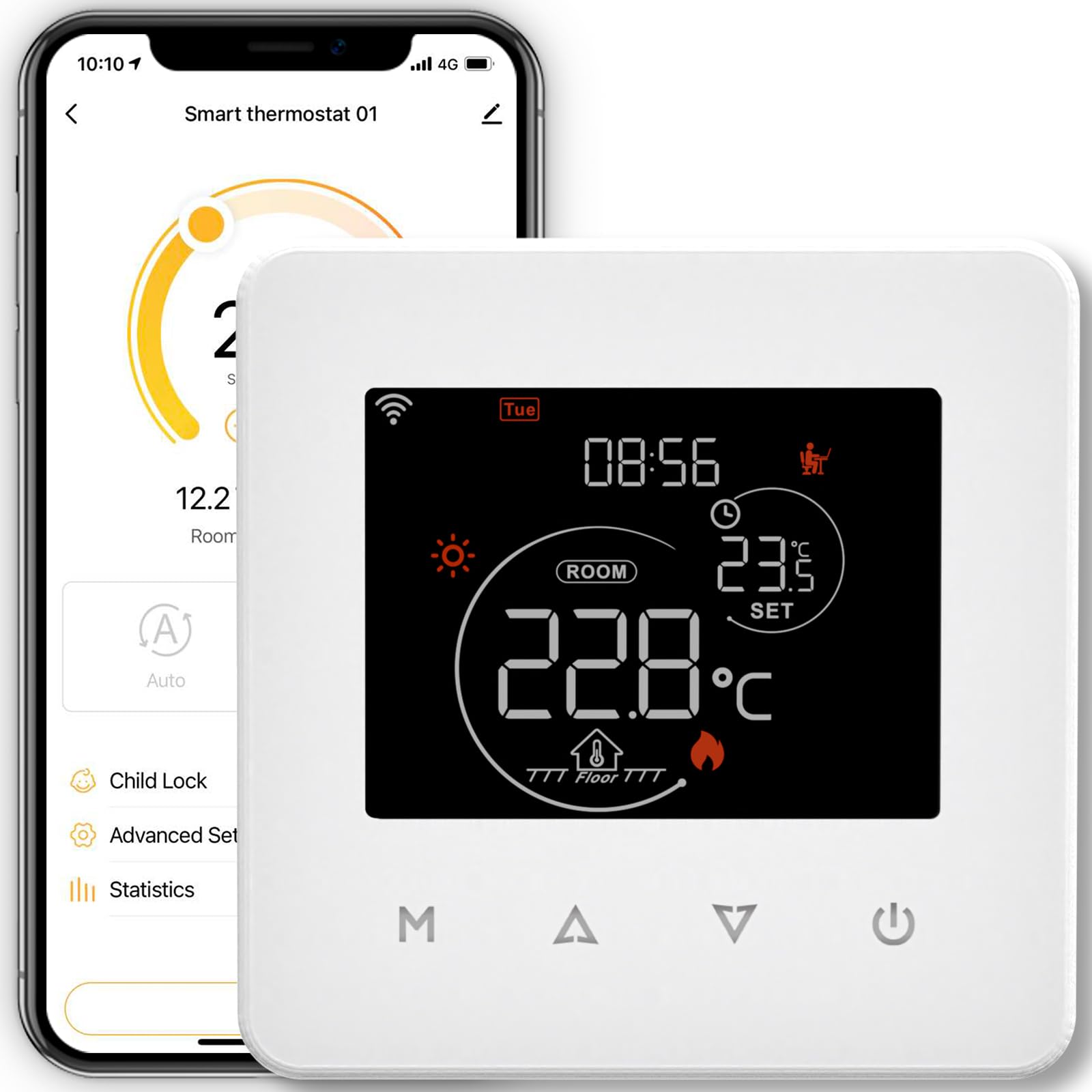
This image shows the front view of the MOES Smart WiFi Thermostat PJ02-GC, featuring its touch screen display.
Key Features:
- Smart Control: Wi-Fi enabled for remote management via Moes, Tuya, or Smart Life apps (2.4 GHz Wi-Fi required).
- Energy Saving: Supports 5+1+1 programmable schedules with six temperature periods per day to optimize energy use.
- Voice Assistant Compatibility: Works with Amazon Alexa and Google Home for convenient voice control.
- User-Friendly Interface: Touch screen display with adjustable backlight and screen lock function to prevent accidental changes.
- Power Failure Protection: All settings are securely stored in case of a power outage.
- Weather Information Display: Can retrieve and display local weather data.
2. Safety Information
Please read all safety instructions before installation and operation. Failure to follow these instructions may result in electric shock, fire, or other hazards.
- Installation must be performed by a qualified electrician.
- Disconnect power at the circuit breaker before installation or maintenance.
- Ensure the thermostat is compatible with your heating system (gas boiler or underfloor heating).
- Do not expose the device to water or excessive humidity.
- Keep out of reach of children.
3. Installation and Setup
3.1 What's in the Box
- MOES Smart WiFi Thermostat PJ02-GC
- Mounting Support
- Power Cable
- User Manual (this document)
3.2 Wiring Diagram
The thermostat operates on 230 Volts AC. Refer to the specific wiring diagram provided in the packaging for your heating system type (gas boiler or underfloor heating). Ensure all connections are secure and comply with local electrical codes. If you are unsure, consult a professional electrician.
3.3 Mounting the Thermostat
Mount the thermostat in a central location away from direct sunlight, drafts, or heat sources that could affect temperature readings. Use the included mounting support to secure the thermostat to the wall. Ensure proper ventilation around the device.
3.4 Connecting to the App
- Download the Moes, Tuya Smart, or Smart Life app from your smartphone's app store.
- Register or log in to your account.
- Ensure your smartphone is connected to a 2.4 GHz Wi-Fi network. The thermostat does not support 5 GHz Wi-Fi.
- Follow the in-app instructions to add a new device. This typically involves putting the thermostat into pairing mode.
3.5 Pairing with Wi-Fi
To put the thermostat into pairing mode, usually, you need to press and hold a specific button (often labeled 'M' or a Wi-Fi icon) on the thermostat until the Wi-Fi indicator starts blinking rapidly. Refer to the app's specific pairing guide for detailed steps, as the exact procedure may vary slightly.
4. Operating Instructions
4.1 Basic Controls
The thermostat features a touch screen for direct control. You can adjust the target temperature, switch between manual and automatic modes, and access settings directly from the display.
4.2 Programming Schedule
The thermostat supports a 5+1+1 weekly programming schedule, allowing you to set different temperature profiles for weekdays, Saturday, and Sunday. Each day can have up to six distinct time periods with corresponding temperature settings. This feature helps in energy saving by adjusting heating based on your daily routine.
- Access the scheduling menu via the app or directly on the thermostat.
- Set desired start times and temperatures for each of the six periods.
- Apply the schedule to weekdays (5 days), Saturday (1 day), and Sunday (1 day) as needed.
4.3 Voice Control Integration
Once connected to your smart home ecosystem (Amazon Alexa or Google Home), you can control the thermostat using simple voice commands. For example:
- "Alexa, set the thermostat to 22 degrees."
- "Hey Google, what is the temperature in the living room?"
4.4 Backlight and Screen Lock
- Backlight Adjustment: The brightness of the screen backlight can be adjusted in the settings. You can also configure the duration after which the backlight automatically turns off to save energy.
- Screen Lock (Child Lock): Activate the screen lock feature to prevent unauthorized or accidental changes to the thermostat settings, particularly useful in households with children.
5. Maintenance
The MOES Smart WiFi Thermostat requires minimal maintenance. To ensure optimal performance and longevity:
- Clean the screen and exterior with a soft, dry cloth. Do not use abrasive cleaners or solvents.
- Ensure the area around the thermostat is free from dust and obstructions.
- Periodically check for firmware updates through the Moes/Tuya/Smart Life app to ensure you have the latest features and improvements.
6. Troubleshooting
If you encounter issues with your MOES Smart WiFi Thermostat, refer to the following table for common problems and solutions:
| Problem | Possible Cause | Solution |
|---|---|---|
| Thermostat not connecting to Wi-Fi | Incorrect Wi-Fi band (5GHz), weak signal, incorrect password, pairing mode not active. | Ensure your router is broadcasting a 2.4 GHz Wi-Fi signal. Move the thermostat closer to the router. Re-enter Wi-Fi password carefully. Activate pairing mode on the thermostat as per app instructions. |
| Inaccurate temperature readings or inconsistent heating | Thermostat placement, incorrect hysteresis (Switch Deviation) setting. | Ensure the thermostat is not in direct sunlight or near heat sources/drafts. Adjust the 'Switch Deviation' (hysteresis) setting in the advanced menu, typically to 0.5 degrees, to fine-tune temperature control. |
| Voice control not working | Not linked to voice assistant, incorrect device name, internet connectivity issues. | Ensure the Moes/Tuya/Smart Life skill/action is enabled in your Alexa or Google Home app. Verify the thermostat's name in the app. Check your home internet connection. |
| Screen unresponsive or frozen | Temporary software glitch. | Try restarting the thermostat by temporarily cutting power at the circuit breaker. If the issue persists, contact support. |
7. Technical Specifications
| Specification | Detail |
|---|---|
| Brand | MOES |
| Model Number | PJ02-GC (3cc1548c-59eb-497b-a080-8b65aa8f3589) |
| Color | Black |
| Material | Plastic |
| Voltage | 230 Volts (AC) |
| Power Source | Cable Electric |
| Connectivity Technology | Wi-Fi (2.4 GHz) |
| Controller Type | Amazon Alexa, Google Home |
| Temperature Control Type | Heating |
| Specific Uses | Gas Boiler, Underfloor Heating |
| Item Weight | 220 g |
| Package Dimensions | 10.1 x 9.7 x 6.9 cm |
| Included Components | Mounting Support, Power Cable |
8. Warranty and Support
For warranty information and technical support, please refer to the documentation provided with your purchase or contact the seller directly. You can typically find support contact details on the manufacturer's official website or through the Moes/Tuya/Smart Life app.


