
1. Product Overview
The MOFII Wireless Number Pad is a portable 18-key numeric keypad designed for enhanced data entry and financial applications. It features a 2.4G USB wireless connection, round keycaps, and a comfortable ergonomic design. This manual provides essential information for setup, operation, maintenance, and troubleshooting.

Figure 1.1: MOFII Wireless Number Pad (Colorful Pink) with USB receiver.

Figure 1.2: The MOFII Wireless Number Pad offers a stable 2.4GHz wireless connection with a transmission distance of up to 33 feet.
2. Setup Guide
Follow these steps to set up your MOFII Wireless Number Pad:
- Install the Battery: Open the battery compartment on the back of the number pad and insert one AAA battery. Ensure correct polarity.
- Insert USB Receiver: Locate the USB receiver, typically stored within the battery compartment or a dedicated slot on the number pad. Insert this USB receiver into an available USB port on your computer (laptop or PC).
- Plug and Play: The number pad is designed for plug-and-play functionality. No additional drivers are required. Your operating system should automatically detect and install the necessary components.

Figure 2.1: Step-by-step guide for battery installation and USB receiver connection.
The number pad is compatible with various operating systems, including Windows 2000, XP, ME, Vista, Windows 7/8 and above, Android, and Mac OS.

Figure 2.2: Compatibility with multiple operating systems.
3. Operating Instructions
Once connected, the MOFII Wireless Number Pad functions like a standard numeric keypad. Here are some key features and tips for optimal use:
- Soft Pressing Touch: The keys are designed for a soft pressing touch, providing a comfortable typing experience and reducing wrist pressure.
- Quiet Operation: The keypad operates with minimal noise, making it suitable for quiet environments.
- Num Lock Key: Use the "Num Lock" key to toggle the numeric function of the keys. When Num Lock is active, the keys will input numbers. When inactive, some keys may function as navigation keys (e.g., Home, End, PgUp, PgDn, arrow keys).
- Stable Rubber Sheet: The stable rubber sheet at the bottom ensures the number pad remains fixed on your desk during use.

Figure 3.1: The ergonomic design provides a comfortable angle for wrist support.
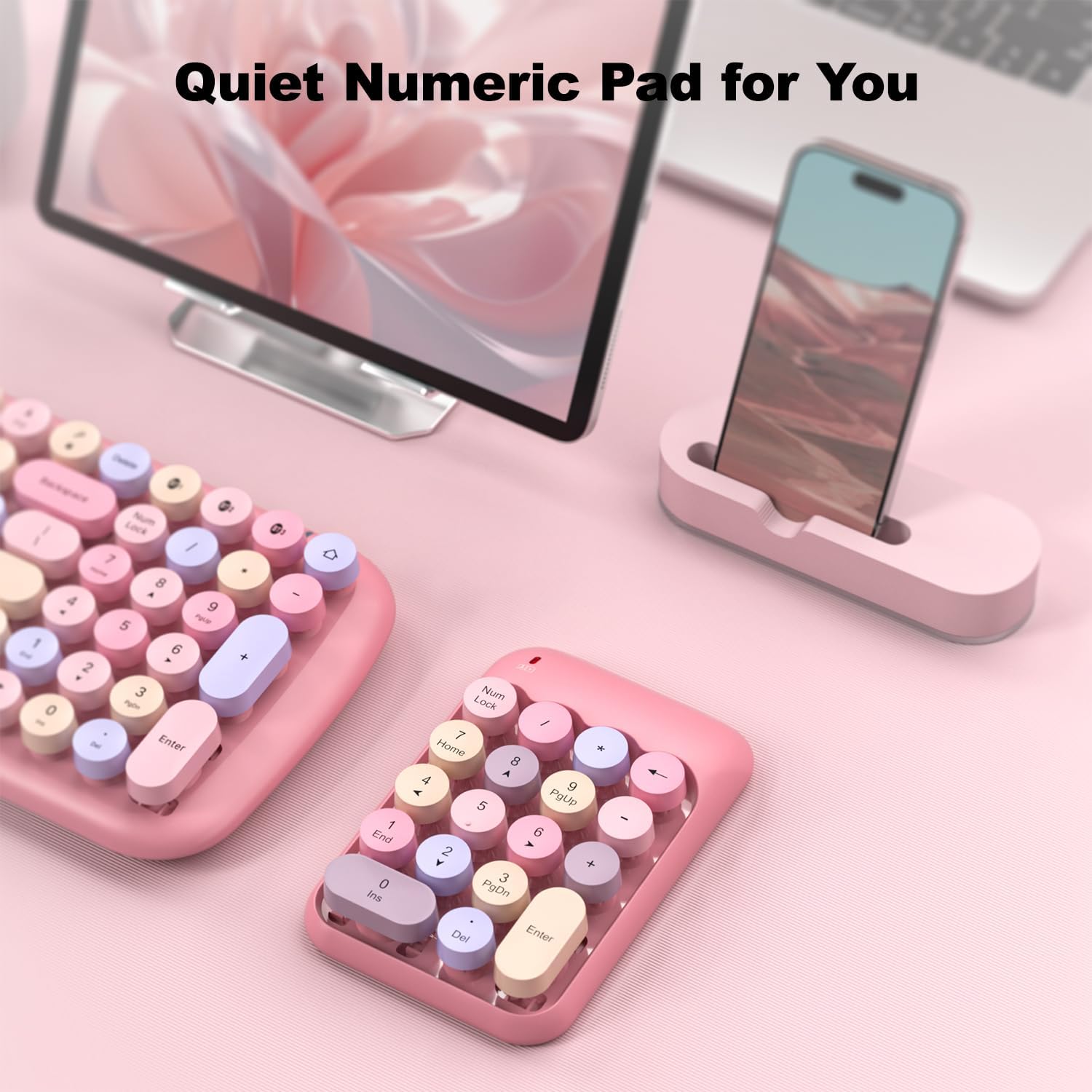
Figure 3.2: The quiet design of the numeric pad is ideal for various work environments.
4. Maintenance
To ensure the longevity and optimal performance of your MOFII Wireless Number Pad, follow these maintenance guidelines:
- Cleaning: Use a soft, dry cloth to wipe down the surface of the number pad. For deeper cleaning, you may use a slightly damp cloth with a mild cleaning solution, ensuring no liquid enters the device.
- Keycap Maintenance: The keycaps are detachable, allowing for easier cleaning underneath. Gently pull the keycaps upwards to remove them. Realign and press down firmly to reattach.
- Battery Replacement: Replace the AAA battery when the indicator light (if present) signals low power or when the number pad becomes unresponsive.
- Storage: When not in use for extended periods, remove the battery to prevent leakage. Store the number pad in a cool, dry place away from direct sunlight and extreme temperatures.

Figure 4.1: Detachable retro keycaps for easy cleaning and maintenance.
5. Troubleshooting
If you encounter issues with your MOFII Wireless Number Pad, refer to the following troubleshooting steps:
| Problem | Possible Cause | Solution |
|---|---|---|
| Number pad is unresponsive. | Low or dead battery. USB receiver not properly connected. Interference from other wireless devices. | Replace the AAA battery. Ensure the USB receiver is fully inserted into a working USB port. Try a different USB port. Move the number pad closer to the USB receiver or away from other wireless devices. |
| Keys are not typing numbers (e.g., typing navigation commands). | Num Lock is off. | Press the "Num Lock" key on the number pad to activate numeric input. |
| Intermittent connection or lag. | Distance from receiver. Battery low. USB port issue. | Reduce the distance between the number pad and the USB receiver. Replace the battery. Try connecting the receiver to a different USB port on your computer. |
| Number pad not recognized by computer. | USB receiver issue. Operating system driver issue. | Try the USB receiver on another computer to check if it's functional. Restart your computer. For Windows, you can try updating or reinstalling USB drivers via Device Manager. |
If the problem persists after trying these solutions, please contact MOFII customer support for further assistance.
6. Specifications
| Feature | Detail |
|---|---|
| Product Dimensions | 5.23 x 3.46 x 0.9 inches (135mm x 90mm x 23mm) |
| Item Weight | 5.3 ounces |
| Connectivity Technology | 2.4G Wireless USB |
| Number of Keys | 18 Keys |
| Power Source | 1 x AAA Battery (not included) |
| Compatible Devices | Laptop, PC |
| Operating System Compatibility | Windows 2000/XP/ME/Vista/7/8 and above, Android, Mac OS |
| Special Features | Portable, Round Keycaps, Quiet Operation, Detachable Keycaps |
| Material | Plastic |
| Color | Colorful Pink |

Figure 6.1: Product dimensions (Length: 135mm, Width: 90mm, Height: 23mm).
7. Warranty and Support
MOFII is committed to providing high-quality products and excellent customer service.
- Quality Assurance: If you have any questions or encounter quality problems with your numeric keyboard during use, please contact our after-sales service specialist.
- Contact Support: For assistance, please refer to the contact information provided on the product packaging or the official MOFII website. We aim to provide a satisfactory solution immediately.
- Return Policy: The product comes with a return policy allowing for refund or replacement within 30 days of purchase, subject to terms and conditions.
Important Notes on Video Content
Please note that while the product listing indicates the presence of videos, detailed metadata such as video URLs, filenames, and creator types were not available in the provided data. Therefore, no video content could be embedded in this manual as per the specified requirements for verification and relevance.