
1. Important Safety Information
Please read all instructions carefully before installation and use. Improper installation or operation may cause damage to the product or vehicle. Always ensure the vehicle is turned off and the battery is disconnected before performing any electrical work. Professional installation is recommended.
2. Package Contents
Verify that all items listed below are included in your package:
- Car radio and frame
- 1080P rear view camera
- Installation kit
- Function instruction
- Installation instruction

Image: Overview of all components included in the LASERTAIL 13.1 Inch Car Radio package, including the head unit, wiring harnesses, camera, and accessories.
3. Installation Guide
3.1. Pre-Installation Steps
Before beginning the installation, it is crucial to document your original car radio setup for reference. This will assist in troubleshooting and ensuring correct reassembly.
- Take photos of the front of the original car radio.
- Take photos of the back of the original car radio.
- Document the wiring position of the original car radio harness interface. Display the positions of each color harness.

Image: Visual guide for documenting the original car radio setup before removal, showing front, back, and wiring harness connections.
3.2. Removing the Original Radio
Carefully remove the original car radio and its surrounding trim. Ensure all connectors are unplugged before fully detaching the unit. The original CD player should also be removed, as its functions will be transferred to the new radio.

Video: Demonstrates the process of upgrading and replacing the 13.1 Inch Chevy Silverado radio, including removal of the old unit.
3.3. Wiring Harness Connection
Connect the provided wiring harness to the new radio and the vehicle's original plugs. Refer to the diagrams below for correct connections based on your vehicle's configuration.

Image: Detailed diagram showing how to connect the various wiring harnesses to the new LASERTAIL car radio.

Video: Step-by-step guide on how to properly plug the harness into the car radio.
3.4. Special Note for Bose Systems
If your original car is equipped with a Bose sound system, an additional fiber optic box (ASIN: B0DS4LHP6T) is required. Without this module, there will be no sound after installation. Ensure the Canbus is connected to the main power harness.

Image: Illustrates the need for an additional fiber optic box for vehicles with a Bose sound system to ensure proper audio functionality.

Video: Guide on installing the audio system adapter for Chevy Silverado models equipped with a Bose sound system.
4. Operating Instructions
4.1. Initial System Settings
After installation, perform initial system settings to configure the radio to your preferences. This includes setting the correct vehicle protocol, speed unit, temperature unit, and camera settings.

Video: Demonstrates how to access and adjust system settings for the 13.1-inch Silverado radio, including speed unit, temperature unit, SWC, and camera settings.
4.2. Wireless CarPlay & Android Auto
The radio supports wireless CarPlay and Android Auto for seamless integration with your smartphone. Access navigation, music, messages, and calls via voice control or the touchscreen.

Image: Shows the user interface for Wireless CarPlay and Android Auto, displaying navigation, music, and communication apps.

Video: Instructions on how to connect your smartphone to the car radio for Wireless CarPlay functionality.
4.3. Navigation (GPS)
Utilize the built-in GPS module for online or offline map navigation. This allows you to plan and execute your trips efficiently.

Image: Displays the GPS navigation interface, highlighting online and offline map support with various navigation apps.
4.4. Bluetooth 5.0
Connect your phone via Bluetooth 5.0 for hands-free calls and music playback. An external noise-canceling microphone is included for clear communication.

Image: Shows the Bluetooth 5.0 interface for connecting smartphones, enabling hands-free calls and music streaming.
4.5. 5Ghz WIFI & Internet Access
Connect to 5Ghz Wi-Fi to download applications from the Google Play Store and access online content like YouTube, Facebook, and TikTok.

Image: Illustrates the 5Ghz Wi-Fi connection feature, showing various apps accessible through the internet.
4.6. Audio Features (DSP, AM/FM/RDS Radio)
The unit features a built-in AM/FM/RDS radio and a Digital Sound Processor (DSP) with 48 EQ bands and 8 sound effects, allowing for personalized audio experiences.

Image: Shows the DSP interface with 48 EQ bands and sound field adjustment options for customized audio.

Image: Displays the AM/FM/RDS radio interface, allowing selection of favorite stations and access to news.

Video: Overview of various functions and features of the 13.1-inch Chevy Silverado radio, including audio settings and internet browsing.
4.7. Steering Wheel Control (SWC)
The radio supports original steering wheel controls, allowing you to easily switch music, adjust volume, and answer calls without taking your hands off the wheel.

Image: Illustrates how the steering wheel controls integrate with the car radio for convenient operation.
4.8. Backup Camera
An included high-definition waterproof 1080P rear view camera with night vision and a 170° wide-angle lens automatically displays reversing images and lines for safe maneuvering.

Image: Shows the 1080P backup camera view on the screen, complete with parking guidelines for safe reversing.
4.9. Display Features
The 13.1-inch 2K IPS touchscreen offers a high-definition visual experience with vivid colors and wide viewing angles.
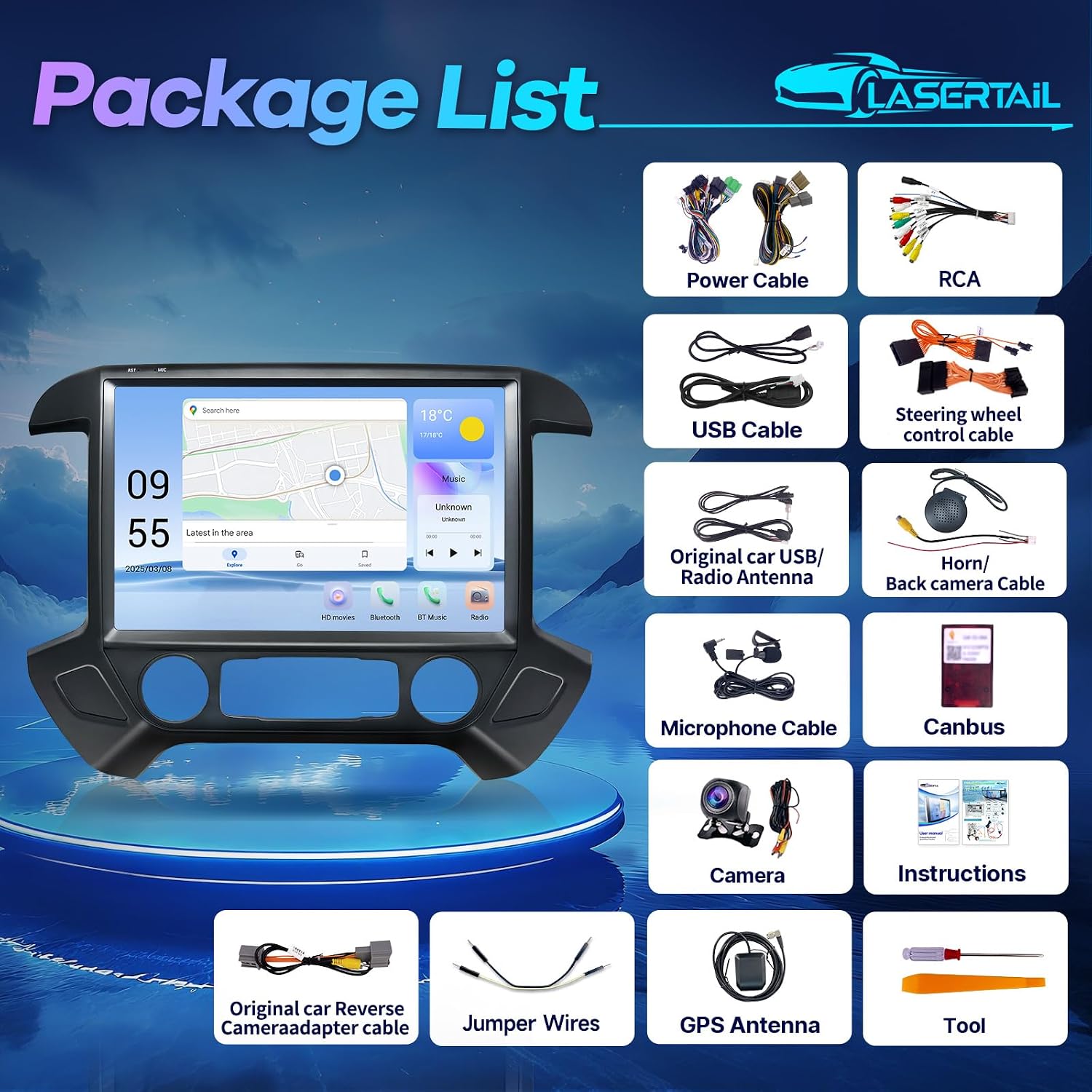
Image: Highlights the 13.1-inch 2K IPS HD Touch Screen, emphasizing its high performance and wide viewing angle for a clear visual experience.
5. Maintenance
To ensure optimal performance and longevity of your LASERTAIL car radio, consider the following maintenance tips:
- Screen Cleaning: Use a soft, lint-free cloth specifically designed for electronics to clean the touchscreen. Avoid abrasive materials or harsh chemicals.
- Software Updates: Periodically check for software updates to ensure your system has the latest features and bug fixes.
- Cooling Fan: The unit is equipped with an intelligent cooling fan that activates automatically based on temperature or volume. Ensure the fan vents are not obstructed to maintain proper airflow and extend the unit's lifespan.
6. Troubleshooting
If you encounter any issues with your LASERTAIL car radio, refer to the following troubleshooting steps:
6.1. Noise from Rear Speakers
If you experience noise coming from the rear speakers, remove the red and orange wires from the designated plug as shown in the diagram.

Image: Diagram illustrating the wiring adjustment to resolve noise from rear speakers.
6.2. Speaker Volume Lower Than OEM Radio
Method 1: Access Factory settings (password: 8888), navigate to Amp volume, and select a higher option.
Method 2: If the sound is still too low, reconnect the harness to the OEM radio, turn up the volume, then reconnect it to the new head unit.

Image: Visual steps for adjusting amplifier volume in factory settings or re-connecting the harness to resolve low speaker volume.
6.3. No Sound (Original with Bose)
If there is no sound with an original Bose system:
- Verify that all wiring harnesses are connected correctly, then check EQ settings and keep them in the front.
- Check the flashing status of the fiber optic box indicator light. A blue light staying on and a green light flashing indicates normal function. Otherwise, the fiber optic box may need replacement.

Image: Steps to diagnose and resolve no sound issues in vehicles with a Bose system, including checking wiring and fiber optic box status.
6.4. CarPlay Disconnected
If CarPlay frequently disconnects:
- Update the Tlink5 app.
- If not resolved, perform an online MCU update via Settings -> About -> Detection update -> Update MCU.
- If the issue persists, contact technical support for assistance.
6.5. Unable to Power On
If the unit does not power on:
- Refer to the manual to verify wiring is correct and follow troubleshooting steps.
- If the issue persists, request an exchange.

Image: Solutions for CarPlay disconnection and steps to take if the unit is unable to power on.
7. Specifications
| Feature | Detail |
|---|---|
| Item Weight | 7.43 pounds |
| Package Dimensions | 18.9 x 15.12 x 5.91 inches |
| Item Model Number | 6f88d30c-78d3-4581-acb7-680f1a73fac9 |
| Brand | LASERTAIL |
| Connectivity Technology | Bluetooth, USB, Wi-Fi |
| Controller Type | Android |
| Special Feature | 8Core 5Ghz WIFI 13.1in 1920*1200 Touch Screen 1080P Camera 4G Ram 64G ROM 48 Brand EQ Professional DSP SWC BT5.0 Bluetooth Split screen display Voice Assistant android 13 operation system, Android Auto, Apple CarPlay, GPS Navigation, Touchscreen |
| Compatible Devices | Smartphone |
| Connector Type | RCA, USB |
| Audio Output Mode | Stereo |
| Surround Sound Channel Configuration | 5 |
| Video Encoding | RM |
| Color | Black |
8. Warranty Information
This product comes with a 1-year manufacturer warranty.
9. Customer Support
For the latest version of the manual, detailed assistance with installation and usage, or any issues concerning sound, wire harness, or the head unit, please directly contact our technical support team. Contact information can be found in the included manual or on the manufacturer's website.