
1. Product Overview
The Lenovo Legion Pro 7 Gen 8 is a high-performance 16-inch gaming laptop designed for demanding applications and gaming. It features an AMD Ryzen 9 7945HX processor, NVIDIA GeForce RTX 4090 graphics, 32GB of DDR5 RAM, and a 2TB NVMe SSD. The laptop is equipped with a 16-inch WQXGA (2560 x 1600) IPS display with a 240Hz refresh rate, offering a vibrant and smooth visual experience. Advanced thermal management, including Legion Coldfront 5.0 and liquid metal CPU cooling, ensures optimal performance during intensive use. The device runs on Windows 11 Home.
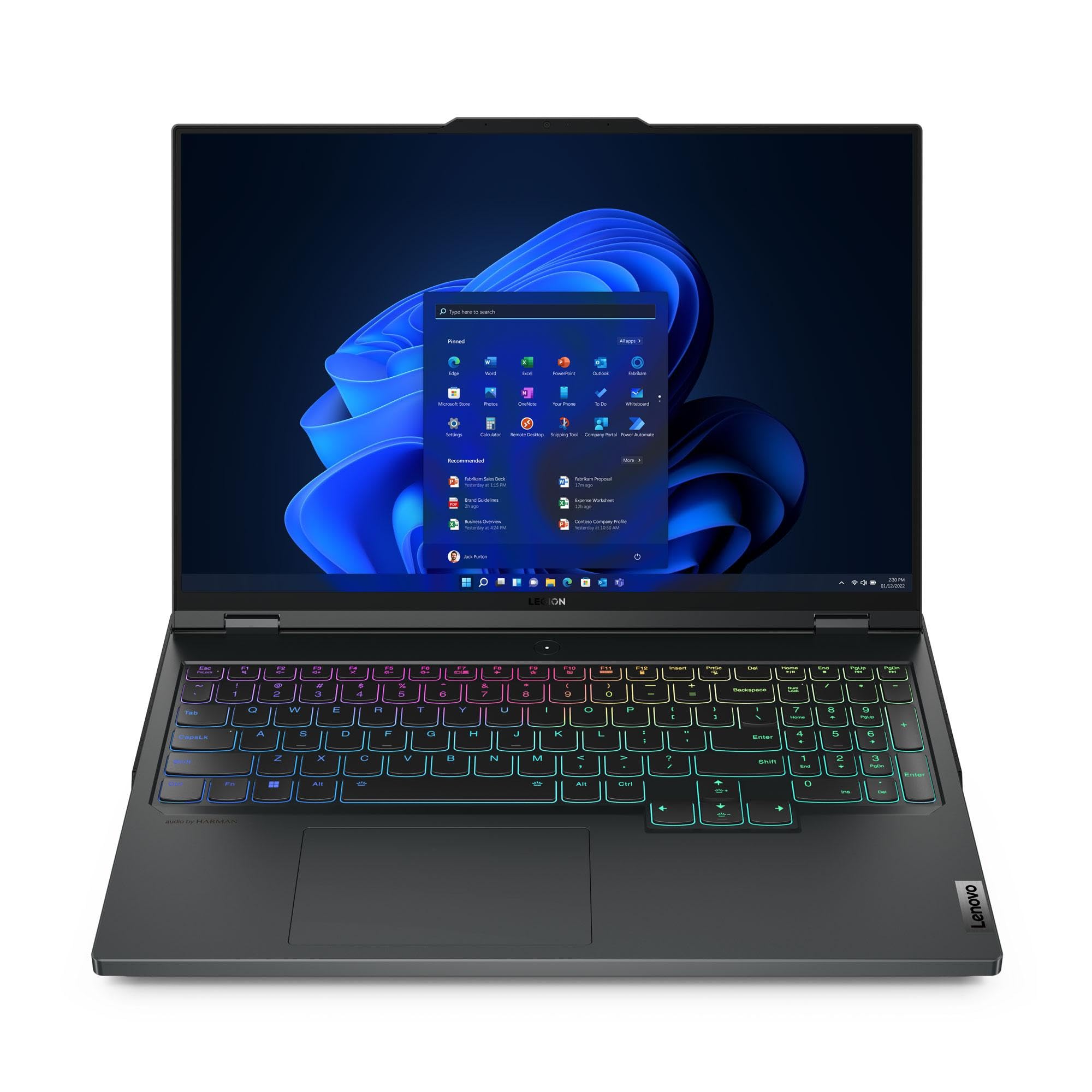
Figure 1: Front view of the Lenovo Legion Pro 7 Gen 8 Gaming Laptop.

Figure 2: Angled view of the Lenovo Legion Pro 7 Gen 8.
Key Features:
- Processor: AMD Ryzen 9 7945HX (2.50 GHz up to 5.40 GHz)
- Graphics: NVIDIA GeForce RTX 4090 Laptop GPU 16GB GDDR6
- Memory: 32 GB DDR5-5200MHz (2 x 16 GB)
- Storage: 2 TB SSD M.2 2280 PCIe Gen4 TLC (2 x 1 TB)
- Display: 16" WQXGA (2560 x 1600) IPS, Anti-Glare, HDR 400, 100% sRGB, 500 nits, 240Hz
- Operating System: Windows 11 Home 64
- Camera: 1080P FHD with Dual Microphone and Electronic Privacy Shutter
- Keyboard: Per-Key RGB Backlit, English (US)
- Connectivity: WiFi 6E 2x2 AX & Bluetooth 5.1 or above
2. Setup
2.1 Unboxing and Initial Power On
- Carefully remove the laptop and its accessories from the packaging. Ensure all components listed in the "What's in the Box" section are present: Laptop, AC Adapter, Product Manuals.
- Connect the AC adapter to the laptop's power input port (refer to Figure 3, item 5) and then to a power outlet.
- Open the laptop lid and press the power button, typically located on the keyboard deck, to turn on the device.
- Follow the on-screen instructions to complete the initial Windows 11 Home setup, including language selection, network connection, and user account creation.
2.2 Connecting Peripherals and Port Overview
The Legion Pro 7 Gen 8 offers a variety of ports for connecting external devices. Familiarize yourself with the port layout for optimal connectivity.

Figure 3: Port layout of the Lenovo Legion Pro 7 Gen 8.
| Item No. | Port | Description |
|---|---|---|
| 1 | Ethernet (RJ45) | For wired network connection. |
| 2 | USB-C 3.2 Gen 2 (DisplayPort™ 1.4, power delivery 140W) | Multi-functional port for data transfer, video output, and power delivery. |
| 3 | HDMI 2.1 | For connecting to external displays or TVs. |
| 4 | USB-A 3.2 Gen 1 (1 always on 5V2A) | Standard USB port, one supports charging devices even when the laptop is off. |
| 5 | Power input | Connect the AC adapter here. |
| 6 | Headphone / mic combo | For connecting headphones or a headset with a microphone. |
| 7 | Webcam privacy e-shutter | Physical switch to disable the webcam for privacy. |
| 8 | USB-A 3.2 Gen 1 | Standard USB port for peripherals. |
| 9 | USB-A 3.2 Gen 1 | Standard USB port for peripherals. |
| 10 | USB-C 3.2 Gen 2 (DisplayPort™ 1.4) | Multi-functional port for data transfer and video output. |
3. Operation
3.1 Power Management
- Power On: Press the power button.
- Sleep Mode: Close the lid or select "Sleep" from the Windows Start menu.
- Shut Down: Select "Shut down" from the Windows Start menu.
- Restart: Select "Restart" from the Windows Start menu.
3.2 Keyboard and Touchpad
The laptop features a Per-Key RGB Backlit keyboard and a precision touchpad. The keyboard backlight can be adjusted through system settings or dedicated function keys (Fn + Spacebar, typically). The touchpad supports multi-touch gestures for navigation and control within Windows 11.

Figure 4: Keyboard and touchpad layout.
3.3 Display Settings
The 16-inch WQXGA (2560 x 1600) IPS display offers a 240Hz refresh rate. You can adjust display settings such as brightness, resolution, and refresh rate through Windows Display Settings. For optimal gaming, ensure the display is set to its maximum refresh rate.
3.4 Audio and Camera
The laptop includes stereo speakers and dual microphones. The 1080P Full HD camera is equipped with an electronic privacy shutter (Figure 3, item 7). Slide the shutter to cover the camera lens when not in use to ensure privacy.
3.5 Gaming Performance Features
- Lenovo Legion AI Engine+: This intelligent system, powered by the LA2-Q AI chip, optimizes game performance in real-time by leveraging system sensors to maximize FPS. The Smart Engine adapts and improves over time.
- Legion Coldfront 5.0: An advanced thermal solution featuring thin fan blades, a massive intake and exhaust system, liquid metal for CPU heat transfer, and a wide vapor chamber for both CPU and GPU. This technology ensures efficient cooling during intense gaming sessions.

Figure 5: Bottom view illustrating the cooling system.
4. Maintenance
4.1 Cleaning Your Laptop
- Screen: Use a soft, lint-free cloth lightly dampened with water or a screen-cleaning solution. Avoid harsh chemicals.
- Keyboard and Chassis: Use a soft, dry cloth. For stubborn dirt, a slightly damp cloth can be used. Compressed air can help remove dust from between keys.
- Vents: Periodically inspect and gently clean the air vents (located on the sides and bottom) to ensure unobstructed airflow. Use compressed air to remove dust buildup.
4.2 Software Updates
Regularly update your operating system, drivers, and firmware to ensure optimal performance, security, and compatibility. Windows Update will handle OS updates, and Lenovo Vantage software can assist with driver and firmware updates.
4.3 Battery Care
To prolong battery life, avoid consistently discharging the battery completely or keeping it at 100% charge for extended periods. Lenovo Vantage software may offer battery health management features to optimize charging behavior.
5. Troubleshooting
This section addresses common issues you might encounter. For more complex problems, refer to the Lenovo support website or contact customer service.
5.1 Common Issues and Solutions
- Laptop does not power on:
- Ensure the AC adapter is securely connected to both the laptop and a working power outlet.
- Verify the power outlet is functional by plugging in another device.
- If the battery is completely drained, allow it to charge for a few minutes before attempting to power on.
- Screen is blank or black:
- Check if the laptop is powered on (power indicator light).
- Press Fn + F10 (or the appropriate function key for display output) to cycle through display modes.
- Connect an external monitor to check if video output is working.
- Wi-Fi or Bluetooth connectivity issues:
- Ensure Wi-Fi/Bluetooth is enabled in Windows settings.
- Restart your router/modem.
- Update wireless drivers through Lenovo Vantage or Device Manager.
- System performance is slow:
- Close unnecessary applications running in the background.
- Check for and install any pending Windows or driver updates.
- Ensure adequate ventilation and clean cooling vents to prevent thermal throttling.
- Run a malware scan.
6. Specifications
| Feature | Detail |
|---|---|
| Brand | Lenovo |
| Model Name | Legion Pro 7 Gen 8 16" AMD |
| Model Number | 82WS003UUS |
| Screen Size | 16 Inches |
| Resolution | 2560 x 1600 pixels (WQXGA) |
| Refresh Rate | 240 Hz |
| Display Technology | IPS, Anti-Glare, HDR 400, 100% sRGB, 500 nits |
| CPU Model | AMD Ryzen 9 7945HX |
| Processor Speed | Up to 5.4 GHz |
| Graphics Coprocessor | NVIDIA GeForce RTX 4090 |
| Graphics Card RAM | 16 GB GDDR6 |
| RAM Memory Installed Size | 32 GB DDR5-5200MHz |
| RAM Memory Maximum Size | 64 GB |
| Hard Disk Size | 2 TB SSD (M.2 2280 PCIe Gen4 TLC) |
| Operating System | Windows 11 Home |
| Webcam | 1080P FHD with Dual Microphone and Electronic Privacy Shutter |
| Keyboard | Per-Key RGB Backlit, English (US) |
| WLAN | WiFi 6E 2x2 AX |
| Bluetooth | Bluetooth 5.1 or above |
| Battery Energy Content | 99.99 Watt Hours (Lithium Ion) |
| Total USB Ports | 5 |
| HDMI Ports | 1 (HDMI 2.1) |
| Ethernet Ports | 1 (RJ45) |
| Item Dimensions (L x W x Thickness) | 14.3"L x 1.01"W x 10.32"Th |
7. Warranty and Support
7.1 Warranty Information
This Lenovo Legion Pro 7 Gen 8 laptop comes with a One Year Legion Ultimate Support warranty. This warranty covers manufacturing defects and hardware failures under normal use conditions. For specific terms and conditions, please refer to the warranty documentation included with your product or visit the official Lenovo support website.
7.2 Customer Support
For technical assistance, warranty claims, or further inquiries, please contact Lenovo customer support. You can find contact information and additional resources on the official Lenovo support website:
Please have your laptop's model number (82WS003UUS) and serial number ready when contacting support.