
1. Introduction
This manual provides comprehensive instructions for the setup, operation, maintenance, and troubleshooting of your Akko Rapid Trigger Gaming Keyboard with Magnetic Switches, Model 3061S HE. Please read this manual carefully before using the product to ensure optimal performance and longevity.

Image: The Akko 3061S HE Rapid Trigger Gaming Keyboard, showcasing its compact 60% layout and vibrant RGB backlighting.
2. Key Features
- 8K Hz Polling Rate: The keyboard features a global 8000Hz polling rate, significantly increasing the data transmission rate to 8 times per second, which ensures near-zero latency for precise control.

Image: A diagram comparing response times, showing 8000Hz polling rate achieving 0.125ms response compared to 1.0ms at 1000Hz.
- Dynamic Keystrokes (DKS): This technology allows a single key to perform up to four distinct operations based on the analog keypress depth. For example, a light press can trigger one action, while a deeper press activates another. Partial release and complete release can also trigger unique actions.

Image: A visual representation of Dynamic Keystrokes (DKS), showing how different press depths (0.7mm, 3.5mm) can be assigned unique actions.
- Rapid Trigger (RT): This feature eliminates the delay associated with physical switch movement. Unlike traditional mechanical keyboards, the Akko 3061S HE activates and deactivates keys instantly with minimal travel, offering 0.1mm precision for rapid response times, ideal for fast-paced gaming.

Image: A diagram comparing the actuation and reset points of a regular keyboard switch versus the instant actuation and reset of an Akko Rapid Trigger switch.
- PBT Shine-Through Keycaps: The keyboard is equipped with durable PBT double-shot shine-through keycaps, designed to allow the RGB backlighting to illuminate through the legends, enhancing visibility and aesthetic appeal.
- RGB Backlit: Features customizable RGB backlighting with over 16 million colors per key. Lighting effects, brightness, and animation speed can be adjusted using the Akko Cloud Driver software.

Image: The Akko 3061S HE keyboard displaying its full RGB spectrum backlighting.
- 60% Compact Layout: The 61-key layout provides a compact form factor, saving desk space while retaining essential keys for gaming and general use.
3. Package Contents
Please verify that all items are present in the package:
- Akko Rapid Trigger Gaming Keyboard (Model 3061S HE)
- USB-C to USB-A Cable
- User Manual (this document)
4. Setup
- Connect the Keyboard:
Locate the USB-C port on the back or side of the keyboard. Insert the USB-C end of the provided cable into the keyboard and the USB-A end into an available USB port on your computer.

Image: Close-up view of the USB-C port on the Akko 3061S HE keyboard, with the USB-C cable ready for connection.
- Driver Installation (Automatic):
Upon connecting the keyboard, your operating system should automatically detect and install the necessary drivers. This process may take a few moments.
- Install Akko Cloud Driver Software:
For full customization of RGB lighting, key remapping, Rapid Trigger settings, and Dynamic Keystrokes, download and install the Akko Cloud Driver software from the official Akko website. Refer to the software's documentation for detailed instructions on its use.
5. Operating Instructions
5.1 Basic Keyboard Functions
- Typing: The keyboard functions as a standard QWERTY keyboard.
- Function Layer (Fn Key): Due to the 60% compact layout, many keys have secondary functions accessed by holding down the Fn key and pressing the desired key. Refer to the keycap legends for these secondary functions (e.g., arrow keys, F-keys).

Image: The Akko 3061S HE keyboard with the WASD keys highlighted, indicating their common use in gaming and potential for secondary functions.
5.2 Advanced Features (via Akko Cloud Driver)
The Akko Cloud Driver software unlocks the full potential of your keyboard. Ensure it is installed and running.
- Rapid Trigger (RT) Customization:
Adjust the actuation and reset points for individual keys with 0.1mm precision. This allows for extremely fast key presses and releases, crucial for competitive gaming.
- Dynamic Keystrokes (DKS) Configuration:
Program up to four actions per key based on press depth. This enables complex macros or multiple commands from a single keypress. For example, a light press of 'A' could walk, while a deep press could sprint.

Image: A visual guide demonstrating the "Hold" and "Tap" functions within Dynamic Keystrokes, allowing different actions based on how a key is pressed or released.
- RGB Lighting Customization:
Choose from a wide range of preset lighting effects or create your own. Adjust colors, brightness, and animation speed. Individual key lighting can also be configured.
- Key Remapping and Macros:
Remap any key to a different function or assign complex macros to streamline your workflow or gaming actions.
6. Maintenance
- Cleaning the Keyboard:
To clean the keycaps and chassis, use a soft, lint-free cloth slightly dampened with water or a mild cleaning solution. Avoid excessive moisture. For dust and debris between keys, use compressed air.
- Keycap Removal (if applicable):
If you need to remove keycaps for deeper cleaning or replacement, use a keycap puller. Gently pull straight up to avoid damaging the switch stem. Reinstall by aligning the keycap with the switch stem and pressing down firmly.
- Switch Maintenance:
The Kailh Pink Magnetic switches are designed for durability. Avoid exposing them to liquids or excessive force. If a switch feels inconsistent, ensure no debris is lodged within it.

Image: An exploded view of a Kailh Pink Magnetic switch, showing its individual components including the stem, housing, spring, and magnetic element.
7. Troubleshooting
| Problem | Possible Cause | Solution |
|---|---|---|
| Keyboard not responding | Loose cable connection, incorrect USB port, driver issue. | Ensure USB-C cable is securely connected to both keyboard and computer. Try a different USB port. Restart your computer. Reinstall Akko Cloud Driver. |
| RGB lighting not working or inconsistent | Software settings, power issue. | Check RGB settings in Akko Cloud Driver. Ensure keyboard is receiving sufficient power (try a different USB port). Update keyboard firmware if available. |
| Keys not registering or double-typing | Debris under keycap, software calibration, switch issue. | Remove keycap and clean around the switch. Recalibrate Rapid Trigger settings in Akko Cloud Driver. Ensure firmware is up to date. |
| Dynamic Keystrokes (DKS) not functioning as expected | Incorrect DKS configuration in software. | Review and reconfigure DKS settings in the Akko Cloud Driver software. Ensure the correct profiles are active. |
8. Specifications
| Feature | Detail |
|---|---|
| Model | Akko Rapid Trigger Gaming Keyboard (3061S HE) |
| Layout | 60% (61 Keys) |
| Switches | Kailh Pink Magnetic Switches |
| Polling Rate | 8000Hz |
| Actuation Precision | 0.1mm (Rapid Trigger) |
| Keycaps | PBT Double-Shot Shine-Through |
| Backlighting | RGB (Per-key customizable) |
| Connectivity | Wired (USB-C) |
| Compatible Devices | PC |
| Dimensions (Approx.) | 292 mm (L) x 101 mm (W) x 37 mm (H)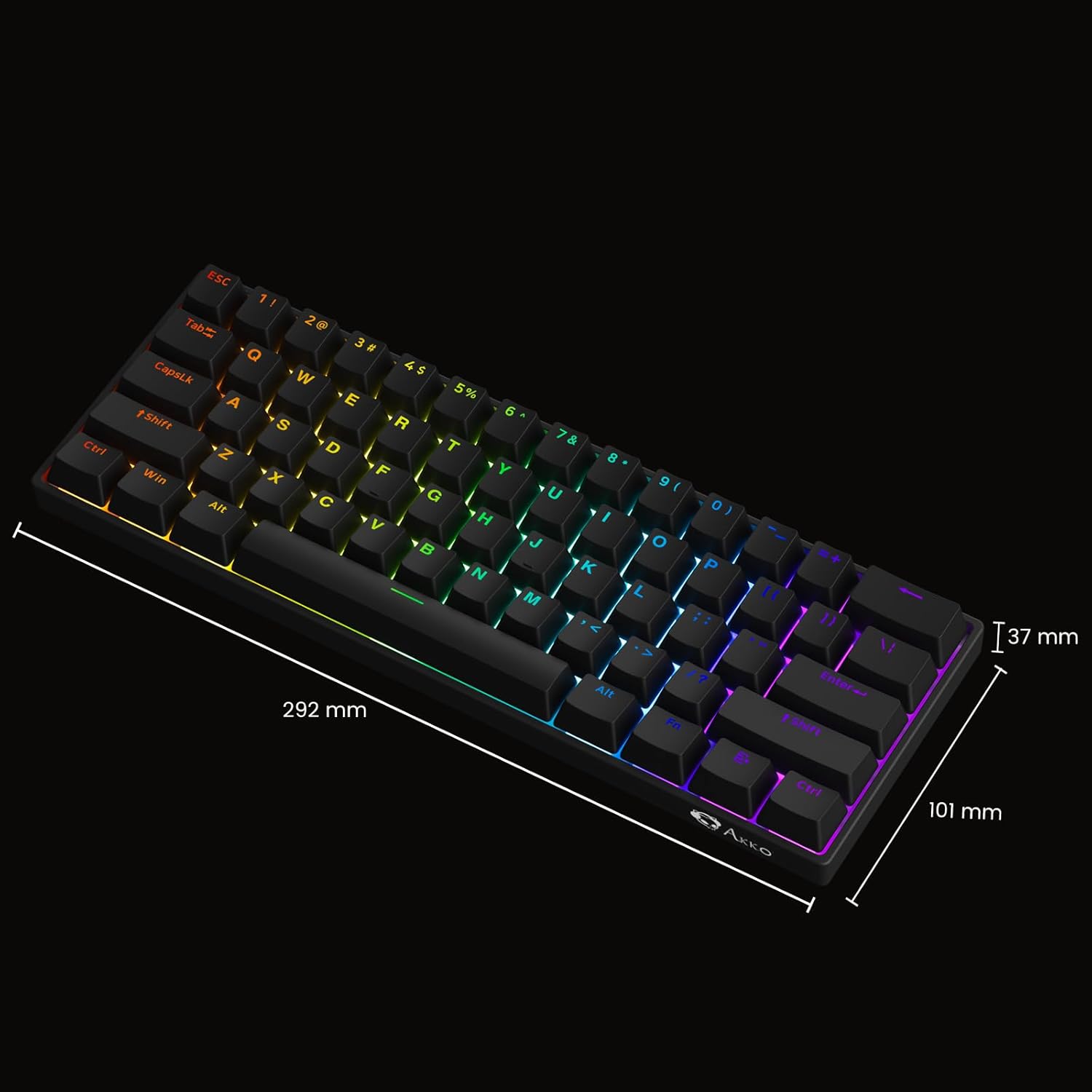 Image: Diagram showing the approximate dimensions of the Akko 3061S HE keyboard: 292mm length, 101mm width, and 37mm height. |
| Weight | 1.65 pounds (approx. 0.75 kg) |
9. Warranty and Support
Akko products are manufactured to high quality standards. For specific warranty terms and conditions, please refer to the warranty card included with your product or visit the official Akko website. Technical support and further assistance can also be found on the official Akko support pages.
For the latest drivers and software, please visit: www.akkogear.com


