Introduction
This manual provides detailed instructions for the Jennov 5MP PTZ WiFi Outdoor Surveillance Camera, model JS7016. It covers essential information regarding product features, installation procedures, operational guidelines, maintenance tips, and troubleshooting steps to ensure optimal performance and longevity of your device.
Important Note: This 5MP WiFi camera is designed as an additional unit for a Jennov 5MP WLAN Surveillance Camera Set. It cannot operate independently and requires connection to a Jennov NVR (Network Video Recorder) system.

Figure 1: Jennov 5MP PTZ WiFi Outdoor Surveillance Camera (Model JS7016)
Product Overview
Key Features
- 5MP High-Resolution Video: Captures clear and detailed footage.
- AI Human Detection & Sound-Light Alarm: Accurately identifies human figures and triggers audible and visual alerts.
- Automatic Tracking: The camera automatically follows detected human movement within its surveillance area.
- 360° Coverage (355° Pan & 90° Tilt): Offers extensive monitoring without blind spots, controllable via smartphone application.
- Three Night Vision Modes: Includes Infrared, Full Color, and Sound-Light activated modes for clear visibility in low light.
- Two-Way Audio: Built-in microphone and speaker for real-time communication.
- 24/7 Continuous Recording: Ensures constant video capture when connected to a Jennov NVR.
- Easy Setup & Remote Access: Simple installation and remote viewing capabilities via smartphone, tablet, or computer.
- IP66 Weatherproof Rating: Designed for outdoor use, resistant to dust and water.
Camera Components

Figure 2: Detailed view of the camera's external components and dimensions.
- Bracket: For mounting the camera.
- Antenna: For WiFi connectivity.
- Waterproof Case: Protects internal components from environmental elements.
- IR LEDs: Infrared lights for night vision.
- LED Light: For full-color night vision and alarm illumination.
- Wide-Angle Lens: Captures a broad field of view.
- Dual-light Sensor: Detects ambient light for automatic mode switching.
- Power Port: For connecting the power adapter.
- Speaker: For two-way audio and audible alarms.
Setup Instructions
Pre-installation Checklist
- Ensure you have a Jennov NVR system to pair this additional camera with.
- Verify stable WiFi coverage at the installation location.
- Gather necessary tools: drill, screwdriver, mounting screws, power outlet.
- Test the camera's functionality and signal strength near the NVR before permanent installation.
Physical Installation
- Choose a Location: Select an outdoor location that provides the desired surveillance coverage and has access to a power outlet. Ensure the camera is mounted securely and is within WiFi range of your Jennov NVR.
- Mount the Bracket: Use the provided screws and anchors to securely attach the mounting bracket to the wall or ceiling.
- Attach the Camera: Secure the camera to the mounted bracket. Adjust the angle for optimal viewing.
- Connect Power: Plug the camera's power adapter into a waterproof outdoor power outlet.

Figure 3: The camera's IP66 rating ensures durability in various outdoor conditions.
NVR Pairing (Adding the Camera)
Refer to your Jennov NVR system's manual for specific instructions on adding an additional camera. Generally, the process involves:
- Access NVR Settings: Connect a monitor to your Jennov NVR and navigate to the camera management or channel settings.
- Search for New Cameras: Select the option to search for new wireless cameras. The NVR will scan for available Jennov cameras in range.
- Add Camera: Once the JS7016 camera is detected, select it and follow the on-screen prompts to add it to an available channel.
- Verify Connection: Ensure the camera's video feed appears on the NVR monitor.
Operating Instructions
Once the camera is successfully paired with your Jennov NVR, you can manage and view its feed through the NVR interface or the EseeCloud smartphone application.
Remote Viewing via EseeCloud App
- Download App: Download and install the EseeCloud app on your smartphone or tablet.
- Add NVR: Register an account and add your Jennov NVR system to the app using its device ID or QR code.
- Access Camera Feed: Once the NVR is added, you can view the live feed from your JS7016 camera and control its functions remotely.

Figure 4: Remote viewing on various devices allows monitoring from anywhere.
AI Human Detection & Automatic Tracking
The camera utilizes advanced AI to distinguish human shapes from other moving objects, reducing false alarms. When a human is detected, the camera can automatically track their movement.
- Enable/Disable: These features can be enabled or disabled within the NVR settings or EseeCloud app.
- Alerts: When human detection is triggered, you will receive notifications on your connected devices.

Figure 5: AI Human Detection in action, with app notification.

Figure 6: Custom detection areas can be configured to focus on specific zones.
Night Vision Modes
The camera offers three distinct night vision modes for various low-light conditions:
- Infrared Mode: Provides black and white video in complete darkness using IR LEDs.
- Full Color Mode: Activates the built-in LED light to provide color video at night.
- Sound-Light Mode: The LED light and audible alarm are triggered upon detection of movement, illuminating the area and deterring intruders.

Figure 7: Illustration of the three night vision modes.
Two-Way Audio
The integrated microphone and speaker allow for real-time two-way communication. You can speak through the app and hear responses from the camera's location.
- Communication: Use this feature to greet visitors or warn intruders.
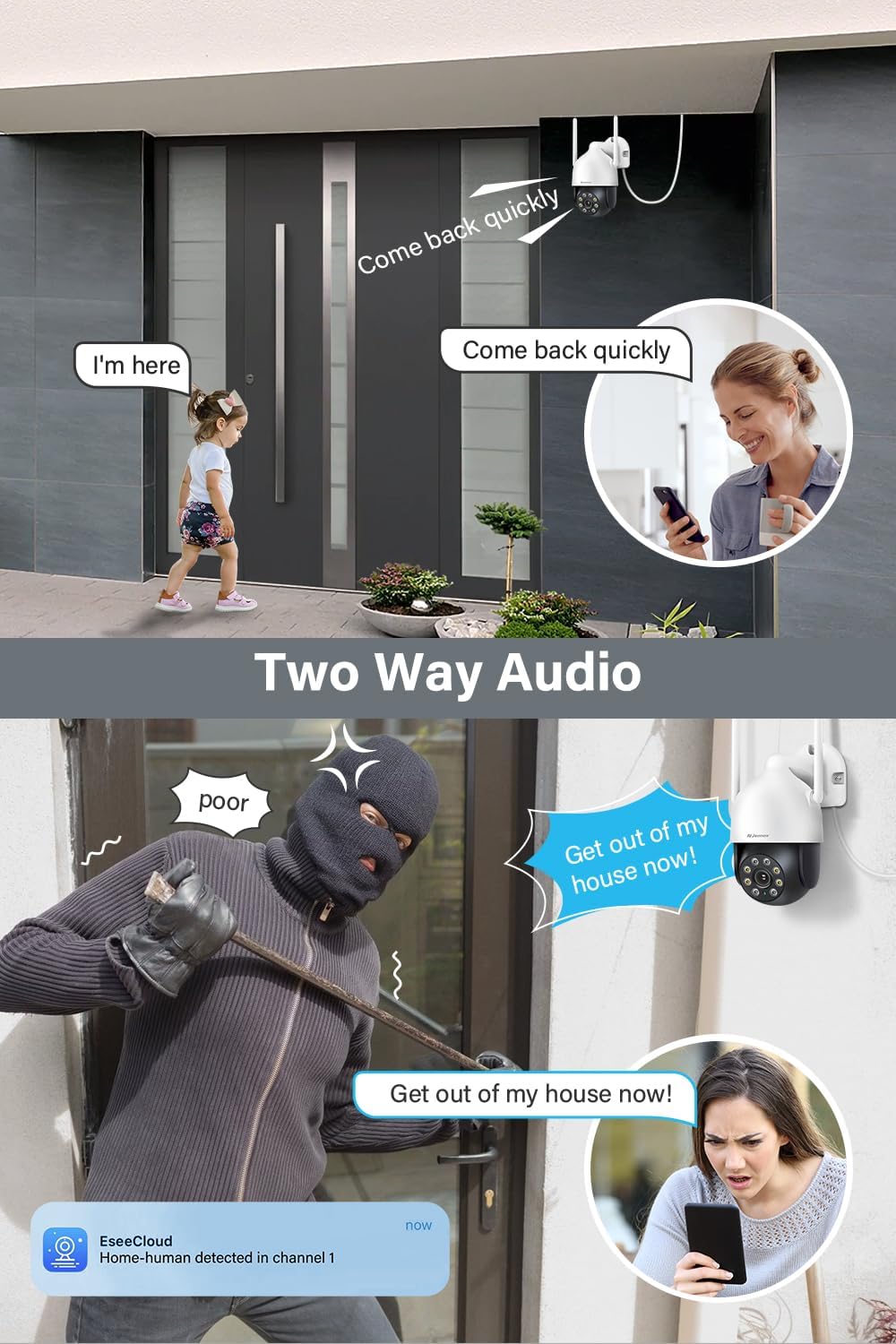
Figure 8: Examples of two-way audio use cases.
PTZ Control (Pan, Tilt, Zoom)
The camera's pan (355°) and tilt (90°) functions can be controlled remotely via the EseeCloud app, allowing you to adjust the viewing angle as needed.
- Manual Control: Swipe on the live view in the app to move the camera.
- Preset Positions: Set and recall specific viewing angles for quick access.

Figure 9: Remote control of pan and tilt functions via the app.
Maintenance
- Regular Cleaning: Periodically clean the camera lens and housing with a soft, damp cloth to remove dust and dirt. Do not use harsh chemicals.
- Firmware Updates: Check for and install firmware updates for your NVR and camera through the EseeCloud app or NVR interface to ensure optimal performance and security.
- Power Supply Check: Ensure the power adapter and cable are in good condition and free from damage.
- Antenna Position: Verify that the antennas are securely attached and positioned for optimal signal reception.
Troubleshooting
| Issue | Possible Cause | Solution |
|---|---|---|
| Camera not powering on | No power, faulty adapter/cable | Check power connection, test outlet, replace adapter if necessary. |
| No video feed on NVR/App | Not paired with NVR, weak WiFi signal, NVR issue | Ensure camera is paired, check WiFi signal strength, restart NVR and camera. |
| Poor image quality | Dirty lens, low light, network bandwidth | Clean lens, ensure adequate lighting or proper night vision mode, check network speed. |
| Motion detection not working | Feature disabled, incorrect sensitivity, obstructions | Enable human detection in settings, adjust sensitivity, clear camera's field of view. |
| Two-way audio issues | Microphone/speaker blocked, app volume low, network delay | Ensure clear path for audio, check app volume, verify stable network connection. |
Specifications
| Feature | Detail |
|---|---|
| Model Number | JS7016 |
| Manufacturer | Shenzhen Dianchen Industrial Co.,Ltd |
| Dimensions (L x W x H) | 15 x 12 x 18 cm |
| Weight | 620 grams |
| Power Type | Electric Cable |
| Voltage | 12 Volts |
| Power Consumption | 12 Watts |
| Connectivity Technology | Wireless (WiFi) |
| Video Recording Resolution | 5MP (2.7K) |
| Special Features | Siren Alarm, Two-Way Audio, PTZ Control, Human Detection |
| Included Components | EseeCloud (software) |
| Memory Storage Capacity | 256 GB (referring to NVR compatibility, not camera internal storage) |
| Operating System | Linux-based or proprietary operating system |
| Compatible Devices | Smartphones, Tablets, Computers (via EseeCloud app/software) |
Warranty and Support
For warranty information, technical support, or service inquiries, please refer to the documentation included with your Jennov NVR system or visit the official Jennov website. Keep your purchase receipt as proof of purchase for warranty claims.


