
1. Product Overview
The ATTACK SHARK X11 is a high-performance wireless gaming mouse designed for versatility and comfort. It offers three connection modes, a high-precision optical sensor, and a lightweight ergonomic design, making it suitable for various computing environments and gaming needs.

Figure 1: ATTACK SHARK X11 Wireless Gaming Mouse with RGB lighting.
Key Features:
- 3-Mode Connectivity: Supports 2.4G wireless, Bluetooth, and USB-C wired connections for broad compatibility.
- High-Performance PAW3311 Sensor: Offers 6-level adjustable DPI (800-22000), 300 IPS tracking speed, 1000Hz response rate, and 35G acceleration.
- RGB Backlight Charging Dock: Includes a charging dock with customizable RGB lighting for convenient charging and aesthetic appeal.
- Ultra-Lightweight & Ergonomic Design: Weighs approximately 62g, providing comfort during extended use.
- 5 Programmable Buttons: Customizable buttons via driver software for personalized control.
- Wide Compatibility: Compatible with Windows XP/VISTA/7/8/10/MAC and other systems.
2. Package Contents
Please check the package for the following items:
- ATTACK SHARK X11 Wireless Gaming Mouse
- USB-C Charging Cable
- 2.4G USB Receiver
- RGB Charging Dock
- User Manual
3. Component Identification
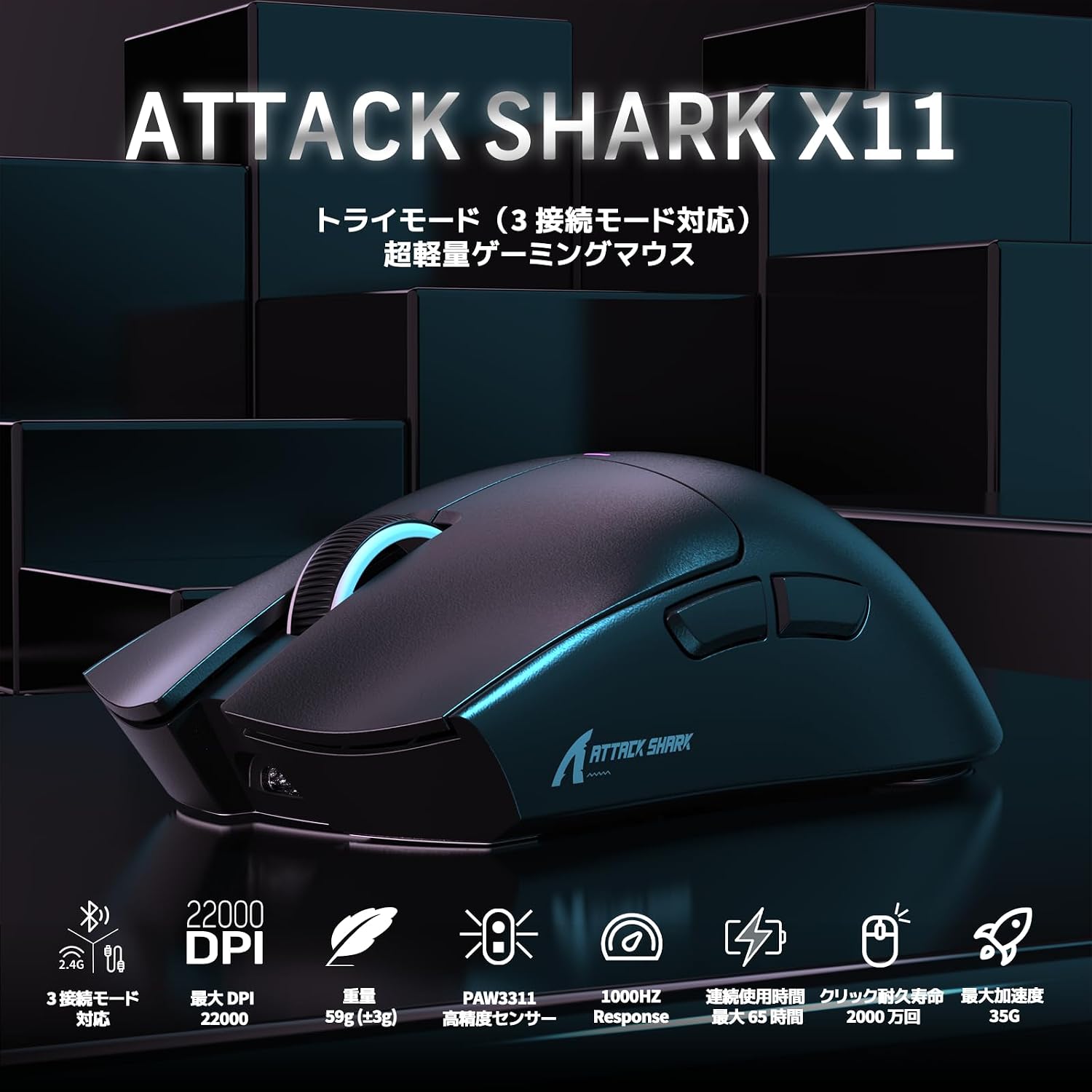
Figure 2: Front and side view of the mouse, highlighting buttons and scroll wheel.
- Left Click Button
- Right Click Button
- Scroll Wheel / Middle Click Button
- DPI Cycle Button
- Forward Button (Programmable)
- Backward Button (Programmable)
- Mode Switch (Bottom of mouse: 2.4G / OFF / BT)
- USB-C Port
- 2.4G USB Receiver Storage Slot (Bottom of mouse)
4. Setup Guide
4.1. Charging the Mouse
Before first use, it is recommended to fully charge the mouse. Connect the USB-C cable to the mouse and a power source, or place the mouse on the RGB charging dock.

Figure 3: Charging the mouse using the RGB charging dock.
The RGB charging dock also allows the mouse to operate in 2.4GHz mode by inserting the USB receiver into the dock's USB port and connecting the dock to your computer. This reduces the need to frequently plug and unplug the charging cable.
4.2. Connection Modes
The ATTACK SHARK X11 supports three connection methods:

Figure 4: The mouse can connect via 2.4G wireless, Bluetooth, or USB-C wired.
4.2.1. 2.4G Wireless Mode
- Take out the 2.4G USB receiver from the storage slot at the bottom of the mouse.
- Plug the USB receiver into an available USB port on your computer.
- Set the mode switch at the bottom of the mouse to the "2.4G" position.
- The mouse will automatically connect to your computer.
4.2.2. Bluetooth Mode
- Set the mode switch at the bottom of the mouse to the "BT" position.
- On your computer or device, enable Bluetooth and search for new devices.
- Select "ATTACK SHARK X11" from the list of available devices to pair.
4.2.3. USB-C Wired Mode
- Connect the USB-C cable to the mouse and the other end to a USB port on your computer.
- Set the mode switch at the bottom of the mouse to the "OFF" position. The mouse will function as a wired mouse and charge simultaneously.
5. Operating Instructions
5.1. DPI Adjustment
The mouse features a dedicated DPI cycle button (Button 4) to switch between 6 preset DPI levels: 800, 1600, 2400, 3200, 5000, and 22000 DPI. Each press of the button cycles to the next DPI setting.

Figure 5: Visual representation of the 6 adjustable DPI levels.
5.2. Programmable Buttons
The ATTACK SHARK X11 has 5 programmable buttons. You can customize their functions, including DPI, polling rate, LOD (Lift-Off Distance), shortcuts, and macros, using the dedicated driver software. Please visit the official ATTACK SHARK website to download the latest driver for your mouse.
5.3. RGB Backlight
The mouse and its charging dock feature RGB backlighting. The lighting effects can be customized through the driver software to match your preferences or gaming setup.
6. Maintenance
- Cleaning: Use a soft, dry cloth to clean the mouse. Avoid using harsh chemicals or abrasive materials.
- Storage: Store the mouse in a cool, dry place away from direct sunlight and extreme temperatures.
- Battery Care: To prolong battery life, avoid fully discharging the mouse frequently. Charge it when the battery indicator is low.
7. Troubleshooting
- Mouse not responding:
- Ensure the mouse is charged.
- Check the connection mode switch (2.4G, BT, or OFF for wired).
- For 2.4G, ensure the USB receiver is properly plugged in.
- For Bluetooth, ensure Bluetooth is enabled on your device and the mouse is paired.
- Try connecting via USB-C cable to rule out wireless issues.
- Lag or erratic movement:
- Ensure the mouse is fully charged.
- Reduce interference by moving other wireless devices away from the receiver.
- Clean the optical sensor at the bottom of the mouse.
- Ensure the mouse is used on a suitable mouse pad or surface.
- DPI not changing:
- Press the DPI cycle button firmly.
- If using custom settings, ensure the driver software is running and configured correctly.
8. Specifications

Figure 6: Detailed specifications of the PAW3311 optical sensor.
| Feature | Detail |
|---|---|
| Brand | ATTACK SHARK |
| Model Name | X11 |
| Color | Black |
| Connectivity Technology | Bluetooth, USB (2.4G Wireless, USB-C Wired) |
| Special Features | Wireless, Lightweight |
| Movement Detection Technology | Optical (PAW3311 Sensor) |
| Number of Buttons | 5 (Programmable) |
| Compatible Devices | Personal Computer |
| Operating System Compatibility | Windows 10, Windows 8, Windows XP, MAC |
| Max Sensitivity (DPI) | 22000 Dots Per Inch |
| Tracking Speed | 300 IPS |
| Acceleration | 35G |
| Polling Rate | 1000Hz (4-stage adjustable) |
| Item Weight | 62 Grams |
| Technical Compliance Number | 219-239395 |

Figure 7: The lightweight design of the ATTACK SHARK X11 mouse.

Figure 8: Internal components, including the Broadcom chip and Huano switches, designed for durability and responsiveness.
9. Warranty and Support
For warranty information and technical support, please refer to the product packaging or contact ATTACK SHARK customer service. Keep your purchase receipt for warranty claims.
This product complies with technical standards, indicated by the Technical Compliance Number: 219-239395.


