
1. Introduction
This manual provides instructions for the installation, operation, and maintenance of the GOOD STORY 5KM-3PK Wireless Bridge. This pre-configured 3-pack system is designed to establish long-range wireless network connections for point-to-point (P2P) and point-to-multi-point (P2MP) applications, offering high-speed data transmission and integrated Wi-Fi hotspot functionality.
The system is ideal for extending network connectivity to remote locations such as barns, garages, or other buildings up to 5 kilometers away, providing reliable internet access and supporting various applications like streaming and video surveillance.
2. Product Overview
The GOOD STORY 5KM-3PK Wireless Bridge system consists of three pre-configured units: one Master unit and two Slave units. These units work together to create a stable and secure wireless link.

Image 2.1: GOOD STORY 5KM-3PK Wireless Bridge Units (Master and Slaves)
Key Features:
- High-Speed 5GHz Connectivity: Supports fast data transmission for demanding applications.
- Long Range Coverage: Establishes stable connections up to 5 kilometers (3.1 miles) with 16dBi high-gain antennas.
- Pre-Configured: Units are pre-paired for simplified installation.
- Built-in Wi-Fi Hotspot: Provides local Wi-Fi access at both Master and Slave locations.
- Robust Outdoor Performance: IP65 rated for weather resistance, ensuring durability in various outdoor conditions.
- Secure and Reliable: Offers reliable data transmission with encryption protocols.
- Versatile Usage: Suitable for home network expansion, remote offices, and inter-building connectivity.
- 100/1000Mbps LAN Port: Supports high-speed wired connections.

Image 2.2: Product Feature Summary
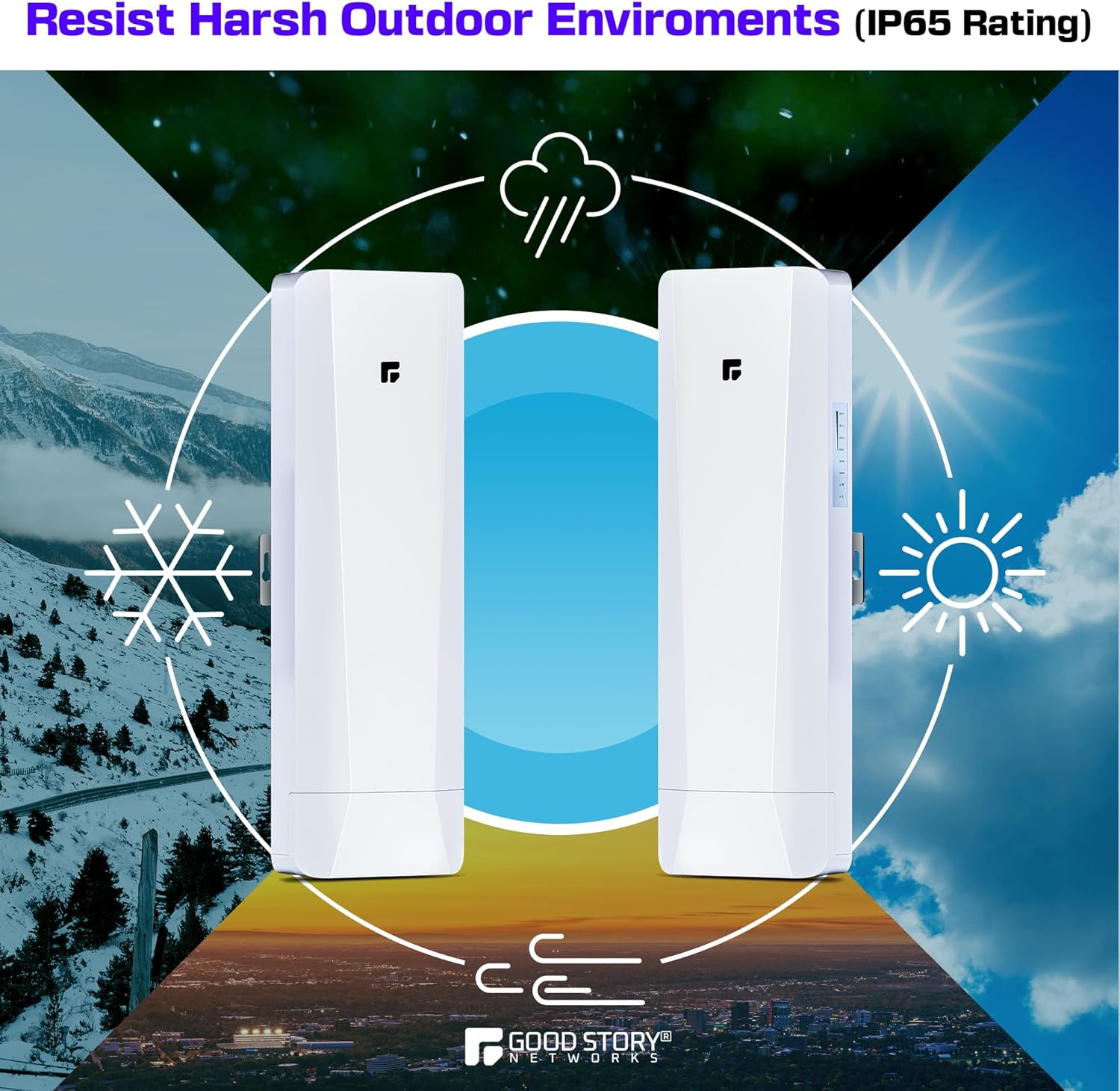
Image 2.3: Weather Resistance (IP65 Rating)
3. Setup Instructions
The GOOD STORY 5KM-3PK Wireless Bridge units are pre-configured for ease of use. No complex network setup is required.
3.1. Components and Connections
Each unit requires power via Power over Ethernet (PoE). The PoE injector (included) connects to the unit and provides both power and data connectivity through a single Ethernet cable.
- Master Unit: Connects to your existing network (e.g., router/WAP) via its LAN port and PoE injector.
- Slave Units: Receive the wireless signal from the Master unit and can provide local network access via their LAN ports and built-in Wi-Fi hotspots.
3.2. Point-to-Point (P2P) Setup
- Positioning: Mount the Master unit and one Slave unit in line-of-sight of each other. Ensure minimal obstructions for optimal signal strength.
- Master Connection:
- Connect an Ethernet cable from your router/WAP to the LAN port of the PoE injector.
- Connect another Ethernet cable from the PoE port of the injector to the LAN port of the Master unit.
- Plug the PoE injector into a power outlet.
- Slave Connection:
- Connect an Ethernet cable from the PoE port of the injector to the LAN port of the Slave unit.
- Plug the PoE injector into a power outlet.
- The Slave unit will automatically connect to the Master unit. You can then connect devices (e.g., laptop, security camera) to the Slave unit's LAN port or use its local Wi-Fi hotspot.
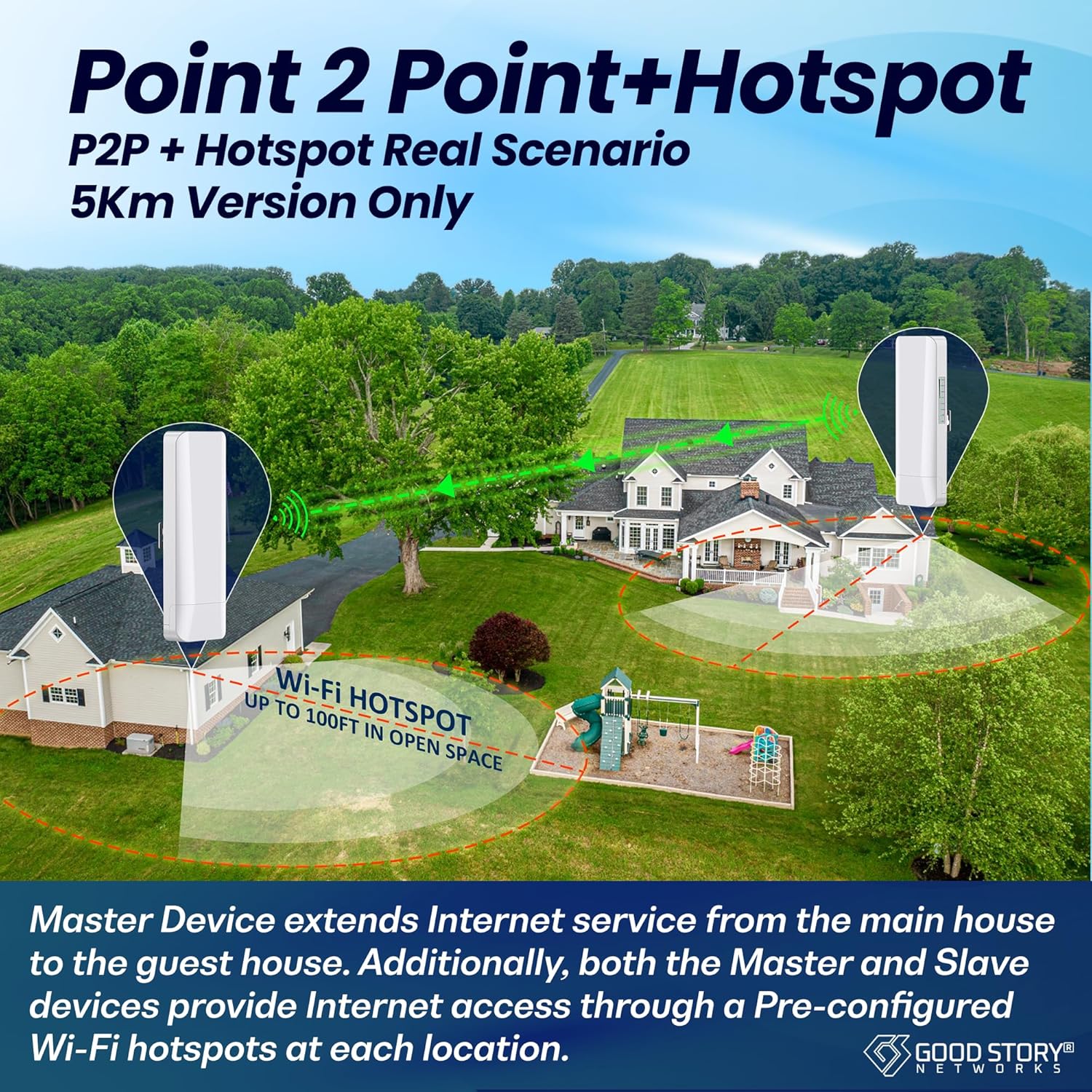
Image 3.1: Point-to-Point Setup with Hotspot
3.3. Point-to-Multi-Point (P2MP) Setup
The Master bridge allows up to 8 Slave units to be connected to it. For a 3-pack system, you will have one Master and two Slaves.
- Master Unit Setup: Follow step 2 for Master Connection as described in P2P setup.
- Slave Units Setup: Follow step 3 for Slave Connection for each additional Slave unit.
- Positioning: Ensure all Slave units are within the wireless coverage area of the Master unit and have a clear line of sight.

Image 3.2: Point-to-Multi-Point Connection Diagram

Image 3.3: Network Extension Range
4. Operating Instructions
Once the Master and Slave units are powered on and properly positioned, they will automatically establish a wireless bridge link.
4.1. Network Access
- Wired Connection: Connect any network device (e.g., computer, network switch, security camera DVR) to the LAN port of a Slave unit using an Ethernet cable.
- Wi-Fi Hotspot: Both Master and Slave units provide a local Wi-Fi hotspot. Devices can connect to this hotspot for internet access. The Wi-Fi network name (SSID) and password are pre-configured and typically found on a label on the device or in accompanying documentation.

Image 4.1: Pre-Configured Wi-Fi Hotspot Functionality
4.2. LED Indicators
The units feature LED indicators to show power status, wireless link status, and LAN activity. Refer to the device itself for specific LED meanings. Generally, solid green lights indicate a stable connection and operation.
4.3. Applications
The wireless bridge is suitable for various applications, including:
- Extending internet to outbuildings (barns, garages, guest houses).
- Connecting IP cameras for surveillance systems over long distances.
- Providing network access for remote offices or temporary setups.
- Working with satellite internet systems like Starlink to distribute connectivity.
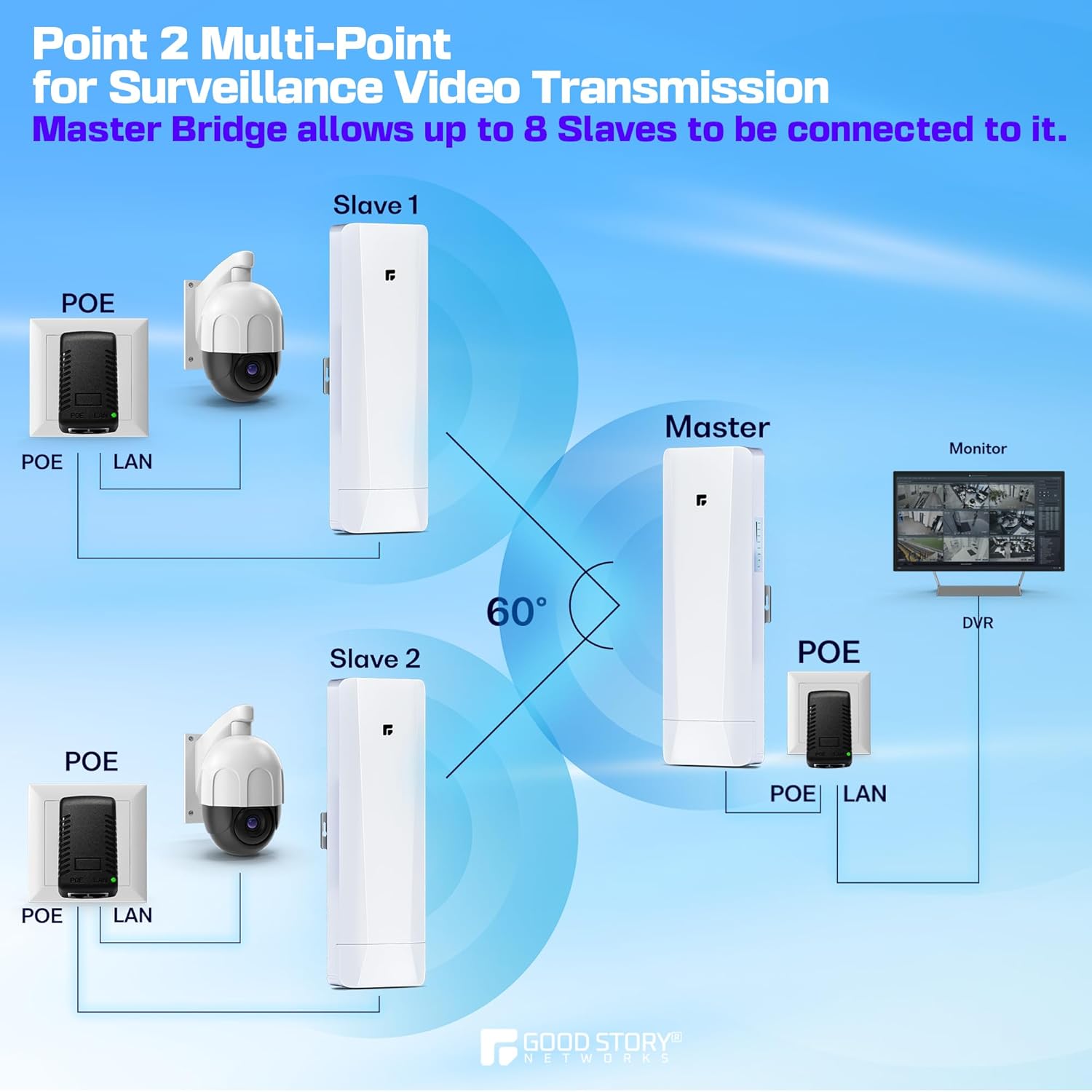
Image 4.2: P2MP for Surveillance Video Transmission

Image 4.3: Wide Application Scenarios
5. Maintenance
The GOOD STORY Wireless Bridge units are designed for outdoor use and are IP65 rated, meaning they are protected against dust ingress and low-pressure water jets from any direction.
- Cleaning: Periodically inspect the units for dirt or debris accumulation. Clean the exterior with a soft, damp cloth. Do not use harsh chemicals or abrasive cleaners.
- Cable Inspection: Regularly check all Ethernet cable connections for wear, damage, or loose fittings.
- Firmware Updates: While the units are pre-configured, occasional firmware updates may be released to improve performance or security. Refer to the manufacturer's website for information on available updates and instructions for installation.
6. Troubleshooting
If you encounter issues with your wireless bridge, consider the following troubleshooting steps:
- No Power: Ensure all PoE injectors are properly plugged into power outlets and the Ethernet cables are securely connected to both the injector and the bridge unit. Check the power LED on the unit.
- No Wireless Link:
- Verify that the Master and Slave units have a clear line of sight to each other. Obstructions like trees or buildings can degrade the signal.
- Check the wireless link LEDs on both units. If they are not indicating a connection, try repositioning the units slightly.
- Ensure the units are within the specified operating range (up to 5KM).
- No Internet Access:
- Confirm that the Master unit is correctly connected to your main router/WAP and that your main internet connection is active.
- Check the LAN connection from the Slave unit to your end device.
- If using the Wi-Fi hotspot, ensure your device is connected to the correct SSID and the password is entered correctly.
- Slow Speeds:
- Ensure optimal line of sight between units.
- Minimize interference from other 5GHz wireless devices.
- Check for any physical damage to the units or cables.
For further assistance, refer to the manufacturer's support resources.
7. Specifications
| Feature | Detail |
|---|---|
| Brand | GOOD STORY |
| Model Name | 5KM Wireless Bridge P2P |
| Model Number | 5KM-3PK |
| Part Number | WB510C |
| Wireless Standard | 802.11n |
| Frequency | 5 GHz (Single-Band) |
| Data Transfer Rate | 1000 Megabits Per Second (100/1000Mbps LAN Port) |
| Antenna Gain | 16dBi |
| Max Range | Up to 5 Kilometers (3.1 miles) |
| LAN Ports | 1 per unit |
| Power Input | 24 Volts (via PoE) |
| Special Features | Internet Security, LED Indicator, Weatherproof (IP65) |
| Compatible Devices | Laptop, Personal Computer, Security Camera, Smart Television |
| Operating System | RouterOS |
| Dimensions | 32.51 x 29.11 x 7.29 cm (Parcel Dimensions) |
| Weight | 1.79 kg (Parcel Weight) |
8. Warranty and Support
Specific warranty information for the GOOD STORY 5KM-3PK Wireless Bridge is typically provided with the product packaging or available on the manufacturer's official website. Please retain your proof of purchase for warranty claims.
For technical support, troubleshooting beyond this manual, or warranty inquiries, please contact GOOD STORY customer service through their official channels.