
1. Introduction
This manual provides detailed instructions for the installation, operation, and troubleshooting of the Road Top Wireless CarPlay Android Auto Retrofit Kit Decoder. This device integrates advanced smartphone connectivity into your vehicle's existing infotainment system, enhancing functionality while retaining original car features. Please read this manual thoroughly before installation and use.
2. Compatible Vehicles
This retrofit kit decoder is designed exclusively for vehicles equipped with the HMI 2.0 host device. Verify your vehicle's HMI version before proceeding with installation.

Image: Compatible vehicle models and years for the Road Top Retrofit Kit.
| Brand | Model | Year |
|---|---|---|
| Cadillac | ATS | 2013-2017 |
| Cadillac | CTS | 2014-2017 |
| Cadillac | SRX | 2013-2017 |
| Cadillac | XTS | 2012-2017 |
| Buick | LaCrosse | 2014-2019 |
| Buick | Regal | 2014-2017 |
| Chevrolet | Corvette | 2014-2019 |
| Chevrolet | Impala | 2014-2020 |
| Chevrolet | Silverado | 2014-2018 |
| Chevrolet | Suburban | 2015-2020 |
| Chevrolet | Tahoe | 2015-2020 |
| GMC | Sierra | 2014-2018 |
3. Key Features
The Road Top Retrofit Kit Decoder adds the following functionalities to your vehicle's existing HMI 2.0 system:
- Wireless/Wired CarPlay: Seamless integration with Apple CarPlay for navigation, music, messages, and more.
- Wireless/Wired Android Auto: Connect Android smartphones for access to Google Maps, media, and communication apps.
- Mirrorlink: Display your smartphone screen directly on the car's display. Supports AirPlay for iPhone and AutoLink for Android.
- Voice Control: Utilize Siri and Google Assistant for hands-free operation, including navigation, calls, and music control.
- Reverse Camera Support: Compatible with factory original reverse cameras and parking radar. Also supports aftermarket reverse cameras and 360-degree cameras, as well as front view camera DVR (CVBS input).
- Original Car Knob Control: Retains functionality of original car controls, including steering wheel buttons for voice control and telephone functions.
- USB Media Playback: Supports playing various audio and video formats from a USB flash drive.

Image: Visual representation of OEM system, Wireless CarPlay, and Android Auto interfaces.

Image: Demonstration of reverse camera functionality and Mirrorlink feature.
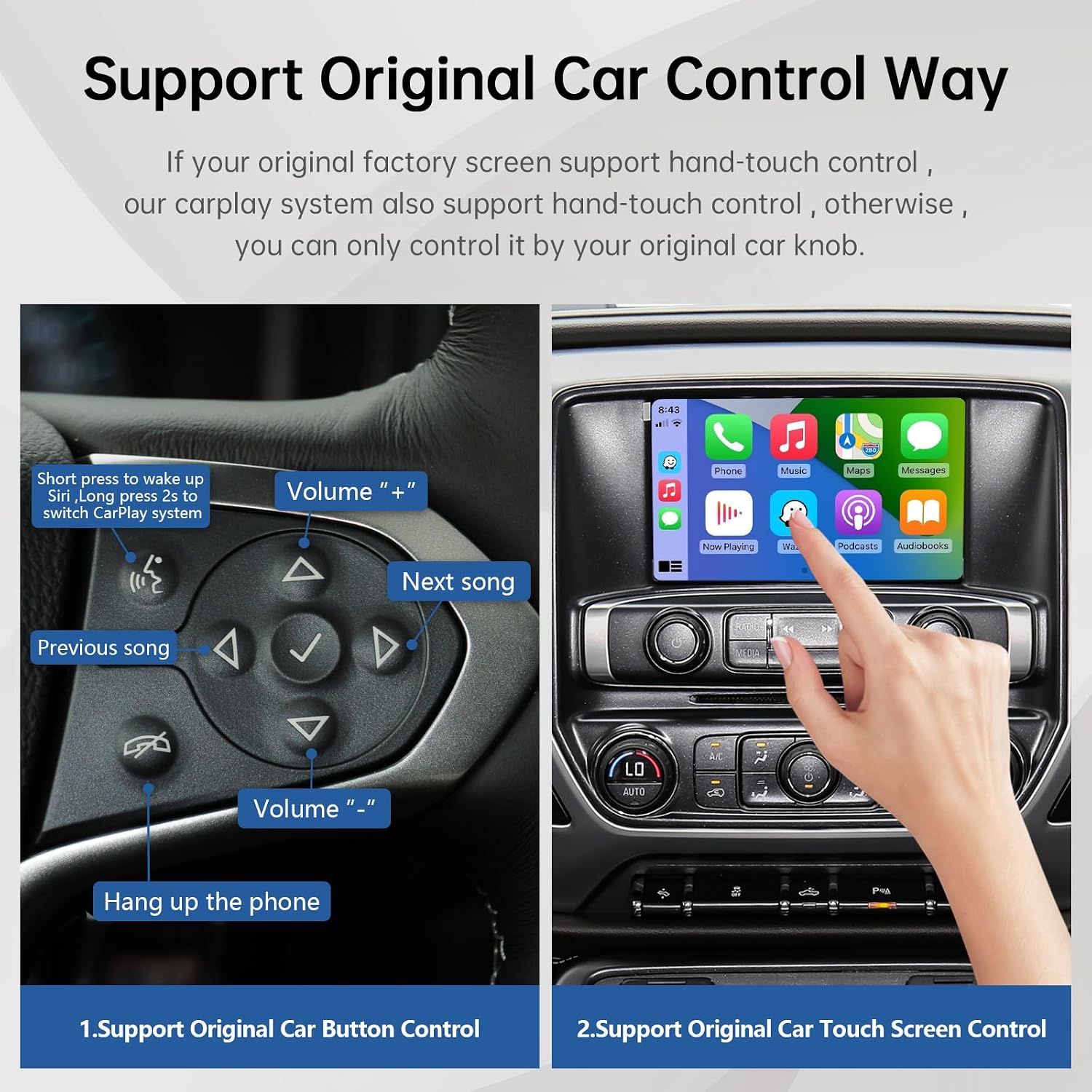
Image: Illustrates the use of original car buttons and touch screen for control.

Image: Example of voice control functionality with Siri and Google Assistant.
4. Package Contents
The Road Top Wireless CarPlay Android Auto Retrofit Kit Decoder package includes the following items:
- CarPlay Decoder Box
- Power Cable
- LVDS Cable 1
- LVDS Cable 2
- RCA Cable
- External Microphone

Image: Contents of the Road Top Retrofit Kit package, including the decoder box and various cables.
5. Setup and Installation
Installation of this retrofit kit requires removal of the car dashboard to access and connect to the original CD host device. It is recommended that installation be performed by a qualified professional. Incorrect cable connections or settings can lead to operational issues.
- Preparation: Ensure the vehicle is turned off and the battery is disconnected before beginning installation.
- Dashboard Removal: Carefully remove the car dashboard to gain access to the original CD host device and HMI 2.0 module.
- Wiring Connections: Connect the provided cables (Power cable, LVDS cables, RCA cable, External microphone) to the appropriate ports on the CarPlay decoder box and the vehicle's original wiring harness. Refer to the wiring diagram specific to your vehicle model for precise connections.
- Initial Testing: Before fully reassembling the dashboard, temporarily reconnect the battery and test all functions of the CarPlay system, including CarPlay, Android Auto, Mirrorlink, camera inputs, and original car controls.
- Reassembly: Once all functions are confirmed to be working correctly, carefully reassemble the car dashboard.
Important Note: Most problems encountered during installation are due to incorrect cable connections or settings. Confirm all features are operational before finalizing the installation and reassembling the dashboard components.
6. Operating Instructions
6.1 Switching Between Systems
To switch between the original car radio system and the CarPlay/Android Auto system, long-press the designated special button on your car's knob control. This allows for seamless transition between the two interfaces.
6.2 Using CarPlay and Android Auto
Once connected, your smartphone's interface will appear on the car's display. You can navigate through apps using the car's original controls (knob, steering wheel buttons) or, if your original screen supports it, via touch input.
6.3 Voice Control
Activate Siri (for CarPlay) or Google Assistant (for Android Auto) by short-pressing the voice control button on your steering wheel. You can then issue commands for navigation, making calls, sending messages, or playing music.
6.4 Mirrorlink Functionality
The Mirrorlink feature allows you to cast your smartphone's screen to the car display. This is useful for viewing videos, photos, or other content not directly supported by CarPlay or Android Auto. Ensure your phone is connected via the appropriate Mirrorlink protocol (AirPlay for iPhone, AutoLink for Android).
6.5 USB Flash Playing
Insert a USB flash drive into the designated USB connector on the decoder box. The system will automatically detect and allow playback of compatible music or video files stored on the drive.
7. Troubleshooting
If you encounter issues with your Road Top Retrofit Kit, please review the following common problems and solutions:
- No Display/Black Screen:
- Verify all power and LVDS cable connections are secure and correctly seated.
- Ensure the correct input source is selected on your car's display (if applicable).
- Touch Screen Not Responding:
- Confirm that your original car screen supports hand-touch control. If not, control will be limited to the original car knob.
- Check for any loose connections in the CAN harness. A known issue involves the purple wires within the CAN harness touching, which can be resolved by separating them.
- No Audio:
- Ensure the AUX input is correctly selected on your car's original radio system.
- Check the audio output settings within the CarPlay/Android Auto interface.
- Steering Wheel Buttons Not Working (beyond voice/Tel):
- The CarPlay interface decoder box supports voice control and telephone buttons. Other steering wheel buttons may not be supported.
- Random Restarts:
- Check all power connections for stability.
- Ensure the unit is receiving adequate power.
If these steps do not resolve your issue, please contact Road Top customer support for further assistance. Provide your product model number and a detailed description of the problem.
8. Specifications
| Feature | Detail |
|---|---|
| Model Number | 03fa795f-6193-4e62-9bb8-1d2d72900f76 |
| Brand | Road Top |
| Connectivity Technology | Bluetooth |
| Controller Type | Car Knob |
| Special Feature | Apple CarPlay, Android Auto, Mirrorlink |
| Compatible Devices | Smartphone |
| Connector Type | Optical |
| Audio Output Mode | Stereo |
| Surround Sound Channel Configuration | 4.0 |
| Video Encoding | H.264, H.265 (HEVC) or higher |
| Color | Black |
| Package Dimensions | 8.46 x 5.98 x 3.82 inches |
| Item Weight | 2.03 pounds |
9. Warranty and Support
For technical support, warranty inquiries, or any questions regarding the Road Top Wireless CarPlay Android Auto Retrofit Kit Decoder, please contact Road Top customer service. It is recommended to provide your product model number and a detailed description of your issue when seeking support.
You can typically find contact information for Road Top through their official website or the platform where the product was purchased.