
1. Introduction
This manual provides essential information for the proper setup, operation, and maintenance of your LUXOR LLMC10 Modular Charging Cabinet. Designed for educational environments, warehouses, retail, and more, this cabinet offers a flexible and scalable solution for charging, storing, and securing up to 10 laptops or tablets.

Figure 1.1: Front view of the LLMC10 Modular Charging Cabinet.
2. Key Features
The LUXOR LLMC10 Modular Charging Cabinet is engineered with several features to ensure efficient and secure device management:
- Device Capacity: Accommodates up to 10 laptops or tablets with screens up to 13 inches.
- Device Protection: Padded storage slots help protect devices from scratches and damage.
- Adjustable Dividers: Movable divider fins allow selection between two storage slot widths (0.6" or 1.25") to fit various device sizes.
- Integrated Power Management: Power strips are located in a separate drawer to keep cords and power bricks neat and organized. Integrated cords wrap on cabinets and carts to keep power cords organized.
- Security: Each cabinet includes a front locking door and two keys to secure devices.
- Ventilation: Ventilated sides help keep devices cool during charging.
- Durable Construction: Constructed from durable powder-coated steel for long-lasting use.
- Versatile Placement: Can be placed on a shelf, mounted to a wall, stacked, or connected to optional dollies for mobility.
- Easy Connection: Included thumb screws make it easy to connect cabinets to a cart and/or other cabinets.

Figure 2.1: Overview of LLMC Modular Charging System features.
3. Components Overview
The LLMC10 Modular Charging Cabinet consists of the following main components:
- Main Cabinet Body (Powder-Coated Steel)
- Front Locking Door with Key Lock
- Two Keys
- Internal Padded Device Slots
- Movable Divider Fins
- Top Storage Drawer for Power Bricks and Cords
- Integrated Power Strips (UL/cUL-listed)
- Ventilated Side Panels
- Thumb Screws (for stacking/connecting)

Figure 3.1: Cabinet interior showing the top storage drawer and device slots.
4. Setup and Installation
The LLMC10 cabinet requires some assembly. Please follow these steps carefully:
4.1 Unpacking
- Carefully remove all components from the packaging.
- Verify that all listed components are present and undamaged. Refer to the packing list included with your cabinet.
- Retain packaging materials for future transport or storage, if necessary.
4.2 Assembly
Detailed assembly instructions are provided in a separate assembly guide included with your product. Please refer to that guide for step-by-step instructions on assembling the cabinet and attaching any optional accessories like dollies or wall mounts.
4.3 Placement Options
The LLMC10 offers flexible placement options:
- Shelf Placement: The cabinet can be placed securely on any sturdy shelf or flat surface.
- Wall Mounting: For fixed installations, the cabinet can be mounted to a wall using appropriate hardware (sold separately). Ensure the wall can support the cabinet's weight plus the weight of all devices.
- Stacking: Multiple cabinets can be stacked up to three high using the included thumb screws for secure connection.
- Dolly Connection: For mobility, the cabinet can be attached to an optional single or double dolly (sold separately). Single dollies hold up to three cabinets, and double dollies hold up to six.

Figure 4.1: Rear view of the cabinet, highlighting ventilation and mounting points.
5. Operating Instructions
5.1 Charging Devices
- Unlock the front door using one of the provided keys and open it.
- Pull out the top storage drawer to access the integrated power strips.
- Plug your device's power adapter into an available outlet on the power strip.
- Route the charging cable through the cable management openings to the device slot below.
- Place your laptop or tablet into one of the padded device slots. Ensure the device is properly seated and connected to its charging cable.
- Repeat for all devices.
- Once all devices are placed and connected, close the top storage drawer.
- Close and lock the front door to secure the devices.
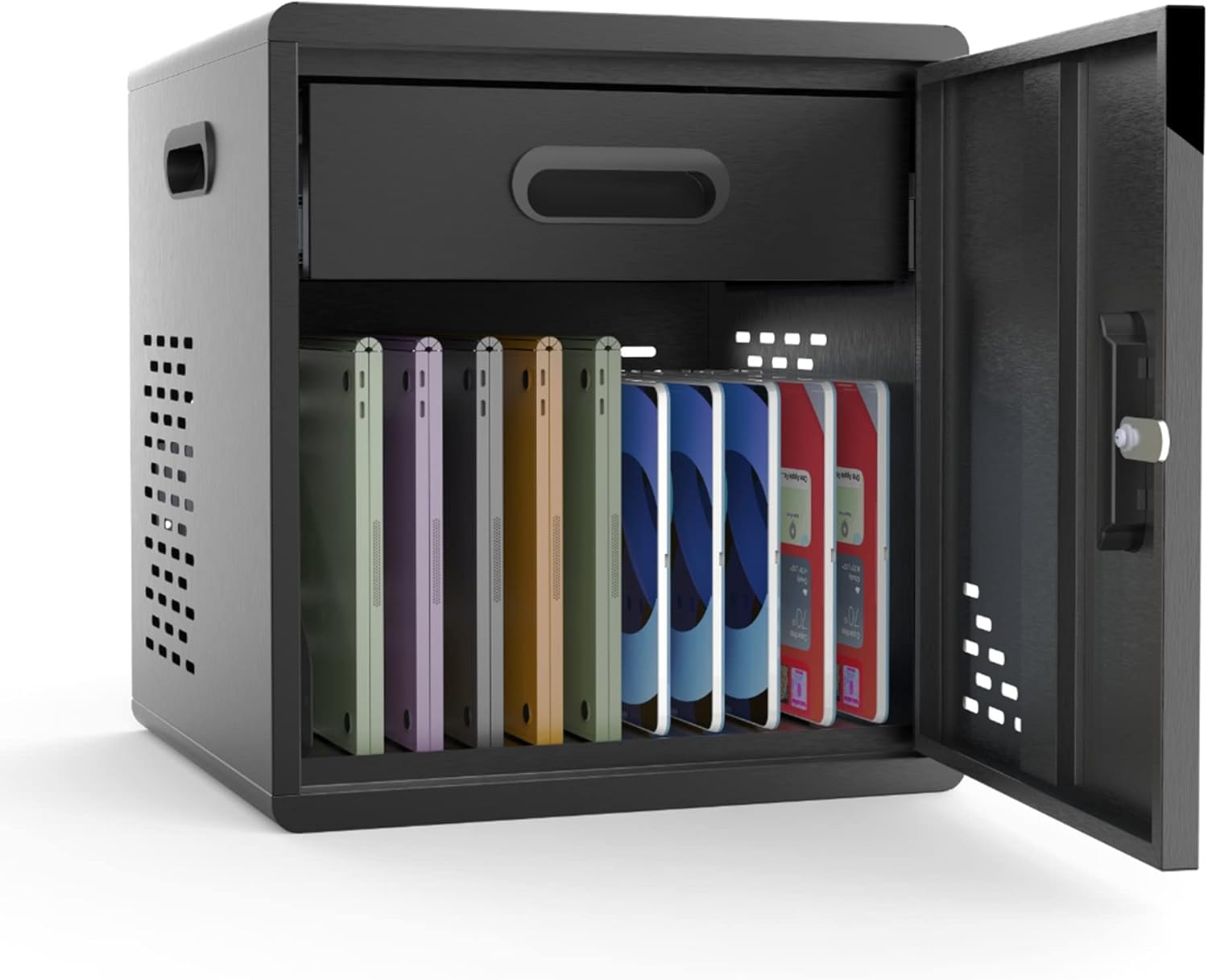
Figure 5.1: Cabinet interior with devices in charging slots.
5.2 Adjusting Divider Fins
The internal divider fins can be adjusted to accommodate devices of varying thicknesses:
- To adjust, gently lift the divider fin from its current slot.
- Reinsert the fin into an alternative slot to achieve the desired width (0.6 inches or 1.25 inches).
- Ensure all fins are securely seated before placing devices.

Figure 5.2: Adjustable divider fins for device customization.
6. Maintenance
Regular maintenance ensures the longevity and optimal performance of your charging cabinet.
6.1 Cleaning
- Wipe the exterior surfaces with a soft, damp cloth. Avoid abrasive cleaners or solvents that could damage the powder-coated finish.
- For interior cleaning, ensure the cabinet is unplugged and all devices are removed. Use a dry or slightly damp cloth to clean the padded slots and internal surfaces.
- Periodically check ventilation openings for dust accumulation and clear as needed to ensure proper airflow.
6.2 General Care
- Do not overload the cabinet beyond its stated capacity of 10 devices.
- Ensure power cords are not pinched or damaged when closing the drawer or door.
- Keep the cabinet in a dry, well-ventilated area.
7. Troubleshooting
If you encounter issues with your LLMC10 cabinet, refer to the following common problems and solutions:
| Problem | Possible Cause | Solution |
|---|---|---|
| Devices are not charging. | Power strip is not plugged in or is off. Device power adapter is faulty. Power outlet is not functioning. | Ensure the cabinet's main power cord is securely plugged into a live wall outlet. Check if the power strip's switch (if any) is in the ON position. Test the device's power adapter with another outlet or device. Test the wall outlet with another appliance. |
| Door does not lock. | Obstruction in the door mechanism. Key is not fully inserted or turned. | Check for any objects preventing the door from closing completely. Ensure the key is fully inserted and turned clockwise until the lock engages. |
| Cabinet feels warm. | Normal operation during charging. Blocked ventilation. Overloaded. | Slight warmth is normal. Ensure cabinet is in a well-ventilated area. Check that side ventilation holes are not obstructed. Ensure no more than 10 devices are being charged simultaneously. |
8. Specifications
Detailed technical specifications for the LUXOR LLMC10 Modular Charging Cabinet:
| Attribute | Value |
|---|---|
| Model Number | LLMC10 |
| Brand | Luxor |
| Product Dimensions (W x D x H) | 15" x 15" x 16.75" |
| Item Weight | 30 Pounds |
| Color | Black |
| Frame Material | Metal (Powder-Coated Steel) |
| Device Capacity | 10 Laptops/Tablets (up to 13" screens) |
| Assembly Required | Yes |
| Special Feature | Heavy Duty, Key Lockable, Ventilated |
| UPC | 847210062578 |

Figure 8.1: Cabinet Dimensions.
9. Warranty and Support
For warranty information, technical support, or to purchase replacement parts, please contact Luxor customer service directly. Refer to the contact information provided with your product packaging or visit the official Luxor website.
Luxor Official Website: Visit the Luxor Store on Amazon


