
Introduction
This manual provides comprehensive instructions for the MWE 43-inch Mobile Digital Signage Display, Model ZLP. It covers essential information regarding product setup, operation, maintenance, and troubleshooting to ensure optimal performance and longevity of your device. Please read this manual thoroughly before operating the display.
What's in the Box
Carefully unpack all components and verify that all items listed below are present and undamaged. If any items are missing or damaged, please contact customer support.
- Digital Signage Display (Screen)
- Mobile Stand with Wheels (includes Bracket 1, Bracket 2, Bracket 3, 4 Wheels)
- Flight Case
- Remote Control
- Wireless Display Adapter
- Power Cable
- M6*50 Screws (4 pieces)
- M6 Hand Screws (4 pieces)
- Plastic Top Covers (2 pieces)
- Cross Screwdriver (1 piece)

Image: Components included in the MWE Mobile Digital Signage Display package.
Setup Instructions
Follow these steps to assemble and prepare your MWE Mobile Digital Signage Display for use.
- Unpacking: Remove all components from the flight case and packaging.
- Stand Assembly: Assemble the mobile stand components (Bracket 1, 2, and 3) using the provided screws and screwdriver. Ensure all connections are secure.
- Wheel Installation: Attach the four wheels to the base of the mobile stand. The wheels are designed for easy movement.
- Display Mounting: Carefully attach the 43-inch display screen to the assembled mobile stand using the designated mounting points and screws. Ensure the display is securely fastened.
- Cable Management: Route the power cable and any other necessary cables through the stand's hidden cable management system for a clean and organized appearance.
- Power Connection: Connect the power cable to the display and then to a standard electrical outlet.
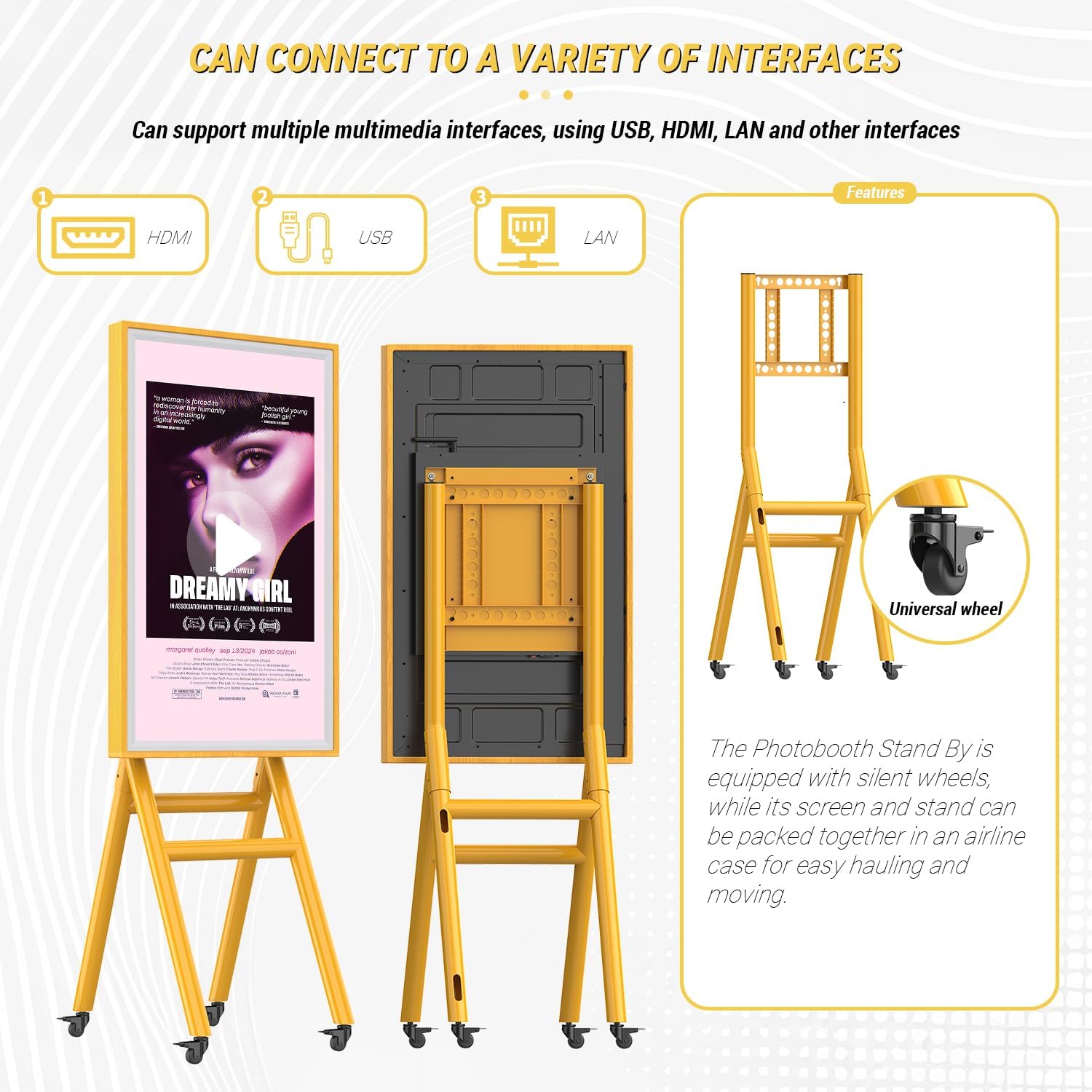
Image: Assembly steps for the mobile stand and an overview of connectivity ports.
Operating Instructions
This section details how to operate your MWE Digital Signage Display.
Power On/Off and Scheduling
Press the power button on the display or use the remote control to turn the unit on or off. The display supports scheduled power on/off settings, which can be configured via the system settings or the 'LED Art' application.

Image: Example of setting a timer for automatic power on and off.
Input Sources and Connectivity
The display supports multiple input sources, including USB, HDMI, and LAN. You can easily switch between these inputs using the remote control or the on-screen menu.
- HDMI Input: Connect external devices such as laptops, media players, game consoles, or TV boxes for high-definition video and audio transmission.
- USB Input: For plug-and-play content playback directly from a USB drive. The display will automatically play content you have set.
- LAN/Wi-Fi: Connect to a network for remote content management and updates.

Image: Supported HDMI input sources for the display.
Content Management and 'LED Art' App
The display features a built-in media player and supports remote content management via Wi-Fi and the dedicated 'LED Art' application. This allows for flexible content updates and control.
- 'LED Art' App: Customize advertising content, set playback methods (split screen, horizontal screen, multi-screen), and manage dynamic or static images and videos.
- Remote Control: Use the included remote for basic navigation and settings adjustments.

Image: Overview of content management features including Wi-Fi, app, and remote control.
Touch Screen Functionality
The 43-inch display features a sensitive capacitive touchscreen, providing fast response and interactive capabilities.

Image: Demonstrating the interactive touchscreen features.
Screen Mirroring
Equipped with a wireless display adapter, the unit supports screen mirroring from compatible devices, allowing for various screen projection scenarios.
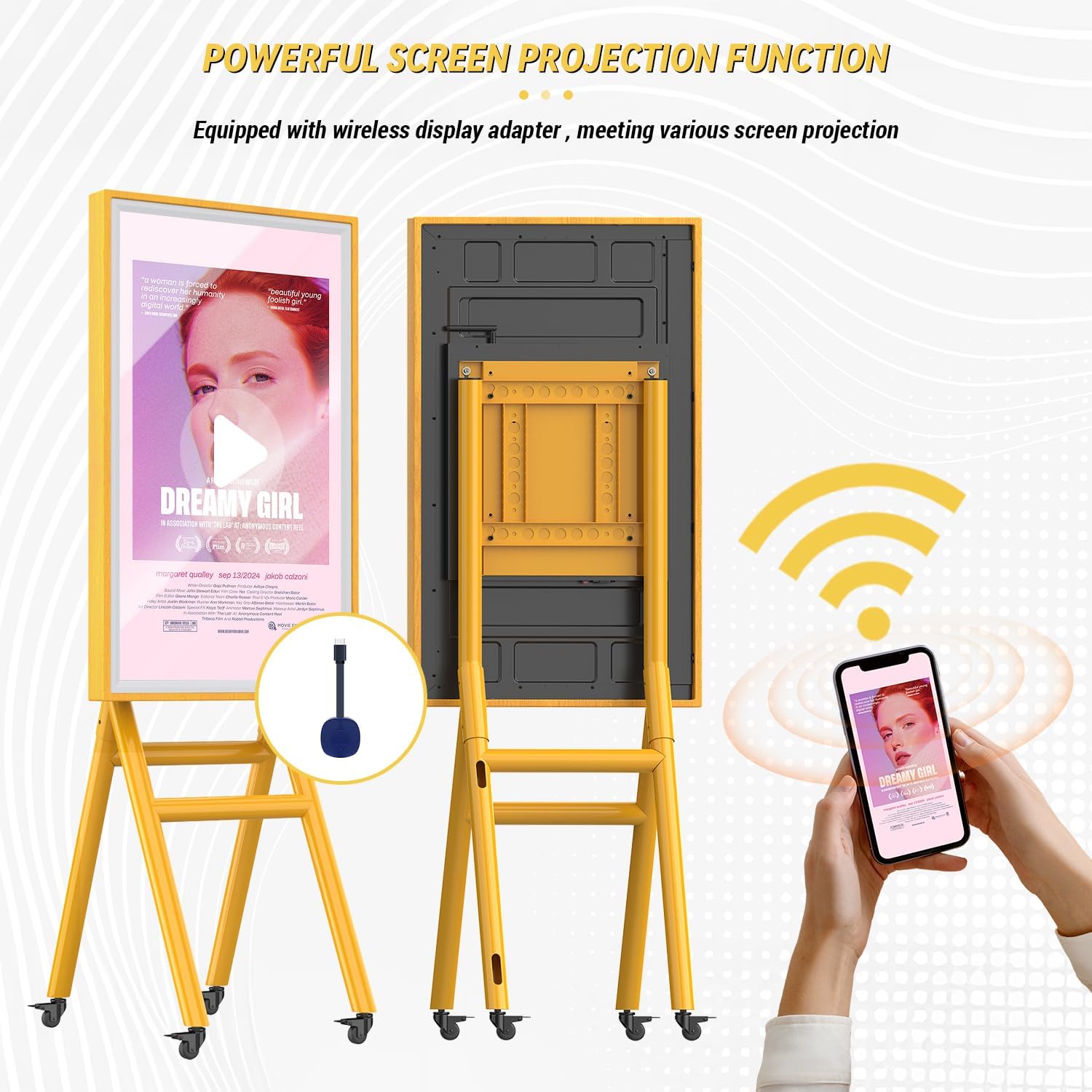
Image: Wireless screen projection functionality.
Photo Booth Connectivity
This digital signage display can be connected to photo booth series products. Content captured by a photo booth can be mirrored in real-time and displayed in high definition on the signage, enhancing the photo booth experience.

Image: The display functioning as a photo booth standby screen.
Maintenance
Proper maintenance ensures the longevity and optimal performance of your display.
- Cleaning the Screen: Use a soft, lint-free cloth specifically designed for electronics. For stubborn smudges, lightly dampen the cloth with a screen cleaner solution (non-ammonia based). Do not spray cleaner directly onto the screen.
- Cleaning the Frame and Stand: Wipe the wooden frame and metal stand with a soft, dry cloth. Avoid abrasive cleaners or solvents.
- Storage: When not in use or for transportation, store the display and its components in the provided flight case to protect against dust, impacts, and environmental damage.
- Movement: The stand is equipped with wheels for easy movement. Ensure the path is clear and stable when moving the unit. Lock the wheels when the display is in its desired position.
Troubleshooting
If you encounter issues with your MWE Digital Signage Display, refer to the following common problems and solutions.
| Problem | Possible Cause | Solution |
|---|---|---|
| No Power | Power cable disconnected; Power outlet faulty; Display power button off. | Check power cable connection; Test outlet with another device; Press display power button. |
| No Display/Black Screen | Incorrect input source selected; External device not powered on or connected; Display in standby mode. | Select correct input source (HDMI, USB); Ensure external device is on and connected; Wake display from standby. |
| Touchscreen Unresponsive | Screen dirty; Software glitch; Calibration issue. | Clean screen thoroughly; Restart the display; Refer to online support for calibration. |
| Cannot Connect to Wi-Fi | Incorrect password; Router issue; Display Wi-Fi module off. | Verify Wi-Fi password; Restart router; Check display's Wi-Fi settings. |
If the problem persists after attempting these solutions, please contact MWE technical support for further assistance.
Specifications
Detailed technical specifications for the MWE Mobile Digital Signage Display (Model ZLP).
- Model Number: ZLP
- Screen Size: 43 Inches
- Display Type: IPS High-Definition LCD Panel
- Resolution: 1920 x 1080 Pixels (FHD 1080p)
- Refresh Rate: 60Hz
- Brightness: >300 cd/m²
- Contrast Ratio: 5000:1
- Backlight: E-LED
- Aspect Ratio: 16:9
- Screen Surface Description: Glossy
- Touchscreen: Capacitive Touch Screen
- Connectivity: HDMI, USB (1 Total USB Port), LAN, Wi-Fi
- Product Dimensions: 4 x 26 x 68 inches (10.16 x 66.04 x 172.72 cm)
- Item Weight: 94 pounds (42.64 kg)
- Batteries: 1 C battery required (included, likely for remote control)
- Manufacturer: Marvel Technology CO.,LTD

Image: Visual representation of the display's high-definition LCD screen quality.
Warranty and Support
MWE is committed to providing quality products and customer satisfaction.
- 5-Year Replacement Policy: The product includes a 5-year replacement policy. Please refer to the warranty card included in your packaging for full terms and conditions.
- Technical Support: A professional technical team is available to provide online support for any queries or issues you may encounter. Contact information can be found on the product packaging or the official MWE website.
- Additional Resources: Installation and usage videos are available on the product's online page to assist with setup and operation.
