
Taiahiro B0D3DFQ1MW
Taiahiro RGB Backlit Wired Gaming Mouse User Manual
Model: B0D3DFQ1MW
Introduction
Thank you for choosing the Taiahiro RGB Backlit Wired Gaming Mouse. This manual provides detailed instructions for setting up, operating, and maintaining your new gaming mouse. Designed for precision and comfort, this mouse features adjustable DPI, vibrant RGB backlighting, and an ergonomic design to enhance your gaming experience.

Image: The Taiahiro RGB Backlit Wired Gaming Mouse, showcasing its sleek black design and illuminated elements.
Product Features
- High-Precision Optical Sensor: Ensures accurate tracking for various gaming genres.
- 4 Adjustable DPI Levels: Easily switch between 800, 1600, 2400, and 3200 DPI for customized sensitivity.
- 7-Color Breathing RGB Backlighting: Dynamic lighting effects that cycle through multiple colors.
- Ergonomic Design: Contoured shape for comfortable long-term use, reducing hand fatigue.
- Anti-Skid Scroll Wheel: Provides precise scrolling control.
- Super-Fast Game Engine: Optimized for responsive performance in demanding games.
- Forward/Backward Buttons: Convenient side buttons for navigation.

Image: Key features of the mouse highlighted, including DPI settings, RGB lighting, and navigation buttons.
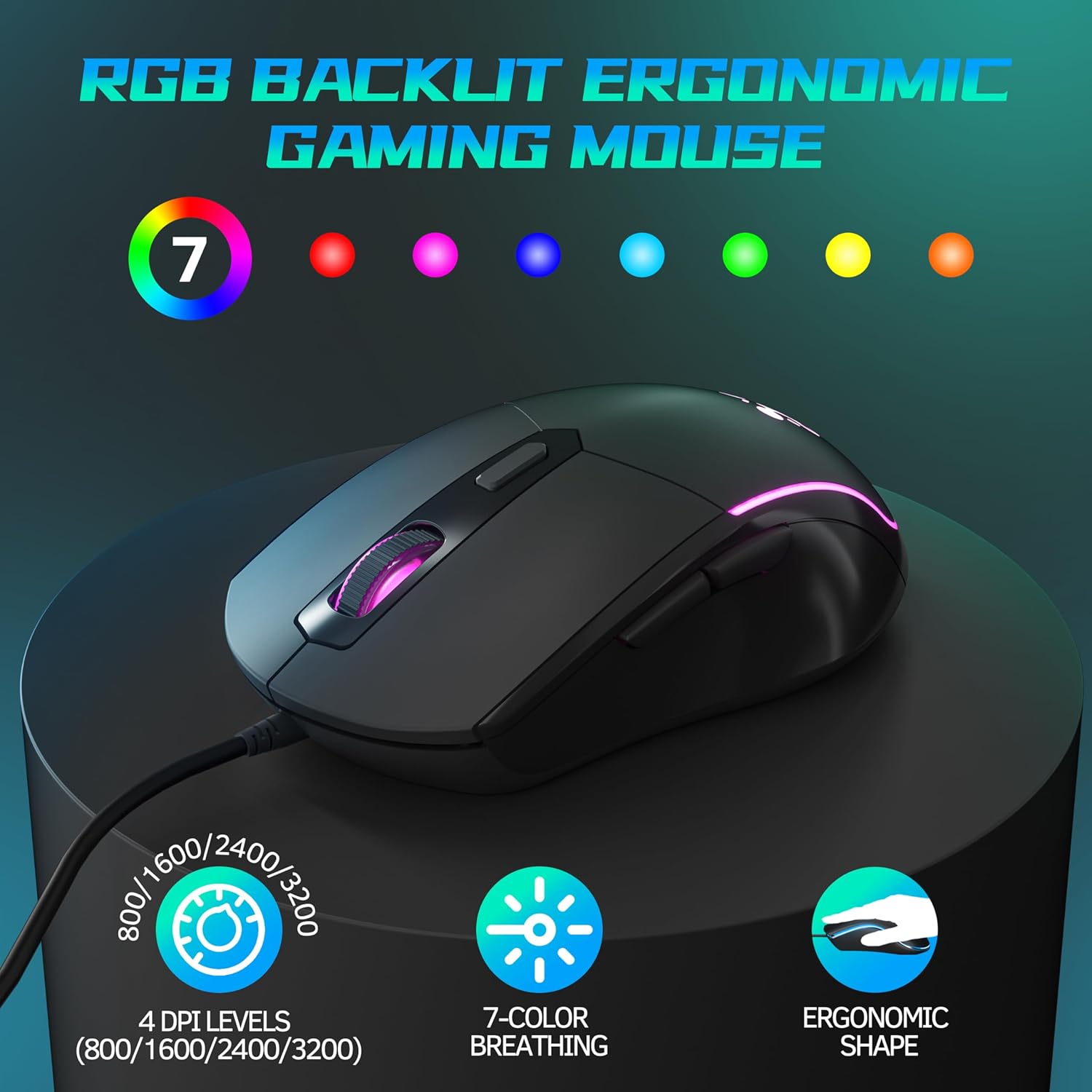
Image: Another view emphasizing the ergonomic shape, DPI levels, and 7-color breathing light feature.
Package Contents
- 1 x Taiahiro RGB Backlit Wired Gaming Mouse
- 1 x User Manual
Setup
- Connect the Mouse: Locate an available USB port on your computer.
- Plug and Play: Insert the USB connector of the Taiahiro Gaming Mouse into the USB port.
- Driver Installation: The mouse is plug-and-play and does not require additional driver installation. Your operating system will automatically detect and configure the device.
- Ready for Use: Once detected, the mouse will be ready for immediate use.
Operating Instructions
The Taiahiro Gaming Mouse features standard mouse buttons along with additional programmable buttons for enhanced functionality.
- Left Click Button: Standard primary click function.
- Right Click Button: Standard secondary click function.
- Scroll Wheel: Scroll up or down. Pressing the scroll wheel acts as a middle click button.
- DPI Button: Located behind the scroll wheel. Press to cycle through DPI settings.
- Forward Button: Located on the left side of the mouse. Default function is to navigate forward in web browsers or file explorers.
- Backward Button: Located on the left side of the mouse. Default function is to navigate backward in web browsers or file explorers.

Image: Illustration of the forward and backward navigation buttons located on the side of the mouse.
DPI Adjustment
The mouse offers four adjustable DPI (Dots Per Inch) levels, allowing you to change the cursor sensitivity on the fly. This is useful for different tasks, such as precise aiming in games or fast navigation across multiple monitors.
- DPI Levels: 800 DPI, 1600 DPI, 2400 DPI, 3200 DPI.
- How to Adjust: Press the dedicated DPI button, located just behind the scroll wheel, to cycle through the available DPI settings. Each press will switch to the next DPI level.

Image: Visual representation of the DPI adjustment feature and the different sensitivity levels.
RGB Lighting
The Taiahiro Gaming Mouse features dynamic 7-color breathing RGB backlighting, which automatically cycles through a spectrum of colors, adding an aesthetic appeal to your setup.
- Automatic Cycling: The lighting effect is pre-programmed to continuously cycle through 7 different colors.
- No Software Required: The lighting effect operates automatically upon connection and does not require any software for customization.
Maintenance
Proper maintenance ensures the longevity and optimal performance of your gaming mouse.
- Cleaning: Use a soft, dry cloth to wipe the surface of the mouse. For stubborn dirt, slightly dampen the cloth with water or a mild cleaning solution. Avoid harsh chemicals or abrasive materials.
- Sensor Care: Keep the optical sensor on the bottom of the mouse clean and free from dust or debris to ensure accurate tracking. Use a cotton swab or compressed air if necessary.
- Cable Management: Avoid sharp bends or excessive pulling on the USB cable to prevent damage.
- Storage: When not in use, store the mouse in a clean, dry environment away from extreme temperatures.
Troubleshooting
| Problem | Possible Solution |
|---|---|
| Mouse not responding |
|
| Cursor movement is erratic or jumpy |
|
| RGB lighting is not working |
|
| DPI button not changing sensitivity |
|
Specifications
| Feature | Detail |
|---|---|
| Brand | Taiahiro |
| Model | B0D3DFQ1MW |
| Connectivity Technology | USB Wired |
| Movement Detection Technology | Optical |
| DPI Levels | 800 / 1600 / 2400 / 3200 |
| Number of Buttons | 1 |
| Special Feature | LED Lights (RGB Backlighting) |
| Item Weight | 4.4 ounces |
| Package Dimensions | 6.65 x 3.86 x 2.17 inches |
| Country of Origin | China |
| Date First Available | July 12, 2024 |
Warranty and Support
For warranty information or technical support, please contact Taiahiro customer service. Details can typically be found on the product packaging or the official Taiahiro website.
For further assistance, you may also refer to the Taiahiro Store on Amazon.
Related documentsB0D3DFQ1MW


Ask a question about this manual
Ask about setup, troubleshooting, compatibility, parts, safety, or missing instructions. Manuals+ will review the question and use this page’s manual context to help answer it.