
Product Overview
The ORGBRO X1 Label Maker is a portable, intelligent printing device designed to simplify various organizational tasks. With Bluetooth connectivity and a versatile mobile application, it allows users to create and print custom labels for home, office, and school environments. This manual provides essential information for setting up, operating, and maintaining your ORGBRO X1 Label Printer.
Package Contents
- 1 X Mini Label Maker
- 1 X Roll of white label paper
- 1 X User Manual
- 1 X Type-C charging cable
Setup Guide
1. App Download & Device Connection
To begin, download the XeasyLabel APP from your mobile app store (available for iOS and Android devices). Once installed, turn on your ORGBRO X1 label maker. Open the XeasyLabel APP and use its internal Bluetooth search function to connect to the X1 label maker. Important: Do not attempt to connect via your phone's general Bluetooth settings; always connect through the app.

Image: The ORGBRO X1 label maker connected via Bluetooth to a smartphone running the XeasyLabel app, demonstrating easy mobile printing.
Video: This video demonstrates the step-by-step process of connecting the ORGBRO X1 Label Maker to your smartphone via Bluetooth using the XeasyLabel app. It highlights turning on the device, searching for it within the app, and establishing the connection for printing.
2. Installing Label Tape
Follow these steps to correctly install the label tape into your ORGBRO X1 device:
- Step 1: Press the cover button to open the label maker.
- Step 2: Load the paper roll into the paper bin, ensuring it is oriented correctly.
- Step 3: Unroll the paper enough so that it sticks out slightly from the printer's output slot.
- Step 4: Close the cover. Press and hold the power button to calibrate the label paper.
Image: This image illustrates the four steps to install label tape: 1. Press the cover button to open the device. 2. Load the paper roll into the paper bin. 3. Unroll enough paper to stick out slightly. 4. Close the cover and press the power button to calibrate.
Operating Your Label Maker
1. Creating and Customizing Labels
Open the XeasyLabel APP and select the option to create a new label. Double-click on the text area to input your desired content. The app offers extensive customization options:
- Choose from over 15 languages and 95 fonts.
- Access over 550 materials, frames, and stickers.
- Add various elements such as time, images, barcodes, and QR codes.
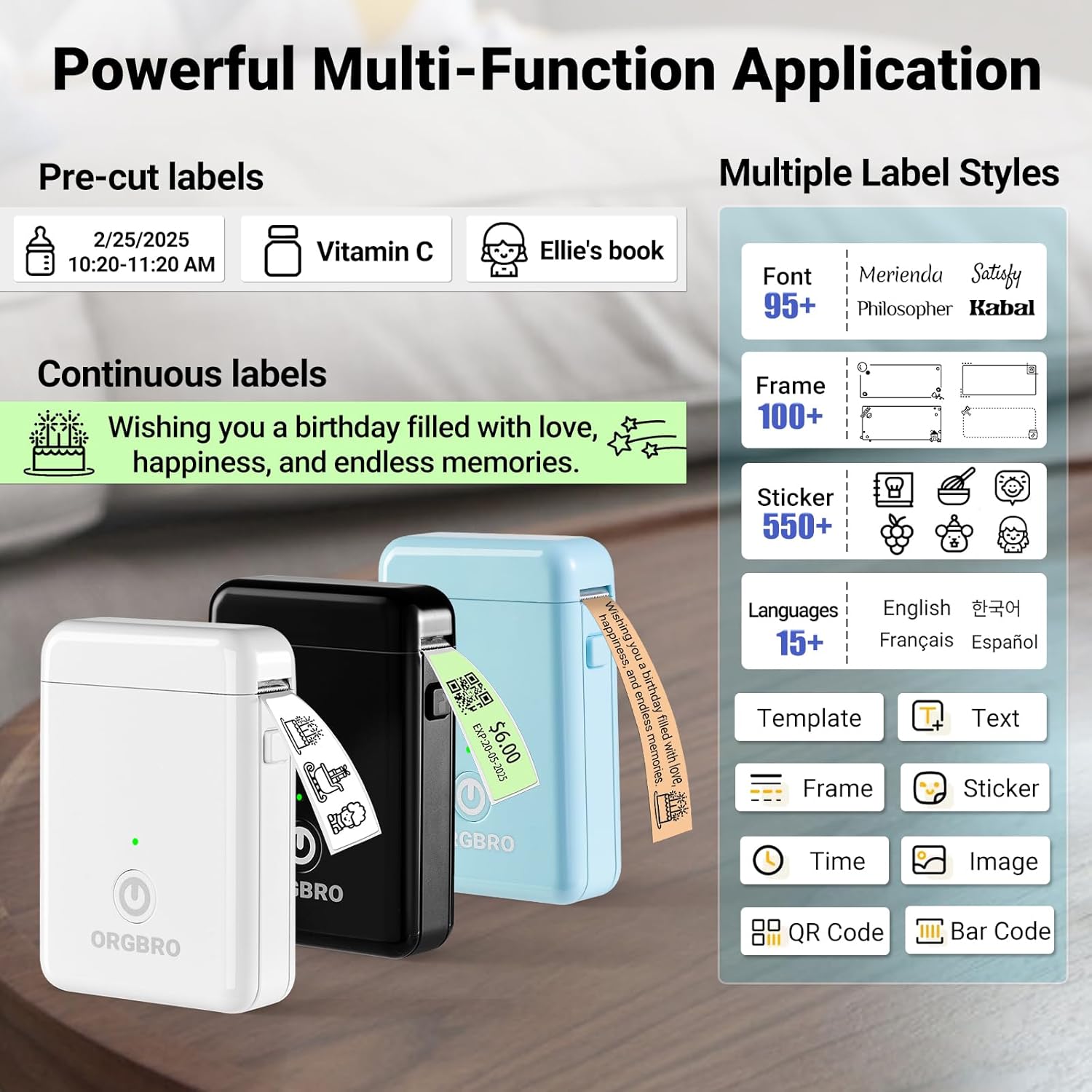
Image: The XeasyLabel app interface displaying options for pre-cut and continuous labels, various fonts, frames, stickers, languages, and elements like text, time, image, QR code, and barcode for versatile label creation.
Video: This video provides an honest review and demonstration of the X1 Label Maker, highlighting its sharp and speedy label printing capabilities and the user-friendly features of its accompanying app for label customization.
2. Printing Labels
Once your label design is complete, proceed to the print preview screen. Here, you can adjust the number of copies and the print density (darkness) of your label. The ORGBRO X1 utilizes thermal printing technology, which means it does not require ink or toner, providing a cost-effective and clean printing experience.

Image: This image explains the thermal printing technology of the label maker, emphasizing inkless printing, high-speed operation, 203 DPI high definition, a built-in cutter, Type-C charging, and Bluetooth connection.
Video: This video addresses frequently asked questions regarding the X1 Label Maker's connection and printing process, offering guidance on common issues and optimal usage.
Key Features
- Random Color & Wide Range of Applications: The ORGBRO X1 label maker is suitable for home organization (spices, food containers, date labeling, storage boxes, tool storage), school and office supplies (name tags, file classification, stationery), and equipment identification or item labeling (switches, controllers, cables, cups, etc.). (Note: Color will be sent randomly).
- Easy to Use: Connects and sets up in under a minute via the XeasyLabel APP without any payment or registration required. It is portable and can be operated with one hand.
- Feature-Rich and Template-Diverse: The XeasyLabel APP offers over 15 languages, 95 fonts, and 550 materials, all free to use, for easy label customization. The ORGBRO label maker can print various text, numbers, graphics, symbols, logos, barcodes, and QR codes.
- Save Time and Money: Utilizes thermal technology to deliver high-quality prints without the need for ink or toner. The label maker features a built-in 2000mAh rechargeable battery, providing longer operating times. (Note: Please fully charge before first use).
- Label Durability: Comes with a roll of 12 x 40 mm white pre-cut labels. ORGBRO labels are waterproof, oil-resistant, and abrasion-resistant. No residue remains after removal. It supports continuous label paper (15 mm width) and fixed-length labels (12 x 40 mm). We recommend using ORGBRO thermal label paper for optimal print quality.
Versatile Applications
The ORGBRO X1 label maker is an indispensable tool for organizing various aspects of your life:
- Home Organization: Efficiently label spices, food containers, storage boxes, and tools to maintain a tidy living space.
- School & Office: Create clear name tags, classify files, and organize stationery for improved productivity.
- Equipment & Item Identification: Easily label switches, controllers, cables, cups, and other personal items for quick identification.

Image: This image demonstrates the versatility and durability of ORGBRO labels, highlighting their waterproof, oil-proof, scratch-resistant, and strong adhesive properties, with no sticky residue upon removal. Examples include labels on food containers, envelopes, and light switches.
Product Specifications
| Specification | Value |
|---|---|
| Brand | ORGBRO |
| Model Name | X1 Label Maker |
| Connectivity Technology | Bluetooth |
| Printing Technology | Thermal |
| Printer Output | Monochrome |
| Maximum Black and White Print Resolution | 203 Dots Per Inch |
| Max Printspeed Monochrome | 30 ppm |
| Item Weight | 7 Ounces |
| Product Dimensions | 1.18 x 2.95 x 4.21 inches |
| Batteries | 1 Lithium Ion batteries required. (included) |
| Included Components | 1 X Mini Label Maker, 1 X Roll of white label paper, 1 X User Manual, 1 X Type-C charging cable |
Troubleshooting Tips
If you encounter any issues with your ORGBRO X1 Label Maker, please refer to the following tips:
- Blurry Printing: If labels appear blurry, adjust the print density setting within the XeasyLabel app.
- Label Feed Issues: Ensure the label paper is correctly loaded and aligned in the paper bin, with enough paper extending from the output slot.
- Bluetooth Connection Problems: Verify that the label maker is turned on. Always attempt to connect the device through the XeasyLabel app's dedicated connection feature, not directly through your phone's general Bluetooth settings.
Video: This video addresses frequently asked questions regarding the X1 Label Maker's connection and printing process, offering guidance on common issues and optimal usage.
Warranty and Support
The ORGBRO X1 Label Maker comes with a comprehensive warranty and support package to ensure your satisfaction:
- 7-Day Returns: Enjoy a 7-day return policy from the date of purchase.
- 15-Day Replacements: Benefit from 15-day replacements for any manufacturing defects.
- 1 Year Free Maintenance: A 1-year period of free maintenance is provided for your device.
For further assistance, please visit the official ORGBRO Store or contact customer support through the XeasyLabel app.

