1. Introduction
This manual provides comprehensive instructions for the setup, operation, and maintenance of your Rollo Wireless Thermal Shipping Label Printer. Please read this guide thoroughly to ensure optimal performance and longevity of your device.

Image: The Rollo Wireless Thermal Shipping Label Printer shown with a roll of shipping labels.
2. Setup
2.1 Unpacking and Initial Inspection
Carefully remove all components from the packaging. Verify that all items listed in the "Included in Box" section are present and undamaged. If any items are missing or damaged, contact Rollo support.

Image: The printer's dimensions (8" L x 4" W x 4" H, 3.5 lbs) and included accessories: USB Cable and Power Adapter.
2.2 Connecting the Printer
The Rollo Wireless Thermal Shipping Label Printer offers both Wi-Fi and USB connectivity options.
- Wi-Fi Connectivity: For wireless printing, connect the printer to your Wi-Fi network. This enables printing directly from iPhone, iPad, and Mac via AirPrint, or from Android, Windows, Chromebook, and Linux devices via Wi-Fi without requiring specific drivers.
- USB Connectivity: Alternatively, connect the printer to your computer using the provided USB cable for a direct wired connection.

Image: Visual representation of the printer's compatibility with various operating systems and connectivity methods, including Wi-Fi, AirPrint, and USB. It also highlights compatibility with the Rollo App and major shipping platforms.
2.3 Loading Labels
This printer is designed for thermal labels. Ensure you are using compatible labels for optimal performance. The printer automatically detects label size.
- Open the printer's top cover.
- Place the roll of thermal labels into the label compartment, ensuring the labels feed smoothly into the printer mechanism.
- Close the top cover. The printer will automatically calibrate and detect the label size.

Image: A roll of 1000 thermal barcode/SKU labels, illustrating their dimensions (2" x 1") and perforated design.
3. Operating Instructions
3.1 Printing Labels
The Rollo printer uses advanced direct thermal technology, eliminating the need for ink or toner. It prints at a high speed of 150mm/s, capable of producing one 4x6 label per second. The 203 DPI print head ensures clear and scannable labels.
- From a Computer: After connecting via Wi-Fi or USB, select the Rollo printer from your device's print options. Ensure the correct label size is selected in your print settings.
- From Mobile Devices: Use AirPrint for Apple devices or the Rollo App for Android and other compatible devices to send print jobs wirelessly.
- Using the Rollo App: The Rollo App provides an intuitive interface for managing print jobs and settings.

Image: The Rollo printer in operation, demonstrating its high-speed printing capability and highlighting its long lifespan and high resolution.
3.2 Label Types and Applications
The included 2" x 1" (51mm x 25mm) thermal barcode sticker labels are suitable for various applications, including:
- E-commerce shipping labels
- Inventory tagging with UPC codes, FNSKU, FBA labels
- Mail and postage address labels
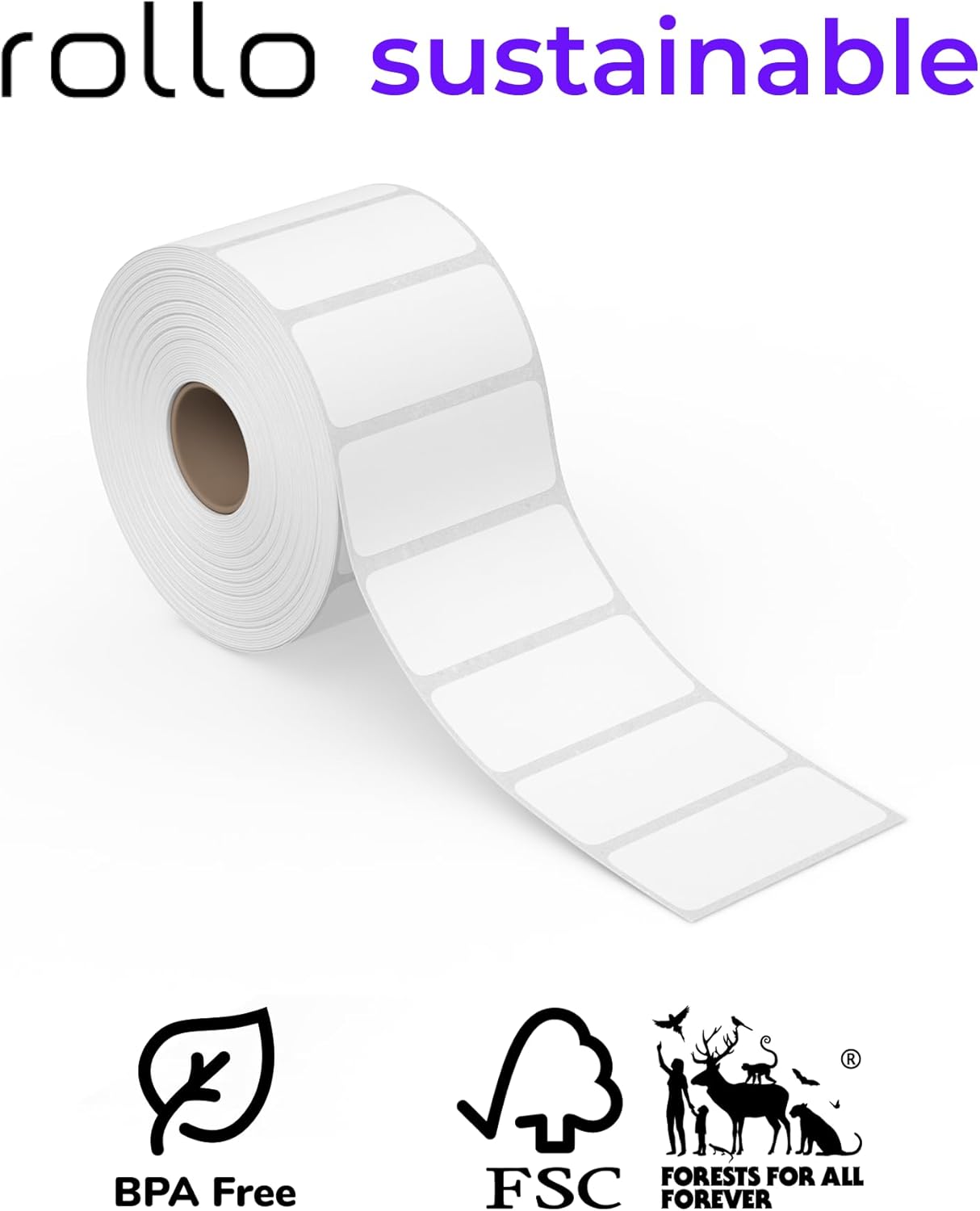
Image: A roll of Rollo sustainable labels, emphasizing their eco-friendly attributes such as being BPA-Free and FSC certified.
4. Maintenance
4.1 Print Head Longevity
The Rollo thermal printer heads are designed for durability, offering a printing life of approximately 650,000 shipping labels (equivalent to 327,360 feet). This extended lifespan minimizes the need for frequent replacements.
4.2 Cleaning the Printer
To maintain print quality, periodically clean the print head and rollers. Use a soft, lint-free cloth lightly dampened with isopropyl alcohol. Ensure the printer is turned off and unplugged before cleaning.
4.3 Label Storage
Store thermal labels in a cool, dry place away from direct sunlight and heat to prevent premature fading or damage to the thermal coating.
5. Troubleshooting
This section addresses common issues you might encounter with your Rollo printer.
- Printer Not Responding:
- Check power connections.
- Verify Wi-Fi or USB connection status.
- Restart the printer and your device.
- Poor Print Quality:
- Ensure you are using compatible thermal labels.
- Clean the print head (refer to Section 4.2).
- Check label orientation.
- Labels Not Feeding Correctly:
- Ensure labels are loaded correctly and not jammed.
- Verify the label roll is seated properly.
- Connectivity Issues:
- For Wi-Fi, ensure the printer is connected to the correct network and within range.
- For USB, try a different USB port or cable.
- Update printer drivers if necessary (for Windows/Linux).
6. Specifications
| Brand | Rollo |
| Model Name | Wireless Thermal Shipping Label Printer |
| Printing Technology | Thermal |
| Connectivity Technology | Wi-Fi, USB |
| Maximum Black and White Print Resolution | 203 DPI |
| Print Speed | 150mm/s (one 4x6 label per second) |
| Compatible Devices | Smartphones (iPhone, iPad, Android), Windows, Mac, Chromebook, Linux |
| Maximum Media Size | 51mm x 25mm (2" x 1") for included labels; supports various thermal label sizes |
| Printer Output | Monochrome |
| Dimensions (Approx.) | 8" L x 4" W x 4" H |
| Weight (Approx.) | 3.5 lbs |
| Included in Box | Rollo Wireless Thermal Shipping Label Printer, USB Cable, Power Adapter, 1000 2x1 Barcode Labels |
7. Warranty Information
This product comes with a limited warranty. For specific terms and conditions, please refer to the warranty documentation included with your purchase or visit the official Rollo website.
8. Customer Support
For further assistance, technical support, or to access updated drivers and software, please visit the official Rollo support website: www.rollo.com/support.


