1. Introduction
This manual provides detailed instructions for setting up, operating, maintaining, and troubleshooting your ASUS ZenWiFi BQ16 Pro Quad-Band WiFi 7 Mesh Router. The ZenWiFi BQ16 Pro is designed to deliver high-performance wireless connectivity and comprehensive network management for your home or office environment.
Equipped with cutting-edge WiFi 7 networking technology, it offers 16-stream connectivity, quad-band speeds up to 30 Gbps, and optimized AiMesh for extensive coverage and seamless connectivity.

Image 1.1: The ASUS ZenWiFi BQ16 Pro WiFi 7 Mesh Router unit.
2. Package Contents
Verify that all items are present in your package:
- ASUS ZenWiFi BQ16 Pro (W-1-PK) Router Unit
- Power Adapter
- RJ-45 Cable
- Quick Start Guide
- Warranty Card
3. Physical Overview
Familiarize yourself with the ports and indicators on your ZenWiFi BQ16 Pro router unit.

Image 3.1: Rear panel of the ASUS ZenWiFi BQ16 Pro, illustrating various ports and the power switch.
3.1. Ports and Buttons
- USB 3.0 Port: For connecting external storage devices or 4G LTE/5G mobile tethering.
- LAN Ports (x2): Gigabit Ethernet ports for wired connections to devices.
- 10G LAN Port: A 10 Gigabit Ethernet port for high-speed wired connections.
- WAN/LAN 10G Port: A versatile 10 Gigabit Ethernet port that can function as either a WAN (Internet) or LAN connection.
- WAN/LAN 2 Port: A Gigabit Ethernet port that can function as either a WAN (Internet) or LAN connection.
- DC-IN Port: Connects to the power adapter.
- Power Button: Turns the device on or off.
3.2. LED Indicators
The LED indicator on the front of the unit provides status information:
- Solid Blue: Your router is ready for setup or operating normally.
- Solid White: The router is connected to the internet and functioning correctly.
- Solid Red: No internet connection or a critical error.
- Flashing Blue: During setup or firmware update.
4. Setup Instructions
Follow these steps to set up your ASUS ZenWiFi BQ16 Pro mesh system.
4.1. Initial Setup
- Unpack: Remove all components from the packaging.
- Positioning: Place your ZenWiFi BQ16 Pro unit(s) in central locations within your home for optimal coverage. For multi-unit systems, ensure units are within reasonable range of each other.
- Connect Power: Plug the power adapter into the DC-IN port of the router unit and then into a power outlet.
- Connect to Internet: Connect one end of the provided RJ-45 cable to the WAN/LAN 10G or WAN/LAN 2 port on your router and the other end to your modem's LAN port.
- Power On: Press the Power button to turn on the router. Wait for the LED indicator to turn solid blue, indicating it's ready for setup.
- Download ASUS Router App: Download the ASUS Router app from the Google Play Store or Apple App Store on your mobile device.
- Follow App Instructions: Open the ASUS Router app and follow the on-screen instructions to complete the setup process. This includes creating your WiFi network name (SSID) and password.

Image 4.1: The ASUS Router App guides you through the easy 3-step setup process.
4.2. AiMesh Setup (for multiple units)
If you have multiple ZenWiFi BQ16 Pro units or other AiMesh-compatible ASUS routers, you can expand your network coverage:
- Prepare Node: Place the additional ZenWiFi unit (node) near your primary router. Power it on and wait for the LED to turn solid blue.
- Add Node via App: In the ASUS Router app, navigate to the AiMesh section and select 'Add AiMesh Node'.
- Follow Prompts: The app will guide you through the process of detecting and adding the node to your existing AiMesh network.
- Optimize Placement: Once the node is added, you can relocate it to an area needing improved WiFi coverage. The app will indicate signal strength to help you find the best placement.
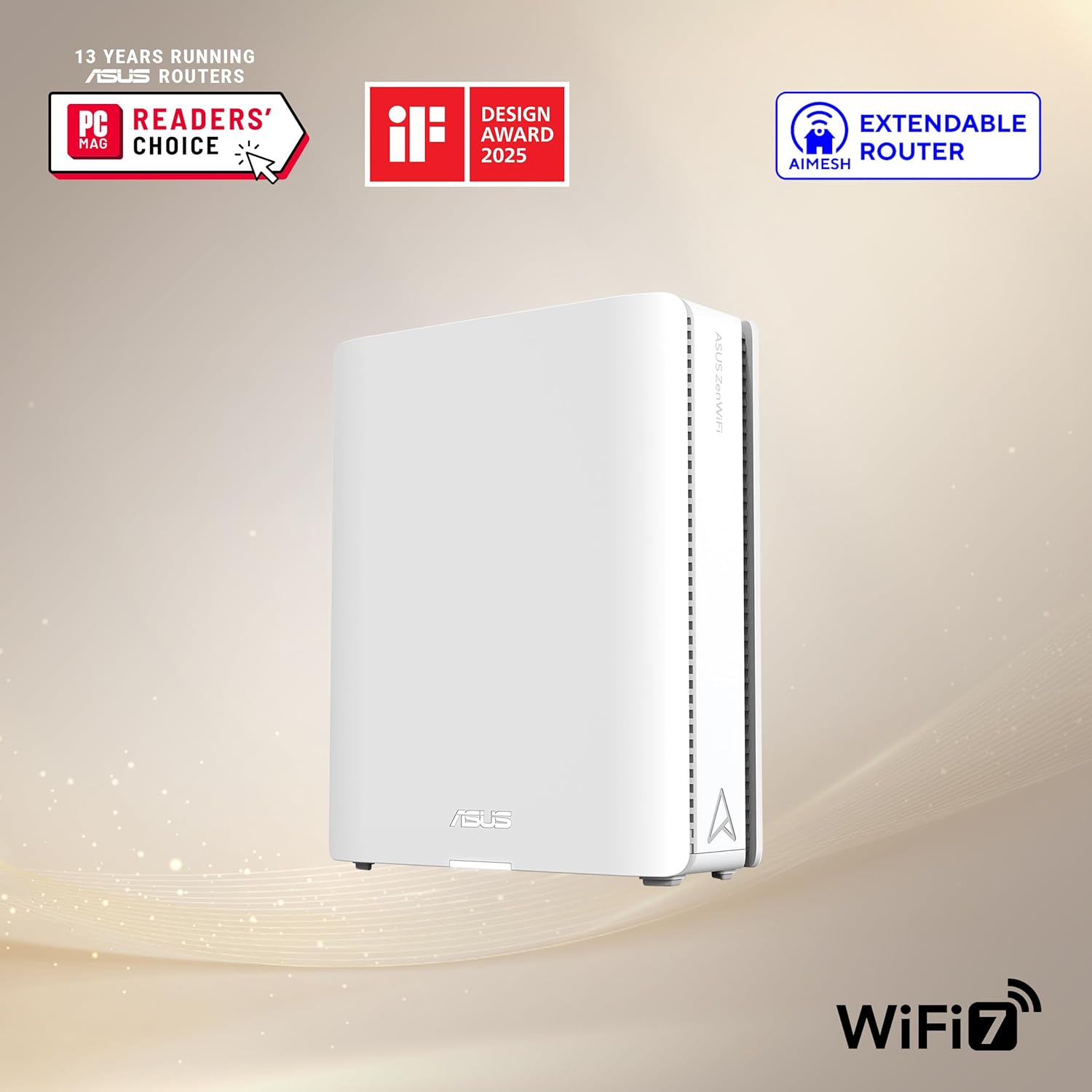
Image 4.2: AiMesh system providing whole-home coverage with robust MLO backhaul.
5. Operating Instructions
The ASUS ZenWiFi BQ16 Pro offers advanced features to optimize your network experience.
5.1. AiMesh Technology
AiMesh creates a unified whole-home WiFi network, eliminating dead zones and providing seamless roaming. It intelligently selects the best signal for your devices and utilizes robust backhaul connections (including 2.4 GHz, 5 GHz, and 6 GHz bands) for stable performance.
5.2. Smart Home Master with Multi-SSID
Easily manage different types of devices by creating up to three separate SSIDs (WiFi networks) using the Smart Home Master feature:
- IoT Network: Isolate your smart home devices for enhanced security and performance.
- Kid's Network: Apply specific parental controls and time limits to devices used by children.
- VPN Network: Route specific devices or traffic through a VPN for privacy and secure access.

Image 5.1: Smart Home Master allows for easy network management with multiple SSIDs.
5.3. AiProtection Pro Security
The ZenWiFi BQ16 Pro includes commercial-grade AiProtection Pro, powered by Trend Micro, to safeguard your network and connected devices. Features include:
- Malicious Site Blocking: Prevents access to known malicious websites.
- Intrusion Prevention System: Protects against common internet-based attacks.
- Infected Device Prevention and Blocking: Identifies and blocks infected devices from communicating with external threats.
- One-tap Security Scan: Quickly assesses your network's security posture.

Image 5.2: AiProtection Pro provides robust network security features.
5.4. Advanced Parental Controls
Manage and monitor internet usage for family members with flexible parental controls:
- Internet Activity Dashboard: View usage statistics and online activity.
- Kid-Safe Preset: Apply pre-configured filters for child-friendly browsing.
- Content Filter: Block specific categories of websites or applications.
- Flexible Time Scheduling: Set internet access schedules for individual devices or users.

Image 5.3: Advanced Parental Controls offer detailed management of internet access.
5.5. WAN Configuration Options
The router supports versatile WAN configurations, including the ability to use 4G LTE and 5G mobile tethering via the USB port for an always-on internet connection, providing redundancy in case of primary internet outage.
6. Maintenance
Regular maintenance ensures optimal performance and security for your ZenWiFi BQ16 Pro.
- Firmware Updates: Regularly check for and install firmware updates via the ASUS Router app or web interface. Updates often include performance improvements, new features, and security patches.
- Rebooting: Periodically reboot your router (e.g., once a month) to clear its memory and refresh network connections.
- Physical Cleaning: Keep the router unit clean and free from dust to prevent overheating. Ensure ventilation holes are not obstructed.
- Password Management: Use strong, unique passwords for your WiFi networks and router administration. Change them periodically.
7. Troubleshooting
If you encounter issues with your ZenWiFi BQ16 Pro, refer to the following common troubleshooting steps.
7.1. No Internet Connection
- Check Cables: Ensure all Ethernet cables are securely connected to the correct ports on both the router and modem.
- Power Cycle: Power off your modem and router, wait 30 seconds, then power on the modem first. Once the modem is fully online, power on the router.
- ISP Status: Verify that your Internet Service Provider (ISP) is not experiencing an outage.
- Router LED: Check the router's LED indicator. A solid red light typically indicates no internet connection.
7.2. Poor WiFi Signal or Dead Zones
- Router Placement: Ensure your router unit(s) are placed centrally and away from obstructions like thick walls, large metal objects, or other electronic devices that may cause interference.
- AiMesh Node Placement: If using multiple units, adjust the placement of your AiMesh nodes to optimize coverage. The ASUS Router app can help identify optimal locations.
- Interference: Other devices operating on similar frequencies (e.g., microwaves, cordless phones) can cause interference. Try changing WiFi channels in the router settings.
7.3. Slow Speeds
- Bandwidth Usage: Check if multiple devices are consuming high bandwidth (e.g., streaming 4K video, large downloads).
- Wired vs. Wireless: For critical devices, use wired Ethernet connections to ensure maximum speed.
- Firmware: Ensure your router has the latest firmware installed.
- Device Compatibility: Older devices (e.g., 802.11ac or older) may not fully utilize the speeds of WiFi 7.
7.4. Setup Issues
If the initial setup fails or the node does not connect:
- Proximity for Setup: When setting up an AiMesh node, place it close to the main router (within 1-3 meters) until the setup is complete. You can move it to its final location afterward.
- Reset: If issues persist, perform a factory reset on the unit by pressing and holding the reset button (usually a small pinhole) for about 10 seconds while the unit is powered on.
Video 7.1: Official product video showcasing the features and benefits of the ASUS ZenWiFi BQ16 Pro Mesh Router system.
8. Specifications
Detailed technical specifications for the ASUS ZenWiFi BQ16 Pro.
| Feature | Specification |
|---|---|
| Brand | ASUS |
| Model Name | BQ16 Pro(W-1-PK) |
| Product Dimensions | 6.9 x 2.8 x 8.6 inches |
| Item Weight | 2.9 pounds |
| Connectivity Technology | Wi-Fi |
| Wireless Communication Standard | 802.11.be (WiFi 7), 802.11ax (WiFi 6), 802.11ac (WiFi 5), 802.11n (WiFi 4) |
| Frequency Band Class | Quad-Band |
| Special Features | Access Point Mode, AiMesh Node Mode, AiProtection, Parental Control, Primary AiMesh Router, Router APP |
| Compatible Devices | Gaming Console, Personal Computer, Smart Television, Smart Thermostat, Smartphone, Tablet |
| Recommended Uses | Business, Gaming, Home |
| Color | WHITE |
| Manufacturer | ASUS |
| Date First Available | May 7, 2024 |
9. Warranty and Support
Your ASUS ZenWiFi BQ16 Pro comes with a warranty card included in the package. Please refer to this card for specific warranty terms and conditions applicable to your region.
For technical support, driver downloads, manuals, and FAQs, please visit the official ASUS support website. You can also contact ASUS customer service for assistance.
ASUS Support Website: https://www.asus.com/support/


