
ADAM ELEMENTS GRAVITY Pro
ADAM ELEMENTS GRAVITY Pro 100W Fast Charging Power Bank
User Instruction Manual
Introduction
The ADAM ELEMENTS GRAVITY Pro is a high-capacity 20000mAh power bank designed to provide fast and efficient charging for a wide range of devices, including smartphones, tablets, and laptops. Featuring multiple output ports and an intuitive LED display, it ensures your devices stay powered throughout the day, wherever you are.

Image: Front view of the GRAVITY Pro power bank, showcasing its LED display and sleek design.
Package Contents
Please verify that all items listed below are included in your package:
- GRAVITY Pro 100W Fast Charging Power Bank (20000mAh)
- Premium Knit-Braid 100W Charging Cable (47.2 inches / 1.2 meters)
- Velvet-Like Drawstring Bag
- User Instruction Manual (this document)
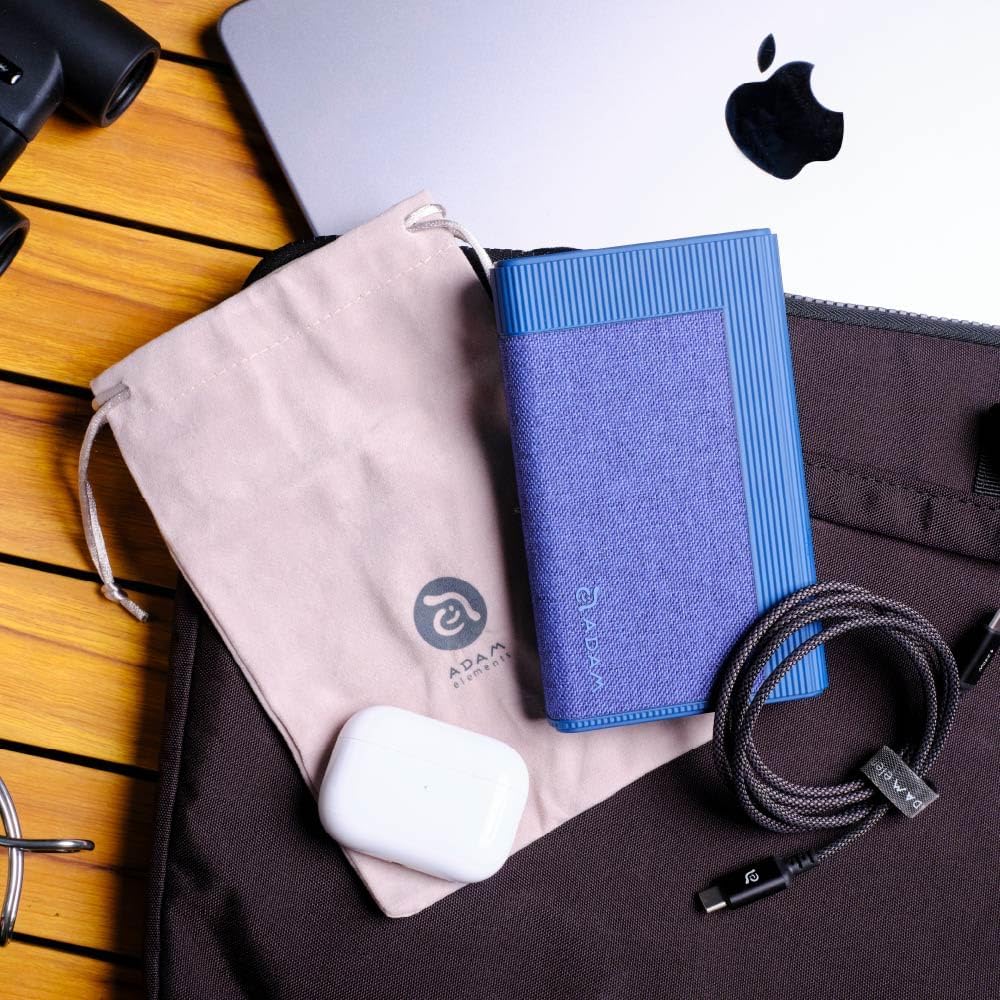
Image: The GRAVITY Pro power bank displayed alongside its included premium knit-braid 100W charging cable and velvet-like drawstring bag.
Product Overview
Familiarize yourself with the various components and ports of your GRAVITY Pro power bank.

Image: A detailed view of the GRAVITY Pro's front panel, highlighting the LED display, USB-A port (QC/SCP), and two USB-C ports (PD 20W and PD 100W IN/OUT).
- LED Display: Shows battery percentage, fast charging status, output/input status, and total discharge power.
- USB-A Port (QC/SCP): Output port for Quick Charge and SuperCharge Protocol compatible devices.
- USB-C Port (PD 20W): Power Delivery output port, up to 20W.
- USB-C Port (PD 100W IN/OUT): Bi-directional Power Delivery port, supporting up to 100W input and output.
- Power Button: Activates the power bank and controls low-current charging mode.
Setup
Initial Charging of the Power Bank
Before first use, it is recommended to fully charge your GRAVITY Pro power bank.
- Connect the included 100W USB-C to USB-C cable to the PD 100W IN/OUT port on the power bank.
- Connect the other end of the cable to a compatible USB-C wall charger (not included) with a power output of at least 65W for optimal charging speed.
- The LED display will show the charging status and battery percentage. The power bank is fully charged when the display shows "100%".
A full charge may take several hours depending on the power adapter used.
Operating Instructions
Charging Your Devices
The GRAVITY Pro can charge a variety of devices using its multiple output ports.
- Connect your device's charging cable to the appropriate port on the GRAVITY Pro (USB-A, USB-C PD 20W, or USB-C PD 100W).
- Connect the other end of the cable to your device.
- The power bank will automatically begin charging. The LED display will show the output status and remaining battery percentage.
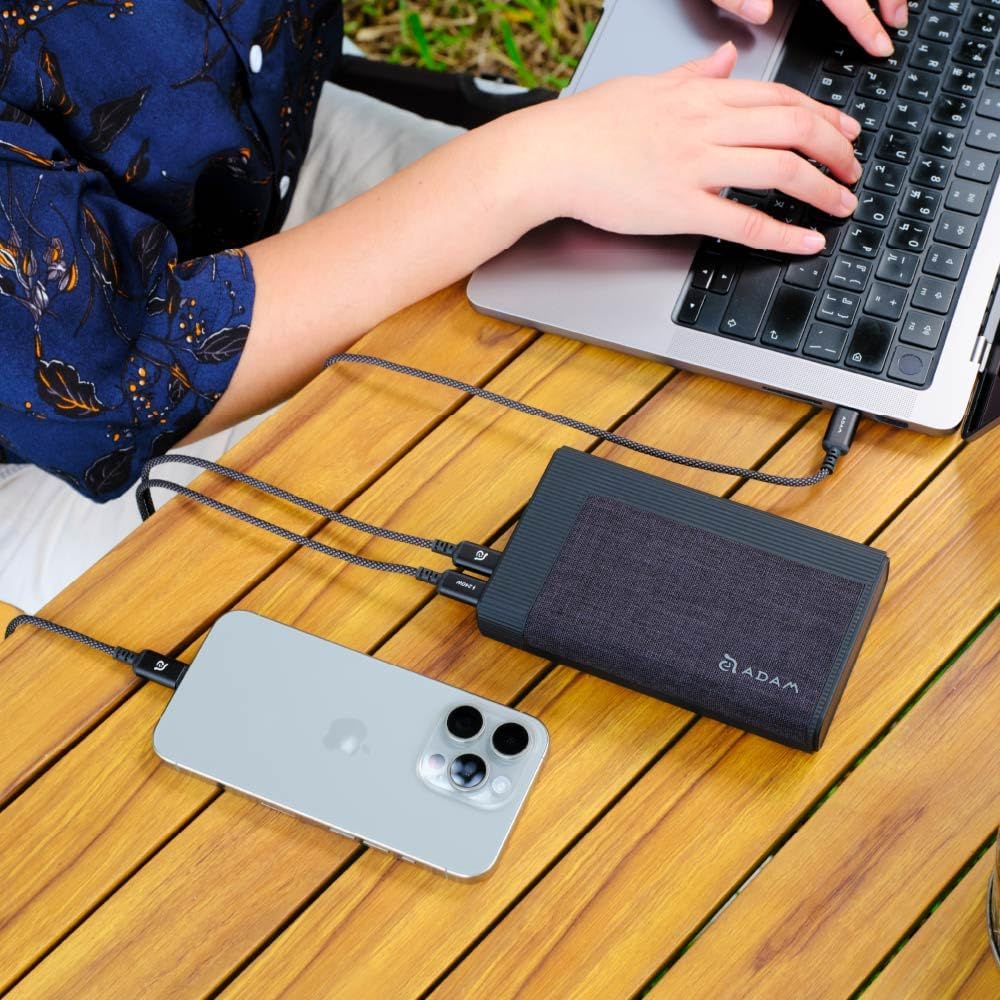
Image: The GRAVITY Pro power bank connected via USB-C cables to simultaneously charge a laptop and a smartphone, demonstrating its multi-device charging capability.
For optimal charging of high-power devices like laptops, use the PD 100W IN/OUT port.

Image: The GRAVITY Pro power bank connected to a laptop via a USB-C cable, illustrating its ability to fast-charge high-end laptops like the MacBook Pro.
Low-Current Charging Mode
This mode is ideal for charging low-power devices such as Apple Watch, AirPods, or Bluetooth earbuds, which require a lower charging current to prevent battery degradation.
- To activate low-current charging mode, press and hold the power button for approximately 3 seconds until the LED display indicates the mode change.
- Connect your low-power device to any of the power bank's output ports.
- To revert to full-power charging mode, long-press the power button again, then press it once more briefly.
Checking the LED Display
The built-in LED display provides real-time information about the power bank's status:
- Battery Percentage: Shows the remaining charge level of the power bank.
- Fast Charging Status: Indicates when fast charging protocols are active.
- Output/Input Status: Shows whether the power bank is currently charging a device (output) or being charged itself (input).
- Total Discharge Power: Displays the current power output in watts.
Maintenance
Proper care and maintenance will extend the lifespan of your GRAVITY Pro power bank.
- Storage: Store the power bank in a cool, dry place away from direct sunlight and extreme temperatures.
- Cleaning: Use a soft, dry cloth to clean the surface of the power bank. Do not use liquid cleaners or abrasive materials.
- Charging Frequency: If not used for extended periods, charge the power bank at least once every three months to maintain battery health.
- Avoid Drops: Protect the device from drops and impacts, which can damage internal components.
Troubleshooting
| Problem | Possible Cause | Solution |
|---|---|---|
| Power bank not charging devices. |
|
|
| Power bank not recharging. |
|
|
| Low-current mode not activating/deactivating. |
|
|
Specifications
| Model Name | GRAVITY Pro |
| Battery Capacity | 20000mAh |
| Input (USB-C PD) | Up to 100W |
| Output 1 (USB-C PD) | Up to 100W |
| Output 2 (USB-C PD) | Up to 20W |
| Output 3 (USB-A QC/SCP) | Up to 22.5W |
| Dimensions (L x W x H) | 5.5 x 3.3 x 1 inches (13.97 x 8.38 x 2.54 cm) |
| Weight | 12.8 ounces (362.87 grams) |
| Special Features | LED Indicator Lights, Fast Charging, Low-Current Charging Mode |
Safety Information
Please read and follow these safety guidelines to ensure safe operation and prevent damage to the device or injury.
- Do not expose the power bank to extreme temperatures (above 45°C/113°F or below 0°C/32°F), direct sunlight, or high humidity.
- Do not disassemble, modify, or attempt to repair the device. This will void the warranty and may cause harm.
- Keep away from water and other liquids.
- Do not drop, puncture, or apply excessive force to the power bank.
- Keep out of reach of children.
- Dispose of the power bank responsibly according to local regulations. Do not dispose of it with household waste.
- The GRAVITY Pro includes multiple safety protections: Flame Retardant Protection, Over-Heat Protection, Short-Circuit Protection, Over-Voltage Protection, and Over-Current Protection.

Image: Visual representation of the GRAVITY Pro's international certification safety standards, including protections against flame, overheating, short-circuits, over-voltage, and over-current.
Warranty and Support
Warranty Information
The ADAM ELEMENTS GRAVITY Pro comes with a one-year warranty from the date of purchase. No registration is required. This warranty covers manufacturing defects and workmanship under normal use. It does not cover damage caused by misuse, accidents, unauthorized modifications, or natural disasters.
Customer Support
For technical support, warranty claims, or any questions regarding your GRAVITY Pro power bank, please contact ADAM ELEMENTS customer service:
- Website: www.adamelements.com
- Email: Refer to the official website for the most current contact email.
Please have your product model number (GRAVITY Pro) and proof of purchase ready when contacting support.
Related documentsGRAVITY Pro

Ask a question about this manual
Ask about setup, troubleshooting, compatibility, parts, safety, or missing instructions. Manuals+ will review the question and use this page’s manual context to help answer it.