
Introduction
This manual provides essential information for the safe and efficient operation of your DOOGEE T30E 11 inch Tablet. Please read this manual thoroughly before using the device to ensure proper functionality and to understand all features.

Image: Front and back view of the DOOGEE T30E 11 inch Tablet, showcasing its sleek design and camera module.
Setup
1. Package Contents
Verify that all items are present in the package:
- DOOGEE T30E Tablet
- Charging Adapter
- USB Cable
- SIM Eject Tool
- Quick Start Guide
2. SIM Card and TF Card Installation
The DOOGEE T30E supports dual SIM cards or one SIM card and one TF card for expandable storage.
- Locate the SIM card tray on the side of the tablet.
- Insert the SIM eject tool into the small hole next to the tray and press gently until the tray pops out.
- Place your Nano-SIM card(s) and/or TF card into the designated slots on the tray. Ensure the gold contacts are facing down.
- Carefully reinsert the tray into the tablet until it clicks into place.

Image: Illustration of inserting SIM cards into the DOOGEE T30E tablet's tray, highlighting 4G network support.
3. Initial Power On and Charging
Before first use, it is recommended to fully charge the tablet. Connect the USB cable to the tablet's charging port and the adapter to a power outlet.
- Press and hold the Power button until the DOOGEE logo appears.
- Follow the on-screen instructions to complete the initial setup, including language selection, Wi-Fi connection, and Google account login.
Operating Instructions
1. Display and Visual Experience
The DOOGEE T30E features an 11-inch IPS full-color HD display, offering vibrant visuals and a comfortable touch experience. It supports Widevine L1 for high-quality streaming of copyrighted content.

Image: Comparison illustrating the larger screen size of the 11-inch DOOGEE T30E tablet versus a standard 10-inch tablet.

Image: Display showing Widevine L1 support, indicating compatibility with major streaming platforms like Amazon Prime Video, YouTube, Disney, and Hulu for high-definition content.
2. Android 14 Operating System
The tablet runs on Android 14, providing enhanced security, stability, and a rich user experience with features like:
- Parallel View: Optimizes landscape experience for certain applications.
- Taskbar: Provides convenient multitasking capabilities.
- Privacy & Security: Advanced controls for managing permissions and protecting user data.

Image: Screenshot of the Android 14 interface on the DOOGEE T30E, highlighting new features such as Parallel View, Taskbar, and enhanced Privacy & Security settings.
3. Performance and Storage
Equipped with an octa-core processor, 9GB RAM (4GB physical + 5GB expansion), and 128GB ROM, the T30E delivers responsive performance. Storage can be expanded up to 1TB via a TF card.

Image: Diagram detailing the tablet's powerful and efficient performance components, including the Octa-Core processor, LPDDR4X RAM, ARM Cortex cores, Mali-G57 GPU, and eMMC 5.1 storage.

Image: Visual representation of the tablet's memory and storage, showing 9GB (4+5) RAM and 128GB ROM with 1TB TF expansion capability.
4. Connectivity
Stay connected with versatile network options:
- 4G LTE: Provides cellular data connectivity for on-the-go internet access.
- Wi-Fi: Supports 2.4GHz and 5GHz bands for fast and stable wireless internet.
- Bluetooth 5.0: For connecting wireless accessories like headphones and keyboards.

Image: The tablet displaying its high-quality dual speakers and icons for 4G Dual SIM, 2.4/5G WiFi, and Bluetooth 5.0, indicating ultra-fast connection capabilities.
5. Camera Features
Capture moments and engage in video calls with the integrated cameras:
- Main Camera: 13MP for clear photos and videos.
- Front Camera: 5MP, ideal for video conferencing and selfies.
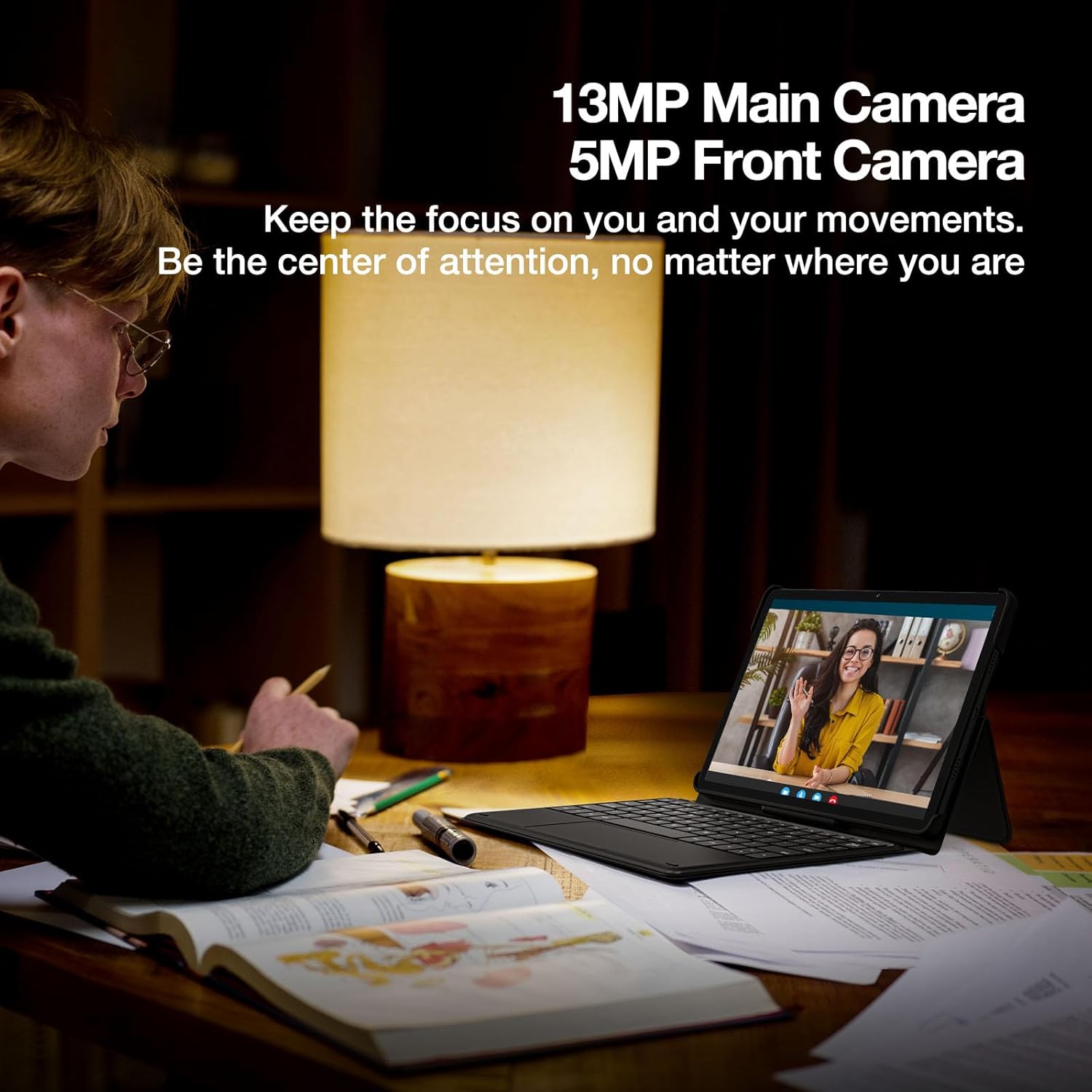
Image: A person engaged in a video call using the DOOGEE T30E tablet, emphasizing the 13MP main camera and 5MP front camera for clear communication.
6. Audio
Experience immersive sound with high-quality dual speakers and the convenience of a 3.5mm headphone jack.
7. Battery Management
The 8000mAh high-capacity battery provides extended usage times. The tablet supports 5V/2A 10W fast charging.
- Up to 671 hours of standby time.
- Up to 17 hours of music playback.
- Up to 11 hours of video playback.
- Up to 9 hours of gaming.
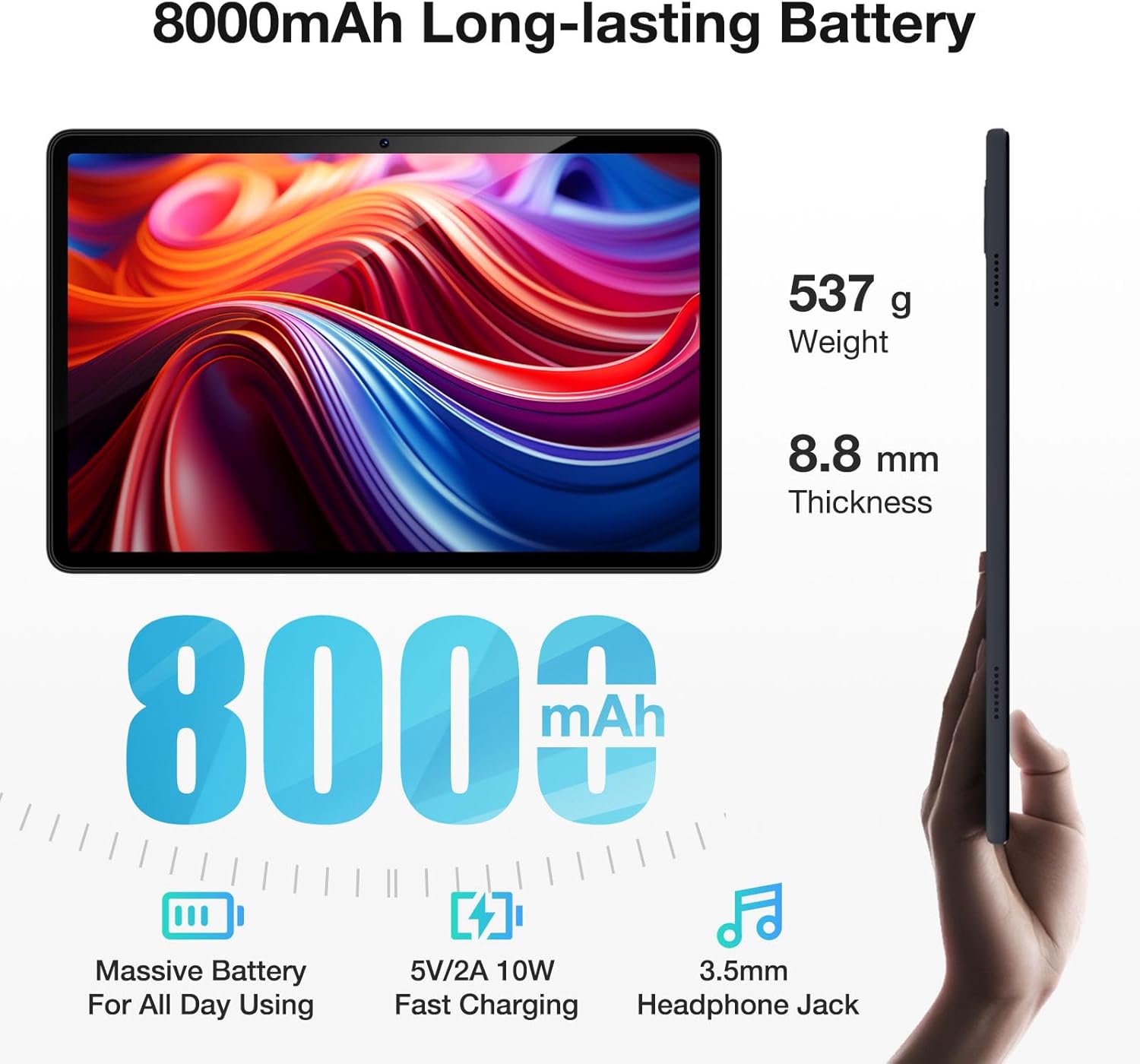
Image: The DOOGEE T30E tablet shown with its dimensions (8.8mm thickness, 537g weight) and key battery features, including 8000mAh capacity, 5V/2A 10W fast charging, and a 3.5mm headphone jack.

Image: Graphic illustrating the long-lasting 8000mAh battery, with estimated usage times for standby (671H), music (17H), video (11H), and gaming (9H).
8. Navigation
The tablet supports 5 satellite navigation systems for accurate positioning: GPS, Beidou, GLONASS, Galileo, and AGPS.

Image: The DOOGEE T30E tablet mounted in a car, displaying a navigation map, demonstrating its 5-satellite navigation capabilities for accurate positioning.
9. Face ID
Unlock your tablet securely and conveniently using Face ID recognition.

Image: A user unlocking the DOOGEE T30E tablet using its Face ID feature, with a visual representation of facial recognition technology.
10. Wireless Projection
Easily connect your tablet to digital TVs, electronic blackboards, or projectors for a larger viewing experience.

Image: A meeting room setup where the DOOGEE T30E tablet is wirelessly projecting its content to a large display, demonstrating its utility for meetings, movies, and games.
11. Multitasking
Utilize the split-screen mode for enhanced productivity, allowing you to run two applications side-by-side.

Image: The DOOGEE T30E tablet displaying two applications simultaneously in split-screen mode, illustrating its multitasking capability.
Maintenance
1. Cleaning
- Use a soft, lint-free cloth to clean the screen and body of the tablet.
- Avoid using harsh chemicals, abrasive cleaners, or aerosol sprays.
- For stubborn smudges, slightly dampen the cloth with water or a screen cleaner specifically designed for electronics.
2. Software Updates
Regularly check for and install software updates to ensure optimal performance, security, and access to new features. You can usually find this option in the tablet's Settings menu under "System" or "About tablet".
3. Battery Care
- Avoid exposing the tablet to extreme temperatures (very hot or very cold).
- Do not let the battery completely drain frequently.
- For long-term storage, charge the battery to about 50% and store the device in a cool, dry place.
Troubleshooting
If you encounter issues with your DOOGEE T30E tablet, refer to the following common solutions:
- Tablet not turning on: Ensure the battery is charged. Connect the charger and wait a few minutes before attempting to power on again.
- Screen unresponsive: Try restarting the tablet by holding the power button for an extended period (e.g., 10-15 seconds).
- Wi-Fi connectivity issues:
- Restart your Wi-Fi router.
- Forget the network on your tablet and reconnect.
- Ensure you are within range of the Wi-Fi signal.
- Apps crashing or freezing:
- Close and reopen the app.
- Clear the app's cache and data in Settings > Apps.
- Ensure the app is updated to its latest version.
- Slow performance:
- Close unnecessary background applications.
- Clear cache and temporary files.
- Consider performing a factory reset as a last resort (Note: This will erase all data on the tablet, so back up important information first).
For more complex issues, please contact customer support.
Specifications
Detailed technical specifications for the DOOGEE T30E tablet:
| Feature | Specification |
|---|---|
| Standing screen display size | 11 Inches |
| Screen Resolution | 1280 x 800 pixels |
| Max Screen Resolution | 1280*800 Pixels |
| Operating System | Android 14 |
| Processor | MediaTek Octa-Core |
| Computer Memory Type | DDR3 SDRAM |
| Memory Storage Capacity | 128 GB (expandable up to 1TB with TF card) |
| RAM | 9 GB (4GB + 5GB RAM expansion) |
| Wireless Type | 802.11ac, 802.11ax, 802.11g, 802.11n (2.4/5GHz WiFi) |
| Cellular Connectivity | 4G LTE (Dual SIM support) |
| Bluetooth | Bluetooth 5.0 |
| Battery | 8000mAh Lithium Ion (5V/2A 10W Fast Charging) |
| Average Battery Life | Up to 2 days (usage dependent) |
| Item Weight | 1.96 pounds (approx. 537g) |
| Product Dimensions | 10 x 7 x 0.4 inches (approx. 254 x 178 x 10.2 mm) |
| Color | Black |
| Model Name | T30E |
Warranty and Support
DOOGEE provides comprehensive support for your T30E tablet:
- 30-Day Money Back Guarantee: If you are not satisfied with your purchase, you may be eligible for a refund or return within 30 days.
- 2-Year Limited Warranty: The tablet is covered by a 2-year limited warranty against manufacturing defects.
- 24/7 Online Support: Access to online support for any technical assistance or inquiries.

Image: Summary of after-sales support, including a 30-day money-back guarantee, 2-year limited warranty, and 24/7 online support.
For further assistance, please visit the official DOOGEE support website or contact their customer service.
