
AZDOME AZDOME M200
AZDOME M200 Mini Dash Cam Instruction Manual
Model: AZDOME M200
Brand: AZDOME
1. Introduction
The AZDOME M200 Mini Dash Cam is a compact and powerful driving recorder designed to enhance your road safety and capture important moments. Featuring Full HD 1080P resolution, a 150-degree wide-angle lens, and seamless WiFi connectivity via the AZDOME App, it provides clear and detailed footage day and night. Its intelligent parking modes and reliable loop recording ensure comprehensive coverage and peace of mind.

Image: The AZDOME M200 dash cam shown alongside a smartphone displaying its companion app interface.
2. What's in the Box
The AZDOME M200 package includes the following components:
- 1080P Front Dash Cam
- Mini USB Car Charger
- User Manual
- Cable Clip (5 pieces)
- Charging Cable
- Installation Tool
- Replace 3M Stickers
- Replace Electrostatic Stickers (2 pieces)
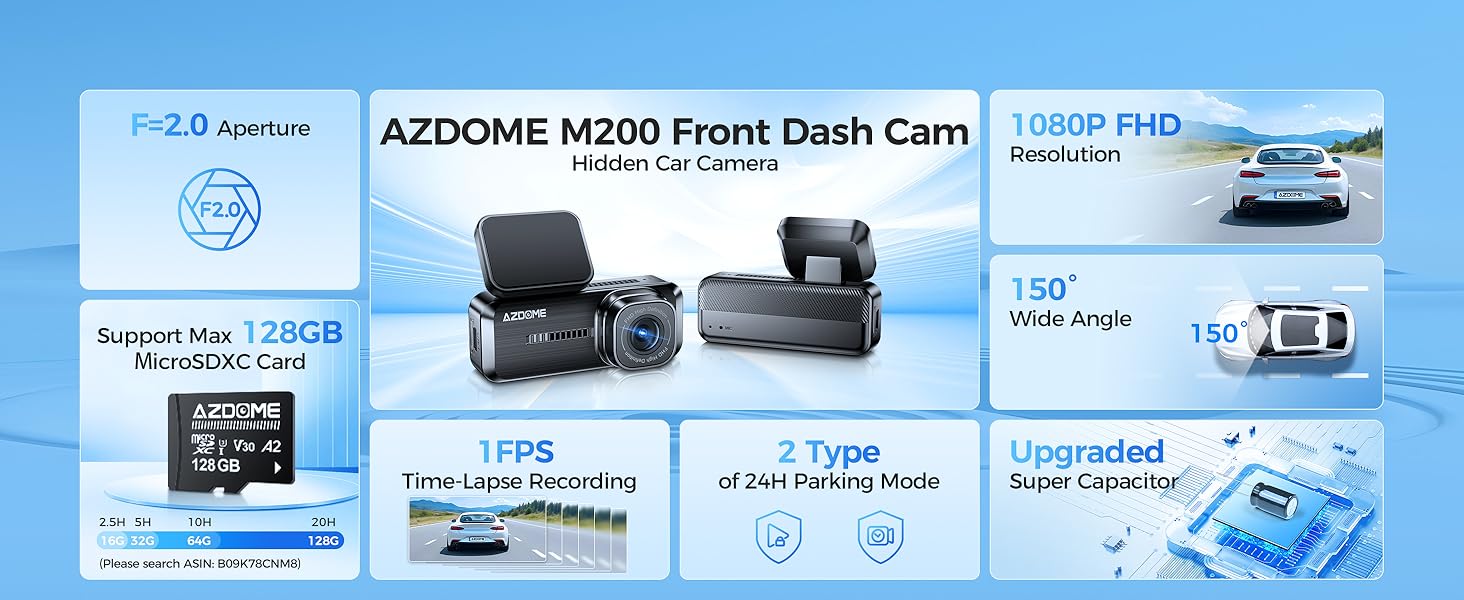
Image: A visual representation of all items included in the AZDOME M200 dash cam packaging.
3. Setup Guide
3.1 Physical Installation
The AZDOME M200 is designed for discreet installation behind your rearview mirror, minimizing obstruction to your driving view.
- Clean Windshield: Ensure the area on your windshield where the dash cam will be mounted is clean and dry.
- Apply Electrostatic Film: Peel off the backing from the electrostatic film and apply it to the desired mounting location on your windshield. This helps protect your windshield and makes removal easier.
- Attach Dash Cam: Remove the protective film from the 3M adhesive on the dash cam mount. Firmly press the dash cam onto the electrostatic film.
- Insert SD Card: Open the SD card slot cover and gently insert a compatible microSD card (up to 128GB, A2, U3, Class 10 recommended) until it clicks into place. Close the cover.
- Connect Power: Connect the Mini USB charging cable to the dash cam and route the cable neatly along the windshield edge, down the A-pillar, and to your car's cigarette lighter socket using the provided cable clips and installation tool. Plug the car charger into the cigarette lighter socket.

Image: Visual steps demonstrating the quick and easy installation of the dash cam in a vehicle, showing cable routing.
3.2 SD Card Requirements
The M200 dash cam supports microSDXC cards up to 128GB. For optimal performance and reliability, it is recommended to use a high-quality A2, U3, Class 10 card. A memory card is not included in the package and must be purchased separately.

Image: The dash cam highlighting its support for up to 128GB microSDXC cards, with a table indicating recording durations for different card sizes.
3.3 App Connection (WiFi)
The AZDOME App allows you to view live footage, manage recordings, and adjust settings directly from your smartphone.
- Download App: Search for "AZDOME" in your mobile app store (compatible with iOS 14+ and Android 7.0+) and download the application.
- Power On Dash Cam: Connect the dash cam to power in your vehicle. It will automatically turn on and begin recording.
- Connect to Dash Cam WiFi: On your smartphone, go to WiFi settings and connect to the dash cam's WiFi network (e.g., "M200_xxxx"). The default password is 12345678.
- Open AZDOME App: Launch the AZDOME App. It should automatically detect the connected dash cam.
- Live Preview & Control: Once connected, you can view a live preview of the dash cam's footage, start/stop recording, access the photo album, and adjust various settings.
Video: A step-by-step guide on how to install the AZDOME Mini Dash Cam in your vehicle, including physical mounting and cable management.
Video: Instructions on how to connect your AZDOME M200 Dash Cam to your smartphone via WiFi using the AZDOME App, demonstrating the connection process and app interface.
4. Operating the Dash Cam
4.1 Recording Modes
- Loop Recording: The dash cam continuously records video in 1/2/3-minute segments. When the memory card is full, the oldest videos are automatically overwritten by new ones. This ensures continuous recording without manual intervention.
- G-Sensor (Emergency Lock): The built-in G-sensor detects sudden impacts or collisions. When an event is detected, the current 1-minute video segment is automatically locked and saved to a separate folder, preventing it from being overwritten by loop recording.
4.2 Parking Monitoring
The M200 supports two parking modes for 24-hour surveillance. A Mini USB Port Hardwire Kit (ASIN: B0CX943ZXH, not included) is required for these functions.
- Collision Detection: In this mode, the G-sensor remains active. If an impact is detected while the vehicle is parked, the dash cam will automatically power on and record a short video, then power off.
- Time-Lapse Recording: This mode allows for continuous recording at a low frame rate (1 FPS) while the vehicle is parked, compressing hours of footage into minutes. This is ideal for monitoring long parking periods and capturing events efficiently.

Image: An illustration detailing the two parking monitoring modes available with the dash cam: collision detection and time-lapse recording.
4.3 Video Playback
You can review recorded videos using two methods:
- Via AZDOME App: Connect your smartphone to the dash cam's WiFi network. Open the AZDOME App and access the device albums to view and download recorded videos directly to your phone. This is convenient for quick review and sharing.
- Via Computer: Remove the microSD card from the dash cam and insert it into a card reader connected to your computer. You can then access and play the video files directly from the card.

Image: A visual guide showing how to play back videos from the dash cam using either the AZDOME smartphone app or by transferring the memory card to a computer.
5. Maintenance
- SD Card Formatting: It is recommended to format the microSD card regularly (e.g., once a month) to maintain optimal performance and prevent data corruption. This can usually be done through the AZDOME App settings.
- Cleaning the Lens: Use a soft, lint-free cloth to gently clean the dash cam lens. Avoid using abrasive materials or chemical cleaners that could damage the lens.
- Firmware Updates: Periodically check the AZDOME official website or app for available firmware updates. Keeping your dash cam's firmware up-to-date ensures you have the latest features and bug fixes.
- Operating Temperature: Avoid exposing the dash cam to extreme temperatures for prolonged periods, as this can affect its lifespan and performance.
6. Troubleshooting
If you encounter issues with your AZDOME M200 dash cam, try the following common troubleshooting steps:
- Dash Cam Not Powering On: Ensure the car charger is properly connected to both the dash cam and the vehicle's cigarette lighter socket. Check if the vehicle's power outlet is functioning.
- Recording Issues (Stuttering/Skipping): This is often caused by an incompatible or low-quality SD card. Ensure you are using a recommended A2, U3, Class 10 microSD card. Try formatting the SD card or replacing it.
- App Connection Problems: Verify that your phone is connected to the dash cam's WiFi network and not your home WiFi or cellular data. Ensure the AZDOME App has necessary permissions (location, local network access). Try restarting both the dash cam and your phone.
- G-Sensor Not Working: Check the G-sensor sensitivity settings in the AZDOME App. Adjusting the sensitivity may resolve the issue.
- Image Not Clear: Ensure the protective film has been removed from the lens. Clean the lens with a soft cloth. Check the video resolution settings in the app.
For more detailed troubleshooting or persistent issues, please refer to the customer support section.
7. Specifications
| Feature | Detail |
|---|---|
| Product Dimensions | 4.51 x 4.36 x 4.72 inches |
| Item Weight | 6.4 ounces |
| Item Model Number | AZDOME M200 |
| Connectivity Technologies | Wi-Fi |
| Special Features | Built-In WiFi, G-Sensor, Night Vision, App Control, Built-In Microphone |
| Color | Black |
| Video Capture Resolution | 1080p |
| Mounting Type | Windshield Mount |
| Max SD Card Support | 128GB (A2, U3, Class 10 recommended) |
| Manufacturer | AZDOME Tech |
| Country of Origin | China |
| Date First Available | June 30, 2024 |
8. Warranty and Support
AZDOME provides comprehensive support for your M200 dash cam:
- Warranty: 12 months warranty from the date of purchase.
- Technical Support: 24/7 technical support is available to assist you with any issues or questions.
- Return Policy: 30 days return policy on defects.
Contact Information:
Email: service@azdomevip.com
Phone: (833) 667-5545
Please do not hesitate to contact our support team if you face any problems with your product. The AZDOME R&D team is committed to providing timely feedback within 24 working hours.
Related documentsAZDOME M200


Ask a question about this manual
Ask about setup, troubleshooting, compatibility, parts, safety, or missing instructions. Manuals+ will review the question and use this page’s manual context to help answer it.