
1. Introduction
Welcome to the HOLEWOR Biometric Jewelry Safe user manual. This guide provides essential information for the safe and efficient operation of your new biometric safe. Please read it thoroughly before use.
Key Features:
- Bluetooth APP Control: Manage and monitor safe activity, open the safe, and authorize remote unlocking via your smartphone within Bluetooth range. The app also ensures correct time synchronization.
- Advanced Biometric Access: Features a larger, faster, and more accurate fingerprint scanner. Store up to 100 fingerprints for quick and secure access.
- Premium Construction: Encased in durable leather, providing a solid build and an elegant appearance that complements various home decors.
- Spacious Interior: Designed to secure jewelry, watches, pistols, and other valuables, protecting them from unauthorized access. Exterior Dimensions: 13.8" x 16.3" x 5.9" (35.1 cm x 41.4 cm x 15 cm).
- Integrated LCD Display: Provides real-time information on temperature, humidity, battery level, and current time.
2. Setup Guide
2.1 Unpacking and Initial Placement
Carefully remove the safe from its packaging. Choose a suitable location, such as a nightstand or closet, ensuring it is on a stable, flat surface.

Image: The HOLEWOR Biometric Jewelry Safe positioned on a nightstand, demonstrating its discreet integration into a bedroom setting.
2.2 Powering On and Battery Installation
The safe operates on batteries. Locate the battery compartment, typically at the back or bottom of the unit. Insert the required batteries (usually AA or AAA, refer to the included quick start guide for exact type) ensuring correct polarity. The LCD display will illuminate upon successful installation.
2.3 Downloading and Pairing the Bluetooth App
- Download the official HOLEWOR app from your smartphone's app store (iOS App Store or Google Play Store).
- Enable Bluetooth on your smartphone.
- Open the HOLEWOR app and follow the on-screen instructions to pair your safe. The app will guide you through the connection process.
- Once paired, the app will synchronize the safe's time and allow you to manage its functions.
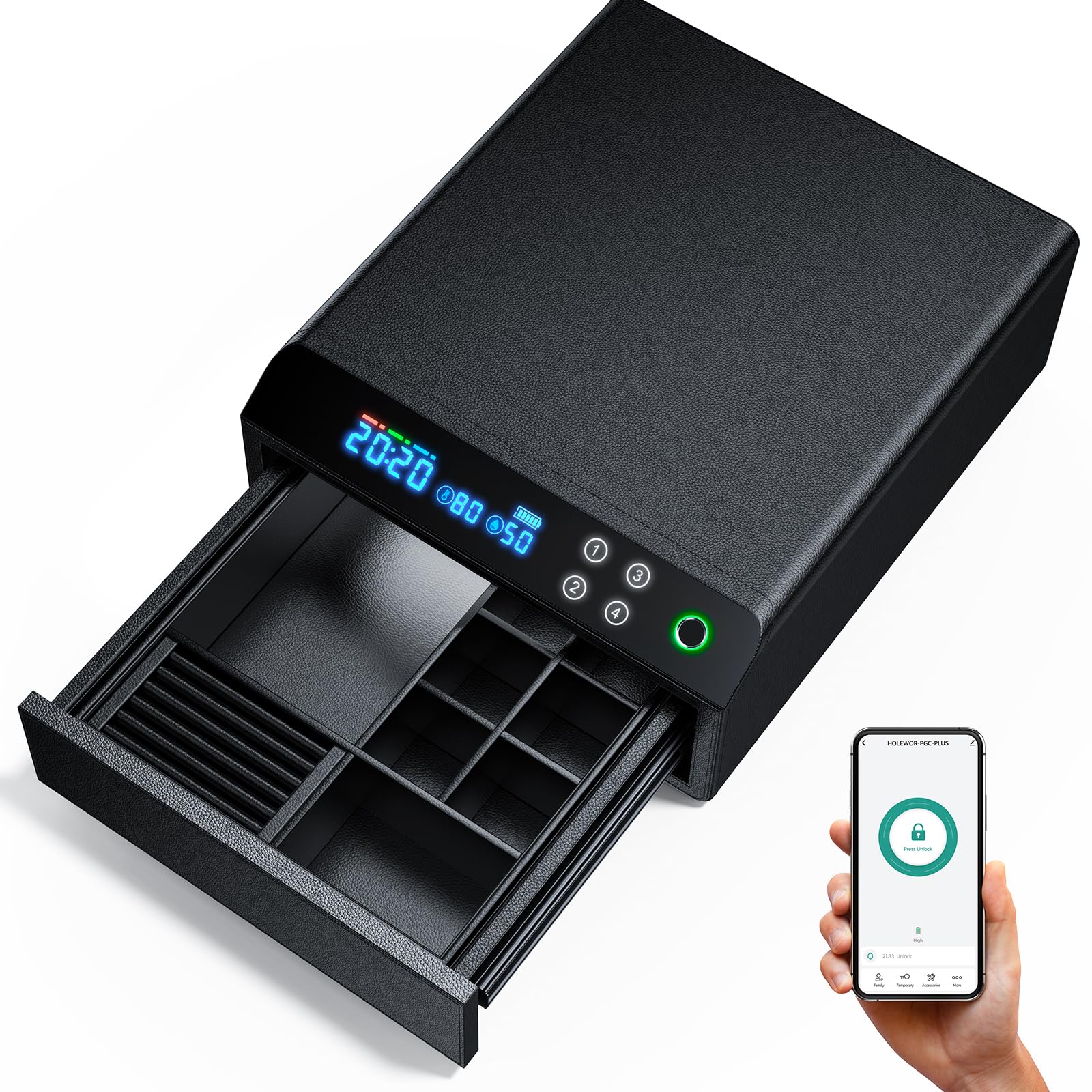
Image: A user interacting with the HOLEWOR safe using a smartphone application, illustrating the Bluetooth control feature.
2.4 Registering Fingerprints
The biometric scanner allows for quick access. You can register up to 100 unique fingerprints.
- Access the fingerprint registration menu via the safe's control panel or the paired app.
- Place your finger firmly on the scanner. You will be prompted to lift and place your finger multiple times from different angles to ensure accurate registration.
- Repeat for all desired fingers and users.

Image: A detailed view of the biometric fingerprint scanner on the HOLEWOR safe, highlighting its advanced and rapid access capabilities.
2.5 Setting a Passcode
In addition to biometric access, you can set a numerical passcode.
- Navigate to the passcode setting option on the safe's control panel or through the app.
- Enter your desired numerical code, then confirm it. Choose a memorable but secure code.
2.6 Using the Emergency Key
The safe includes an emergency key for manual access in case of battery failure or forgotten codes/fingerprints. Keep this key in a secure location away from the safe.
3. Operating Instructions
3.1 Opening the Safe
- Fingerprint Access: Place a registered finger firmly on the biometric scanner. The safe will unlock if the fingerprint is recognized.
- Passcode Access: Enter your set numerical passcode on the keypad.
- Bluetooth App Access: Open the HOLEWOR app on your paired smartphone and select the unlock option. The app also supports remote authorization unlocking within Bluetooth range.
- Emergency Key Access: Insert the emergency key into the keyhole and turn it to unlock the safe.
Once unlocked, the drawer will slide out, revealing the interior compartments.

Image: The HOLEWOR safe with its drawer extended, showcasing the spacious and organized interior designed for various valuables.
3.2 Closing and Locking the Safe
Gently push the drawer back into the safe until it clicks shut. The safe will automatically lock. Verify the lock by attempting to pull the drawer open without authentication.
3.3 LCD Display Information
The integrated LCD display provides the following information:
- Time: Current time (synchronized via Bluetooth app).
- Temperature: Internal temperature reading.
- Humidity: Internal humidity reading.
- Battery Level: Indicates the remaining battery power.

Image: The LCD screen of the HOLEWOR safe, clearly displaying the time, temperature, humidity, and battery status indicators.
4. Maintenance
4.1 Battery Replacement
When the battery level indicator on the LCD display shows low power, replace all batteries with new ones of the specified type. Refer to section 2.2 for battery installation instructions. Do not mix old and new batteries.
4.2 Cleaning
To clean the exterior leather surface, use a soft, dry cloth. For stubborn marks, a slightly damp cloth with mild soap can be used, followed by immediate drying. Avoid abrasive cleaners or solvents. Keep the fingerprint scanner clean and free of debris for optimal performance.

Image: A detailed shot of the HOLEWOR safe's leather-wrapped exterior, emphasizing its quality material and robust design.
4.3 Environmental Considerations
This safe is not water resistant. Avoid placing it in environments with high humidity or direct exposure to water. Maintain a stable room temperature for optimal performance of electronic components and to preserve the leather finish.
5. Troubleshooting
- Safe does not open with fingerprint:
- Ensure your finger is clean and dry.
- Place your entire registered finger firmly on the scanner.
- Try a different registered finger.
- Check battery level on the LCD. Replace batteries if low.
- If issues persist, try re-registering your fingerprint.
- Bluetooth app cannot connect:
- Ensure Bluetooth is enabled on your smartphone.
- Make sure the safe is within Bluetooth range (typically 10 meters/33 feet).
- Restart the app and/or your smartphone.
- Check battery level of the safe.
- If necessary, unpair and re-pair the safe in the app settings.
- LCD display is dim or off:
- Check battery level. Replace batteries if low or dead.
- The display automatically turns off after about 10 seconds to conserve power. Press any button to reactivate.
- Anti-theft alarm triggers unexpectedly:
- Ensure the safe is placed on a stable surface and not subject to excessive vibrations or impacts.
- Check app settings for alarm sensitivity if applicable.
- Safe does not respond:
- Replace batteries.
- Use the emergency key for manual access.
6. Product Specifications
| Brand | HOLEWOR |
| Model Number | gun safe |
| Exterior Dimensions (D x W x H) | 41.4D x 35.1W x 15H centimetres (16.3" x 13.8" x 5.9") |
| Chamber Depth | 16.3 Inches |
| Lock Type | Biometric, Bluetooth, Electronic Combination Lock, Key |
| Control Type | APP, Fingerprint, Passcode, Key |
| Colour | Black |
| Material | Leather Alloy Steel |
| Special Features | App, Biometric Fingerprint, Bluetooth, Combination Lock, Slide Away |
| Mounting Type | Nightstand, Closet |
| Alarm | Anti-theft |
| Water Resistance Level | Not Water Resistant |
| Included Components | Accessories, Cabinet Safes |
7. Warranty and Support
For warranty information and customer support, please refer to the documentation included with your purchase or visit the official HOLEWOR website. If you encounter any issues not covered in this manual, please contact HOLEWOR customer service for assistance.
Contact Information: Please refer to your product packaging or the manufacturer's website for the most current support contact details.