
1. Introduction
This manual provides essential information for the proper use and maintenance of your Andoer Mini Digital Video Camera. Please read it thoroughly before operating the device to ensure optimal performance and longevity.
2. Package Contents
Verify that all items listed below are included in your package:
- Andoer Mini Digital Video Camera
- USB Charging Cable
- User Manual (this document)
Note: A Micro SD card is required for operation and is not included in the package.
3. Product Overview
The Andoer Mini Digital Video Camera is a compact and lightweight device designed for capturing photos and 1080P videos. It features a built-in LCD screen for direct viewing and a flash for improved low-light performance.

Image: The Andoer Mini Digital Video Camera, demonstrating its small form factor when held in hand.
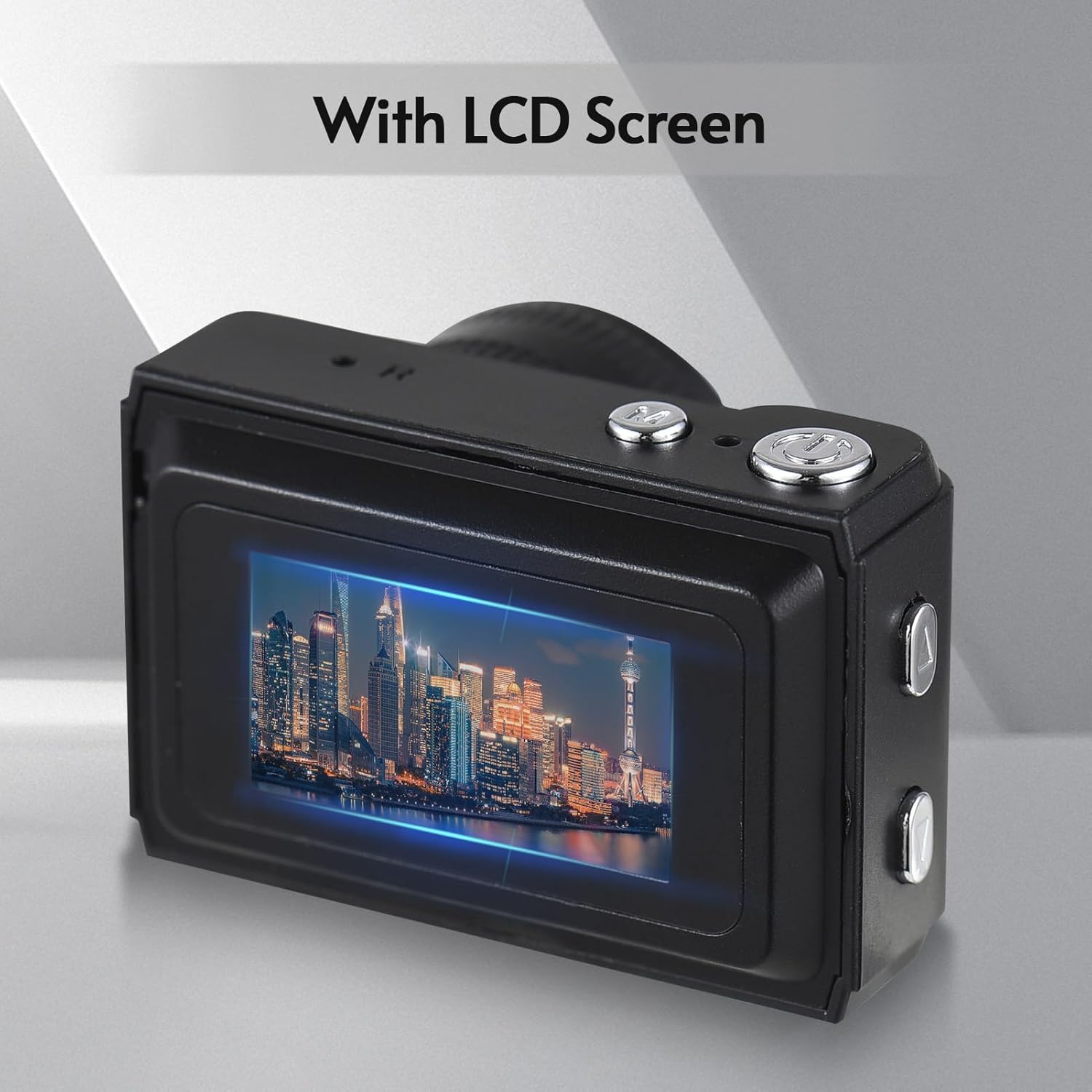
Image: Rear view of the camera, highlighting the integrated LCD screen displaying an image.

Image: Side view of the camera with approximate dimensions indicated, showing its compact design.
4. Setup
4.1. Charging the Battery
The camera features a built-in rechargeable battery. Before first use, fully charge the camera using the provided USB charging cable.
- Connect the small end of the USB cable to the camera's USB port.
- Connect the larger end of the USB cable to a USB power adapter (not included) or a computer's USB port.
- The charging indicator light will illuminate. Once fully charged, the light may change color or turn off.

Image: Illustration of the camera's built-in rechargeable battery and its USB charging interface.
4.2. Inserting a Micro SD Card
A Micro SD card (not included) is required to store photos and videos. The camera supports Micro SD cards up to a certain capacity (refer to specifications for details).
- Locate the Micro SD card slot on the camera.
- Insert the Micro SD card with the metal contacts facing down until it clicks into place.
- To remove, gently push the card in until it springs out.
5. Operating Instructions
5.1. Powering On/Off
Press and hold the Power button (usually located on the top or side) for a few seconds to turn the camera on or off.
5.2. Taking Photos
The camera can capture still images with 1080P resolution.
- Ensure the camera is in photo mode (indicated on the LCD screen).
- Frame your shot using the LCD screen.
- Press the Shutter button (typically on top) to take a photo.
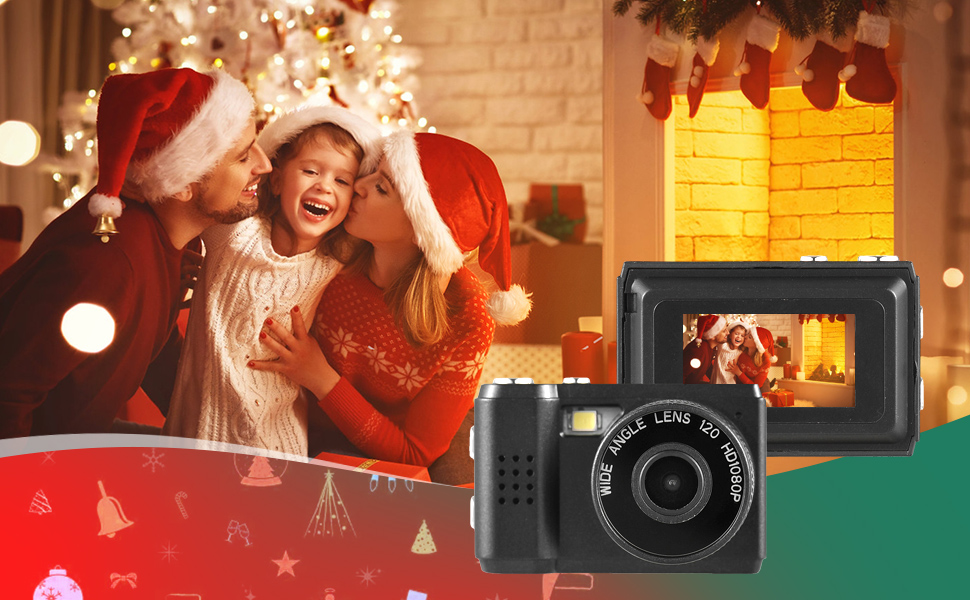
Image: Examples of scenes that can be captured with the camera's photo and video functions.
5.3. Recording Videos
Record videos in 1080P resolution.
- Switch the camera to video recording mode.
- Press the Record button (often the same as the Shutter button, or a dedicated button) to start recording.
- Press the Record button again to stop recording.
5.4. Using the Built-in Flash
The camera includes a built-in flash for illuminating subjects in low-light conditions.
- Access the flash settings through the camera's menu.
- Select the desired flash mode (e.g., Auto, On, Off).
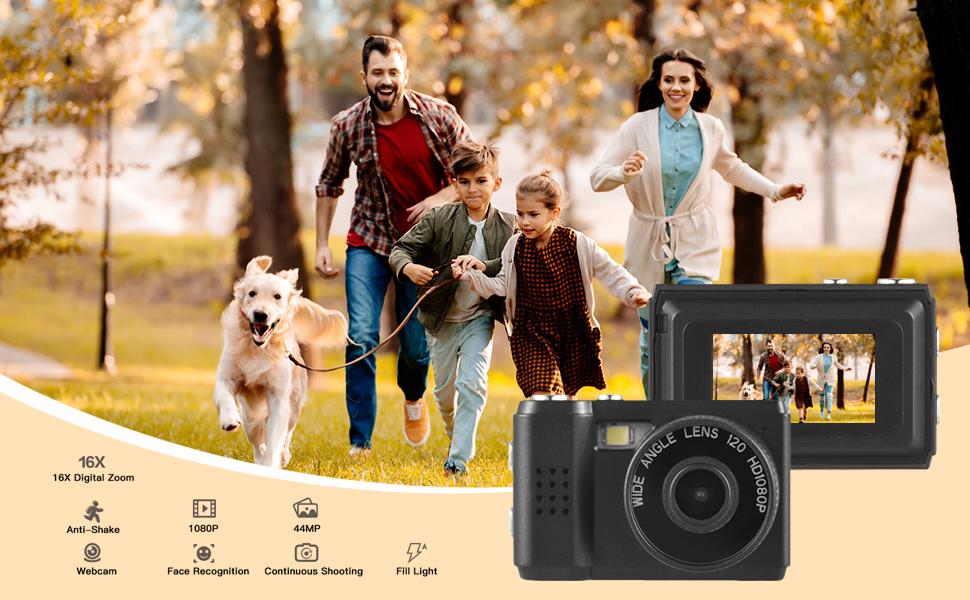
Image: The camera's built-in flash in operation, providing illumination for a photo.
5.5. Applying Filter Effects
The camera offers various filter effects to enhance your photos.
- In photo mode, navigate to the filter settings in the menu.
- Select from the available filter options to apply them to your images.
5.6. Connecting to a Computer
You can transfer photos and videos to your computer using the USB cable.
- Ensure the camera is powered on.
- Connect the camera to your computer using the USB cable.
- The camera should appear as a removable disk drive on your computer.
- Access the stored files and copy them to your computer.
6. Maintenance
- Cleaning: Use a soft, dry cloth to clean the camera body. For the lens and LCD screen, use a specialized lens cleaning cloth. Avoid abrasive materials or harsh chemicals.
- Storage: Store the camera in a cool, dry place away from direct sunlight and extreme temperatures. Remove the Micro SD card if storing for extended periods.
- Battery Care: To maintain battery health, avoid fully discharging the battery frequently. Charge it regularly, even if not in use.
7. Troubleshooting
- Camera not turning on: Ensure the battery is charged. If the issue persists, try charging for a longer period.
- "No SD Card" error: Verify that a Micro SD card is properly inserted and that it is not full or corrupted. Try reinserting the card or using a different one.
- Poor image/video quality: Ensure adequate lighting. Check lens for smudges or dirt. Note that image quality may vary based on environmental conditions and the camera's compact sensor.
- Camera freezes: If the camera becomes unresponsive, try pressing and holding the Power button for an extended period (e.g., 10-15 seconds) to force a shutdown.
8. Specifications
| Feature | Specification |
|---|---|
| Brand | Andoer |
| Model Number | d26ed34e-1e4d-4f4c-8a08-ff20d919aeaa |
| Video Resolution | 1080p |
| Effective Still Resolution | 1.92 MP |
| Photo Sensor Technology | CMOS |
| Screen Size | 4.2 Centimeters (LCD) |
| Image Stabilization | Optical |
| Flash Memory Type | Micro SD |
| Recording Capacity | 330 Minutes |
| Connectivity Technology | USB |
| Item Weight | 0.05 Kilograms |
| Are Batteries Included | Yes (Built-in) |
| Color | Black |
9. Warranty and Support
For warranty information and technical support, please refer to the documentation provided with your purchase or contact Andoer customer service through their official website. Keep your proof of purchase for warranty claims.