1. Important Safeguards
- Read all instructions carefully before using the device.
- Keep this manual for future reference.
- Do not expose the device to extreme temperatures, direct sunlight, or high humidity.
- Use only the provided power adapter.
- Do not attempt to disassemble or repair the device yourself. Contact qualified service personnel.
- Keep the device away from water or other liquids.
2. Package Contents
Verify that all items are present in the package:
- Roxicosly Digital Alarm Clock (CR1001E Pro) x 1
- Power Adapter x 1
- Charging Cable (USB to DC 5.5x2.1mm) x 1
- User Manual x 1

Image: Contents of the Roxicosly CR1001E Pro package, showing the alarm clock, power adapter, charging cable, and user manual.
3. Product Overview
Familiarize yourself with the components and controls of your Roxicosly Digital Alarm Clock.

Image: Front view of the Roxicosly digital alarm clock, showing the large LED display, control buttons on top, and a smartphone connected to its USB charging port.
Top Panel Buttons:
- TIME: Press to enter time setting mode.
- +/-: Adjust values (time, alarm, volume, brightness).
- SNOOZE/DIMMER: Press to activate snooze during alarm; press to adjust display brightness.
- DST: Press to activate/deactivate Daylight Saving Time.
- VOL: Press to adjust alarm volume.
- AL1/AL2: Press to set Alarm 1 or Alarm 2.
Rear Panel Ports and Switches:
- USB Charging Port: For charging external devices.
- Type-C Charging Port: For charging external devices.
- DC 5V IN: Power input port for the included adapter.
- Battery Compartment: For AAA backup batteries.
- 12/24H Switch: Toggle between 12-hour and 24-hour time format.
- ALARM MODE Switch (MON-SUN, MON-FRI, SAT-SUN): Select alarm frequency.

Image: Rear view of the alarm clock, highlighting the battery compartment, USB and Type-C charging ports, and the DC power input.
4. Setup
4.1 Power Connection
- Connect the provided charging cable to the DC 5V IN port on the back of the alarm clock.
- Plug the power adapter into a standard electrical outlet. The clock display will illuminate.
4.2 Battery Backup Installation
The battery backup feature ensures that time and alarm settings are retained during a power outage. Batteries do not power the display or alarm functions continuously.
- Open the battery compartment cover on the back of the clock.
- Insert two (2) AAA 1.5V batteries (not included), observing the correct polarity (+ and -).
- Close the battery compartment cover securely.

Image: Illustration of the battery backup function, demonstrating that time settings are preserved even after a power interruption when AAA batteries are installed.
5. Operating Instructions
5.1 Time Setting
- Press and hold the TIME button until the hour digits flash.
- Use the + or - buttons to adjust the hour.
- Press the TIME button again to confirm the hour and move to minute setting. The minute digits will flash.
- Use the + or - buttons to adjust the minutes.
- Press the TIME button one more time to confirm and exit time setting mode.
5.2 12/24 Hour Format
To switch between 12-hour (AM/PM) and 24-hour formats:
- Locate the 12/24H switch on the rear panel of the clock.
- Slide the switch to your desired time format.

Image: The clock display showing examples of 24-hour format (22:30), 12-hour format (10:30 AM), and 12-hour format with DST indicator (11:30 PM).
5.3 Daylight Saving Time (DST)
To activate or deactivate DST:
- Press the DST button on the top panel. The time will adjust by one hour forward or backward, and a 'DST' indicator will appear/disappear on the display.
5.4 Alarm Setting (Dual Alarms)
The clock features two independent alarms (AL1 and AL2).
- Press the AL1 or AL2 button to select the desired alarm. The alarm icon and hour digits will flash.
- Use the + or - buttons to adjust the alarm hour.
- Press the selected alarm button (AL1 or AL2) again to confirm the hour and move to minute setting. The minute digits will flash.
- Use the + or - buttons to adjust the alarm minutes.
- Press the selected alarm button (AL1 or AL2) one more time to confirm and exit alarm setting mode. The alarm icon will remain lit, indicating the alarm is active.
Alarm Frequency (Weekday/Weekend Modes):
Use the ALARM MODE switch on the rear panel to select how often the alarm sounds:
- MON-SUN: Alarm sounds every day.
- MON-FRI: Alarm sounds on weekdays only.
- SAT-SUN: Alarm sounds on weekends only.

Image: The alarm clock displaying two active alarms (AL1 at 9:30 AM, AL2 at 3:30 PM) and an illustration of the alarm mode switch on the back, allowing selection for everyday, weekdays, or weekends.
5.5 Alarm Volume Adjustment
The alarm volume can be adjusted to 5 levels (76dB-106dB).
- Press the VOL button. The current volume level will be displayed.
- Use the + or - buttons to select your desired volume level.
- The setting will automatically save after a few seconds, or you can press VOL again to confirm.

Image: The alarm clock showing the time, with a visual representation of the 5-level adjustable volume feature, ranging up to 106dB.
5.6 Snooze Function
When the alarm sounds, press the large SNOOZE/DIMMER button on the top of the clock to temporarily silence the alarm for 9 minutes. The alarm will sound again after 9 minutes.
To turn off the alarm completely, press any other button (e.g., AL1, AL2, TIME, VOL, DST) or let it ring for 30 minutes without interaction.
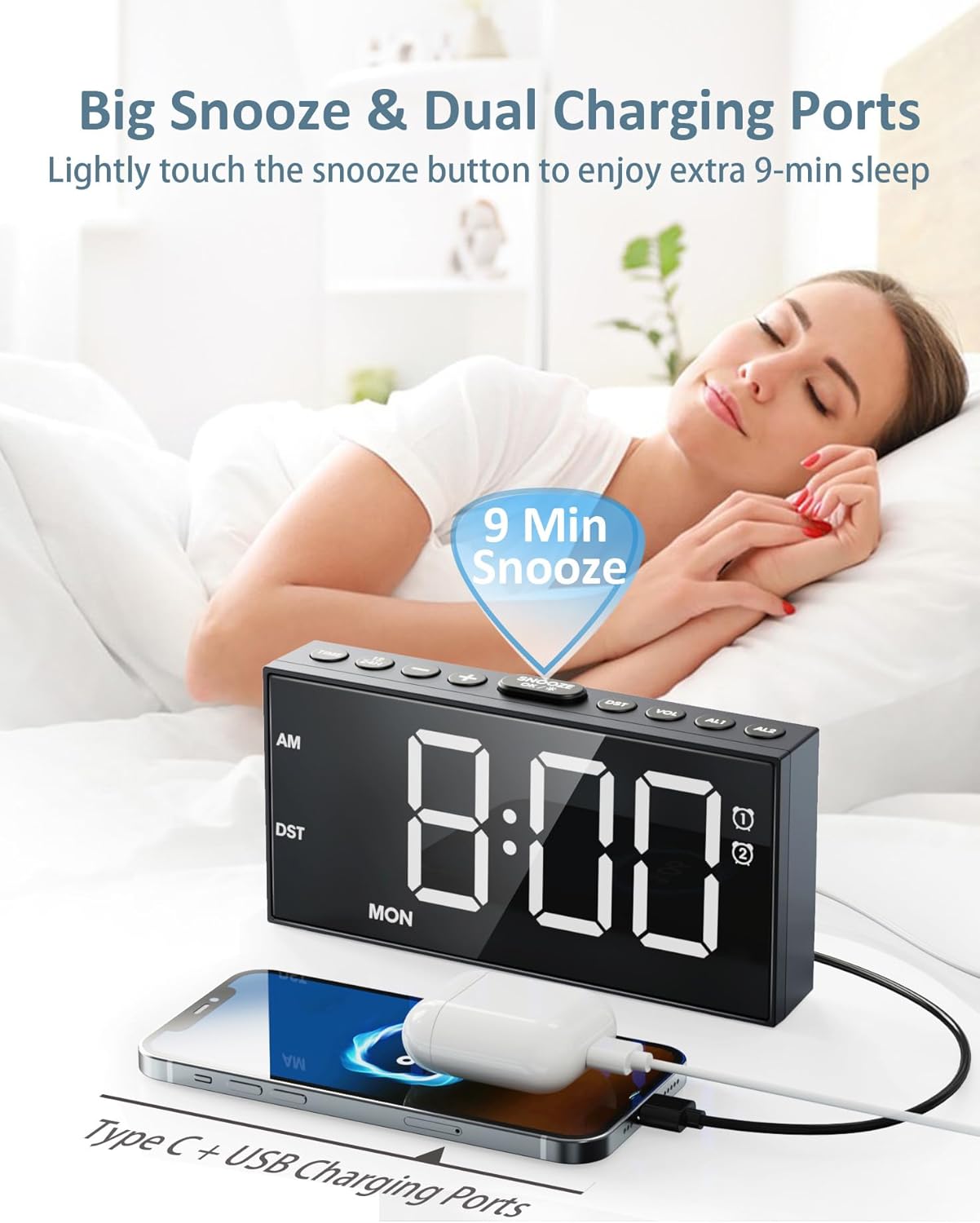
Image: A person pressing the large SNOOZE button on the alarm clock, indicating the 9-minute snooze function.
5.7 Display Brightness (Dimmer)
The display has 5 brightness levels.
- Press the SNOOZE/DIMMER button (when the alarm is not sounding) to cycle through the 5 brightness levels.
- Select the level that is most comfortable for your environment.
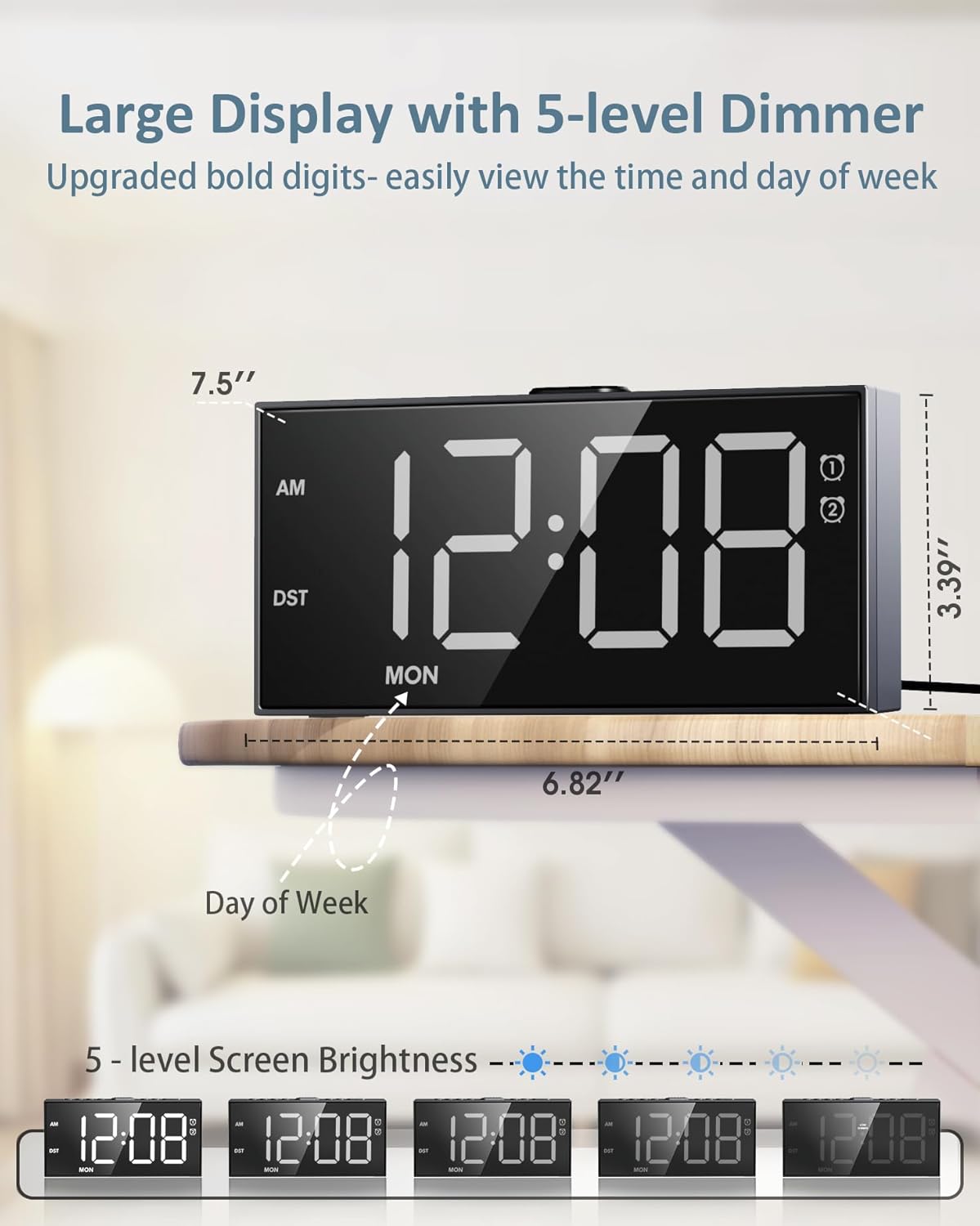
Image: The alarm clock display demonstrating its 5-level dimmer function, showing the same time at progressively lower brightness settings.
5.8 USB Charging Ports
The clock includes a standard USB port and a Type-C port for charging external devices.
- Connect your device's charging cable to either the USB or Type-C port on the back of the alarm clock.
- Ensure the alarm clock is powered on for the charging ports to function.

Image: The alarm clock from a rear-side perspective, showing a smartphone and another device being charged simultaneously via the USB and Type-C ports.
6. Maintenance
- Clean the clock with a soft, dry cloth. Do not use abrasive cleaners or solvents.
- If the clock will not be used for an extended period, remove the AAA backup batteries to prevent leakage.
- Ensure the power adapter and cable are not damaged.
7. Troubleshooting
| Problem | Possible Cause | Solution |
|---|---|---|
| Clock display is off. | No power connection. | Ensure the power adapter is securely plugged into the clock and a working outlet. |
| Alarm does not sound. | Alarm is not activated or volume is too low. | Check if AL1/AL2 icon is lit. Adjust alarm volume using the VOL button. Verify alarm frequency switch (MON-SUN, MON-FRI, SAT-SUN) is set correctly. |
| Time/settings reset after power outage. | Backup batteries are not installed or are depleted. | Install two new AAA batteries in the battery compartment. |
| USB charging ports not working. | Clock is not powered or cable is faulty. | Ensure the clock is connected to main power. Try a different charging cable. |
8. Specifications
- Model: CR1001E Pro
- Display Type: 7.5'' LED Digital Display
- Brightness Levels: 5 levels
- Alarm Volume: 5 levels (76dB - 106dB)
- Snooze Duration: 9 minutes
- Time Format: 12H/24H selectable
- Daylight Saving Time (DST): Manual adjustment
- Charging Ports: 1x USB, 1x Type-C
- Power Source: Corded Electric (AC 100-240V, DC 5V/2A adapter)
- Battery Backup: 2 x AAA batteries (not included)
- Material: Acrylonitrile Butadiene Styrene (ABS)
- Product Dimensions: 17.3 x 3.81 x 8.71 cm
- Item Weight: 290 g
9. Warranty and Support
Roxicosly products are designed for reliability and performance. For any questions, technical support, or warranty claims, please refer to the contact information provided with your purchase or visit the official Roxicosly website.
Please retain your proof of purchase for warranty purposes.