
AULA F2068Pro
AULA Mechanical Gaming Keyboard User Manual
Model: F2068Pro
Introduction
Thank you for choosing the AULA Mechanical Gaming Keyboard. This 104-key mechanical keyboard features RGB backlighting, an all-metal panel, and anti-ghosting capabilities, designed for an enhanced gaming and typing experience. This manual provides detailed instructions for setup, operation, maintenance, and troubleshooting to ensure optimal performance and longevity of your keyboard.
Safety Information
- Keep the keyboard away from liquids and excessive moisture to prevent damage.
- Avoid exposing the keyboard to extreme temperatures.
- Do not attempt to disassemble or repair the keyboard yourself. Refer to qualified service personnel.
- Use only the provided USB cable for connection.
- Clean the keyboard with a soft, dry cloth. Avoid harsh chemicals.
Package Contents
Please check the package for the following items:
- AULA Mechanical Gaming Keyboard (Model: F2068Pro)
- Keycap Puller
- USB Cable
- User Manual (this document)
Product Overview
The AULA F2068Pro is a full-sized 104-key mechanical keyboard designed for durability and performance. It features brown tactile switches, customizable RGB backlighting, and an ergonomic design.
Keyboard Layout and Features

Figure 1: Top-down view of the AULA F2068Pro Mechanical Gaming Keyboard, showcasing its full 104-key layout and vibrant RGB backlighting.
RGB Backlighting

Figure 2: The keyboard illuminated with various rainbow backlight effects, highlighting the 30 available light effects, 6 adjustable brightness levels, and on/off function.
The keyboard offers brilliant and vibrant RGB backlighting with 28 default modes and 2 customizable unique backlighting options. You can adjust brightness and speed with 5 levels each.
Mechanical Brown Tactile Switches
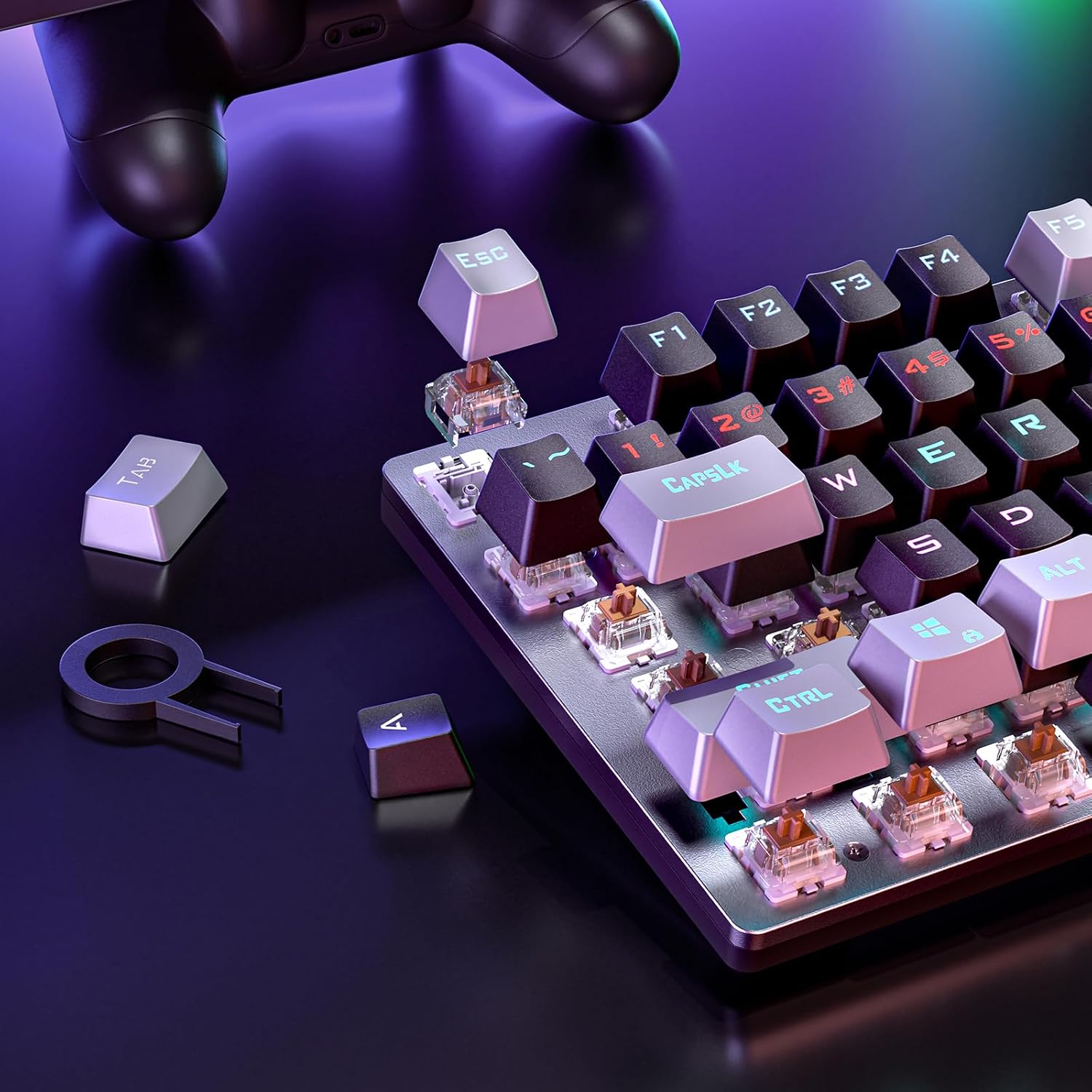
Figure 3: A close-up view of the keyboard with several keycaps removed, revealing the brown mechanical switches underneath. A keycap puller tool is also shown.
Equipped with brown tactile switches, this keyboard provides a satisfying tactile typing experience with less force required for actuation. This makes typing smooth and responsive, suitable for both gaming and office use.
Anti-Ghosting and Programmable Keys

Figure 4: An illustration highlighting the 104-key anti-ghosting feature and various FN key combinations for locking Windows key, locking the keyboard, and activating 6-key or all-key anti-ghosting.
The keyboard supports N-key anti-ghosting, ensuring all keys register simultaneously, which is crucial for fast-paced gaming. All keys are programmable, allowing for macro editing, remapping functions, and setting shortcuts via dedicated software.
Ergonomic Design and Durability

Figure 5: A side view of the keyboard illustrating its ergonomic features, including a stepped key layout, U-shaped keycaps, adjustable feet, and a comfortable 7-degree typing angle.
The keyboard features a sturdy aluminum metal panel with a classic brushed finish, preventing scratches and ensuring durability. Its ergonomic design includes a comfortable 7° typing angle to prevent hand fatigue during extended use. Floating keycaps allow for easy disassembly and cleaning.
Keyboard Dimensions

Figure 6: The keyboard positioned on a desk, showing its approximate dimensions of 18.7 inches in length and 6.5 inches in width, providing a sense of its full-size footprint.
The keyboard's physical dimensions are approximately 17.59 x 5.47 x 1.65 inches, making it a full-sized keyboard suitable for various desktop setups.
Product Video Overview
Video 1: An official product video from AULA Tech USA, showcasing the features and functionality of the AULA Mechanical Gaming Keyboard with RGB Backlit and 104 Keys.
Setup
- Unpack the Keyboard: Carefully remove the keyboard and all accessories from the packaging.
- Connect to Device: Plug the USB-A connector of the provided cable into an available USB port on your computer (PC, Laptop, Gaming Console, or Tablet).
- Driver Installation: The keyboard is plug-and-play. Your operating system (WinXP/Win7/Win8/Win10) will automatically detect and install the necessary drivers. No manual driver installation is typically required.
- Software Installation (Optional): For advanced customization, including macro editing and LED backlit effects, download the professional software from "aulastar" (refer to the product packaging or AULA's official website for the exact URL).
Operating Instructions
Basic Keyboard Functions
- Typing: Use the standard QWERTY layout for typing.
- Numeric Keypad: Utilize the dedicated numeric keypad for data entry.
- Function Keys (F1-F12): These keys perform their standard functions.
RGB Backlight Control

Figure 7: A visual guide to various FN key combinations for controlling lighting effects, brightness, speed, and other keyboard functions.
- Change Lighting Mode: Press FN + 1-8 to cycle through Pro-gamer modes and other preset lighting effects. The keyboard offers 28 default lighting modes.
- Adjust Brightness: Press FN + ↑ to increase brightness and FN + ↓ to decrease brightness (5 levels).
- Adjust Speed: Press FN + → to increase lighting effect speed and FN + ← to decrease speed (5 levels).
- Record/Store Customized Lights: Use FN + END to record and store your personalized lighting configurations.
- Restore Default Settings: Press FN + ESC to reset the keyboard's lighting settings to default.
Special Functions and Anti-Ghosting
- Lock Windows Key: Press FN + Win to lock or unlock the Windows key, preventing accidental presses during gaming.
- Lock Keyboard: Press FN + F12 to lock the entire keyboard.
- Anti-Ghosting Modes:
- 6 Keys Anti-Ghosting: Press FN + PRT.
- All Keys Anti-Ghosting (N-key rollover): Press FN + SCR. This ensures all keys register simultaneously, even with multiple rapid presses.
Programmable Keys and Software
The AULA F2068Pro allows for extensive customization through its dedicated software. This software enables:
- Macro Editing: Create complex sequences of key presses and assign them to a single key.
- Key Remapping: Change the function of any key on the keyboard.
- Shortcut Creation: Assign custom shortcuts for efficient workflow.
- LED Backlight Customization: Fine-tune lighting effects beyond the default presets.
To download the software, visit the "aulastar" website. Ensure you download the correct software version for your keyboard model.
Maintenance
- Cleaning the Keyboard:
- Disconnect the keyboard from your computer before cleaning.
- Use a soft, lint-free cloth slightly dampened with water or a mild cleaning solution to wipe the surface.
- For dust and debris between keycaps, use compressed air.
- Keycap Removal: Use the provided keycap puller to carefully remove keycaps for deeper cleaning. Gently pull straight up on the keycap. Realign and press down firmly to reattach.
- Spill Resistance: While the metal panel offers some spill resistance, avoid direct liquid spills. If a spill occurs, immediately disconnect the keyboard and allow it to dry completely before reconnecting.
Troubleshooting
| Problem | Solution |
|---|---|
| Keyboard not responding. |
|
| Backlighting is not working or is dim. |
|
| Keys are not registering correctly (ghosting). |
|
| Programmable keys or macros not working. |
|
Specifications
| Feature | Detail |
|---|---|
| Model Number | F2068Pro |
| Number of Keys | 104 |
| Switch Type | Mechanical Brown Tactile Switches |
| Backlighting | RGB (28 default, 2 customizable modes, 5 brightness/speed levels) |
| Anti-Ghosting | N-key Anti-ghosting |
| Connectivity | Wired USB-A |
| Panel Material | All-Metal Panel (Aluminum) |
| Keycaps | Floating Keycaps, Double Injection, Black-Grey Mixed Color |
| Ergonomics | 7° adjustable angle, Stepped Key Layout, U-Shaped Keys |
| Compatibility | WinXP/Win7/Win8/Win10, MAC, Xbox, PC Gamer, Laptop, Gaming Console, Tablet |
| Product Dimensions | 17.59 x 5.47 x 1.65 inches (44.68 x 13.89 x 4.19 cm) |
| Item Weight | 2.07 pounds (0.94 kg) |
| Special Features | Spill Proof, Ergonomic, Backlit, Hotkeys and Media Keys, Programmable Keys |
Warranty and Support
AULA provides an after-sales guarantee for this product. If you encounter any issues such as key malfunctions or fading keycaps, you are assured of a refund or replacement service.
For technical support, warranty claims, or any other inquiries, please reach out to our customer service team. We aim to provide a prompt response within 24 hours.
Please refer to the product packaging or AULA's official website for the most up-to-date contact information and detailed warranty terms.
Related documentsF2068Pro


Ask a question about this manual
Ask about setup, troubleshooting, compatibility, parts, safety, or missing instructions. Manuals+ will review the question and use this page’s manual context to help answer it.