
Trueque KC303
Trueque Wireless Keyboard and Mouse Combo User Manual
Model: KC303 | Brand: Trueque
1. Introduction
Thank you for choosing the Trueque Wireless Keyboard and Mouse Combo. This manual provides detailed instructions to help you set up, operate, maintain, and troubleshoot your new device. Please read this manual carefully before use to ensure optimal performance and longevity of your product.
2. Product Overview
The Trueque Wireless Keyboard and Mouse Combo offers a blend of retro aesthetics and modern functionality, designed for comfort and efficiency. It features a full-size keyboard with unique round keycaps and a matching ergonomic mouse, connecting wirelessly via a single USB receiver.
Key Features:
- Retro & Cute Design: Detachable round keycaps for easy cleaning and a visually appealing aesthetic.
- Comfortable & Personalized: Magnetic palm rest and foldable legs for adjustable typing angles and reduced wrist fatigue.
- Lag-Free Wireless Freedom: 2.4GHz wireless technology with a single USB receiver for stable connection up to 33ft.
- Energy Saving & Durability: Smart sleep mode and power switches to extend battery life.
- Efficiency & Compatibility: Mouse with adjustable DPI (1000/1500/2000) and wide compatibility with PC, Laptop, Windows, Mac, Linux, and Chrome OS.

Figure 2.1: Trueque Wireless Keyboard and Mouse Combo (Colorful-Pink)

Figure 2.2: Keyboard and mouse integrated into a workspace.

Figure 2.3: Detachable magnetic palm rest and foldable legs for ergonomic comfort.

Figure 2.4: Stable 2.4GHz wireless connection with a single USB receiver.
3. Setup Instructions
Follow these steps to set up your Trueque Wireless Keyboard and Mouse Combo:
- Install Batteries:
- Keyboard: Open the battery compartment on the back of the keyboard. Insert 2 AAA batteries (not included), ensuring correct polarity. Close the compartment.
- Mouse: Open the battery compartment on the bottom of the mouse. Insert 1 AA battery (not included), ensuring correct polarity. Close the compartment.

Figure 3.1: Battery installation for keyboard and mouse.
- Locate USB Receiver: The single USB receiver for both the keyboard and mouse is typically found inside the mouse's battery compartment or within the product packaging.
- Connect USB Receiver: Plug the USB receiver into an available USB-A port on your computer (PC, Laptop, Desktop). If your computer only has USB-C ports, use the provided Type-C adapter.
- Turn On Devices:
- Keyboard: Locate the ON/OFF switch on the back of the keyboard and slide it to the 'ON' position.
- Mouse: Locate the ON/OFF switch on the bottom of the mouse and slide it to the 'ON' position.
- Pairing (if necessary): The devices should automatically connect. If they do not, follow these steps:
- Keyboard: Press and hold the 'ESC' and '+=' keys simultaneously until the battery indicator light illuminates, indicating successful pairing.
- Mouse: Long press the mouse wheel and the right button simultaneously until the mouse indicator light illuminates, indicating successful pairing.
Video 3.1: Visual guide to setting up the keyboard and mouse, including battery installation and connection. (Source: Trueq Tech)
4. Operating Instructions
Keyboard Usage:
- Typing: The round keycaps are designed for comfortable and quiet typing.
- Multimedia Function Keys (Fn + F1-F12):
- Fn + F1: Turn on Music
- Fn + F2: Volume -
- Fn + F3: Volume +
- Fn + F4: Mute
- Fn + F5: Previous Track
- Fn + F6: Next Track
- Fn + F7: Play/Pause
- Fn + F8: Stop
- Fn + F9: Home Page
- Fn + F10: Mail
- Fn + F11: My Computer
- Fn + F12: Favorites
- System Switching:
- Fn + Q: For Windows System
- Fn + W: For Mac OS System
- Wrist Rest: Attach the magnetic palm rest for enhanced comfort during extended typing sessions. The foldable legs on the keyboard can be adjusted for an optimal typing angle.
Mouse Usage:
- DPI Adjustment: The mouse features 3 tracking speeds (1000/1500/2000 DPI) for precise control.
- Ergonomic Design: Designed to fit the contours of your hand, reducing stress and providing a comfortable grip.

Figure 4.1: Enhanced convenience with multimedia function keys.

Figure 4.2: Optimal typing position with magnetic palm rest.
5. Maintenance
To ensure the longevity and optimal performance of your keyboard and mouse, follow these maintenance tips:
- Cleaning Keycaps: The round keycaps are detachable for easy cleaning. Gently pull them off to clean underneath. They are also splash-proof, making cleaning simple.
- General Cleaning: Use a soft, dry cloth to wipe down the keyboard and mouse. For stubborn dirt, a slightly damp cloth can be used, but ensure no moisture enters the internal components.
- Battery Care: If the devices will not be used for an extended period, it is recommended to remove the batteries to prevent leakage.
- Storage: Store the devices in a cool, dry place away from direct sunlight and extreme temperatures.
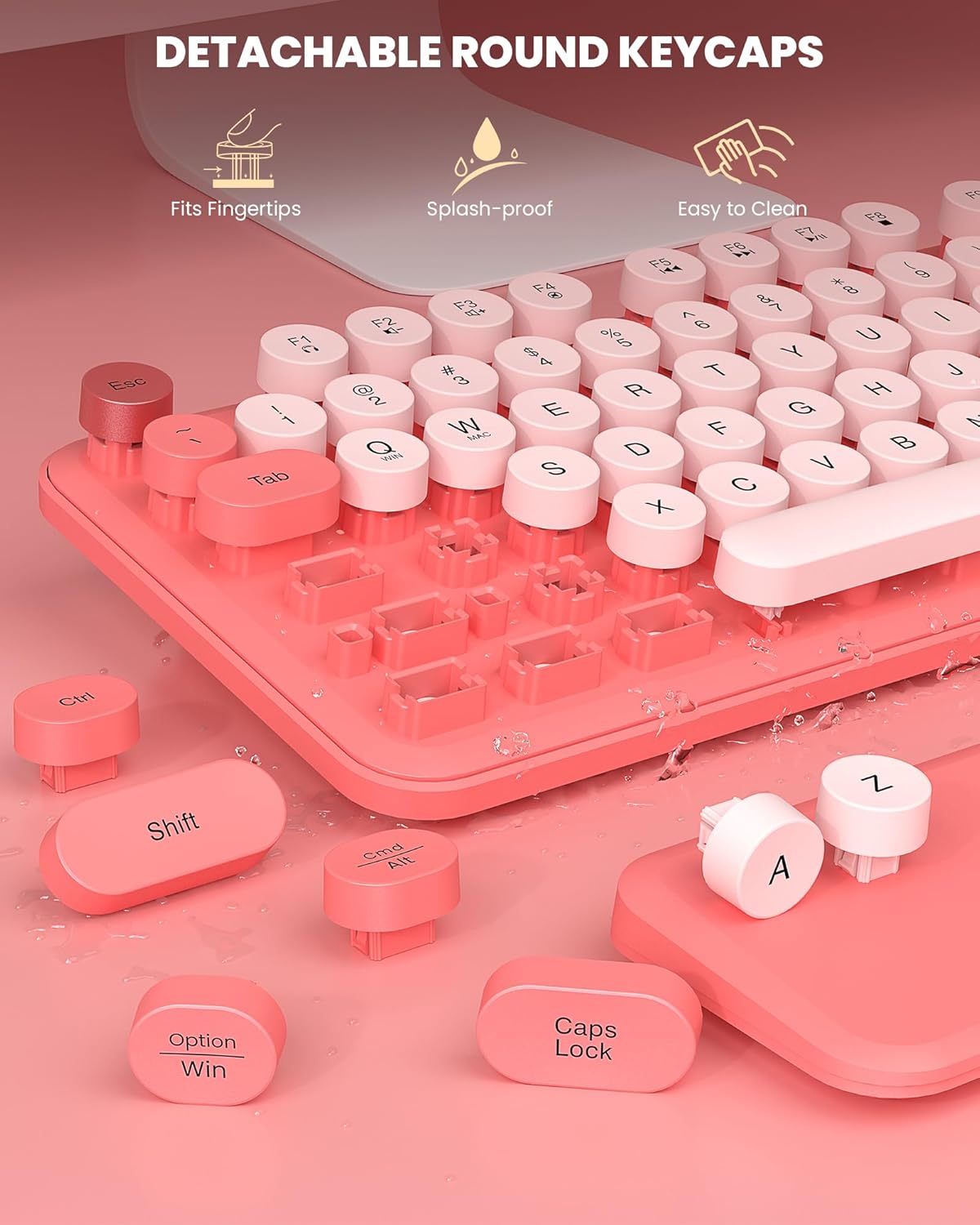
Figure 5.1: Detachable keycaps allow for easy cleaning.
6. Troubleshooting
If you encounter any issues with your Trueque Wireless Keyboard and Mouse Combo, please refer to the following common solutions:
| Problem | Possible Solution |
|---|---|
| Keyboard/Mouse not responding |
|
| Lag or intermittent connection |
|
| Mouse cursor erratic or not moving smoothly |
|
| USB receiver missing from package |
|
Video 6.1: Troubleshooting tips for common keyboard and mouse issues. (Source: Trueq Tech)
7. Specifications
| Feature | Detail |
|---|---|
| Product Dimensions | 17.2 x 5.1 x 1.5 inches |
| Item Weight | 2.03 pounds |
| Model Number | KC303 |
| Batteries Required | 2 AAA (Keyboard), 1 AA (Mouse) |
| Connectivity Technology | 2.4GHz USB Wireless |
| Special Features | Round Key, Ergonomic, Detachable Wrist Rest |
| Compatible Devices | Laptop, Personal Computer, Macbook Pro, Macbook Air, iMac, Television, Dell XPS 13/15, Inspiron, HP ENVY, Pavilion, Chromebook, Notebook |
| Manufacturer | Trueque |
| Country of Origin | China |
8. Warranty and Support
Trueque is committed to providing high-quality products and excellent customer service.
Warranty Information:
This product comes with a 12-month free warranty from the date of purchase. Please retain your proof of purchase for warranty claims.
Customer Support:
For any questions, technical assistance, or warranty claims, please contact our support team:
- Email Support: Truequeservice@outlook.com
- Phone Support (US): 1-866-608-6766 (Mon-Fri, 9am-1pm, 2pm-6pm PST)
Our team offers 24-hour online response and 360 days of brand service to ensure your satisfaction.

Figure 8.1: Trueque Customer Support Team ready to assist.
Ask a question about this manual
Ask about setup, troubleshooting, compatibility, parts, safety, or missing instructions. Manuals+ will review the question and use this page’s manual context to help answer it.