1. Introduction
This manual provides detailed instructions for the proper setup, operation, and maintenance of your Diyeeni Mini Action Camera 1080P. Please read this manual thoroughly before using the device to ensure optimal performance and longevity.
2. Product Overview
2.1 Key Features
- 1080p Video Camera: High-definition lens captures images with rich color and vividness. 1080P resolution ensures crisp clarity, while the microphone ensures clear audio.
- Color Screen: Equipped with a color screen for real-time viewing of recordings.
- Simple Operation: Only 2 buttons on the body for quick and easy mode selection and recording.
- Built-in Hotspot: Cordless module enables direct connection with smartphones for real-time viewing of footage.
- 500mAh Battery: Built-in lithium polymer battery for extended standby time. Type-C interface supports various power supply methods, allowing continuous video recording while charging.
- Loop Recording: Supports expandable memory up to 128GB. Automatically deletes oldest files when storage is full for uninterrupted recording.
- Compact and Convenient: 1/4 inch thread at the bottom for tripod installation. Magnetic base for strong attachment. Small and lightweight design for handheld or wearable use, suitable for meeting recordings, cycling, and other daily scenarios.
2.2 Package Contents
The package includes the Diyeeni Mini Action Camera and various accessories for versatile use:

Image: The Diyeeni Mini Action Camera, various mounting clips, a USB-C charging cable, and a SIM ejector tool are displayed.
The accessories include:
- Mini Action Camera
- Magnetic Lanyard
- Wearable Clip Mounts (various types)
- USB-C Charging Cable
- User Manual
3. Setup
3.1 Inserting the Storage Card
The camera supports expandable memory up to 128GB. A storage card (not included) is required for recording. Locate the card slot on the side of the camera, gently insert the card until it clicks into place.
3.2 Charging the Camera
Connect the camera to a power source using the provided USB-C charging cable. The built-in 500mAh lithium polymer battery ensures extended standby time. The camera supports continuous video recording while charging.
3.3 Attaching Accessories
The camera comes with various mounts for different scenarios:
- Magnetic Lanyard: Attach the camera to the magnetic lanyard for hands-free recording around your neck.
- Wearable Clip Mounts: Use the clip mounts to attach the camera to clothing, bags, or other surfaces. Some clips offer 360-degree rotation for flexible angle adjustment.
- Tripod Mount: The 1/4 inch thread at the bottom allows for easy installation on a tripod for stable shots.
4. Operating Instructions
4.1 Power On/Off
To power on the device, press and hold the power button located on the side of the camera. The color screen will activate. To power off, press and hold the power button again.
4.2 Recording Video
After turning on the camera, use the mode button (M) to select the desired recording mode. Press the power button briefly to start recording. The camera will indicate recording status on its color screen. Press the power button briefly again to stop recording and save the file.

Image: The camera is shown capturing various moments, highlighting its ease of use for photos, videos, and recording.
4.3 Connecting to a Smartphone (Built-in Hotspot)
The camera features a built-in cordless module that enables direct connection with smartphones. Long press the mode button (M) to activate the connection. This allows for real-time viewing of footage on your smartphone.

Image: The camera's built-in WiFi hotspot feature is demonstrated, showing a live feed on a connected smartphone.
4.4 Loop Recording Function
The camera supports loop recording. When the storage card is full, the camera automatically deletes the oldest files to continue recording without interruption. This ensures continuous capture of exciting footage.
4.5 Viewing and Transferring Files
Files can be viewed directly on the camera's color screen or transferred to a computer. To transfer files, connect the camera to a computer using the USB-C cable or remove the storage card and use a card reader.
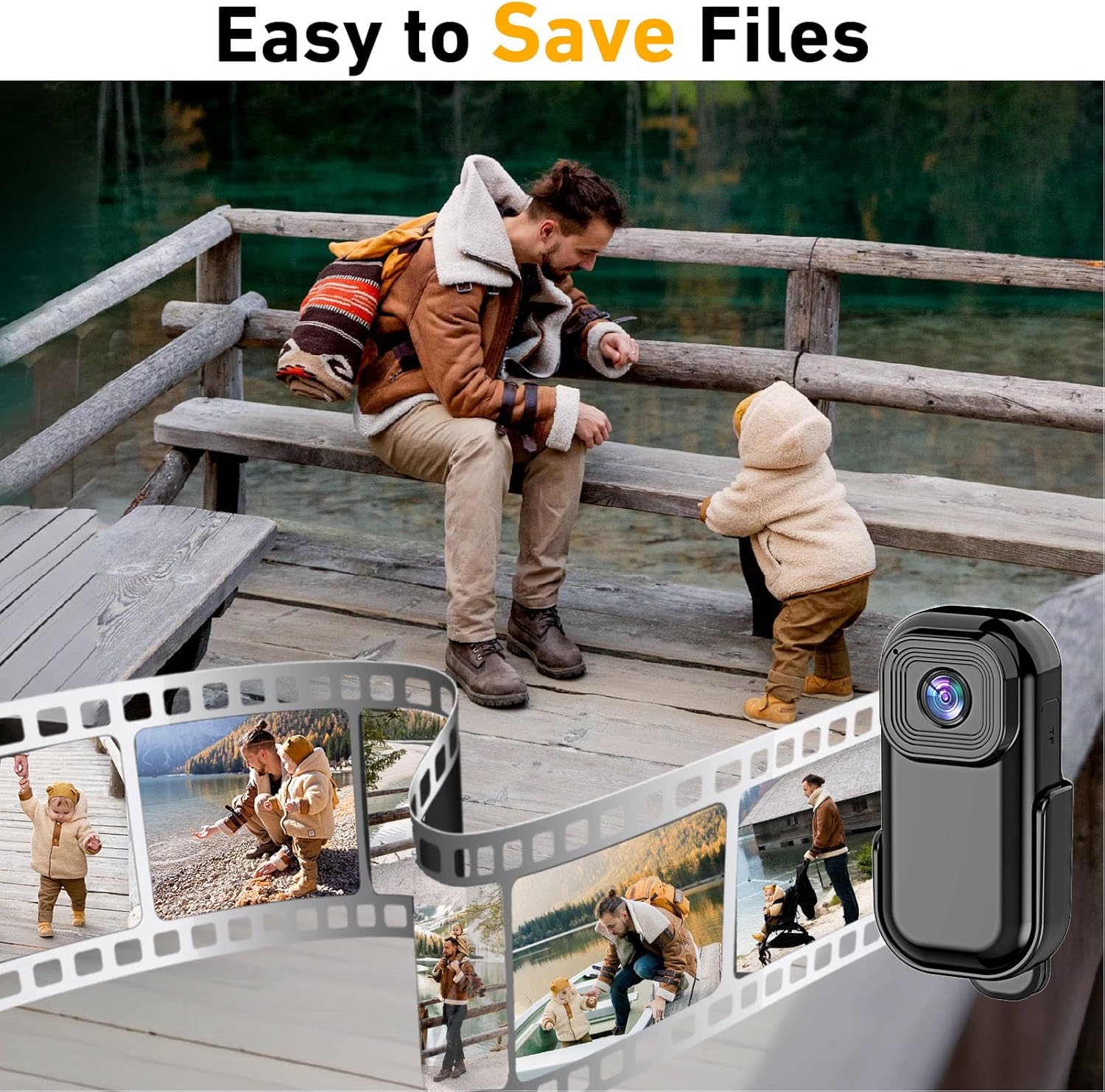
Image: A visual representation of how easily files can be saved and accessed from the camera.
5. Usage Scenarios
The Diyeeni Mini Action Camera is designed for a variety of activities:

Image: The camera is depicted being used during climbing, cycling, general sports, and running, highlighting its versatility.

Image: The camera is shown being worn on clothing, demonstrating its hands-free recording capability for daily life.
6. Official Product Videos
6.1 1080P Sports Action Camera - Your Daily Creative Companion
Video: This video showcases the 1080P Sports Action Camera in various daily and creative scenarios, highlighting its features and versatility as a personal recording device.
6.2 Usage Scenarios for Mini Body Camera
Video: This video demonstrates different practical usage scenarios for the Mini Body Camera, illustrating how it can be integrated into various activities and environments.
6.3 Use Experience - 4K Mini Thumb Camera
Video: This video provides a user's experience with a 4K Mini Thumb Camera, showcasing its functionality and performance from a first-person perspective.
7. Maintenance
7.1 Cleaning
To clean the camera, use a soft, dry cloth. For the lens, use a specialized lens cleaning cloth and solution. Avoid using harsh chemicals or abrasive materials that could damage the camera's surface or lens.
7.2 Storage
Store the camera in a cool, dry place away from direct sunlight and extreme temperatures. Ensure the camera is fully charged before long-term storage to maintain battery health.
8. Troubleshooting
8.1 Camera Not Turning On
- Ensure the battery is charged. Connect the camera to a power source and allow it to charge for at least 30 minutes.
- Press and hold the power button for several seconds to ensure it registers.
8.2 Recording Issues
- Check if a storage card is properly inserted and has sufficient free space.
- If loop recording is enabled, ensure older files are being deleted as expected.
- Format the storage card if issues persist (this will erase all data).
8.3 Connectivity Problems (Smartphone)
- Ensure the camera's hotspot feature is activated (long press M button).
- Check your smartphone's Wi-Fi settings to ensure it's connected to the camera's hotspot.
- Restart both the camera and your smartphone.
9. Specifications
| Feature | Detail |
|---|---|
| Brand | Diyeeni |
| Model Name | Diyeeniz5gi92k387 |
| Video Capture Resolution | 1080p |
| Video Capture Format | AVI |
| Screen Size | 2.4 Inches |
| Connectivity Technology | Ethernet (for data transfer, Hotspot for wireless viewing) |
| Special Feature | Adjustable |
| Effective Still Resolution | 2 MP |
| Compatible Devices | Laptop |
| Recommended Uses For Product | Indoor/Outdoor |
| Item Weight | 3.7 ounces |
| Package Dimensions | 4.37 x 4.06 x 1.97 inches |
10. Warranty and Support
For warranty information and customer support, please refer to the contact details provided with your product packaging or visit the official Diyeeni website. Keep your purchase receipt for warranty claims.