1. Introduction
The VIDENT iSmartDiag 510 PRO is a wireless OBD2 diagnostic tool designed for comprehensive vehicle system analysis and maintenance. This bidirectional scan tool offers advanced functionalities including lifetime updates, 28 service resets, full system diagnostics, and support for modern communication protocols like CAN FD and DoIP. It connects wirelessly to your iOS or Android device via Bluetooth, transforming your smartphone or tablet into a professional-grade diagnostic scanner. This manual provides essential information for setting up, operating, and maintaining your iSmartDiag 510 PRO to ensure optimal performance and longevity.
2. Safety Information
Always observe the following safety precautions when using the iSmartDiag 510 PRO:
- Ensure the vehicle is in a well-ventilated area.
- Wear appropriate personal protective equipment, such as eye protection.
- Do not operate the scanner while driving.
- Keep the device dry and away from extreme temperatures.
- Refer to your vehicle's service manual for specific procedures and warnings.
- Avoid touching hot engine components or moving parts.
3. Package Contents
Verify that all items are present in your iSmartDiag 510 PRO package:
- OBD II Scanner (VCI device)
- Activation Information Card
- Quick User Guide

Figure 1: The VIDENT iSmartDiag 510 PRO device and its retail packaging, illustrating the compact size of the scanner and the accompanying box.
4. Setup Guide
Follow these steps to set up your VIDENT iSmartDiag 510 PRO:
- Download the iSmartDiag App: Search for "iSmartDiag" in the Apple App Store (for iOS) or Google Play Store (for Android) and install the application on your smartphone or tablet.
- Register and Log In: Open the iSmartDiag app and follow the on-screen instructions to register a new account or log in if you already have one.
- Plug in the VCI Device: Locate your vehicle's OBD2 port (typically under the dashboard on the driver's side) and firmly plug in the iSmartDiag 510 PRO VCI device. The device's ring light will turn red, indicating it is receiving power.
- One-Click BT Pairing:
- Turn on Bluetooth on your mobile device, but do not pair through your phone's Bluetooth settings.
- Open the iSmartDiag app.
- Tap the Bluetooth icon within the app to initiate pairing.
- Once successfully paired, the device's ring light will turn blue.
- Download All Software: Within the app, navigate to the software download section. Download the diagnostic software, OBD2 diagnostic package, and special function diagnostic package relevant to your vehicle model. Ensure your device has sufficient memory.
- Turn on Ignition and Start Diagnosis: Turn your vehicle's ignition to the "ON" position (engine off) and proceed with the diagnostic functions within the iSmartDiag app.

Figure 2: Visual representation of the quick setup process, including app download, device connection, Bluetooth pairing, software download, and starting diagnosis.
5. Operating Instructions
5.1. Full System Diagnostics
The iSmartDiag 510 PRO provides comprehensive diagnostics for all available vehicle systems, including Engine, Transmission, ABS, SRS, and more. This allows you to:
- Read & Clear Codes: Displays stored Diagnostic Trouble Codes (DTCs) and clear them after repairs.
- Live Data: View real-time data streams from various sensors and components, often with graphical display for up to 4 PIDs simultaneously (e.g., RPM, speed, oil temperature).
- ECU Information: Access Electronic Control Unit (ECU) information.
- Freeze Frame: View a snapshot of sensor data at the moment a fault code was set.
- Actuation Tests: Perform active tests to command vehicle components for functional checks.

Figure 3: Overview of the full system diagnostic functions, including reading/clearing codes, live data, ECU info, freeze frame, actuation tests, and Auto VIN & Scan.
5.2. Bidirectional Controls (Active Tests)
This tool supports full bidirectional controls, allowing you to send commands to the vehicle's ECU to perform various active tests. This is invaluable for diagnosing faults and verifying repairs without needing to manually operate vehicle components. Examples include:
- Activating windows/sunroof
- Testing mirrors
- Controlling headlights
- Operating wipers
- Activating the fuel pump
- Sounding the horn
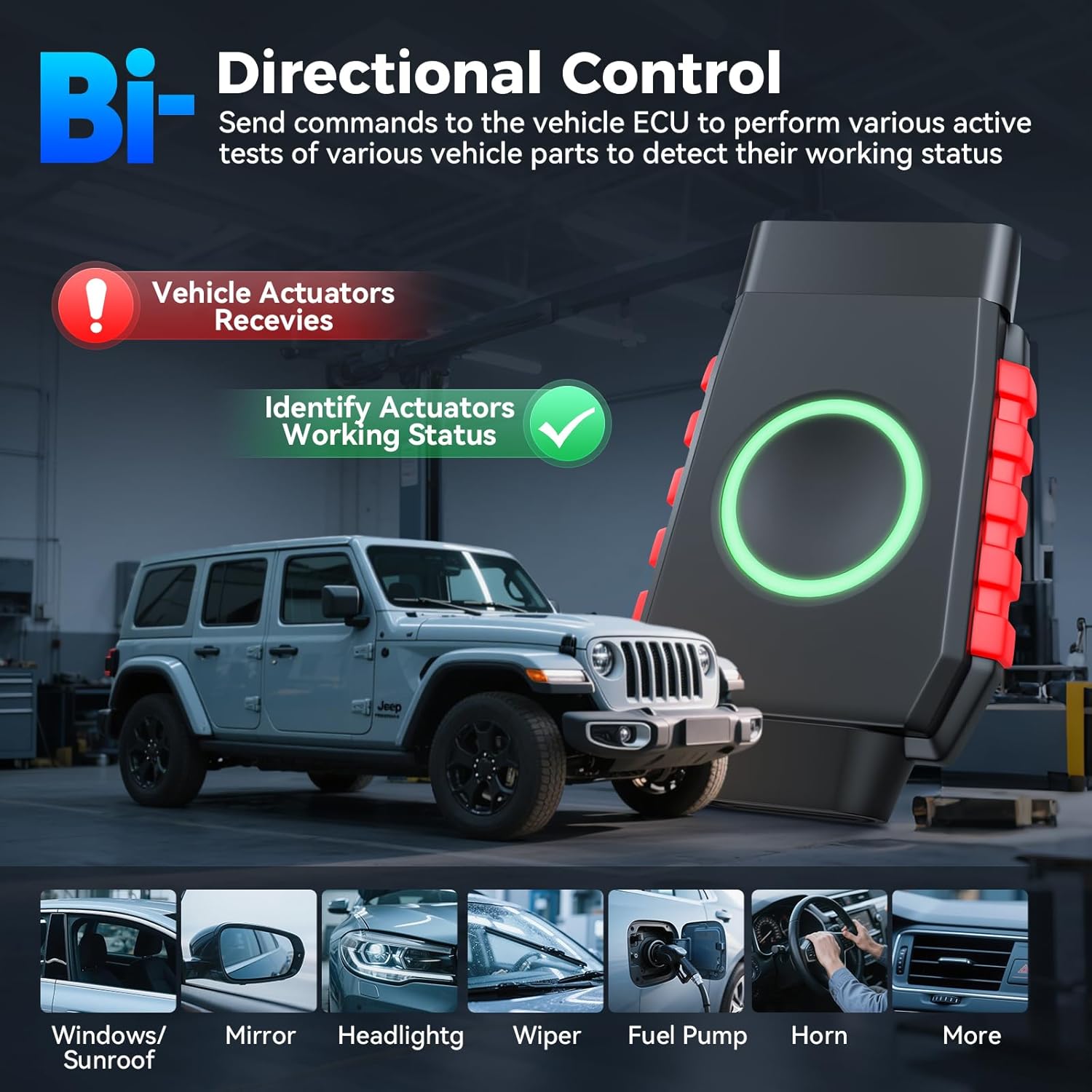
Figure 4: Illustration of bidirectional control, showing the ability to activate various vehicle components directly from the scanner for diagnostic purposes.
5.3. Special Functions (28 Resets)
The iSmartDiag 510 PRO offers 28 advanced service functions to assist with common maintenance tasks. Note that the availability of specific functions may vary by vehicle make, model, and year.
- Crank Sensor Relearn (Gear Learn): Resets adaptive values for crankshaft position sensor.
- SAS Calibration: Steering Angle Sensor calibration.
- ABS Bleeding: Performs brake bleeding procedures.
- Throttle Relearn: Adjusts throttle body position.
- Injector Coding: Programs new injector codes into the ECU.
- Oil Reset: Resets the oil service light.
- EPB Reset: Electronic Parking Brake reset.
- Other functions include Airbag Reset, BMS Reset, DPF Regeneration, Tire Pressure Monitor System (TPMS) Reset, Window Initialization, Suspension Calibration, Clutch Adaptation, A/C Relearn, A/F Reset, AdBlue Reset, Gearbox Match, Start/Stop Reset, Language Change, Sunroof Initialization, and more.

Figure 5: A visual display of some of the 28 maintenance services, including Crank Relearn, Oil Reset, Throttle Relearn, ABS Bleeding, EPB Reset, and Injector Coding.
5.4. Full OBD2 Functions
The iSmartDiag 510 PRO supports all 10 OBD2 test modes, providing comprehensive engine diagnostics:
- Read Codes: Displays stored Diagnostic Trouble Codes.
- Erase Codes: Clears DTCs and turns off the Check Engine Light.
- I/M Readiness: Checks the readiness of the emission monitoring systems.
- Live Data Stream: Displays real-time data from vehicle sensors.
- Freeze Frame Data: Shows engine conditions at the time a fault occurred.
- O2 Sensor Test: Retrieves O2 sensor monitor test results.
- On-Board Monitor Test: Retrieves results for emission-related powertrain components.
- Component Test: Allows initiation of a leak test for the vehicle's EVAP system.
- Vehicle Information: Retrieves VIN, Cal ID, and CVN.
- DTC Help: Provides detailed explanations of fault codes.

Figure 6: Detailed view of the full OBD2 functions, including various tests and information retrieval for engine diagnostics.
5.5. Real-time Live Data & Historical VIN Record
Monitor up to 4 PIDs (Parameter IDs) simultaneously with real-time data graphing for a comprehensive view of your vehicle's performance. The Historical VIN feature automatically saves previously scanned vehicles, eliminating the need for manual VIN re-entry and saving time for frequent users.
5.6. Key Fob Programming
The iSmartDiag 510 PRO includes key fob programming capabilities, a premium function often found in higher-tier professional scanners. This allows users to program new key fobs for compatible vehicles, providing a cost-effective solution compared to dealership services.
5.7. CAN FD & DoIP Support
The tool supports the latest CAN FD and DoIP protocols, ensuring compatibility with newer vehicle models from 2018 onwards, including many GM, GMC, Cadillac, BMW, and Mercedes-Benz vehicles. This eliminates the need for separate adapters, facilitating faster data transfer and diagnostics.
5.8. Extensive Car Compatibility & Multilingual Support
The iSmartDiag 510 PRO offers rapid troubleshooting for over 10,000 vehicles from over 110 car brands, manufactured after 1996 that utilize the OBDII protocol. It supports 17 languages, removing language barriers for users worldwide.
6. Maintenance
- Software Updates: The iSmartDiag 510 PRO comes with lifetime free software updates. Regularly check the app for new updates to ensure compatibility with the latest vehicle models and access new features.
- Device Care: Keep the VCI device clean and free from dust and moisture. Store it in a cool, dry place when not in use.
- Battery Life: The VCI device is powered by the vehicle's OBD2 port and does not contain an internal battery. It will not drain your vehicle's battery when plugged in.
7. Troubleshooting
- Connection Issues: If the device fails to pair via Bluetooth, ensure you are initiating the pairing process from within the iSmartDiag app, not your phone's native Bluetooth settings. Check app permissions, especially storage access, as updates are downloaded to your phone.
- Lost Pairing Password/Forgotten Serial Number: Refer to the user guide or contact VIDENT support through the options provided in the app.
- Function Availability: Some advanced functions (e.g., auto bleed, throttle relearn) may not be available for all vehicle models. Consult the app or VIDENT support for specific vehicle compatibility.
- Clearing Codes: Certain codes, such as airbag codes, may require the underlying issue to be repaired before they can be successfully cleared from the vehicle's system.
8. Specifications
| Specification | Detail |
|---|---|
| Brand | VIDENT |
| Model | iSmartDiag510 PRO |
| Power Source | OBD II Port |
| Product Dimensions | 3.07"L x 2.08"W x 0.82"H |
| Operating System Compatibility | iOS & Android |
| Automotive Fit Type | Universal Fit (OBDII protocol) |
| Supported Protocols | CAN FD & DoIP |
| Special Functions | 28+ Reset/Service Functions |
| Connectivity | Wireless Bluetooth |
| Software Updates | Lifetime Free Update |
| Supported Languages | 17 Languages |
| Vehicle Coverage | 10,000+ vehicles, 110+ car brands (1996-present) |
9. Warranty and Support
The VIDENT iSmartDiag 510 PRO comes with lifetime free software updates, ensuring your tool remains current with the latest vehicle technologies and diagnostic capabilities. For any technical assistance, troubleshooting, or inquiries regarding product compatibility, please reach out to VIDENT support via the contact options available within the iSmartDiag app or by emailing videntdirect@outlook.com.


