1. Introduction
This manual provides detailed instructions for the DAIDAI×AJAZZ AK870 TKL 87-Key Mechanical Keyboard. Please read this manual thoroughly before using the product to ensure proper operation and to maximize your user experience. This keyboard features a TKL layout, gasket structure, hot-swappable switches, tri-mode connectivity (Type-C, 2.4G, Bluetooth 5.1), and South-Facing RGB lighting.

Image 1: The DAIDAI×AJAZZ AK870 TKL Mechanical Keyboard, showcasing its compact 87-key layout and MOA profile keycaps.

Image 2: The AK870 TKL mechanical keyboard positioned on a desk, illustrating its compact size and aesthetic in a typical workspace setup.
2. Package Contents
Upon opening the package, please verify that all items are present and in good condition:
- DAIDAI×AJAZZ AK870 TKL Mechanical Keyboard
- USB Type-C Cable
- 2.4G Wireless Receiver
- Keycap Puller
- Switch Puller
- User Manual (this document)
3. Product Overview
The AK870 is an 87-key Tenkeyless (TKL) mechanical keyboard designed for efficiency and customization. Key features include:
- TKL Layout: Saves desk space while retaining essential keys.
- Gasket Structure: Incorporates multiple layers of sound-absorbing materials (Poron sandwich cotton, IXPE lower shaft soft pad, PET high-quality sound pad, bottom cotton pad, bottom silicone pad) for a refined typing sound and feel.
- Full-Key Hot-Swappable: Compatible with most 3/5-pin mechanical switches, allowing for easy switch replacement without soldering.
- Tri-Mode Connectivity: Supports wired (USB Type-C), 2.4G wireless, and Bluetooth 5.1 connections.
- 4000mAh Battery: Provides extended wireless usage.
- MOA Keycaps: Double-color injection molded PBT keycaps for durability and a unique profile.
- South-Facing RGB: Customizable 16-million color RGB lighting with 20 default modes.
- Maillard Linear Switches: Factory pre-lubricated for smooth operation.
- Mac/Windows Compatibility: Fully compatible with both operating systems.
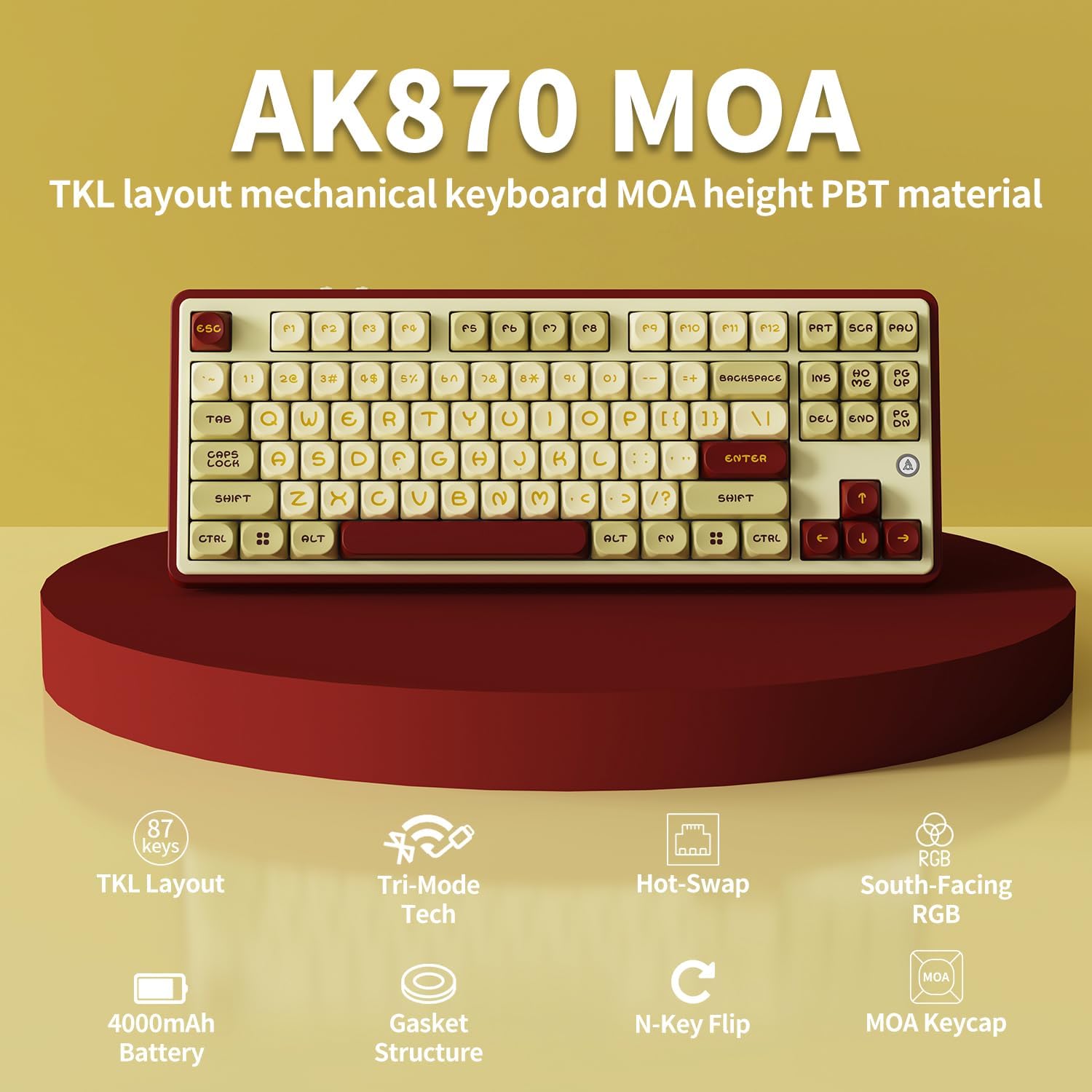
Image 3: Overview of the AK870 MOA keyboard highlighting its TKL layout, tri-mode connectivity, hot-swap capability, gasket structure, 4000mAh battery, N-key rollover, and MOA keycaps.

Image 4: A detailed view of the AK870 TKL mechanical keyboard, emphasizing its key features and design elements.

Image 5: Illustration of the AK870's full-key hot-swap feature, supporting 3/5-pin switches, along with specifications for the Maillard linear switch (Operating Force: 50±10gf, Bottom Force: 56±10gf, Actuation Travel: 1.6±0.5mm, Total Travel: 3.5±0.5mm).
4. Setup
4.1 Initial Charging
Before first use, it is recommended to fully charge the keyboard. Connect the provided USB Type-C cable to the keyboard's Type-C port and the other end to a USB power source (e.g., computer USB port, wall adapter). The charging indicator will show the charging status.
4.2 Connecting the Keyboard
The AK870 supports three connection modes:
- Wired Mode (USB Type-C):
- Ensure the mode switch on the keyboard is set to "Wired" or the appropriate position for wired connection.
- Connect the USB Type-C cable from the keyboard to your computer's USB port.
- The keyboard will be automatically recognized by your system.
- 2.4G Wireless Mode:
- Locate the 2.4G wireless receiver (usually stored in a compartment on the keyboard).
- Plug the 2.4G receiver into an available USB port on your computer.
- Set the keyboard's mode switch to "2.4G" or the appropriate wireless position.
- The keyboard should connect automatically. If not, press Fn + 4 to initiate pairing.
- Bluetooth 5.1 Mode:
- Set the keyboard's mode switch to "BT" or the appropriate Bluetooth position.
- Press and hold Fn + 1, Fn + 2, or Fn + 3 for 3-5 seconds to enter pairing mode for Bluetooth device 1, 2, or 3 respectively. The indicator light will flash rapidly.
- On your device (computer, tablet, phone), open Bluetooth settings and search for "AK870".
- Select "AK870" to pair. The indicator light will stop flashing once connected.
- To switch between paired Bluetooth devices, press Fn + 1, Fn + 2, or Fn + 3 briefly.

Image 6: Visual representation of the AK870's 4000mAh long-life battery and its three connectivity options: Bluetooth 5.0, Wireless 2.4G, and Wired Type-C.
5. Operating Instructions
5.1 Function Keys (Fn Combinations)
The AK870 utilizes the Fn key for various secondary functions:
- Fn + F1-F12: Standard multimedia and system functions (e.g., volume control, media playback). Specific functions may vary.
- Fn + 1/2/3: Switch between Bluetooth devices.
- Fn + 4: Pair 2.4G wireless receiver.
- Fn + |: Cycle through 20 default RGB lighting modes.
- Fn + Arrow Keys: Adjust RGB brightness and speed (specific combinations may vary, refer to keyboard markings).
- Fn + Win: Lock/Unlock Windows key.
- Fn + Backspace: Delete (if marked).
- Fn + Ins/Home/PgUp/Del/End/PgDn: Navigation and editing keys.
5.2 RGB Lighting Control
The AK870 features South-Facing RGB lighting with 16 million colors. You can control the lighting effects as follows:
- Press Fn + | to cycle through the 20 built-in lighting effects.
- Use specific Fn key combinations (often with arrow keys or dedicated keys) to adjust brightness, speed, and direction of the lighting effects. Refer to the keycap legends for exact controls.
- For advanced customization, download the official driver software from the DAIDAI or AJAZZ website. The software allows for DIY RGB lighting effects and key remapping.

Image 7: The AK870 keyboard displaying its South-Facing RGB lighting, capable of 16 million colors.

Image 8: The AK870 keyboard showcasing various RGB lighting effects across its keys.
5.3 Mac/Windows Mode Switching
The keyboard is compatible with both Mac and Windows operating systems. You can switch between modes using the customizable TFT screen (if present) or a specific Fn key combination. Refer to the keyboard's dedicated key or the driver software for this function.
6. Maintenance
6.1 Cleaning the Keyboard
- Disconnect the keyboard from your computer before cleaning.
- Use a soft, lint-free cloth slightly dampened with water or a mild cleaning solution to wipe the keycaps and chassis.
- For dust and debris between keycaps, use a can of compressed air.
- To deep clean, use the provided keycap puller to remove keycaps and clean the plate underneath. Ensure the keyboard is completely dry before reattaching keycaps and reconnecting.
6.2 Switch Replacement (Hot-Swap)
The AK870 supports hot-swappable switches, allowing you to change switches without soldering:
- Use the provided switch puller to carefully grip the switch and pull it straight up.
- Align the pins of the new switch with the holes on the PCB. Ensure the pins are straight.
- Gently push the new switch into place until it clicks. Do not force it. If resistance is met, remove the switch and check the pins for bending.
7. Troubleshooting
- Keyboard not responding:
- Ensure the keyboard is charged.
- Check the connection mode switch (Wired, 2.4G, BT) matches your connection method.
- For wired connection, try a different USB port or cable.
- For 2.4G, ensure the receiver is securely plugged in and try re-pairing (Fn + 4).
- For Bluetooth, ensure it's paired correctly and try re-pairing (Fn + 1/2/3).
- Keys not registering or double-typing:
- This could indicate a faulty switch. Use the switch puller to replace the affected switch.
- Ensure the switch is fully seated in the PCB.
- RGB lighting not working:
- Ensure the keyboard is powered on.
- Cycle through lighting modes using Fn + |.
- Check if the brightness is set too low.
- If using custom profiles, ensure the driver software is running and the profile is active.
- Bluetooth connection unstable:
- Ensure the keyboard is within range of your device.
- Minimize interference from other wireless devices.
- Try unpairing and re-pairing the keyboard with your device.
8. Specifications
| Feature | Detail |
|---|---|
| Model | AK870 |
| Layout | 87-Key TKL |
| Structure | Gasket Mount |
| Switches | Hot-swappable (3/5-pin compatible), Maillard Linear Switches |
| Keycaps | MOA Profile, Double-shot PBT |
| Connectivity | USB Type-C (Wired), 2.4G Wireless, Bluetooth 5.1 |
| Battery Capacity | 4000mAh |
| RGB Lighting | South-Facing, 16 Million Colors, 20 Default Modes |
| Compatibility | Windows, macOS, iOS, Android (Windows 7 and below only support 2.4G/Wired) |
| Product Dimensions | 15 x 6 x 5 inches (approximate) |
| Item Weight | 2.3 pounds |
| Manufacturer | AJAZZ |

Image 9: Diagram illustrating the dimensions of the AK870 TKL keyboard: 14.6 inches length, 6 inches width, 1.2 inches height (front), and 0.8 inches height (rear).
9. Warranty and Support
DAIDAI products, manufactured by AJAZZ, come with a 12-month product warranty. If you encounter any issues or have questions regarding your AK870 keyboard, please contact our customer support team. Our professional team is available to assist you.
For further assistance, please visit the official DAIDAI or AJAZZ website for driver downloads, FAQs, and contact information.