1. Introduction
The Aubor Mini Projector HY300Pro is a compact and versatile smart projector designed for various entertainment and presentation needs. Featuring built-in Android TV 11.0, Wi-Fi 6, and Bluetooth 5.2, it offers seamless access to streaming services and external devices. Its 180° rotatable stand and automatic keystone correction provide flexible projection options, making it suitable for home theater, outdoor movie nights, or travel.
2. Package Contents
Ensure all items are present in the package:
- Aubor Mini Projector HY300Pro
- Remote Control (batteries not included)
- Power Cord
- HD Cable
- Instruction Manual
3. Product Overview
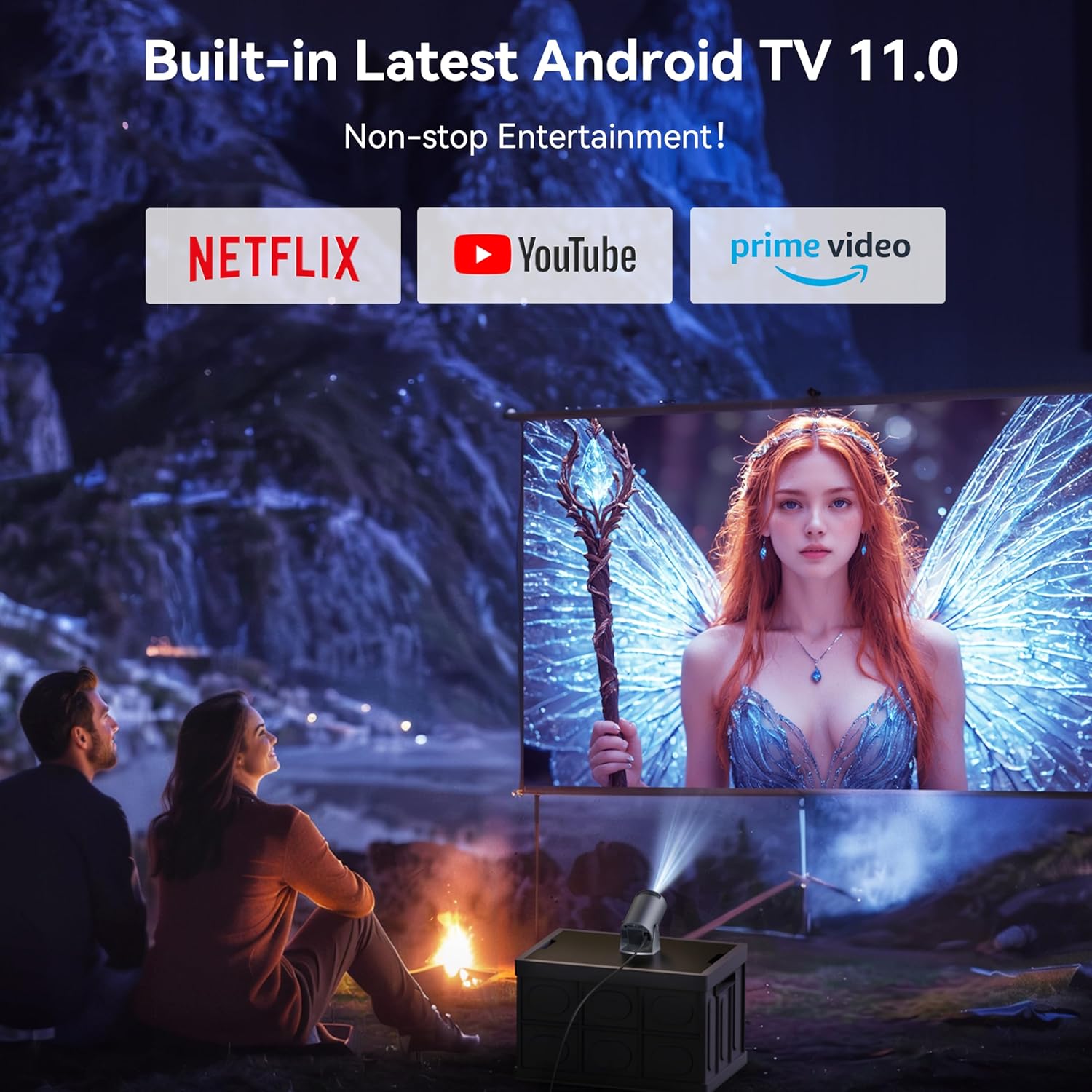
Figure 1: Front view of the Aubor Mini Projector HY300Pro, showcasing its compact design and projection lens.

Figure 2: Rear view of the projector, highlighting the HDMI, USB, and audio ports for various connections.
3.1 Physical Components
- Projection Lens: Located at the front of the device.
- Manual Focus Wheel: Adjusts image clarity.
- 180° Rotatable Stand: Integrated for flexible projection angles.
- Power Button: For turning the device on/off.
3.2 Ports and Connectivity
- HDMI Port: For connecting external video sources (e.g., laptops, gaming consoles, TV sticks).
- USB Ports: For connecting USB flash drives or other USB devices.
- 3.5mm Audio Jack: For connecting external speakers or headphones.
- Power Input: For connecting the power cord.
4. Setup
4.1 Placement
Position the projector on a stable surface. The integrated 180° rotatable stand allows for projection onto walls, ceilings, or any desired angle. Ensure the projection surface is smooth and light-colored for optimal image quality.

Figure 3: The projector's 180° rotatable stand allows for versatile placement and projection angles, including ceiling projection.

Figure 4: Illustration of various screen sizes (40-130 inches) achievable at different throw distances (19.7-118 inches).
4.2 Power Connection
Connect the provided power cord to the projector's power input port and then to a power outlet.
4.3 Initial Focus Adjustment
Turn the manual focus wheel located on the side of the projector until the projected image appears clear and sharp on the screen.

Figure 5: Close-up of the manual focus wheel, used to sharpen the projected image.
4.4 Automatic Keystone Correction
The projector features automatic keystone correction, which adjusts the image to be rectangular even if the projector is placed at an angle. This function operates automatically upon startup or when the projector's position is changed.
5. Operating Instructions
5.1 Power On/Off
Press the power button on the projector or the remote control to turn the device on or off.
5.2 Navigation
Use the provided remote control to navigate through the projector's interface. The remote supports both standard directional navigation and a mouse mode for easier interaction with certain applications.
Video 1: An overview of the Aubor HY300Pro Mini Projector, demonstrating its features and ease of use.
5.3 Connecting to Wi-Fi
To access online streaming services, connect the projector to a Wi-Fi network:
- Go to the 'Settings' menu.
- Select 'Networking Setting'.
- Turn on Wi-Fi and select your desired network from the list.
- Enter the Wi-Fi password if prompted. The projector supports 2.4G/5G Wi-Fi 6 for stable and fast connections.
Video 2: A demonstration of the simple setup process for the Aubor mini projector, including basic operation.
5.4 Bluetooth Connectivity
The projector features Bluetooth 5.2 for connecting to external audio devices:
- Go to the 'Settings' menu.
- Select 'Bluetooth Setting'.
- Turn on Bluetooth and search for available devices.
- Select your Bluetooth headphones or speaker to pair.
5.5 Screen Mirroring
Mirror content from your phone or tablet to the projector:
- Ensure your mobile device and the projector are connected to the same Wi-Fi network.
- On the projector's home screen, select the 'Applications' icon.
- Choose the appropriate screen mirroring application (e.g., AirPin PRO for iOS, Miracast for Android).
- Follow the on-screen instructions to connect your mobile device.
5.6 Using Built-in Android TV 11.0
The projector comes with Android TV 11.0 pre-installed, providing access to popular streaming apps:
- From the home screen, directly select icons for Netflix, YouTube, Prime Video, and other pre-installed applications.
- Log in with your account credentials to access content.
- Additional apps can be downloaded from the AppStore or Google Play Store.
5.7 External Device Connection
To connect external devices via HDMI or USB:
- HDMI: Connect your device (e.g., laptop, Switch, TV Stick) to the projector's HDMI port using the provided HD cable. Select the 'HDMI' input source from the projector's main menu.
- USB: Insert a USB flash drive into a USB port. Navigate to the 'Files' application on the projector to browse and play media content.
6. Maintenance
6.1 Cleaning
- Lens: Gently wipe the projector lens with a soft, lint-free cloth. Avoid abrasive materials or harsh chemicals.
- Vents: Regularly clean the ventilation grilles to prevent dust buildup, which can affect cooling performance. Use a soft brush or compressed air.
- Exterior: Wipe the projector's exterior with a dry, soft cloth.
6.2 Cooling System
The projector features a unique cooling system designed to keep noise below 25 dB. Ensure that the ventilation vents are not blocked during operation to maintain optimal performance and prevent overheating.
7. Troubleshooting
- No Image: Check power connections, ensure the lens cap is removed, and verify the correct input source is selected.
- Blurry Image: Adjust the manual focus wheel. For distorted images, check automatic keystone correction settings.
- No Sound: Ensure volume is not muted or too low. Check external speaker connections if applicable. Verify Bluetooth pairing for wireless audio.
- Wi-Fi Connection Issues: Ensure the projector is within range of the Wi-Fi router. Re-enter the password if necessary.
- Remote Control Not Working: Check battery levels and ensure there are no obstructions between the remote and the projector.

Figure 6: The Aubor Mini Projector displaying a movie in a home setting.
8. Specifications
| Feature | Specification |
|---|---|
| Brand | AUBOR |
| Model Number | HY300Pro |
| Item Weight | 1.63 pounds |
| Product Dimensions | 3.79 x 3.5 x 6.69 inches |
| Operating System | Android TV 11.0 |
| Display Resolution | 1920 x 1080 (1080P Full HD support) |
| Connectivity Technology | Wireless/Bluetooth/WiFi/HDMI/USB/3.5Audio |
| Wi-Fi Standard | 2.4G/5G WiFi6 |
| Bluetooth Version | 5.2 |
| Projection Size | 40-130 inches |
| Throw Distance | 19.7 inches - 118 inches |
| Noise Level | Below 25 dB |
9. Warranty and Support
Aubor provides comprehensive after-sales support for the HY300Pro Mini Projector:
- Money Back Guarantee: 2 years
- Maintenance Guarantee: 3 years
- Technical Support: Lifetime
For any software unavailability or other issues, please contact our professional after-sales team.