1. Introduction
This manual provides detailed instructions for the installation, operation, and maintenance of your IOP[ LC960 and LC970 ink cartridges. These high-yield replacement cartridges are designed to be compatible with a range of Brother MFC and FAX series printers, ensuring clear text and vivid colors for all your printing needs. Please read this manual thoroughly before installing and using the cartridges to ensure optimal performance and longevity.
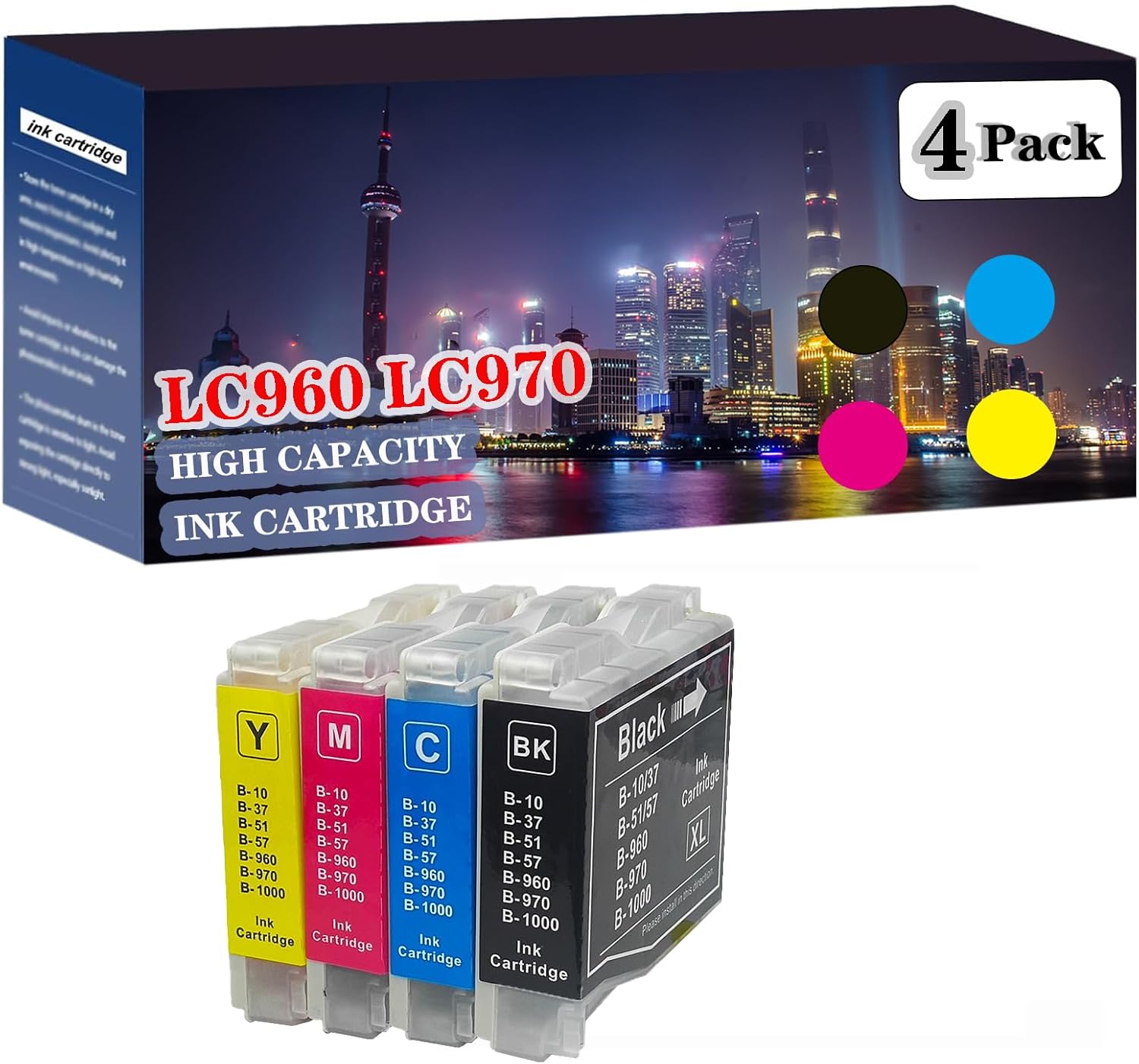
Image 1.1: IOP[ LC960 LC970 Ink Cartridge 4-Pack. This image displays the packaging box and the four individual ink cartridges (Black, Cyan, Magenta, Yellow) included in the combination pack.
2. Compatible Printers
The IOP[ LC960 and LC970 ink cartridges are compatible with the following Brother printer models. Please verify your printer model before installation.
- Brother DCP Series: DCP-130C, DCP-135C, DCP-150C, DCP-153C, DCP-157C, DCP-350C, DCP-540CN, DCP-560CN, DCP-750CN, DCP-770CW, DCP-3300, DCP-750CW
- Brother MFC Series: MFC-235C, MFC-240C, MFC-260C, MFC-3360C, MFC-440CN, MFC-460CN, MFC-465CN, MFC-5460CN, MFC-5860CN, MFC-630CD, MFC-630CDW, MFC-660CN, MFC-665CW, MFC-680CN, MFC-845CW, MFC-850CDN, MFC-850CDWN, MFC-860C
- Brother FAX Series: FAX-1355, FAX-1360, FAX-1460, FAX-560, FAX-2480C
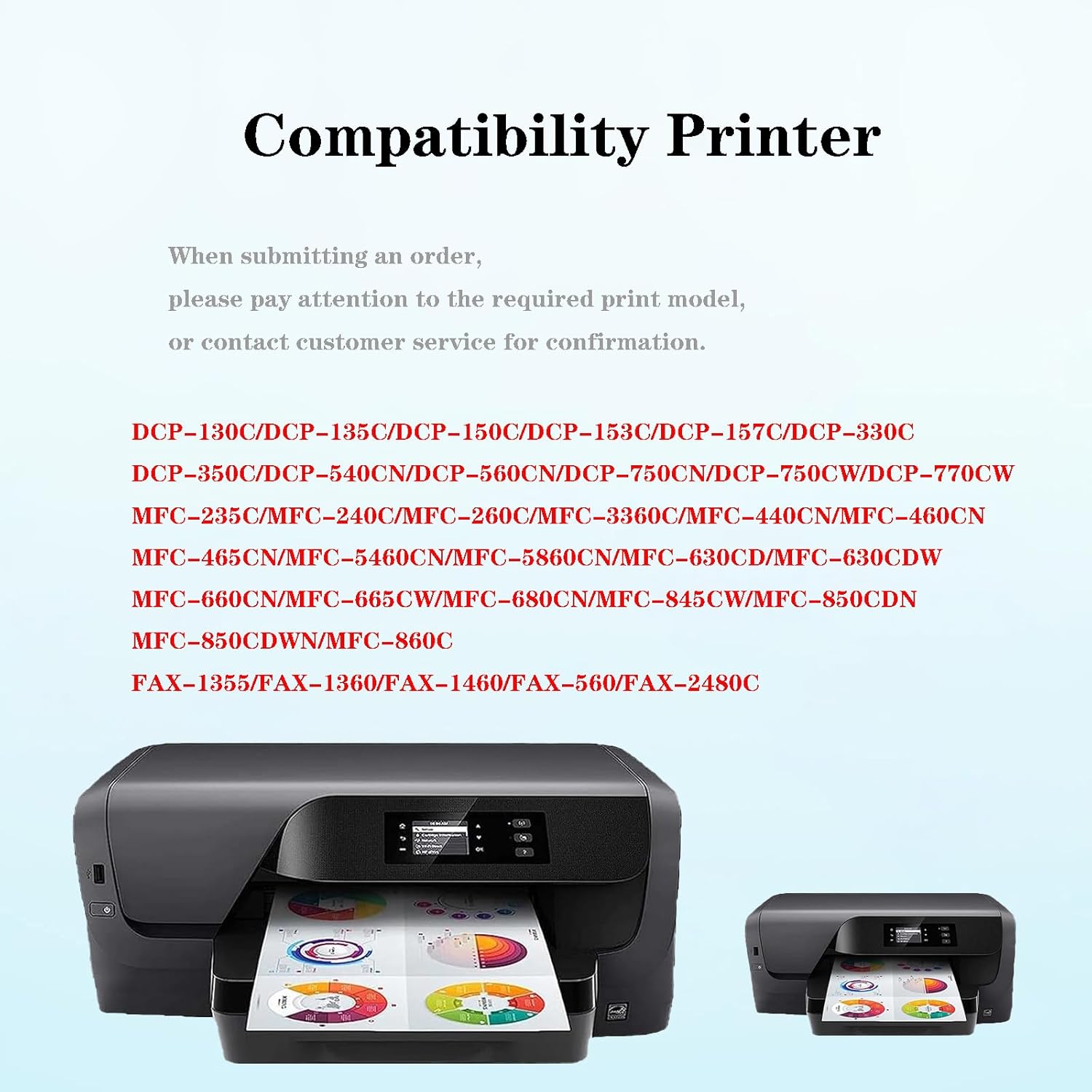
Image 2.1: Compatible Printer Models. This image visually confirms the extensive list of Brother DCP, MFC, and FAX series printers that are compatible with these ink cartridges.
3. Setup and Installation
Follow these steps to correctly install your new IOP[ LC960 or LC970 ink cartridges into your Brother printer. The installation process is similar across various compatible models.
- Prepare the Printer: Ensure your printer is powered on. Open the front cover of the printer and press the ink button to move the print head assembly to the cartridge replacement position.
- Open Cartridge Cover: Locate and open the ink cartridge cover within the printer.
- Remove Old Cartridge: Gently press the release lever or tab on the old ink cartridge and lift it straight out of its slot. Dispose of the old cartridge responsibly.
- Prepare New Cartridge: Carefully remove the new IOP[ ink cartridge from its packaging. Remove any protective tape or plastic seals, being careful not to touch the electrical contacts or print nozzles.
- Insert New Cartridge: Insert the new cartridge into the correct color-coded slot. Push the cartridge downward firmly until it clicks securely into place.
- Close Covers: Close the ink cartridge cover, then close the main front cover of the printer.
- Finalize Installation: The printer may automatically detect the new cartridges and initiate a cleaning cycle. If prompted, press the ink button on the printer to complete the replacement process.

Image 3.1: Visual Guide to Ink Cartridge Installation. This diagram illustrates the seven-step process for replacing ink cartridges, from opening the printer cover to securing the new cartridge in place.
4. Operating Instructions
Once installed, your IOP[ LC960 and LC970 ink cartridges are ready for use. These cartridges are engineered for smooth printing, producing intense colors with good gloss and high color rendering, ensuring clear fonts and lifelike images for all your documents and photos.
- Print Quality: For optimal print quality, ensure your printer's software and drivers are up to date. Select appropriate print settings (e.g., paper type, print quality) in your printer's preferences before printing.
- Ink Levels: Monitor ink levels through your printer's utility software. Replace cartridges when indicated to avoid interruptions or damage to the print head.

Image 4.1: Print Quality Comparison. This image demonstrates the high-quality print output achievable with IOP[ ink cartridges compared to an ordinary printout, highlighting superior color and detail.
5. Maintenance
Proper maintenance helps extend the life of your ink cartridges and ensures consistent print quality.
- Storage: Store unused cartridges in their original, sealed packaging in a cool, dry place at room temperature, away from direct sunlight and extreme temperatures.
- Handling: Avoid touching the electrical contacts or print nozzles on the cartridge. Oils from your skin can interfere with proper function.
- Print Head Cleaning: If you notice streaks, faded colors, or missing lines in your printouts, run a print head cleaning cycle through your printer's utility software. This helps clear clogged nozzles.
- Regular Use: Print regularly, even if only a test page, to prevent ink from drying out in the nozzles.
6. Troubleshooting
Here are solutions to common issues you might encounter:
- Cartridge Not Recognized:
- Ensure the cartridge is fully seated and clicks into place. Remove and reinsert it firmly.
- Turn off the printer, unplug it for a few minutes, then plug it back in and turn it on.
- Gently clean the electrical contacts on the cartridge and inside the printer with a lint-free cloth.
- Poor Print Quality (Streaks, Fading, Incorrect Colors):
- Run a print head cleaning cycle through your printer's maintenance utility. You may need to run it multiple times.
- Perform a print head alignment if available in your printer's software.
- Check ink levels to ensure cartridges are not empty or critically low.
- Ensure you are using the correct paper type setting in your printer preferences.
- Ink Leaks:
- Ensure the cartridge is installed correctly and not damaged.
- If leaking persists, remove the cartridge and contact customer support for a replacement.
7. Product Specifications
| Product Model | LC960, LC970 |
| Brand | IOP[ |
| Compatible Devices | Brother Inkjet Printers (DCP, MFC, FAX series) |
| Product Dimensions | Approximately 3.94 x 3.94 x 3.94 inches (for the package) |
| Item Weight | 7 ounces |
| Number of Items | 1 (Combination Pack) |
| On-mode Power Consumption | 0 watts (for the cartridge itself) |

Image 7.1: Ink Volume Information. This image provides details on the ink volume for black (30 ML) and color (15 ML) cartridges, indicating high print yield.
8. Warranty and Support
IOP[ is committed to providing high-quality products and customer satisfaction.
- Warranty: Specific warranty details are not provided in the product information. Please refer to the product packaging or contact customer support for warranty information.
- Customer Support: If you encounter any problems or have questions regarding your IOP[ ink cartridges, please do not hesitate to contact our professional support team. We aim to respond and provide assistance within 24 hours.


