
1. Product Overview
This manual provides instructions for the Roinvou 4+64G Android Radio, an upgraded in-dash head unit designed for Toyota Prius models manufactured between 2010 and 2015 (left-hand drive versions only). It features a 9-inch HD touchscreen, wireless CarPlay, Android Auto, GPS navigation, WiFi, Bluetooth, and supports a backup camera.
Important Compatibility Note: This unit is compatible with the OEM JBL amplifier system. If your vehicle does not have the JBL system, please ensure you have the correct variant or wiring. The red and white RCA ports of the power cord must be connected to the RCA harness for proper functionality with the OEM amplifier system.
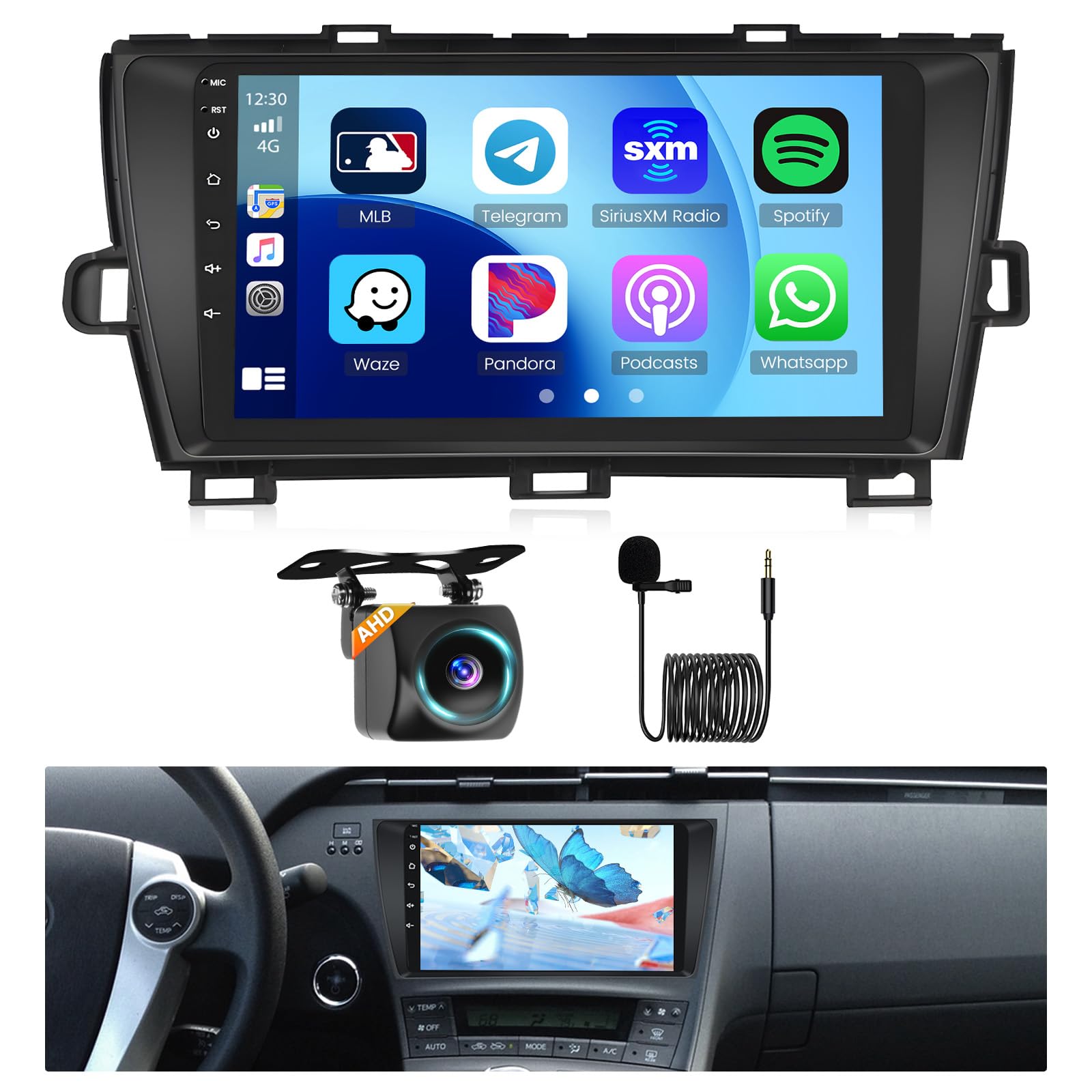
Figure 1: Roinvou 4+64G Android Radio main unit.
2. Product Specifications
The Roinvou 4+64G Android Radio features the following specifications:

Figure 2: Detailed product specifications.
| Feature | Detail |
|---|---|
| System | Latest Android System |
| Memory | 4+64GB |
| Processor | 8 Core |
| Internet Access | WiFi |
| Bluetooth Version | 5.0 |
| High Quality Sound | DSP 32EQ |
| Radio | FM RDS |
| Screen Resolution | 1280*720 |
| Carplay & Android Auto | Support Wireless and Wired |
| Mirror Link | Support Wireless and Wired |
| External Mic | Support |
| Steering Wheel Control | Support |
| Power Output | 4*45W |
| Audio Format | APE/FLAC/WAV/MP3/WMA etc |
| Video Format | MKV/RMVB/AVI/MP4/MDV etc |
3. Package Contents
The following items are included in your Roinvou Android Radio package:
- Roinvou Car Stereo for Toyota Prius
- Power Cable
- Canbus Box
- Dual RCA Harness
- GPS Antenna
- AHD Backup Camera
- External Microphone
- Rear Camera Input Cable
- Dual USB Cable
- Installation Tool & Accessories

Figure 3: Visual representation of included components and product dimensions.
4. Installation Guide
Professional installation is recommended. Ensure the vehicle's power is disconnected before beginning installation.
4.1. Compatibility Check
Verify that your Toyota Prius model (2010-2015, left-hand drive) matches the compatible configurations. The unit is designed to fit specific dashboard layouts and wiring harnesses.

Figure 4: Comparison of compatible and incompatible original car radio units for installation.
4.2. Wiring Connections
Connect the provided wiring harness cables, Canbus decoder, and frame panel to the head unit and your vehicle's existing wiring. Pay close attention to the power cable port and ensure it matches your original car's configuration.
- Canbus Box: Locate the 16-pin CAN plug on the wiring harness and connect it to the 16-pin socket of the Canbus box.
- OEM Amplifier System: If your vehicle has an OEM amplifier system (e.g., JBL), connect the red and white RCA ports of the power cord to the RCA harness.

Figure 5: Diagram showing various power cord ports and the connection point for the Canbus box.
4.3. Backup Camera Wiring
Connect the AHD backup camera using the provided rear camera input cable. Ensure proper connection for automatic display when reversing.

Figure 6: Wiring diagram for the reversing camera, showing connections to the head unit and vehicle power.
5. Operating Instructions
This section details the primary functions and operations of your Roinvou Android Radio.
5.1. Display and User Interface
The unit features a 9-inch HD capacitive touchscreen with a resolution of 1280x720 pixels. You can customize the interface:
- Backgrounds: Touch the color circle in the lower left corner of the screen to switch between 19 available backgrounds.
- Desktop Themes: Long press the main interface to switch between 59 desktop themes.

Figure 7: The 9-inch HD touchscreen display highlighting its resolution, high temperature protection, scratch-resistance, and anti-knock features.
5.2. CarPlay & Android Auto & Mirror Link
The unit supports both wireless and wired Apple CarPlay and Android Auto, as well as Mirror Link functionality.
- CarPlay/Android Auto: Connect your smartphone via Bluetooth/USB for voice-assisted control and access to phone features like music, navigation, calls, and messages.
- Mirror Link: Sync your phone's screen to the head unit via WiFi hotspot or the phone's original USB cable.

Figure 8: Illustration of wireless CarPlay, Android Auto, and Mirror Link connections.
5.3. GPS Navigation & WiFi
The built-in GPS module allows for navigation using pre-installed software or downloaded apps. Connect to WiFi via a hotspot for online maps and to download applications from the Play Store.
5.4. Bluetooth & FM/RDS Radio
- Bluetooth: With the built-in and external microphone, enjoy hands-free calling, music playback, and voice functions. Sync contacts for convenience.
- FM/RDS Radio: Access stable FM radio with 18 preset stations. Features manual, semi-automatic, and fully automatic channel search. RDS provides channel broadcasting, weather forecasts, and real-time road conditions.
5.5. AHD Backup Camera & Steering Wheel Control
- Backup Camera: When connected, the unit automatically displays the reversing image upon engaging reverse gear, enhancing parking safety.
- Steering Wheel Control (SWC): Utilize existing steering wheel buttons to control radio channels, volume, and songs for a safer driving experience. These controls can often be customized in the settings.

Figure 9: Display of the reverse camera view and an example of the steering wheel control learning interface.
5.6. UI Functions & Carplay and Android Auto & Navigation Video
Watch this video for a demonstration of the user interface, CarPlay, Android Auto, and navigation features.
Video 1: Demonstration of UI functions, CarPlay, Android Auto, and navigation capabilities of the Roinvou Android Radio.
6. Troubleshooting
This section addresses common issues and provides solutions.
- No Power: Ensure all power cables are securely connected. Check vehicle fuses.
- No Sound: Verify speaker connections. If using an OEM amplifier, confirm the red and white RCA ports are connected to the RCA harness. Check volume levels and audio settings (DSP).
- CarPlay/Android Auto Disconnects: Ensure a stable Bluetooth/USB connection. Try power cycling your phone or the car radio. Check for software updates for both the head unit and your phone.
- GPS Not Working/Maps Not Loading: Ensure the GPS antenna is properly installed and has a clear view of the sky. Verify WiFi connection for online maps. Check Play Store for map software updates.
- Radio Signal Weak/Static: Check the antenna connection. Ensure the unit is set to the correct region for FM frequencies.
- Steering Wheel Controls Not Responding: Access the factory settings (often code 1234) and configure the CANbus options to match your vehicle's year, make, and model. Perform button learning if necessary. Note that the correct year setting might differ from your vehicle's actual year (e.g., a 2014 model might require setting to 2003-2009).
- Screen Polarization Issue (Black with Polarized Glasses): This unit may have a vertical screen polarization. If you wear polarized sunglasses, the screen might appear black. There is no software fix for this hardware characteristic.
- Software Update Issues: If an automatic update fails, factory reset may be required. To perform a factory reset, you might need to wait several minutes for the option to appear. After an update, if button clicks do not match icons, hold five fingers on the screen to initiate touch point learning.
- Flimsy Mounting: The unit is primarily held by trim clips. Ensure all clips are securely engaged.
7. Maintenance
To ensure the longevity and optimal performance of your Roinvou Android Radio, follow these maintenance guidelines:
- Cleaning: Use a soft, dry cloth to clean the screen and exterior. Avoid abrasive cleaners or solvents.
- Software Updates: Periodically connect the unit to the internet to check for and install available software updates to ensure smooth operation and access to the latest features.
- Temperature: Avoid exposing the unit to extreme temperatures for prolonged periods.
8. Warranty and Support
Roinvou products typically come with a manufacturer's warranty. Please refer to your purchase documentation for specific warranty terms and conditions. For technical assistance or customer support, you can contact Roinvou directly.
Customer Support Email: roinvouservices@163.com
You may also find support resources by visiting the Roinvou Store on Amazon and clicking 'Ask a question'.


