
Introduction
Thank you for choosing the CAMWORLD AC01 4K 24MP WiFi Action Camera. This camera is designed to capture high-quality videos and photos in various environments, including underwater. Please read this manual carefully before use to ensure proper operation and to maximize your camera's performance.
The CAMWORLD AC01 features 4K video recording at 30 frames per second (fps) and 24-megapixel photo capture. It includes a dual-screen design, built-in WiFi for easy sharing, Electronic Image Stabilization (EIS), and a waterproof casing allowing submersion up to 40 meters (131.2 feet).
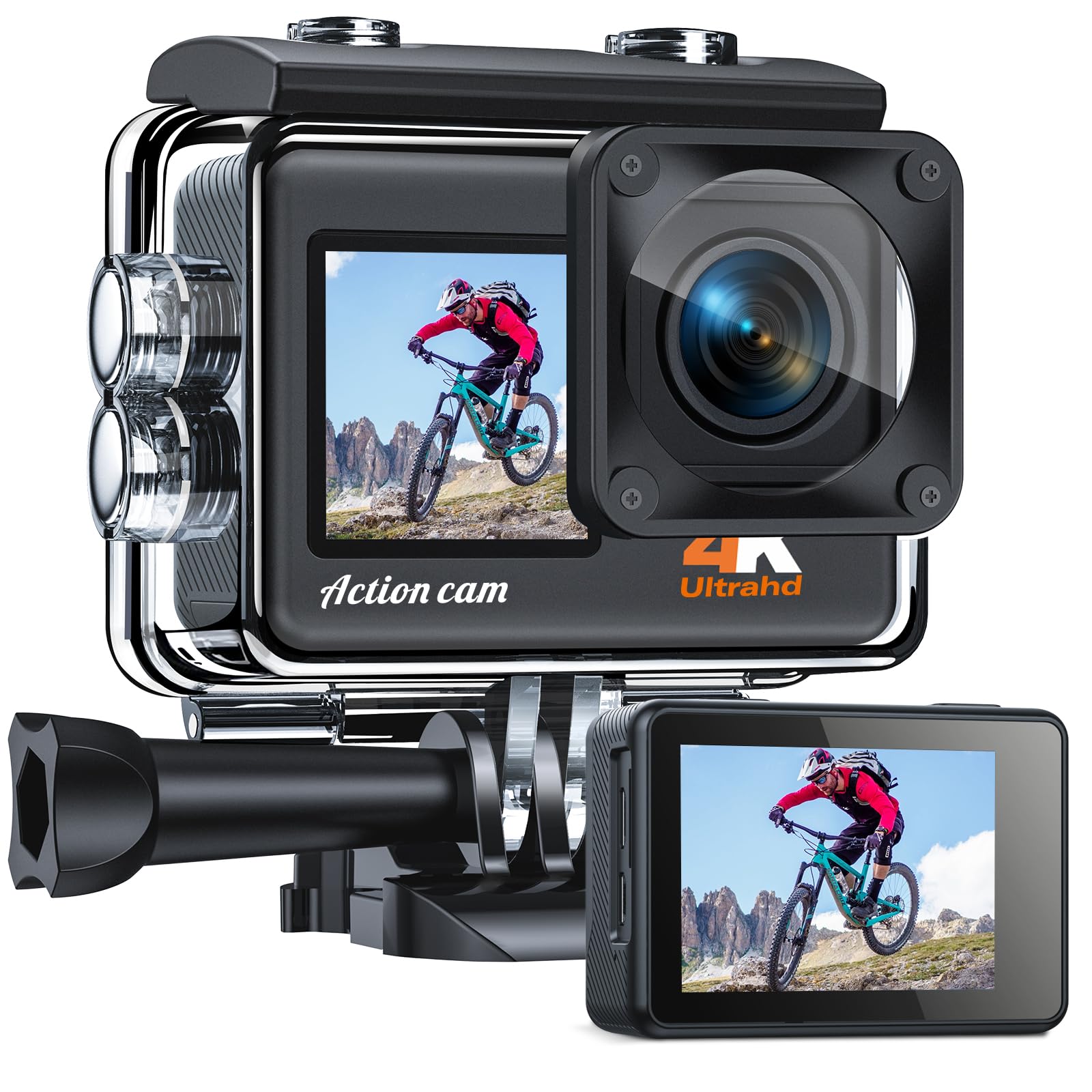
Image: Front view of the CAMWORLD AC01 Action Camera, showcasing its lens and main display.
Setup
1. Battery Installation and Charging
The camera comes with two 1050 mAh rechargeable batteries. It is recommended to fully charge both batteries before first use.
- Open the battery compartment cover on the bottom of the camera.
- Insert the battery with the correct orientation, matching the contacts.
- Close the battery compartment cover securely.
- Connect the camera to a power source using the provided USB cable to charge. The charging indicator will illuminate.
2. MicroSD Card Installation
A MicroSD card (not included) is required to store photos and videos. Use a Class 10 or UHS-I (U1) or higher MicroSD card, up to 64GB, for optimal performance.
- Locate the MicroSD card slot on the side of the camera.
- Insert the MicroSD card with the contacts facing the front of the camera until it clicks into place.
- To remove, gently push the card until it springs out.
3. Using the Waterproof Case
The camera is designed to be waterproof up to 40 meters (131.2 feet) when enclosed in its robust waterproof case. Ensure the case is properly sealed before any underwater use.
- Open the latch on the top of the waterproof case.
- Carefully place the camera inside the case, ensuring it fits snugly.
- Close the latch firmly to create a watertight seal.
- Before first use underwater, perform a test by submerging the empty case to check for leaks.

Image: The CAMWORLD AC01 Action Camera enclosed in its waterproof housing, ready for underwater use.
Operating Instructions
1. Power On/Off
- To power on: Press and hold the Power/Mode button (usually on the front or top) for a few seconds.
- To power off: Press and hold the Power/Mode button again until the camera shuts down.
2. Mode Switching
Press the Power/Mode button repeatedly to cycle through different modes: Video Recording, Photo Capture, Playback, and Settings.
3. Video Recording
The camera supports 4K video recording at 30fps. It also features Electronic Image Stabilization (EIS) for smoother footage.
- Switch to Video Recording mode.
- Press the Shutter/OK button (usually on the top) to start recording. A red indicator light will flash.
- Press the Shutter/OK button again to stop recording.

Image: A visual comparison demonstrating the effect of Electronic Image Stabilization (EIS) on video footage, showing a blurred image on the left (off) and a clear, stable image on the right (on).
4. Photo Capture
Capture high-resolution 24MP photos.
- Switch to Photo Capture mode.
- Frame your shot using the rear 2.0-inch display or the front screen for selfies.
- Press the Shutter/OK button to take a photo.
5. Dual Screen Operation
The camera features a vivid front screen for selfies and a 2.0-inch rear screen for general viewing and playback.
- The front screen is ideal for framing self-portraits or vlogs.
- The rear screen provides a clear and bright display for reviewing footage and navigating menus.

Image: The CAMWORLD AC01 Action Camera highlighting its front and rear dual screens, showing how the front screen aids in selfie composition.
6. WiFi Connectivity
Connect your camera to a smartphone via WiFi for remote control, viewing, and sharing.
- Download the companion app (e.g., XDV Pro 4K) from your smartphone's app store.
- On the camera, navigate to the settings menu and enable WiFi. The camera's WiFi name and password will be displayed.
- On your smartphone, connect to the camera's WiFi network.
- Open the app to control the camera, preview footage, and transfer files.

Image: Illustration of the CAMWORLD AC01 Action Camera's wireless WiFi connectivity, showing a smartphone app interface for remote control and sharing to social media platforms.
7. Wide Angle Adjustment
Adjust the field of view to suit your needs, with options for Wide (170°), Medium, and Narrow angles.
- Navigate to the video or photo settings menu.
- Select the 'Angle' or 'Field of View' option.
- Choose your desired angle (170°, 140°, or 100°).

Image: A visual representation of the CAMWORLD AC01 Action Camera's adjustable wide-angle feature, showing different fields of view (170°, 140°, 100°) in a landscape setting.
Maintenance
1. Cleaning the Camera and Case
- Use a soft, lint-free cloth to clean the camera body and lens.
- For the waterproof case, rinse with fresh water after saltwater use and allow it to air dry. Ensure no debris is trapped in the seals.
- Avoid using harsh chemicals or abrasive materials.
2. Battery Care
- Store batteries in a cool, dry place.
- Do not expose batteries to extreme temperatures.
- If storing for extended periods, charge batteries to about 50% capacity.
3. Storage
- Store the camera and accessories in a protective case when not in use.
- Keep away from direct sunlight, dust, and moisture.
Troubleshooting
Camera Not Turning On
- Ensure the battery is fully charged and correctly inserted.
- Try using the second battery provided.
Poor Video/Photo Quality
- Check if the lens is clean and free from smudges.
- Ensure adequate lighting conditions.
- Verify that the correct resolution settings are selected in the camera menu.
- Ensure EIS is enabled for video stabilization.
WiFi Connection Issues
- Make sure the WiFi function is enabled on the camera.
- Restart both the camera and your smartphone.
- Ensure you are within the effective range of the camera's WiFi signal.
- Confirm the correct WiFi password is entered on your smartphone.
Camera Freezes
- Remove and reinsert the battery to reset the camera.
- Ensure your MicroSD card is not full or corrupted. Try formatting the card (this will erase all data).
Specifications
| Feature | Specification |
|---|---|
| Brand | CAMWORLD |
| Model Number | AC01 |
| ASIN | B0D2W3FW79 |
| GTIN / UPC | 711696991618 |
| Video Recording Resolution | 4K |
| Effective Photo Resolution | 24 Megapixels |
| Photo Sensor Technology | CMOS |
| Video Capture Format | MP4 |
| Audio Format Supported | MP4 |
| Screen Size | 2 Inches |
| Connectivity Technology | USB, Wi-Fi (802.11a/b/g/n/ac) |
| Special Feature | Anti-shake (Image Stabilization) |
| Water Resistance Level | Waterproof (with case) |
| Included Components | 2 batteries, Underwater Camera |
| Number of Batteries | 2 A - included |
| Optical Sensor Technology | CMOS |
| Lens Type | Zoom |
| Maximum Display Resolution | UHD Pixels |
| Package Dimensions | 24.7 x 11.9 x 7.2 cm; 570 grams |
Warranty and Support
For any questions regarding your CAMWORLD AC01 4K Action Camera, please do not hesitate to contact our customer service. We are committed to assisting you within 24 hours.
Please refer to your purchase documentation for specific warranty details and contact information.


